
Microsoft Authenticator App Not Showing Code? How to Fix Missing or Invalid Codes
Published August 14, 2026 · Updated October 20, 2026
Is your Microsoft Authenticator app not showing code when you need to sign in? Or does Microsoft Authenticator display a six-digit verification code that keeps getting rejected?
Both problems can prevent access to Microsoft 365, Outlook, work or school accounts, and third-party services protected by two-factor authentication (2FA). However, the correct solution depends on whether the code is missing, invalid, expired, or not supported by your current sign-in method.
Quick Answer: If Microsoft Authenticator is not showing a code, first check whether your account uses verification codes, push approvals, or passwordless sign-in. Open the correct account entry, update the app, and confirm that your account registration is still active. If the code appears but does not work, enable automatic date and time, select the correct account, and enter a fresh code before it expires. Do not delete or reinstall Microsoft Authenticator until you have confirmed another working recovery method.
This guide covers Microsoft Authenticator codes not showing, invalid verification codes, missing accounts, phone migration problems, and work or school authentication issues.
Why Is Microsoft Authenticator Not Showing a Code?
Before troubleshooting, identify the exact problem.
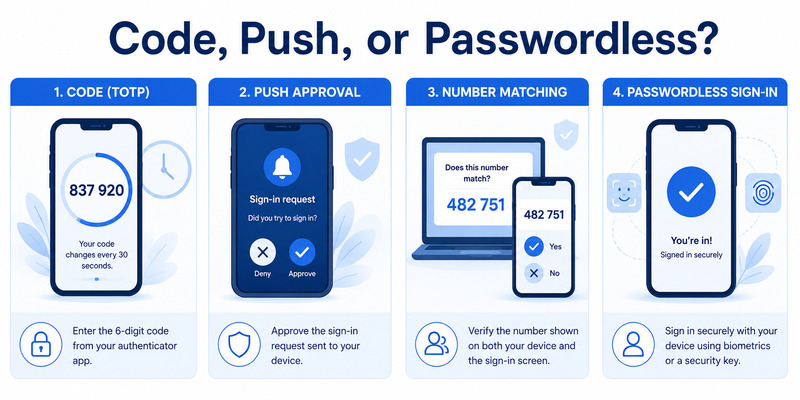
Microsoft Authenticator supports several authentication methods, and not every sign-in requires a rotating six-digit code.
Some accounts use push notifications, number matching, passwordless authentication, or passkeys instead.
Identify Your Microsoft Authenticator Problem
| What you see | Possible cause | Recommended action |
|---|---|---|
| No six-digit code | Account uses push or passwordless authentication | Check the requested sign-in method |
| Account missing from the app | Account was not restored or registered | Check backup and account enrollment |
| Code appears but is rejected | Incorrect time, wrong account, or mismatched registration | Check automatic time and use a fresh code |
| Code has expired | Temporary code changed before submission | Wait for the next code |
| “Action required” | Account needs reauthentication | Complete the account’s registration process |
| No approval notification | Notification, connectivity, or device registration issue | Check notifications and network |
| Codes disappeared after changing phones | Incomplete backup restoration | Restore or re-register supported accounts |
The most important distinction is between a code that does not appear and a code that appears but fails verification.
Does Every Microsoft Account Display a Six-Digit Code?
No.
Third-party accounts registered using standard TOTP generally display a rotating six-digit verification code.
Microsoft personal accounts and work or school accounts may use different authentication methods.
For example, a Microsoft 365 sign-in might ask you to approve a notification and enter a number displayed on your computer.
That number is not the same as a rotating authenticator code.
If your account is configured for passwordless authentication or a passkey, the absence of a visible six-digit code may be normal.
For a detailed explanation of authentication methods, see our how to use Microsoft Authenticator guide.
Download Authenticator App
Secure your accounts with fast, reliable two-factor authentication. Download now and protect your login in seconds.
Microsoft Authenticator App Not Showing Code: 5 Fixes
If your Microsoft Authenticator app is not showing code, follow these steps in order.
Start with checks that do not change or delete authentication credentials.
Fix 1: Open the Correct Account in Microsoft Authenticator
Open Microsoft Authenticator and review the accounts displayed.
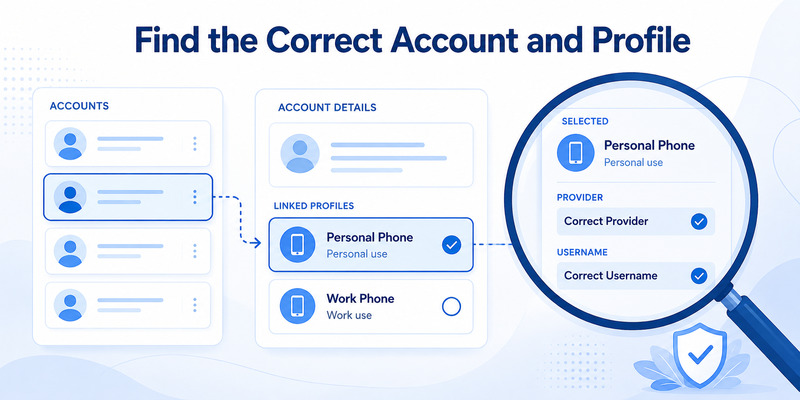
If you manage multiple accounts, make sure you select the correct one.
For example, you might have:
- A personal Microsoft account.
- A Microsoft 365 work account.
- A school account.
- A guest account associated with another organization.
- Third-party accounts such as Facebook or GitHub.
Accounts with similar email addresses can be easy to confuse.
Tap the relevant account entry and inspect its available authentication options.
If the account was registered for standard TOTP, a verification code may appear in its details.
If it only offers push or passwordless authentication, follow the method requested by the sign-in page.
Fix 2: Check Whether the Sign-In Requires a Code or Approval
Read the instructions displayed on the website or application where you are signing in.
If it says: “Enter the code from your authenticator app”
You generally need a time-based verification code associated with that account.
If it says: “Approve the sign-in request”
Open Microsoft Authenticator and look for the approval request.
If it says: “Enter the number shown on your screen”
Complete the number-matching process using the app.
Do not enter a push notification number into a TOTP verification field.
If the sign-in page provides Sign in another way, you can choose another previously registered authentication method.
Only methods already enabled for your account will work.
Fix 3: Update Microsoft Authenticator and Your Phone
An outdated application or operating system may cause compatibility and authentication problems.
To update Microsoft Authenticator:
On Android:
- Open Google Play Store.
- Search for Microsoft Authenticator.
- Select the official Microsoft application.
- Tap Update if available.
- Restart the app.
On iPhone:
- Open the App Store.
- Search for Microsoft Authenticator.
- Verify that Microsoft Corporation is the developer.
- Tap Update if available.
- Reopen the app.
Also install supported operating system updates.
Microsoft recommends keeping Authenticator current and does not support app versions that are more than 12 months old.
Updating the app is safer than deleting and reinstalling it.
Fix 4: Check App Lock, Device Profiles, and Account Details
If Microsoft Authenticator opens but you cannot find a code:
- Unlock the application using your device passcode or biometrics if requested.
- Review the entire account list.
- Open the relevant account entry.
- Check whether the account shows a message such as Action required.
- Confirm that you are using the correct app instance.
On some managed Android phones, Microsoft Authenticator may be installed separately in personal and work profiles.
An account registered in one profile may not appear in another.
If your employer manages your device, follow its approved profile and registration requirements.
Do not delete duplicate-looking accounts until you know which one is actively registered.
Fix 5: Check Whether the Account Registration Is Missing
If the account does not appear at all, it may not be registered on the current phone.
This commonly happens after:
- Changing phones.
- Restoring an incomplete backup.
- Removing an account.
- Resetting the device.
- Installing Microsoft Authenticator without restoring credentials.
If you can still sign in using another approved method, open the account provider’s security settings and check the registered authenticator.
For personal Microsoft accounts, start at: https://account.microsoft.com/security
For work or school accounts, use: https://mysignins.microsoft.com/security-info
If necessary, follow the official registration procedure to add Microsoft Authenticator again.
Important: Never remove your only working authentication method before confirming that a replacement works.
Microsoft Authenticator Code Not Working: 5 Fixes
Sometimes Microsoft Authenticator displays a verification code correctly, but the website rejects it.
This is a different issue from a missing code.
If your Microsoft Authenticator code is not working, try the following fixes.
Fix 1: Enable Automatic Date and Time
Time-based one-time passwords depend on synchronized time between your phone and the account provider.
If your phone’s clock is inaccurate, the generated code may not match the expected value.
On Android:
- Open Settings.
- Find Date & time, usually under System or General management.
- Enable automatic date and time.
- Enable automatic time zone when available.
- Restart Microsoft Authenticator.
- Try a new verification code.
On iPhone:
- Open Settings.
- Select General.
- Tap Date & Time.
- Enable Set Automatically.
- Reopen Microsoft Authenticator.
- Try a fresh code.
Menu names may vary by device.
Microsoft recommends checking the device’s date and time when troubleshooting Authenticator problems.
Fix 2: Wait for a Fresh Verification Code
Standard TOTP verification codes typically refresh every 30 seconds.
If a code is about to expire, the website may reject it before you finish entering it.
To avoid this:
- Open Microsoft Authenticator.
- Select the correct account.
- Wait for the next code if the current one is near expiration.
- Enter the new code promptly.
- Submit it before the next refresh.
Include all digits, including any leading zeroes.
Avoid copying an old code from notes, messages, or screenshots.
Fix 3: Make Sure You Selected the Correct Account
A Microsoft Authenticator verification code only works for the account and service where its authentication secret was registered.
For example, a code generated for one Microsoft account cannot authenticate a different Microsoft account.
Similarly, a code for GitHub will not work for Facebook or another service.
If you have multiple account entries:
- Compare the username shown in Microsoft Authenticator with the website’s login account.
- Check the account provider.
- Open the correct entry.
- Enter its current code.
- Retry the sign-in.
If you have duplicate entries, determine which one corresponds to the active registration before removing anything.
Fix 4: Check for an Outdated or Replaced Authenticator Registration
A code can appear in Microsoft Authenticator even when the corresponding registration is no longer valid on the website.
This may happen if you:
- Reset two-factor authentication.
- Replaced your phone.
- Registered a new authenticator.
- Changed account security methods.
- Restored an outdated backup.
In these cases, the app may still generate codes using an old authentication secret.
The website will reject them because it expects a different secret.
If you can sign in using another registered method, open the provider’s security settings and re-register the authenticator.
Do not repeatedly enter codes from an obsolete registration.
Fix 5: Use Another Approved Verification Method
If the code remains invalid, look for an option such as:
- Sign in another way.
- Use another verification method.
- Enter a recovery code.
- Use a security key.
- Use a passkey.
- Approve a request on another registered device.
The available options depend on the account provider.
If you cannot use any existing method, follow the provider’s official account recovery process.
For organization-managed accounts, contact your IT administrator.
Do not trust third-party services claiming they can bypass Microsoft Authenticator verification.
Microsoft Authenticator Codes Missing After Changing Phones
If Microsoft Authenticator stopped showing codes after you switched to a new iPhone or Android device, the problem may be related to backup and restoration.
Installing the app on a new phone does not automatically transfer every authentication credential.
Why Do Codes Disappear After a Phone Change?
Possible causes include:
- Backup was not enabled on the old phone.
- The wrong recovery account was used.
- The backup did not include the expected credential.
- The account requires reauthentication.
- The old device registration is no longer valid.
- You changed from Android to iPhone or vice versa.
Microsoft Authenticator supports backup and recovery, but the process has important limitations.
Check Your Microsoft Authenticator Backup
Microsoft’s backup recovery process is platform-specific.
You can restore a compatible Android backup to Android or an iOS backup to iOS.
Direct restoration between Android and iPhone is not supported.
Account recovery also varies by type.
| Account type | Typical recovery behavior |
|---|---|
| Third-party TOTP account | Supported codes may be restored |
| Personal Microsoft account using only OTP | Supported codes may be restored |
| Personal Microsoft account with passwordless sign-in | Additional sign-in may be required |
| Work or school account | Reauthentication or re-registration required |
An account entry showing Action required after restoration does not necessarily mean the backup failed completely.
It may indicate that the account must be reconnected to the new device.
Restore or Re-Register Missing Accounts
If your old phone is still available:
- Keep the old phone active.
- Confirm that its authenticator still works.
- Review backup settings.
- Install the official app on the new phone.
- Follow the supported recovery process.
- Reauthenticate accounts when requested.
- Test the new device before erasing the old one.
If the backup does not restore the necessary credential, use the account provider’s official security settings to register a new authenticator.
For cross-platform moves, re-register accounts rather than attempting to import an incompatible backup.
For detailed instructions, read our Microsoft Authenticator recovery guide and how to transfer authenticator to a new phone.
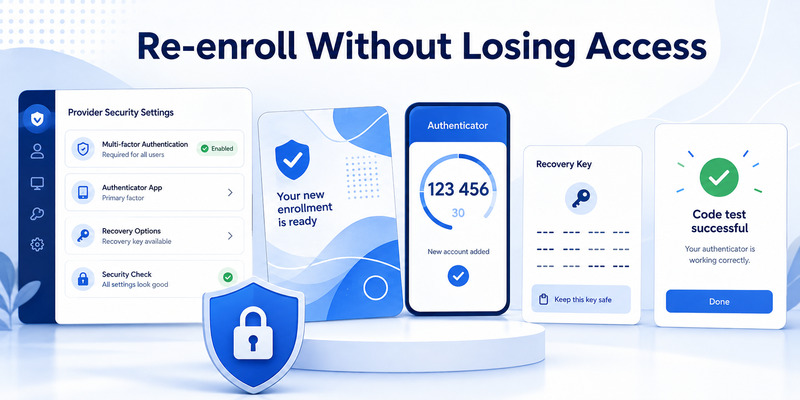
How to Re-Register Microsoft Authenticator Safely
If your code is missing or permanently invalid because of an outdated registration, re-enrollment may be necessary.
However, deleting an authenticator entry without a recovery method can lock you out.
Step 1: Confirm Another Working Sign-In Method
Before changing your authenticator setup, verify that you can still access the account using:
- A backup code.
- A passkey.
- A security key.
- Another registered authenticator.
- A trusted device or session.
- Another method approved by your account provider.
If no alternative works, stop and use official account recovery.
Step 2: Open Your Account Security Settings
For a personal Microsoft account:
- Visit https://account.microsoft.com/security.
- Sign in using a working method.
- Open the security settings.
- Review the available sign-in methods.
- Follow the instructions to add or replace Microsoft Authenticator.
For a work or school account:
- Visit https://mysignins.microsoft.com/security-info.
- Sign in.
- Review the registered authentication methods.
- Select Add sign-in method if available.
- Choose Microsoft Authenticator.
- Follow your organization’s instructions.
For third-party websites, open that website’s own two-factor authentication settings.
Step 3: Register the New Authenticator Credential
When the account provider displays a setup QR code:
- Open Microsoft Authenticator.
- Select Add account.
- Choose the correct account type.
- Scan the official QR code.
- Complete any required account verification.
- Enter a generated code or approve the test request.
- Confirm that the new method is active.
Never share the setup QR code or manual secret key.
Step 4: Test Before Removing the Old Method
After registration:
- Start a new sign-in.
- Verify that the new authentication method works.
- Confirm that your recovery method still works.
- Remove obsolete authentication methods when appropriate.
- Save any newly issued backup codes securely.
If the account provider only supports replacing rather than adding a second authenticator, make sure your fallback is working before proceeding.
Microsoft Authenticator Work or School Account Issues
Microsoft Authenticator may behave differently for personal Microsoft accounts and organization-managed accounts.
Work or school accounts can be subject to Microsoft Entra authentication policies.
Why Is My Work Account Not Showing a Verification Code?
Your organization may require:
- Push notification approvals.
- Number matching.
- Passwordless sign-in.
- Passkeys.
- FIDO2 security keys.
- Specific authentication methods.
Some organizations do not allow ordinary TOTP verification for particular applications or sign-in scenarios.
In that case, a missing six-digit code may be expected.
You cannot override an organization’s authentication policy simply by reinstalling Microsoft Authenticator.
Microsoft Authenticator Shows “Action Required”
An Action required message often indicates that an account needs additional registration or authentication.
This can occur after restoring Microsoft Authenticator to a new device.
To resolve it:
- Open the account entry.
- Follow any available reauthentication instructions.
- Check your organization’s Security info page.
- Complete the required registration steps.
- Contact IT support if the account remains unusable.
An administrator may need to reset an outdated authentication method or require MFA re-registration.
Microsoft Authenticator Not Sending Approval Notifications
If your issue is a missing push approval rather than a missing TOTP code:
- Confirm that your phone has internet access.
- Check notification permissions.
- Disable battery restrictions that prevent notifications, where appropriate.
- Update Microsoft Authenticator.
- Confirm that the correct account is registered.
- Try switching between Wi-Fi and mobile data.
- Check whether a VPN is interfering with connectivity.
Push notifications require network access.
Standard TOTP codes can be generated offline after successful enrollment.
When Should You Contact Your IT Administrator?
Contact your administrator if:
- Your work account cannot complete MFA registration.
- Your old phone is lost and no alternative method works.
- The new device shows Action required.
- Your organization requires a method unavailable on your phone.
- The sign-in process repeatedly rejects the registered authentication method.
When requesting help, provide the account type, error message, phone operating system, and app version.
Never send your password, live verification code, backup code, or authenticator setup QR code to anyone.
Frequently Asked Questions
Why is Microsoft Authenticator app not showing code?
Your account may use push notifications or passwordless authentication instead of TOTP. Other causes include selecting the wrong account, missing registration, or incomplete backup restoration.
How do I get a six-digit code from Microsoft Authenticator?
Open Microsoft Authenticator and select an account registered for TOTP verification. If the account supports that method, its current verification code should be available in the account details.
Why is my Microsoft Authenticator code not working?
Common causes include incorrect phone time, an expired code, selecting the wrong account, or using a code associated with an outdated authenticator registration.
How do I fix an invalid Microsoft Authenticator code?
Enable automatic date and time, select the correct account, wait for a fresh code, and enter it promptly. If the code remains invalid, check whether the account requires re-registration.
Why is Microsoft Authenticator not showing a code for my work account?
Your organization may require push approval, number matching, passwordless authentication, or another method instead of a rotating verification code.
Why did my Microsoft Authenticator codes disappear after changing phones?
The accounts may not have been restored correctly, the backup may be incomplete, or some credentials may require reauthentication or re-registration.
Can I restore Microsoft Authenticator codes from Android to iPhone?
Not through direct Microsoft Authenticator backup restoration. Microsoft requires backup recovery on the same device platform. Cross-platform transfers generally require account re-registration.
Does Microsoft Authenticator work without internet?
Standard TOTP verification codes can work offline after setup. Push notifications, account registration, and certain recovery functions require internet connectivity.
Should I reinstall Microsoft Authenticator if codes are missing?
Not as a first step. Reinstalling may remove locally stored authentication credentials. Confirm that you have a compatible backup or another working recovery method before uninstalling.
Why does Microsoft Authenticator say “Action required”?
The account may need additional verification or re-registration, especially after a backup restore or phone change.
Why is my Microsoft Authenticator code expired?
TOTP codes are temporary and typically refresh every 30 seconds. Wait for a new code and submit it before it expires.
Can I recover a deleted Microsoft Authenticator code?
You may be able to restore supported credentials from an existing backup. Otherwise, use the account provider’s recovery process and register a new authenticator.
Why am I not receiving Microsoft Authenticator notifications?
Possible causes include disabled notifications, network problems, battery restrictions, outdated software, or incomplete device registration.
Can I use Microsoft Authenticator on two phones?
Some account providers allow multiple registered authentication devices. However, Microsoft Authenticator backup restoration does not automatically guarantee that all accounts will work on a second phone.
What should I do if Microsoft Authenticator still does not work?
Use another registered sign-in method, follow the official account recovery process, or contact your organization’s IT administrator. Avoid deleting authentication methods until you have confirmed a working replacement.
Conclusion
If your Microsoft Authenticator app is not showing code, the first step is to determine whether your account actually requires a rotating verification code.
Some Microsoft accounts use push notifications, number matching, or passwordless authentication instead.
If the Microsoft Authenticator code is not working, check automatic date and time, select the correct account, enter a fresh code, and confirm that the authenticator registration is still valid.
For missing accounts after a phone change, use supported backup recovery or re-register the authentication method through the official account provider.
Most importantly, do not uninstall Microsoft Authenticator or delete account entries before confirming another working sign-in or recovery method.
For more help, explore our Microsoft Authenticator setup guide, Microsoft Authenticator recovery guide, and authenticator transfer guide.
