
How to Use Google Authenticator for Facebook: Complete 2FA Setup Guide
Published August 11, 2026
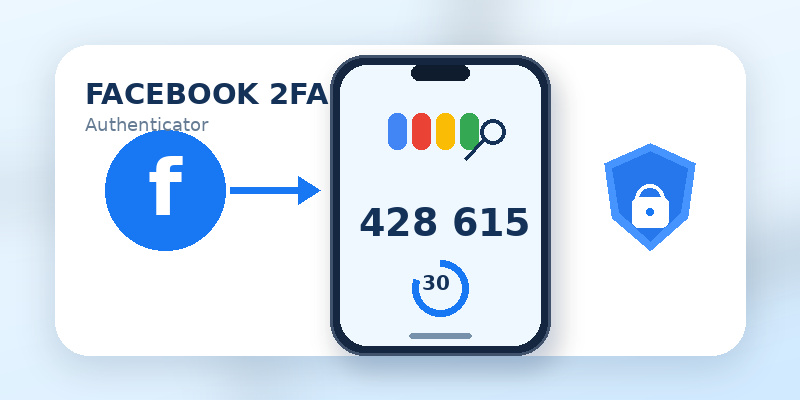
Protecting a Facebook account with only a password is no longer the only option available. Facebook supports two-factor authentication, commonly called 2FA, which can require an additional verification method when an account is accessed from a device or browser Facebook does not recognize. One practical way to add this extra verification step is to use google authenticator for facebook.
Instead of waiting for a text message, Google Authenticator generates verification codes that can be used with websites and apps that support authentication-app-based two-step verification. Facebook specifically supports third-party authentication apps, including Google Authenticator, for generating login codes.
Once configured correctly, you can use google authenticator for facebook whenever Facebook requests an authentication code during sign-in. The basic process is straightforward: enable authentication-app 2FA inside Facebook, connect the account to Google Authenticator, confirm the generated code, and keep recovery options available.
This guide explains the entire process, including setup, everyday login, common errors, changing phones, and what to do if a google authenticator facebook code is rejected.
1. What Does It Mean to Use Google Authenticator for Facebook?
To use google authenticator for facebook means connecting your Facebook account to Google Authenticator as one of your Facebook two-factor authentication methods.
Two-factor authentication adds another verification step after your password. Facebook explains that when 2FA is enabled, users may be asked for a special login code or confirmation when someone attempts to access Facebook from an unrecognized browser or mobile device.
Google Authenticator acts as the application that generates that verification code. Google states that Authenticator can generate one-time verification codes for websites and applications supporting authenticator-app-based two-step verification.
This means facebook google authenticator integration does not require your Facebook account to become a Google account. Google Authenticator simply stores the authentication configuration required to generate the appropriate codes.
After you use google authenticator for facebook, the sign-in process may look like this:
- Enter your Facebook email address, username, or phone number.
- Enter your Facebook password.
- Facebook requests a two-factor authentication code when additional verification is required.
- Open Google Authenticator.
- Find the Facebook entry.
- Enter the current verification code into Facebook.
- Complete the login.
The password remains your first authentication step. The authenticator code provides the additional verification step.
Because Google Authenticator can generate verification codes on a phone without requiring an active cellular connection, it can also be useful when SMS reception is unreliable or unavailable. Google confirms that Authenticator codes can be generated without a network or cellular connection.
📖 Read More Guides: Google Authenticator: Complete 2FA Setup & Security Guide
2. Why Use Google Authenticator for Facebook?
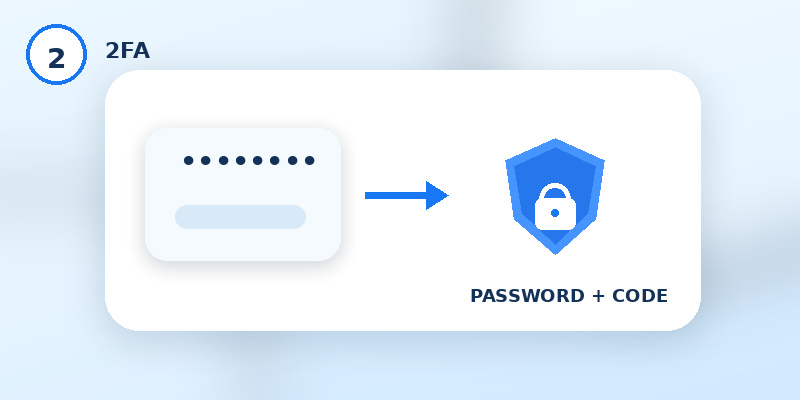
One of the main reasons people use google authenticator for facebook is to avoid relying entirely on a password for account access.
Passwords may be exposed through reused credentials, phishing attempts, compromised devices, or other account-security problems. Two-factor authentication creates another requirement beyond simply knowing the password.
With facebook 2fa google authenticator, possession of the Facebook password alone may not be enough to complete a login when Facebook asks for the second authentication factor.
Facebook officially allows third-party authentication apps, including Google Authenticator, to generate login codes.
Another advantage is availability. An SMS-based authentication method depends on access to a phone number and the ability to receive the message. Google Authenticator can generate its verification codes directly through the app without requiring a cellular connection.
There is also a convenience benefit if you already use Google Authenticator for other accounts. The application supports multiple authenticator entries, so Facebook can be managed alongside other supported services.
However, deciding to use google authenticator for facebook also means you should think about account recovery before you need it. Losing access to the phone containing your authenticator information can make signing in more difficult if no alternative authentication or recovery method is available.
For this reason, setup should include more than simply scanning a QR code. You should also review the recovery methods Facebook currently provides for your account and keep them updated.
3. What You Need Before Setting Up Facebook 2FA
Before you use google authenticator for facebook, prepare both Facebook and Google Authenticator.
First, you need access to the Facebook account you want to protect. Facebook notes that a third-party authentication app can only be added when you already have access to the Facebook account.
You will also need Google Authenticator installed on a compatible mobile device.
The google authenticator app for facebook is not a separate Facebook-specific edition of Google Authenticator. You use the standard Google Authenticator application and add Facebook as an authenticator entry.
Before beginning, it is useful to have:
- Access to your Facebook account.
- Your current Facebook password if Facebook asks you to verify it.
- Google Authenticator installed on your phone.
- Your phone available while configuring Facebook.
- Another screen, such as a computer, if you want to scan Facebook’s QR code more easily.
- Updated account recovery information.
Google Authenticator supports adding authentication information through QR codes, and Google’s documentation describes QR-code-based account transfers and authenticator setup functionality.
If you are configuring everything from one phone, Facebook may provide an alternative setup method depending on the interface presented to your account. Follow the instructions displayed by Facebook rather than attempting to reuse an old QR code from another account.
The important point is that you should finish the complete setup process before signing out of existing trusted Facebook sessions.
📖 Explore Articles: Google Authenticator MacBook: How to Use 2FA Safely on Mac
4. How to Set Up Google Authenticator for Facebook
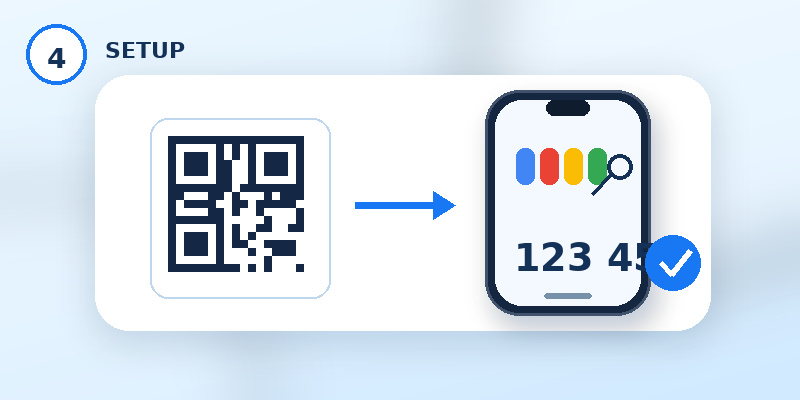
The most important part of learning how to use google authenticator for facebook is connecting the two services correctly.
Facebook currently manages two-factor authentication through Accounts Center. Facebook’s Help Center directs users through Accounts Center, Password and security, and Two-factor authentication when managing security methods.
Step 1: Open Facebook Settings
Open Facebook while signed into the account you want to protect.
Navigate to Settings and open Accounts Center. The exact position of individual buttons can differ slightly depending on whether you are using Facebook on Android, iPhone, or the web.
Step 2: Open Password and Security
Inside Accounts Center, select:
Password and security
Then find:
Two-factor authentication
Facebook may show multiple Facebook or Instagram profiles if your Accounts Center manages more than one account.
Choose the Facebook account you want to protect. Facebook’s current Help Center instructions follow this same Accounts Center → Password and security → Two-factor authentication flow.
Step 3: Choose an Authentication App
Select the authentication-app option.
This is the setting that allows you to set up google authenticator for facebook instead of depending only on SMS authentication.
Facebook identifies Google Authenticator as an example of a third-party authentication app that can generate Facebook login codes.
Step 4: Connect Google Authenticator
Facebook should guide you through connecting the authentication app.
If Facebook displays a QR code, open Google Authenticator and use its option to add an account by scanning the QR code.
Google Authenticator supports QR-based configuration for authenticator accounts.
After scanning successfully, you should see a Facebook-related entry inside Google Authenticator.
Step 5: Enter the Verification Code
Google Authenticator will begin displaying a verification code for the newly added Facebook entry.
Return to Facebook and enter the current google authenticator code for facebook when requested.
Make sure you enter the code associated with Facebook rather than a code belonging to another account stored in Google Authenticator.
Step 6: Complete Setup
Follow Facebook’s final confirmation instructions.
Do not assume google authenticator for facebook is enabled simply because Facebook appears inside Google Authenticator. Complete the confirmation process on Facebook as well.
Once Facebook confirms the authentication method, the connection is ready.
You can now use google authenticator for facebook when Facebook requests the authentication-app verification code.
5. How to Login Facebook With Google Authenticator
Once setup is complete, everyday use is much easier than the original configuration process.
To login facebook with google authenticator, start by logging into Facebook normally.
Enter your Facebook credentials. If Facebook determines additional verification is required, it may display a screen requesting your authentication code. Facebook states that users with two-factor authentication enabled can be asked for a login code or login confirmation when accessing the account from a device or browser Facebook does not recognize.
At this point:
- Keep the Facebook verification screen open.
- Open Google Authenticator.
- Find the Facebook entry.
- Read the currently displayed code.
- Return to Facebook.
- Enter the code.
- Continue signing in.
You do not need to create a new connection every time you use google authenticator for facebook.
The initial QR code is primarily part of the setup process. Normal login uses the continuously generated authentication codes associated with the Facebook entry already stored in your authenticator.
If you have many accounts inside Google Authenticator, double-check the account label before copying the code. Entering a code belonging to another service is one of the simplest reasons an authentication attempt can fail.
The google authenticator app facebook workflow should therefore become:
Password → Facebook requests 2FA → open Authenticator → enter Facebook code → continue.
6. Where to Find Your Google Authenticator Facebook Code
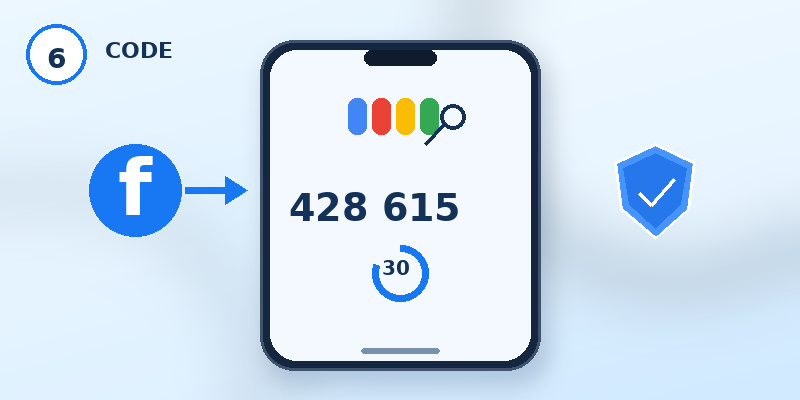
A common source of confusion is where the Facebook verification code actually appears after setup.
When you use google authenticator for facebook, open Google Authenticator directly.
Look through your Authenticator entries for the one associated with Facebook. Google Authenticator supports storing multiple authenticator entries and generating verification codes for supported services.
The number shown beside the Facebook entry is the google authenticator facebook code you should use when Facebook asks for the authentication-app code.
You normally do not receive this code by SMS.
You also do not need to open a Google Account security page every time you log into Facebook. The Facebook authenticator entry exists inside the Authenticator app after configuration.
When entering the code:
- Confirm the code is from the Facebook entry.
- Enter it before it changes.
- Avoid adding spaces unless Facebook’s interface does so automatically.
- If it changes while you are typing, use the newly displayed code.
- Make sure your phone’s date and time settings are accurate.
Because Google Authenticator uses time-based verification codes for services that support that method, codes change periodically rather than remaining permanent. Google Authenticator officially supports time-based code generation.
Never treat an active authenticator code like a permanent password. Use the current code when Facebook requests it.
📖 Explore Articles: Google Authenticator for PC: Windows, Desktop and Laptop Guide
7. Fix Google Authenticator Code Not Working on Facebook
Occasionally, you may use google authenticator for facebook and receive an error saying the verification code is incorrect.
Several checks can help identify the problem.
Check That You Selected the Facebook Entry
If your authenticator contains multiple accounts, confirm that you are entering the Facebook code.
A Gmail, Microsoft, Discord, or another service’s authenticator code will not authenticate your Facebook login.
Wait for a Fresh Code
If the code is about to change, wait until Google Authenticator displays the next one and enter it immediately.
This can help when a code expires during the time required to switch between applications.
Check Your Device Time
Automatic date and time settings are generally preferable when using time-based authentication codes because the authenticator and service need to calculate compatible time-based values.
Google Authenticator supports time-based one-time code generation.
Do Not Scan the Setup QR Code Repeatedly
Once facebook 2fa google authenticator has been configured successfully, you usually do not need to scan the original setup QR code every time you sign in.
Your normal login requires the generated code, not repeated account setup.
Check Whether Facebook Is Asking for a Different Method
Read the Facebook screen carefully.
Facebook may offer or request different security methods depending on your account configuration. Make sure the page specifically expects a code from your authentication app before entering Google Authenticator numbers.
Use Facebook’s Recovery Flow When Necessary
If you cannot complete 2FA login, Facebook’s Help Center describes a recovery path that can include selecting another authentication option or requesting additional help.
Do not repeatedly remove and recreate your authenticator configuration unless necessary. If you still have an active Facebook session on another trusted device, keep it signed in while resolving the problem.
Download Authenticator App
Secure your accounts with fast, reliable two-factor authentication. Download now and protect your login in seconds.
8. What to Do When Moving Google Authenticator to a New Phone
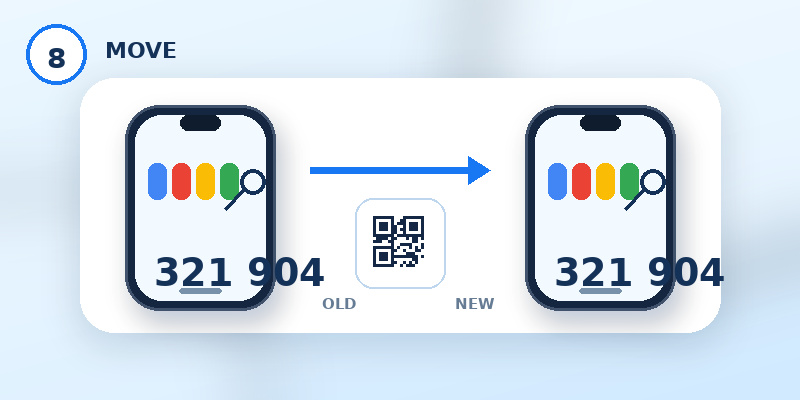
Changing phones requires extra care if you use google authenticator for facebook.
Do not erase your old phone before confirming that you can still generate the authentication codes you need.
Google Authenticator provides account-transfer functionality using QR codes. Google’s instructions describe exporting authenticator accounts from the old device and importing them on the new device by scanning the generated QR code.
A safer migration process is:
- Keep your old phone available.
- Install Google Authenticator on the new phone.
- Transfer or restore the authenticator entries using the options available to you.
- Confirm Facebook appears correctly.
- Test that the Facebook authenticator code is available.
- Review Facebook recovery methods.
- Only then reset or dispose of the old device.
If you previously enabled Google Authenticator’s account-sync capabilities, your authenticator entries may also be available after signing into the appropriate Google Account, depending on how you configured the app. Google’s documentation notes that Authenticator can save codes to a Google Account for access on other devices.
The key lesson is simple: when you use google authenticator for facebook, the authenticator becomes an important part of account access. Treat phone migration as a security task rather than simply installing the app again.
9. Security Tips for Facebook 2FA
Knowing how to use google authenticator for facebook is only one part of protecting your Facebook account.
Good account security also involves protecting your password, recovery options, email account, and devices.
Keep Your Facebook Password Unique
Avoid using the same password across multiple services. If one account is compromised, password reuse can expose additional accounts.
Never Share Authentication Codes
A genuine google authenticator code for facebook should be treated as temporary authentication information.
Do not send an active code to another person simply because they claim they need it to verify your account.
Protect Your Phone
Your authenticator device should have its own screen lock, PIN, password, or biometric protection.
Review Recovery Options
After you use google authenticator for facebook, review the recovery and additional authentication options available inside Facebook.
Recovery preparation matters because losing your authenticator device can otherwise make account access significantly more difficult.
Keep Existing Sessions During Major Changes
If you are changing phones, passwords, authentication methods, or recovery information, avoid signing out of every trusted Facebook session until you have verified the new setup.
Check Facebook Security Settings Periodically
Facebook currently places 2FA management under Accounts Center → Password and security → Two-factor authentication.
Checking this area periodically can help ensure that your intended authentication methods and account information remain correct.
10. Common Questions About Google Authenticator and Facebook
Can I really use Google Authenticator with Facebook?
Yes. Facebook’s Help Center explicitly lists Google Authenticator as an example of a third-party authentication app that can generate Facebook login codes.
Therefore, you can use google authenticator for facebook by selecting an authentication app as your Facebook two-factor authentication method and completing the setup process.
Is there a separate Google Authenticator app for Facebook?
No separate Facebook edition is required.
The phrase google authenticator app for facebook refers to using the regular Google Authenticator application with a Facebook authenticator entry configured inside it.
Google Authenticator is designed to generate verification codes for websites and apps supporting authenticator-app-based verification.
Do I need internet access to get the Facebook code?
Google states that its Authenticator application can generate verification codes without a network or cellular connection.
Therefore, once setup is complete, the code-generation process itself does not depend on receiving an SMS message.
You will still need the appropriate connection to actually access Facebook online.
Why is Facebook asking for Google Authenticator?
If you previously configured an authentication app as part of Facebook 2FA, Facebook may request a code from that method when additional login verification is required.
Open Google Authenticator and locate the Facebook entry.
Can I use the same Authenticator for multiple Facebook accounts?
Google Authenticator can manage multiple authenticator entries.
However, each Facebook account must be configured correctly with its corresponding authentication information.
Labeling and checking accounts carefully becomes especially important if several similar Facebook entries appear inside the app.
What happens if I delete Facebook from Google Authenticator?
Removing an authenticator entry does not automatically mean Facebook has disabled two-factor authentication.
If Facebook still expects authentication-app verification but you can no longer generate the matching code, you may have difficulty signing in.
Before removing an entry, update or disable that authentication method from Facebook while you still have account access.
What happens if I lose my phone?
If you cannot access your authentication app, use the alternative verification or recovery options available for your Facebook account.
Facebook’s troubleshooting guidance says users who cannot log in through 2FA may be able to choose another authentication method or follow additional account-recovery instructions.
This is why recovery planning should be completed when you first use google authenticator for facebook, rather than after the phone has already been lost.
Is Facebook 2FA difficult to use every day?
After the first configuration, the process is usually short.
When Facebook requires additional verification, open Google Authenticator, locate Facebook, and enter the current code.
You do not have to repeat the QR-code setup for each login.
Conclusion
Learning how to use google authenticator for facebook gives you another way to protect access to your Facebook account beyond relying on a password alone.
The setup is handled through Facebook’s security settings. Open Accounts Center, select Password and security, go to Two-factor authentication, choose the Facebook account, and select an authentication app. Facebook officially supports third-party authenticator apps such as Google Authenticator.
After connecting the account, Google Authenticator generates the verification codes you can enter whenever Facebook requests authentication-app verification.
The most important part of use google authenticator for facebook is not simply enabling the feature. Make sure you also understand where your codes are stored, keep your phone protected, review Facebook recovery methods, and carefully transfer your authenticator when moving to a new device.
If a code stops working, first check that you selected the correct Facebook entry, use a fresh code, verify your phone’s time settings, and confirm Facebook is actually requesting an authentication-app code.
With these steps completed, use google authenticator for facebook becomes a simple routine: enter your Facebook password, open your authenticator when verification is requested, enter the current Facebook code, and continue securely into your account.
Download Authenticator App
Secure your accounts with fast, reliable two-factor authentication. Download now and protect your login in seconds.
