
Is My Password in a Data Breach? How to Interpret the Warning
Published October 21, 2026
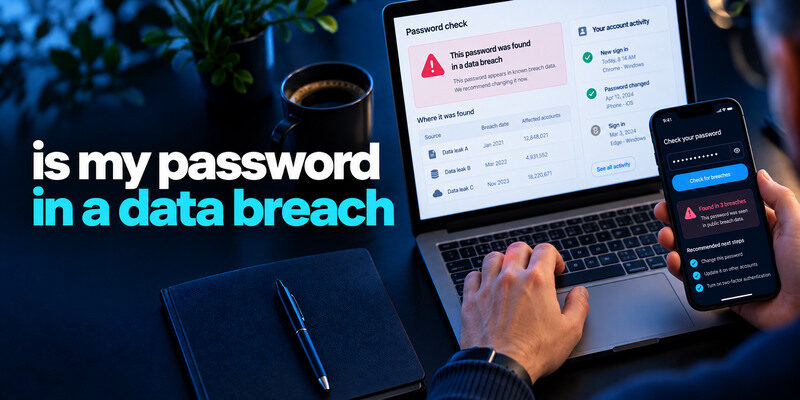
Your password may be in a data breach if a trusted password manager flags it as compromised, an affected service confirms credential exposure, or the genuine Pwned Passwords service finds the password string in its known corpus. A match does not prove your particular account was entered; a clean result does not guarantee the secret is private. If the current password is exposed or reused, replace it with a new independent credential and inspect the accounts where it was used.
Identify which warning you actually received
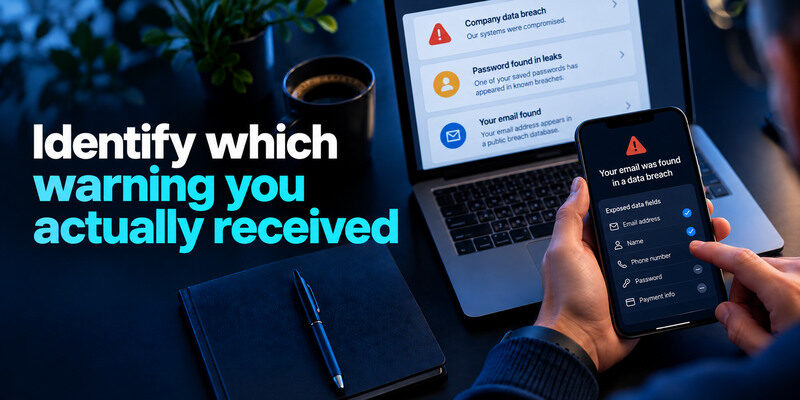
A company may notify you that its database was breached. A manager may warn that one saved password appears in known leaks. Have I Been Pwned may list your email address in a breach, which is not the same as confirming the current password was in that record. Read the exact wording and affected data fields before deciding what to change.
| Warning | What it supports | Next check |
| Provider says passwords exposed | Your account may be in incident scope | Follow official account-specific notice |
| Manager marks saved password compromised | That credential is risky | Verify site and replace it |
| Pwned Passwords matches string | String appeared in known corpus | Stop using it everywhere |
| Email address appears in breach | Address was in known dataset | Read whether credentials were involved |
| Unknown successful login | Possible account takeover | Revoke sessions and secure recovery |
A common string can match without your account leaking
A password chosen by many people may appear in a corpus because someone else used it. It is still unsafe for your account because attackers can try known strings. Replace it with a generated unique password. The question “is my password in a data breach?” is often practical rather than forensic: a matching string should not remain your secret.
Even if a compromised-password match came from another person’s account, the matching string is no longer a safe choice. Follow our guide on how to generate a strong password to create a unique replacement that is not based on predictable variations of your old credentials.
A hash notice deserves attention
A provider may say hashed passwords were exposed rather than plain text. The practical risk depends on its hashing design and your password’s strength. Follow its official advice, replace the credential, and change reused copies. Do not assume “hashed” means no action is needed or claim every hash was cracked.
Secure your accounts with fast, reliable two-factor authentication. Download now and protect your login in seconds.Download Authenticator App
Check the password without handing it to a scammer
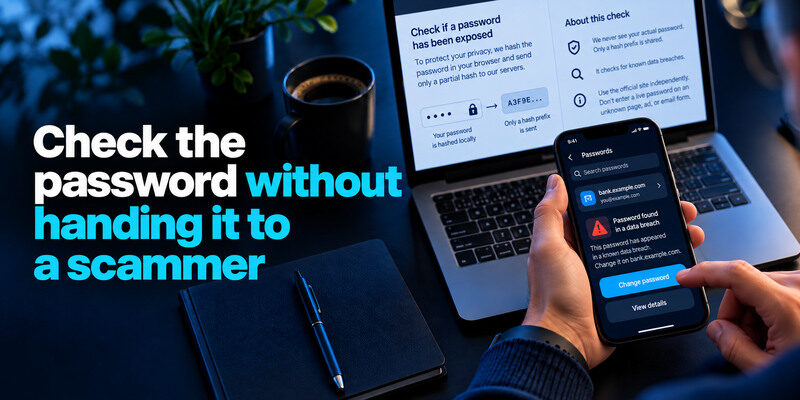
Open your existing Google Password Manager, Apple Passwords, or another trusted manager’s security warning. If using Pwned Passwords, navigate to the genuine HIBP site independently and read its documented privacy-preserving lookup; it hashes the submitted string in the browser and sends only a hash prefix. Do not enter a live password into an unknown scan page, ad, or emailed form.
Have I Been Pwned offers different checks for email exposure and known compromised password strings. If you are unsure how to interpret the results, read what is Have I Been Pwned to understand what the service can identify and why a positive match does not automatically prove your account was hacked.
Search a saved credential in context
A manager associates the warning with a domain and username. Confirm the entry is current rather than an old duplicate. Visit the actual site and change its password; editing the manager entry alone does not update the account. Sign out and back in once to verify the replacement before deleting the stale entry.
Some credential-management tools combine password storage, compromised-password warnings, and support for time-based verification codes. Our guide to a password manager app with built-in 2FA support explains the benefits and recovery tradeoffs of managing multiple authentication factors in one application.
An email lookup answers a different question
Searching your address in HIBP may identify an affected service and exposed data classes, but it cannot automatically tell you that today’s password for a different service was included. Compare the incident date with when you changed credentials and whether the same old secret was reused. Do not send the password to a company to ask whether it was in its records.
Decide what to replace
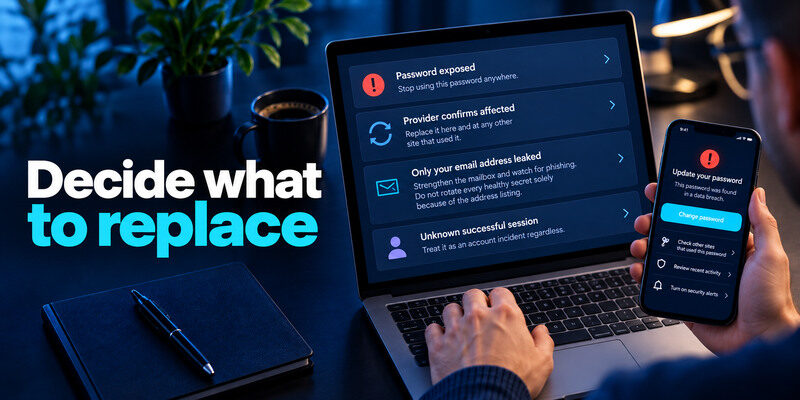
If the password string is known exposed, stop using it anywhere. If a provider confirms your credential was affected, replace it there and at any other site that used it. If only your address was leaked and all passwords are unique, strengthen the mailbox and watch for phishing, but do not rotate every healthy secret solely because of the address listing. If an unknown successful session exists, treat it as an account incident regardless of the corpus result.
Start with the reset chain
Primary email and the password manager can unlock other accounts. Secure them first with unique credentials, strong MFA, and current recovery. Then prioritize financial, work, and social accounts. A reused password at an obscure old site can still threaten a high-value account if the string was the same.
After replacing exposed passwords, review whether your important accounts support an additional sign-in factor. An authenticator app can generate temporary verification codes for compatible services, reducing the risk of password-only account takeover. Confirm that your recovery methods work before changing existing authentication settings.
Generate unrelated replacements
Use a manager to make a distinct random password for each site. Avoid a base phrase plus a year or site name. NIST guidance favors length and screening common or compromised choices over arbitrary symbol rules and routine changes. Here exposure is a real reason to replace the secret. Save the new entry at the genuine domain and test it.
Check whether the account was used
Inspect the provider’s recent successful sessions, devices, recovery methods, messages, and purchases. A breach listing alone does not show a login. If an unknown session appears, revoke it, correct recovery, and review connected apps. A password reset may not end every active browser or app token. Contact a bank or work security team if their systems were affected.
Failed attempts are a different clue
An attacker may try a leaked old pair and fail because you changed the password. Confirm no successful event followed. If MFA prompts arrive unexpectedly, deny them and inspect activity. Do not approve a request to make the notifications stop. Location can be distorted by VPNs or mobile networks, so compare device and status.
Look at the device if the new secret leaks
Recurring unauthorized access after unique replacements can point to a malicious extension, infected device, or compromised recovery route. Change credentials from a trusted device after cleanup. A checker cannot diagnose the source of a continuing leak by itself.
Add a second factor with a recovery plan
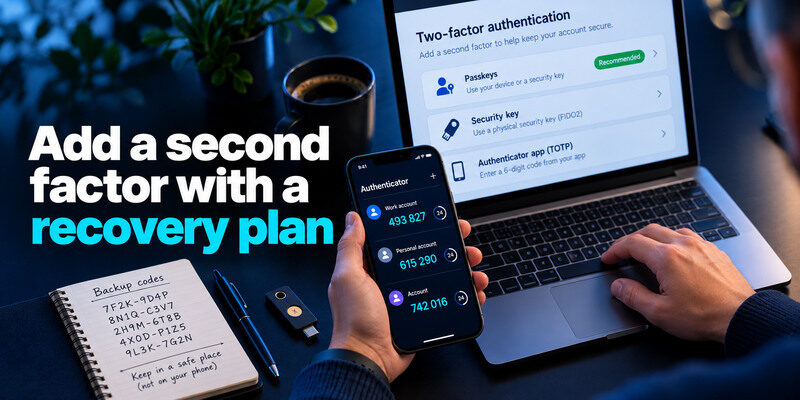
Passkeys or security keys are strong options on services that support them and where you can maintain backup access. TOTP is widely supported; can generate codes for compatible accounts. Save backup codes outside the phone, test a fresh login, and never share a live code. MFA helps against password-only sign-ins, but cannot undo past data exposure or revoke a stolen session automatically.
Passkeys and security keys offer phishing-resistant authentication where supported. For services that support time-based verification codes, a TOTP authenticator app can generate temporary codes after enrollment. Save backup codes securely, test a fresh sign-in, and remember that MFA does not automatically revoke stolen sessions or remove exposed data.
Protect the recovery email
If an attacker controls the mailbox that resets the affected service, changing the site’s password will not hold. Verify the email provider’s sessions, forwarding, and recovery methods. Remove unauthorized entries. Keep the backup route available to you but protected from casual access.
Do not reuse a recovery code
Service backup codes are distinct secrets. If they were exposed with the password or shared with an untrusted person, regenerate them through the provider’s settings. Do not keep the only copy inside the account they unlock. A lost phone should be inconvenient, not a permanent lockout.
If you use Microsoft Authenticator, prepare alternative sign-in and recovery methods before replacing your phone. Our guide to Microsoft Authenticator app recovery explains important backup considerations and why restoring an app does not always restore access to every connected account automatically.
What if no checker reports the password?
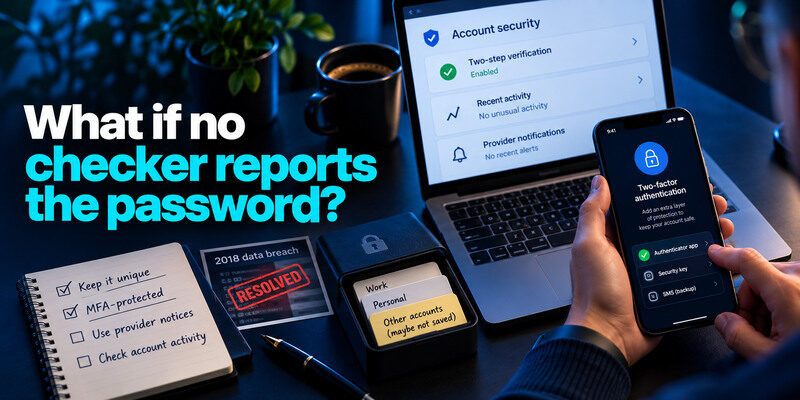
Keep it unique and MFA-protected. Known datasets are incomplete, and phishing or malware can expose a password privately. A negative result cannot override direct signs of account misuse. Do not repeatedly type the secret into new websites seeking certainty. Use provider notices and account activity as additional evidence.
An old leak may already be resolved
If the leaked string was replaced years ago and is no longer used at any service, the historical corpus entry remains but may have little current login value. Check that no forgotten account still uses it. Monitor for targeted phishing if the email address also appeared.
A clean vault may hide unsaved accounts
A manager can flag only credentials it knows. Old logins saved in another browser or never stored there need a separate inventory. Move them to unique generated secrets as you encounter them. Do not upload an exported vault to a random audit site.
Decide what the alert actually requires
A browser may flag a saved password as compromised, while a public email lookup may list an incident involving the same address. These are different observations. The first points to a specific saved secret to change; the second may or may not include password data. Read the underlying details before rotating unrelated accounts, but act promptly when a current or reused secret is known to be exposed.
A case with no visible takeover
If a compromised password is found but the account shows no unknown session, replace it anyway, remove copies elsewhere, and enable MFA. A lack of visible misuse does not make the old secret suitable for continued use.
A case with a successful unknown login
Revoke sessions and inspect recovery details, purchases, messages, and connected apps. Secure primary email first if it can reset the affected account. Keep a timeline for support without sharing the leaked password.
Known compromised password|Replace at every site where reused|
Email in breach, no password field|Review listed data and phishing risk|
Unknown successful session|Revoke, recover, inspect account changes|
No checker match|Maintain uniqueness; investigate other evidence|
Frequently Asked Questions
Can I find the exact leaked password tied to my email?
Public breach services generally avoid exposing that mapping to arbitrary searchers. Use your own provider notice, saved-password warnings, and known reuse history. Do not pay a site that promises to reveal other people’s live credentials.
If a password appears in Pwned Passwords, was I hacked?
No. The string appeared in known data; your specific account may not have been used. Replace the string everywhere and inspect actual account activity for takeover evidence.
Does changing the password erase it from the breach corpus?
No. Historical records remain. The goal is to stop using that old secret, not to make the dataset forget it. Verify that the new password is unique and save it safely.
Should I change my password after an email-only breach?
Not automatically if the credential was unique and not exposed. Review the provider’s exact data classes and secure the mailbox. Change any reused or weak secret independently and follow later notices.
Final Thoughts
A password warning is valuable when interpreted precisely: a known string, an account-specific incident, and a successful attacker login are different findings. Replace exposed or reused secrets, verify the new sign-in, revoke suspicious sessions, and keep recovery protected. Avoid creating a fresh leak during the check.
