
How to Secure Your Social Media Accounts Across Platforms
Published October 9, 2026
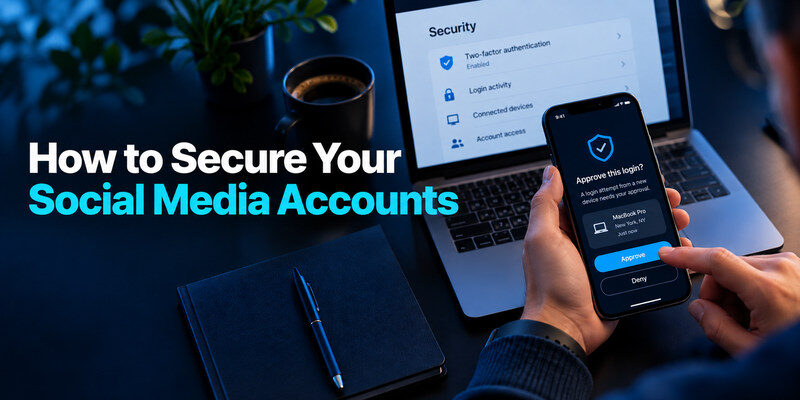
To secure your social media accounts, give each platform a unique password, enable strong two-factor authentication, verify recovery details, and remove devices or apps you no longer trust. Start with the email account that can reset those profiles. Then check who can post, message, or run ads through each account, because a takeover can harm followers even if your private data looks untouched. This guide is a practical protection workflow for personal and creator accounts, with platform differences called out where they affect ownership.
Inventory profiles and their reset paths
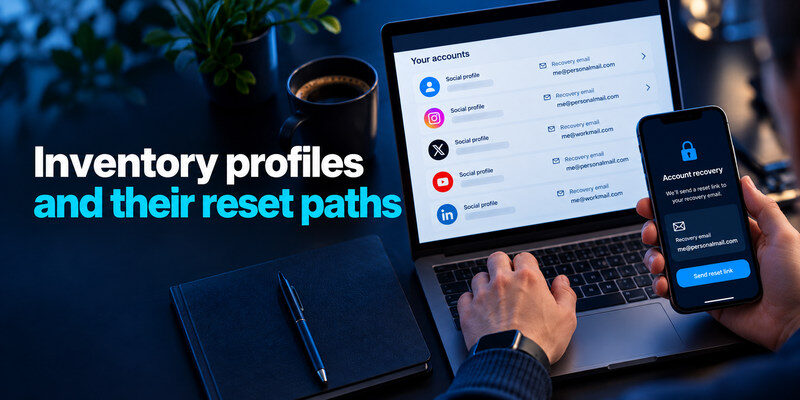
List the platforms you actually use, the email or phone tied to each, and any linked login such as a Google, Apple, or Meta account. Note business Pages, ad accounts, and third-party publishing tools separately. A forgotten profile may still carry your name and be used to message friends. Do not put live passwords in this inventory; it is a map of what to secure and who owns access.
The primary email is the root
If an intruder controls the inbox that receives reset links, a new social password may be short-lived. Secure email first with a unique credential and independent factor. Check forwarding rules, recovery address, active sessions, and connected apps. If you use a work mailbox for a creator account, decide what happens when a team member leaves before making that address the sole owner.
Find dormant accounts
Search for old profiles associated with your phone number or email through the platforms’ official account tools. Sign in, update weak credentials, or close accounts you no longer need through the provider’s process. Do not use a third-party “find all accounts” site that asks for your email password. A dormant account can still be an impersonation or recovery risk.
Reusing one password across multiple social platforms can turn a single data breach into several compromised accounts. Our guide on how to generate a strong password explains how to create unique, unpredictable credentials and avoid patterns that attackers can guess.
Secure your accounts with fast, reliable two-factor authentication. Download now and protect your login in seconds.Download Authenticator App
Replace reuse with unique credentials
Generate a distinct password for each platform and save it in a reputable manager or an approved device password tool. Avoid changing only the site name in a shared base phrase. If one service exposes a reused credential, attackers can try it elsewhere. Review where passwords have been shared by chat or stored in a team spreadsheet; rotate those accounts and move authorized access to named seats where possible.
Do not share the owner password for a Page
Business tools often let you invite another person with a role. Use that instead of giving a social-media owner password to a contractor. Named roles make it easier to remove access without changing everyone else’s login. Review Page, ad, and commerce permissions, not only the profile’s main login. A former agency member may retain a role even after the owner password changes.
Verify autofill on the real domain
Social phishing pages often imitate an account-warning screen. Open the app or use a known bookmark to sign in, and inspect the domain before entering a password. If your password manager refuses to fill on an unexpected site, treat that as a warning. Copying the password manually bypasses that signal; pause and verify the page rather than assuming autofill is broken.
If you manage several social media accounts, a password manager can help you create and store a different password for each platform. Our guide on how to use a password manager explains how to save logins, generate unique credentials, configure autofill, and verify account access across your devices.
Turn on MFA and save the recovery route
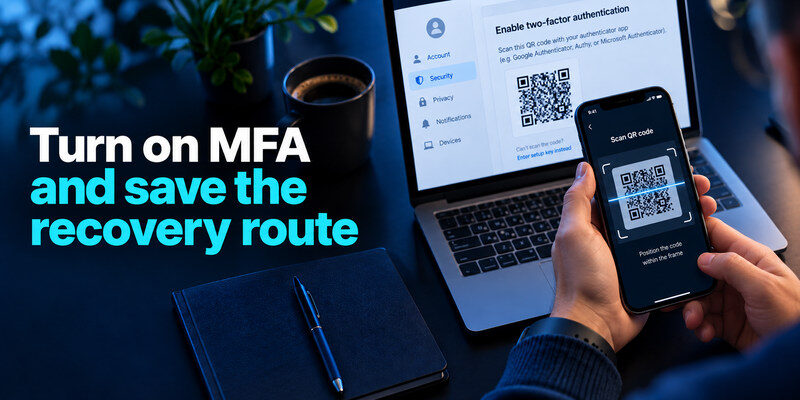
Enable the strongest practical method each platform supports: a passkey or security key where available, otherwise an authenticator app, with SMS as a fallback when better options are unavailable. Save backup codes and register a backup factor where supported. Facebook’s Help Center describes login alerts and two-factor authentication; TikTok’s account-safety guidance describes two-step verification and trusted-device review. Specific menu names and options can move, so use each platform’s current security section.
| Account situation | Useful method | Recovery check |
| Personal profile | Authenticator or supported passkey | Backup codes and email |
| Creator with ad spend | Strongest supported factor | Second authorized owner |
| Shared Page | Named roles, not one password | Remove old roles and sessions |
| Account on lost phone | Provider recovery, backup factor | Test new device before old is wiped |
Keep a TOTP secret separate when it matters
For a standard authenticator-code setup, can generate the code on a trusted device. It is useful if the social password lives in a vault and you want an independent factor. Scan the QR in the platform’s official setup, verify a current code, and save the platform’s backup codes separately. A screenshot of the QR seed is a sensitive copy, not a harmless tutorial image.
A creator account needs continuity
If a Page or channel pays the bills, keep a second authorized administrator where the platform supports it and document recovery ownership. Do not make one employee’s personal phone the only way into a business account. Register backup methods and test a handover before a campaign deadline. A shared authenticator without a transfer plan can create the next lockout even if it prevents an attack today.
Facebook supports app-based two-factor authentication through its account security settings. For detailed instructions, our Facebook authenticator setup guide explains how to connect a compatible authenticator app, verify your temporary code, and prepare recovery methods before you lose access to your phone.
Review active sessions and connected apps
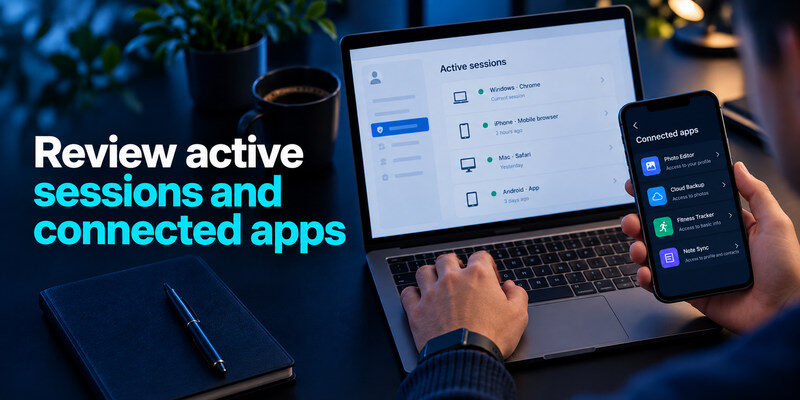
Open the platform’s official security area and inspect devices, login alerts, authorized apps, website integrations, and active sessions. Remove a device you sold or an app you no longer use. Some scheduling, analytics, and cross-posting tools have permission to publish or read messages, so a password change may not revoke them automatically. Record legitimate integrations before removing one so you can reconnect it deliberately.
Watch for permissions beyond posting
An app might receive access to profile data, messages, ad management, or business assets. Review its actual scope and owner. If it belongs to a former contractor, remove it and reauthorize through a company-controlled account if still needed. A forgotten token can be more persistent than a memorized password. In team accounts, review roles and connected business assets on a schedule tied to staffing changes.
Sign out after a credible intrusion
If an unknown successful session appears, change the password from a trusted device, revoke unfamiliar sessions, correct recovery settings, and inspect sent messages and posts. Some platforms offer a “sign out everywhere” control; verify what it covers. Do not sign out of the only working trusted device before you confirm a recovery factor if an attacker already changed MFA.
Protect followers and private conversations
Review direct messages, scheduled posts, stories, ad campaigns, payment methods, and profile links. An attacker may send investment scams to contacts or change the link in a bio rather than delete the account. Warn affected people through a different trusted channel if fraudulent messages went out. The FTC advises notifying contacts after a hacked email or social profile.
Check financial and business features
Creator and business accounts may have saved cards, ad spend, shops, or payout information. Audit changes to payment methods, recipients, and administrators. Contact the platform and bank through official channels if charges or transfers are unauthorized. A restored profile login does not automatically reverse a fraudulent ad campaign or payment change.
Preserve a short timeline
Record when the alert appeared, what messages or posts changed, which sessions were removed, and whom you notified. Do not copy live codes or passwords into the record. For a workplace profile, share the timeline with the business owner or security team. A clear timeline helps the provider evaluate a report and helps the team avoid repeating half-finished cleanup.
Use platform-specific recovery when locked out
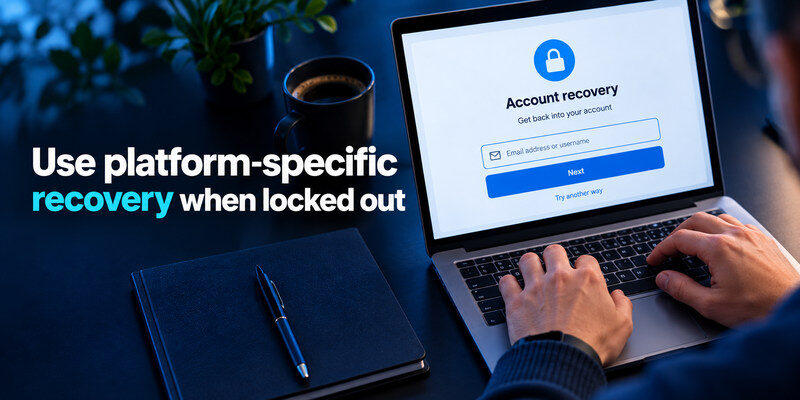
Facebook publishes a hacked-account route and suggests using a device previously used for that account. Other social services have their own official recovery screens and may ask for email, phone, device, or identity information. Follow the exact provider’s help center rather than a generic “recovery agent” found in comments. Do not pay a stranger who claims they can bypass MFA.
Restore email before the profile
If an attacker changed the profile email, check notices sent to the old address through the platform’s official process. If the old mailbox is compromised, secure or recover it separately. After regaining the social account, remove unauthorized roles, apps, and recovery methods before inviting collaborators again. Test a fresh sign-in on a second trusted device and replace old backup codes if the service issues new ones.
Do not erase the evidence of impersonation
If a cloned profile exists, use the platform’s impersonation-reporting flow and ask contacts to report it, but distinguish that from a takeover of your real account. The actions differ: a clone does not mean your login is compromised, while a successful unknown session on the real profile does. Preserve screenshots of the clone’s URL and messages without engaging the scammer.
A monthly five-minute maintenance pass
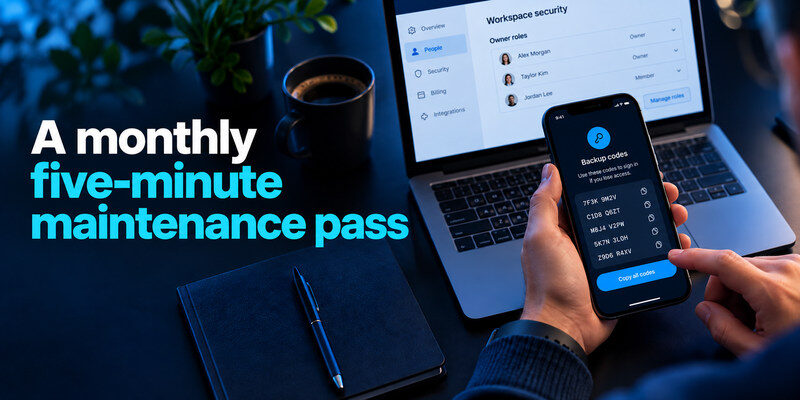
Review devices, roles, apps, recovery contacts, and any high-impact privacy changes. Check the main email first after changing phones or employers. Remove stale publishing integrations and former collaborators. You do not need to change a strong unique password simply because a month has passed; change it when exposure or unauthorized activity is credible. A short repeatable check is more likely to happen than a full annual overhaul.
Review a retired profile
A dormant profile can still be used to impersonate your brand if its recovery contact belongs to a former employee. Sign in, verify its owner, and decide whether to secure, archive, or close it through the platform’s official flow. Check whether old social links on your website still point there. Do this before directing a campaign to an account no one can recover.
Test ownership before a campaign
Before spending money or launching a large post, confirm the owner account and backup administrator can each access the business asset. Verify the recovery mailbox and payment settings, then remove test users. This catches a role or phone-number problem while there is still time to resolve it. Do not wait for a locked-out account to reveal that only a former employee had administrator rights.
Offboard a collaborator without losing the account
A creator page or community profile often has several editors, agencies, or scheduling tools. When someone leaves, identify their actual role before removing access. Some platforms distinguish page administrator, advertiser, analyst, and content publisher. Do not delete the only owner in a rush. Add and verify a second authorized owner if the platform permits, then remove the departing person’s role and app tokens.
Use individual access instead of a shared login
When a team shares the owner password in chat, no one can reliably tell who posted, approved an ad, or changed a payout setting. Use the platform’s role or business management feature and grant only the permissions required for the job. Review the connected third-party scheduler separately; a removed page editor may still control a tool whose token was issued under another account. Keep a private inventory of owners and recovery contacts.
Check the handover from two sides
Ask the remaining owner to sign in and perform the necessary tasks before the old role is removed. Then verify the former collaborator no longer appears in roles, business integrations, and active sessions where visible. Rotate any truly shared credentials and check ad payment methods. A public announcement about a new team member can wait until account ownership and recovery are stable. If a person still needs limited access for a transition, set a date to remove it and use the narrowest supported role.
| Handover item | Verification |
| Owner role | Two authorized people can reach settings |
| Recovery | Email and phone belong to the organization |
| Integrations | Scheduler, storefront, and ads have named owners |
| Payment | Payout and billing details are unchanged |
Frequently Asked Questions
Is a private profile enough to prevent hacking?
No. Privacy settings govern who can see content; they do not replace unique passwords, MFA, device review, or recovery. Use both kinds of controls for different risks.
Can I use one authenticator for several platforms?
Yes, a standard TOTP app can hold separate entries for services that support it. Each account has its own secret and recovery codes. Label entries clearly so you do not submit the code for the wrong profile.
Does changing a password remove a former contractor?
Not necessarily. Named Page roles, business assets, active sessions, and app tokens may persist. Revoke the person’s direct access and rotate any shared credential they knew.
What if a friend received a scam from my profile?
Secure the account, inspect messages and sessions, and warn the friend through another channel. Ask them not to follow links or send money. Report the fraudulent activity through the platform’s official process.
How should a small team store social-media recovery codes?
Keep them in an approved protected location accessible to authorized owners, not in a public team chat or solely on one employee’s phone. Document who can use them and review access when team roles change. Test that at least one second owner can still sign in before removing an old factor. The exact storage system matters less than controlled access and a workable recovery path.
Should I disconnect every social scheduling tool?
No. Identify the tool’s business purpose, who owns its login, and what permissions it holds. Revoke abandoned integrations and narrow access for active ones where the platform permits. Test scheduled posts after changes. An app token may remain valid after you change a human password, so review both integrations and sessions during an incident.
Final Thoughts
How to secure your social media accounts is a workflow that starts with the recovery email and ends with clean roles, apps, sessions, and content. Unique passwords and MFA protect the login; business ownership and follower warnings address the damage a takeover can cause. Recheck access after a phone change or staffing change so protection and recovery stay usable.
