
Password Manager vs Browser AutoFill: Which Should Hold Your Logins?
Published October 9, 2026
Use browser AutoFill if your devices and accounts stay inside one browser ecosystem; choose a dedicated password manager when you need consistent access across different browsers, phones, or people. Both can generate and fill strong unique passwords, so “browser storage is unsafe” is too broad a claim. The real difference is the boundary of the system: what syncs, who can share it, how you recover it, and what happens when you change your primary browser. This comparison begins with those everyday tasks.
1. A task-based comparison
| Task | Browser or platform AutoFill | Dedicated password manager |
| Save a website login | Integrated and usually simple | Extension or app adds one setup step |
| Fill a phone app | Depends on browser, operating system, and provider | Dedicated mobile AutoFill where supported |
| Use several browsers | May need separate stores or account routes | One independent vault across supported browsers |
| Share selectively | Limited or ecosystem-specific options | Often dedicated vaults and permissions by plan |
| Leave the product | Export path varies; inspect passkeys separately | Export path varies; inspect passkeys separately |
| Recover on a new device | Depends on Google, Apple, Microsoft, or Mozilla account | Depends on manager account, recovery key, and second factor |
Neither column always wins. Chrome’s Google Password Manager, Edge’s Microsoft Password Manager, Firefox’s saved logins and Sync, and Apple’s Passwords are real password-management systems with different scope. A dedicated manager can be easier across a mixed environment, but a poorly configured second extension may merely create duplicate prompts.
Secure your accounts with fast, reliable two-factor authentication. Download now and protect your login in seconds.Download Authenticator App
2. What browser AutoFill already does well
Chrome and Google Password Manager can save passwords and passkeys to a Google Account for Android and Chrome use. Microsoft Edge can sync saved passwords with an account and offers security checks. Firefox can save and synchronize logins if Sync is enabled. Apple Passwords and iCloud Keychain connect to Safari and system AutoFill across compatible Apple devices. These are more capable than the old mental model of one browser keeping a plain list on one computer.
Lower setup friction
The browser sees the sign-in form, suggests a strong password, and offers to save it. For one person who uses Chrome on a laptop and Android phone, this may be enough. Apple users can have a similarly integrated experience across iPhone, iPad, and Mac. The most secure tool is often the one that reliably gets a unique password saved instead of prompting you to reuse an old one.
Account security becomes central
If saved passwords sync through a Google, Apple, Microsoft, or Mozilla account, protect that account and its recovery methods. Check which profile is active before saving a new credential. A personal and work browser profile may not share logins, and that separation may be intentional. A lost phone plus a recovery code stored only on that phone can block access to the entire password collection.
Built-in browser password storage is one option for managing credentials without installing a separate password manager. Our guide to alternatives to using a password manager compares browser storage, passkeys, offline encrypted files, and other approaches, including their convenience, security, and recovery trade-offs.
3. Where a separate vault adds value
A dedicated manager such as Bitwarden, 1Password, Proton Pass, or Dashlane can keep one vault independent of a single browser vendor. Its extensions and mobile apps can fill supported websites and apps across different systems. Family and team plans can give each person a private account and limited shared areas. This matters when a household has iPhone, Android, and Windows devices or when someone switches browsers frequently.
Sharing with boundaries
Some built-in managers now support selective sharing: Apple’s Shared Groups and Google’s family-group sharing are examples. A dedicated manager may go further with multiple vaults, collections, member roles, or time-limited item links depending on plan. If you share one streaming login twice a year, built-in sharing may suffice. If you manage ten household and caregiving accounts, dedicated permissions are easier to reason about.
Vault organization and portable workflow
Notes, attachments, identities, cards, passkeys, and one-time codes may be available in different combinations. The benefit is not simply “more features”; it is one predictable place to find an account on every device. The cost is another account, a master password or recovery kit, and a subscription if the features you need are paid.
Encryption is an important part of password storage, but different products use different account, device, and key-management designs. Our guide explaining what zero-knowledge encryption means explores client-side encryption, provider access, encrypted vault backups, and the limits of protecting credentials on a compromised device.
4. Autofill security is about the destination
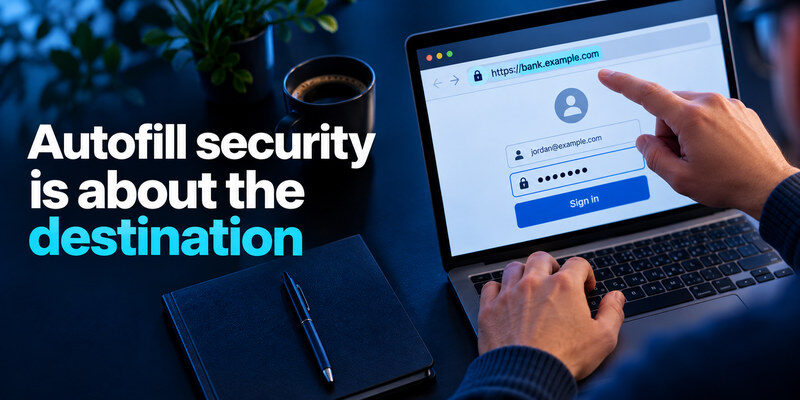
Neither a browser nor an extension should fill a password into a fake domain merely because a page looks familiar. Modern managers use website matching, but the user still needs to inspect the address and reject suspicious prompts. NIST’s current guidance requires services to allow password-manager use and AutoFill because it supports strong, distinct passwords. Copying secrets to the clipboard as a routine workaround can expose them to other software or accidental pasting.
A useful phishing test
Open a legitimate service through a known bookmark and observe the suggested login. Then think about a lookalike domain in an unsolicited email. A missing suggestion should make you pause, not manually search the vault and paste the password into an unfamiliar site. Conversely, a suggestion is not an absolute guarantee: review the address and the manager’s matching settings, especially if you expanded them broadly.
Protect the unlocked device
An attacker at an unlocked computer may reach saved credentials regardless of provider. Use a device screen lock, browser profile protection where offered, and appropriate reauthentication before revealing or filling sensitive entries. A dedicated extension does not compensate for malware or an exposed session; a built-in manager is not automatically weak because it is convenient.
If your dedicated password manager uses a master password, that secret plays a central role in protecting your encrypted vault. Our guide on how to create a strong master password explains how to build a unique, memorable passphrase and avoid common patterns that make password guessing easier.
5. Which ecosystem are you actually in?

| Your setup | Sensible start | Trigger to switch |
| Chrome and Android for personal use | Google Password Manager | Important non-Google browser or complex sharing |
| iPhone, iPad, Mac | Apple Passwords | Android family member or wider vault controls |
| Edge across managed Windows devices | Microsoft Password Manager within policy | Unsupported phone or personal/work separation need |
| Firefox on all main computers | Firefox logins and Sync | Cross-app AutoFill or family permissions |
| Mixed browsers and operating systems | Dedicated manager | Test it before importing everything |
An employer may control a browser profile and its sync. Follow workplace policy for company credentials. Do not use your personal browser account as a shortcut for a managed company login, and do not assume a work profile will remain accessible after leaving a job.
6. Run a 20-minute test before migrating
Save and return
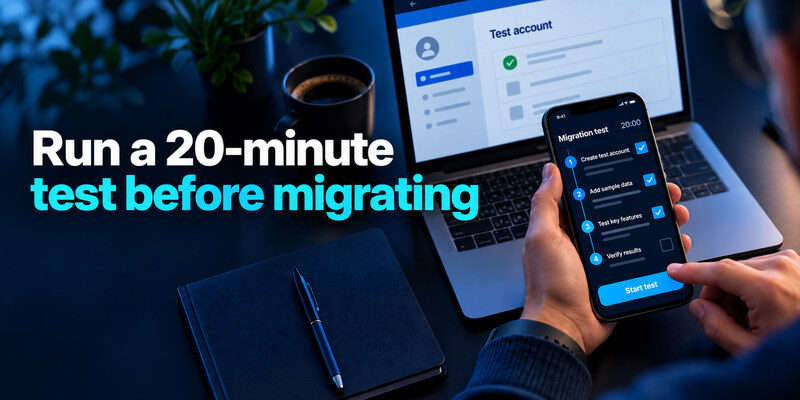
Create a low-risk test account with a unique generated password. Close the tab, reopen the real site, and fill the login. Inspect the saved URL and username. A good default should not require you to copy a password from notes.
Cross a device boundary
Open the account on your phone or second computer. If the login does not appear, check which account or profile saved it and whether sync is enabled. If a dedicated manager is under trial, install its official app and select it as the phone’s AutoFill provider according to current platform settings. One provider should be the main destination for new passwords.
Test recovery and export
Imagine the primary phone is lost. Can you sign into the browser account or dedicated vault from a trusted replacement, and where are its recovery methods? Then inspect the official export flow. A CSV may expose passwords in plaintext and may not carry passkeys or attachments. You need not export everything during the trial; you need to know how you would leave.
7. Avoid duplicate stores during a change
If Chrome, the phone’s system manager, and a new extension all offer to save the same password, decide which will be authoritative. Turn off redundant save prompts according to official instructions once the new vault works. Import a small group of logins, verify live sign-ins, and only then remove old copies. A recently imported duplicate may be older in reality than an entry whose password changed yesterday.
This is particularly important for a household computer. A browser profile signed into one person’s account may save another person’s login after they borrow the machine. A dedicated manager does not solve that automatically; the user still has to unlock the correct vault or use a separate operating-system profile. When an unexpected save prompt appears, check both the website account and the vault owner before accepting it.
Change one credential at the service
For a useful migration check, change a low-risk service’s password using the new manager. Confirm the service accepts it, update the saved entry, and fill it on another device. This proves the new manager handles the lifecycle, not just a static copy. Keep the old collection until primary email and other important accounts work.
Keep passkeys separate in the checklist
Passkeys may be tied to a provider and platform with transfer capabilities that differ from password CSV. Check the source and destination’s current credential-exchange support. If the account cannot move the passkey, add a new one while still signed in and remove the obsolete one only after testing.
8. The second factor still has its own job
Whether passwords live in a browser or separate vault, add appropriate second-factor protection to primary email, the sync account, and high-value services. Passkeys and security keys offer phishing-resistant options when available. TOTP codes are another useful layer and require a recovery plan. Authenticator App generates those codes; it is not a substitute for browser or dedicated password storage. See and its supplied iPhone listing at .
9. Privacy and ownership beyond the login field
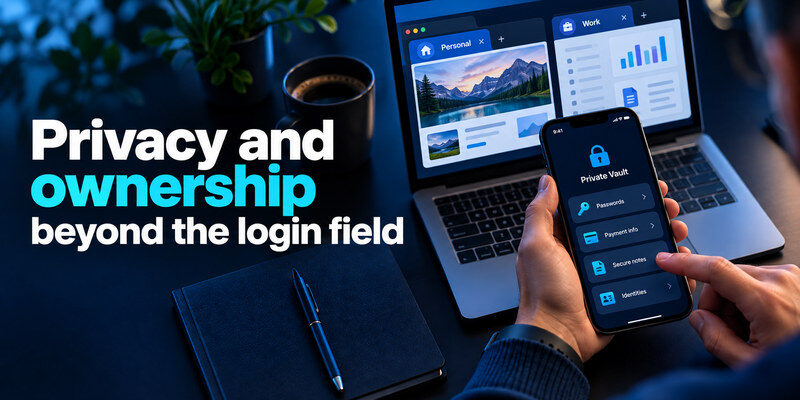
The word “built-in” says little about what account data or metadata a provider processes. Read the browser or vault vendor’s security and privacy documentation for the specific sync account. A dedicated manager can reduce reliance on a single browser company, but it adds a separate provider relationship. A local database reduces provider-side storage of the vault yet shifts backups and access to you. These are ownership choices, not simple safe/unsafe labels.
Personal versus managed accounts
If your employer controls a browser profile, saved work credentials may be subject to organization policy, retention, and account removal. A personal password manager should not be used to bypass those controls. Conversely, private family passwords should not be left in a work-managed profile that you may lose when a job ends. Identify the owner of each collection and where its recovery email lives.
Shared device precautions
Use separate operating-system or browser profiles where practical, lock the screen when away, and require reauthentication to reveal sensitive passwords if the product offers it. Do not let a child or guest use an already unlocked adult vault. A dedicated manager with a lock timeout may make boundaries clearer, but someone who knows the device passcode may still have routes to account access. Test the actual device, not an abstract architecture diagram.
10. A cost decision you can revisit
Begin with the browser or platform manager you already have if it covers the real workflow. A separate vault earns its place when it fixes cross-platform access, granular sharing, or recovery. Paying for one makes sense only if a feature you have tested reduces friction or risk in your circumstances. There is no benefit in moving hundreds of logins simply because a comparison chart has more checkmarks.
The choice is reversible with care. Keep a verified export path and note whether passkeys and shared groups would require separate migration. Recheck after a meaningful change: a new Android phone in an Apple household, a switch from Chrome to Firefox, or a caregiver who needs access to one account. That is when a dedicated vault may go from optional to useful.
11. Frequently Asked Questions
Is a browser password manager safe enough?
For many people within one ecosystem, yes, if the browser account and devices are well protected and each service gets a unique password. A dedicated manager adds value when it solves your device, sharing, or organizational needs.
Can a dedicated manager fill inside apps?
Most major products provide mobile AutoFill, subject to platform and app support. Trial your actual apps. A browser extension alone does not guarantee every mobile field will work.
Should I keep both enabled?
During a transition, perhaps temporarily. Long term, choose one primary save destination to avoid stale duplicates. You can keep the old store for verification until the new one proves important sign-ins.
Do browsers support passkeys?
Yes, several browser and platform managers do. Exact storage and transfer paths vary. Test the site, device, and recovery route that matter to you.
12. Final Thoughts
Browser AutoFill is a solid choice when its ecosystem covers your devices and sharing needs. A dedicated manager is worthwhile when it gives you one reliable vault across browsers and people. Compare real sign-in and recovery tasks, not slogans about which category is inherently secure.
If the current setup already generates unique passwords, fills the right account, and survives a replacement device, keep using it. Move when a specific gap appears, and verify that the proposed manager fixes that gap before exporting the full collection.
