
Best Password Manager for Android: 6 Free & Paid Options
Published October 7, 2026 · Updated October 21, 2026
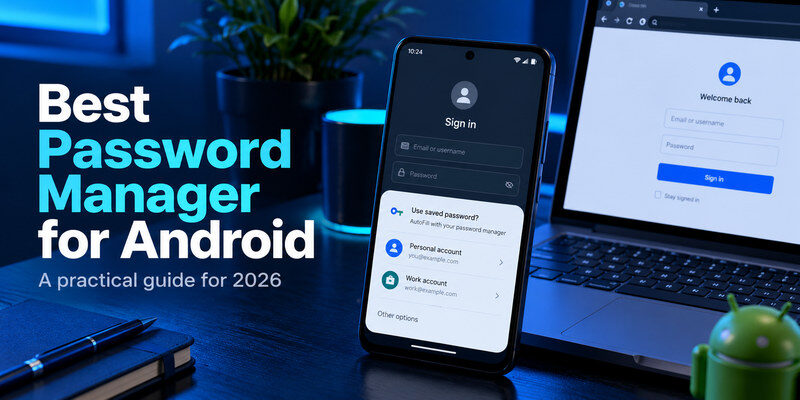
The best password manager for Android should make it easy to save passwords, securely access your accounts, and automatically fill login details across apps and websites. While Google Password Manager is a convenient built-in choice, alternatives like Bitwarden, 1Password, and Proton Pass offer additional features for password organization, privacy, and cross-platform access.
For most Android users, Google Password Manager is the easiest place to start. Bitwarden stands out for its generous free plan, while 1Password is better suited to families and users who want advanced password management features.
But which option offers the right combination of security, convenience, and value? In this guide, we compare six popular Android password managers, explain their advantages and limitations, and help you choose the best one for your needs.
Best Password Managers for Android: Quick Comparison
Android users have several reliable password managers to choose from, but each offers a slightly different experience. Some focus on simplicity and integration with Google services, while others emphasize cross-platform compatibility, privacy, or advanced security tools.
| Password Manager | Best For | Free Plan | Main Advantage |
|---|---|---|---|
| Google Password Manager | Android and Chrome users | Yes | Built-in Google integration |
| Bitwarden | Free cross-platform use | Yes | Unlimited passwords and devices |
| 1Password | Families and premium users | Trial only | Advanced vault sharing |
| Proton Pass | Privacy-focused users | Yes | Encrypted storage and email aliases |
| NordPass | Beginners | Yes, limited | Simple interface and AutoFill |
| Dashlane | Additional security features | No permanent free plan | Security monitoring tools |
Google Password Manager is our recommendation for most Android users who primarily use Chrome and Google services. It requires very little setup and handles everyday password management without an additional subscription.
However, Bitwarden may be a better choice if you want to manage passwords across Android, Windows, macOS, and other platforms. If you need to share passwords securely with family members, 1Password offers additional flexibility.
Before choosing an app, it helps to understand how to choose a password manager based on security, compatibility, and recovery options rather than simply comparing feature lists.
1. Google Password Manager – Best Overall for Android Users
Google Password Manager is one of the most convenient options for Android because it is already integrated into Google’s ecosystem. It works with Chrome and supported Android apps, allowing users to save passwords, generate stronger credentials, and automatically fill login details when signing in.
For someone who already uses a Google Account across their phone and computer, this integration makes everyday password management straightforward. When creating an account, Google can suggest a strong password and save it. The next time you visit the website or open a compatible application, your saved credentials can appear automatically.
Another advantage is synchronization. Passwords stored in your Google Account can be accessed through supported devices and browsers where you are signed in. Google Password Manager also supports passkeys and provides Password Checkup tools to identify compromised, weak, or reused credentials.
Because it is built into the Android and Chrome experience, there is generally no need to create a separate password vault or purchase a subscription.
However, Google Password Manager is not necessarily the best option for everyone. Its organization and sharing capabilities are more limited than those of dedicated password managers. Users managing multiple family accounts or switching frequently between browsers and operating systems may prefer an independent service.
It is also important to secure the Google Account connected to your stored passwords. If someone gains unauthorized access to that account, your password management setup could be affected.
Our verdict: Google Password Manager is the best starting point for most Android users who want simple, free password storage and reliable integration with Chrome.
2. Bitwarden – Best Free Password Manager for Android
Bitwarden is a strong alternative for users who want more flexibility than Google Password Manager provides.
Its biggest advantage is the free personal plan, which allows unlimited password storage and synchronization across unlimited devices. This makes Bitwarden particularly attractive for people who use an Android phone alongside a Windows laptop, Mac, or another operating system.
Bitwarden is also open source, allowing its software to be publicly examined. The service uses encrypted vaults to protect sensitive information and supports password generation, Android AutoFill, secure notes, and passkey management.
On Android, Bitwarden can be configured as your preferred AutoFill provider. Once enabled, it offers stored credentials when you sign in to supported applications and websites. The experience may vary slightly depending on your Android version, browser, and phone manufacturer, but the core functionality works across a wide range of devices.
One reason users choose Bitwarden is the control it provides over password organization. You can manage vault items, configure security settings, and use browser extensions to access credentials on desktop devices.
The trade-off is that Bitwarden generally requires more initial configuration than Google Password Manager. Beginners may need time to understand the vault interface, AutoFill settings, and available security options.
Some advanced capabilities, such as integrated TOTP code generation in the password manager, require a paid subscription. Nevertheless, the free plan remains sufficient for many individual users.
Our verdict: Bitwarden is the best free password manager for Android users who want secure password storage across multiple operating systems without paying for a subscription.
If open-source security is an important consideration, our guide to the best open-source password managers explores additional alternatives.
3. 1Password – Best Premium Password Manager for Android
1Password is designed for users who want a more advanced password management experience, particularly when multiple people or devices are involved.
It provides encrypted vaults for storing passwords, passkeys, payment details, and other sensitive information. The interface emphasizes organization, making it easier to manage a large collection of accounts without relying on memory or manually maintained records.
One of 1Password’s strengths is its support for mixed-device households. A family might use Android phones, iPhones, Windows computers, and Macs, yet still need a convenient way to manage shared accounts.
With 1Password Families, each member can maintain private credentials while selected accounts are stored in shared vaults. This is especially useful for household subscriptions, shared services, and accounts that more than one person needs to access.
The service also includes Watchtower, which identifies potential password security issues, and supports passkeys and compatible one-time verification codes.
Another important security feature is the Secret Key, which works alongside your account password to protect your encrypted information.
However, 1Password does not offer a permanent free personal plan. After the trial period, continued use requires a paid subscription. Users must also understand the service’s recovery process and securely preserve their account credentials.
For someone who only uses one Android phone and needs basic password storage, the cost may not provide enough additional value.
Our verdict: 1Password is an excellent premium option for families, professionals, and users who want advanced vault organization and secure sharing across different devices.
For households managing shared credentials, our best password manager for family comparison explains which features matter most.
4. Proton Pass – Best Android Password Manager for Privacy
Proton Pass is a privacy-focused password manager developed by Proton, the company behind Proton Mail.
It combines end-to-end encrypted password storage with features designed to limit exposure of personal information online. One of its most distinctive capabilities is the ability to create hide-my-email aliases when registering for websites.
Instead of using your personal email address for every account, you can generate an alternative address that forwards messages to your inbox. This can help reduce unnecessary exposure of your primary email address and make unwanted messages easier to manage.
Proton Pass also supports Android AutoFill, password generation, passkeys, and synchronization across supported devices. The free plan includes unlimited logins and devices, along with a limited number of email aliases.
For users who already rely on Proton Mail or other Proton services, keeping password management within the same ecosystem may be particularly convenient.
Compared with Google Password Manager, Proton Pass provides more privacy-oriented tools and greater independence from the Google ecosystem.
However, users should review the differences between its free and paid plans. Advanced capabilities such as broader sharing options, additional email aliases, and unlimited integrated 2FA codes are associated with paid subscriptions.
If you only need a straightforward place to save passwords on Android, Proton Pass may offer more features than necessary. But for privacy-conscious users, those additional protections can be worthwhile.
Our verdict: Proton Pass is one of the best Android password managers for people who value encrypted storage, email privacy, and cross-platform access.
5. NordPass – Best for Ease of Use
NordPass is designed to simplify password management for users who prefer a straightforward interface.
Its Android application provides encrypted password storage, password generation, and AutoFill functionality. Once configured, users can retrieve saved login information when accessing supported apps and websites without manually searching for credentials.
The interface is organized around common password management tasks, making it approachable for people who are using a dedicated password manager for the first time.
NordPass also offers additional security features through its paid plans, including password health analysis and data breach monitoring. These tools can help users identify weak or compromised credentials and decide which accounts need attention.
However, its free plan has limitations that may affect people who frequently move between devices. Although saved information can synchronize, the free experience restricts simultaneous active sessions.
This makes NordPass less attractive than Bitwarden for someone who wants unrestricted free access across Android and desktop devices.
Its premium version may be worth considering for users who appreciate the interface and want additional security features, but it is not essential for basic password management.
Our verdict: NordPass is a practical option for Android beginners who want a simple interface, although other free password managers offer greater flexibility.
6. Dashlane – Best for Advanced Security Monitoring
Dashlane combines password management with tools intended to help users identify and respond to security risks.
Like other password managers, it provides encrypted credential storage, password generation, and AutoFill. It also supports access across multiple devices, allowing users to manage credentials beyond their Android phones.
Dashlane’s main advantage is its collection of additional security features. Depending on the subscription, these may include dark web monitoring, password health insights, phishing-related protection, and other account security tools.
These capabilities make Dashlane appealing to users who want more than a password vault. For example, someone managing many important online accounts may appreciate alerts about potentially exposed credentials.
However, Dashlane no longer offers a permanent free plan. Users who want to continue using the service after an eligible trial must choose a paid subscription.
For people who simply need password storage and AutoFill, this may be unnecessary. Google Password Manager and Bitwarden already cover many everyday requirements without a subscription.
Our verdict: Dashlane is best suited to Android users willing to pay for additional security monitoring alongside password management.
💡 Discover Helpful Guides: How to Choose a Password Manager: A Practical Checklist for 2026
Download Authenticator App
Secure your accounts with fast, reliable two-factor authentication. Download now and protect your login in seconds.
Which Is the Best Password Manager for Android?
The answer depends heavily on your existing devices.
| Your Setup | Best Choice |
|---|---|
| Android + Chrome | Google Password Manager |
| Android + several desktop platforms | Bitwarden |
| Android + iPhone family | 1Password |
| Proton Mail + privacy tools | Proton Pass |
The original article’s recommendation is sensible: pick based on your real Android routine rather than a feature checklist. Pasted text
📖 Read More Guides: How to Import Passwords into a Password Manager Without Losing Access
How to Protect Your Android Password Vault
Choosing the Best Password Manager for Android is only one part of account security.
You should also:
- Enable a secure Android screen lock
- Keep Android updated
- Keep the password manager updated
- Use a strong master password if required
- Enable multi-factor authentication
- Configure account recovery
- Use passkeys where supported
For particularly sensitive accounts, consider combining a password manager with an authenticator app or hardware security key.
Password managers protect and fill passwords, while authenticator apps typically generate temporary verification codes. Pasted text
📘 Find the Right Guide: Best Password Manager for Family: Four Real Choices and Who Should Pick Each
Frequently Asked Questions
What is the Best Password Manager for Android?
Google Password Manager is the easiest option for Android and Chrome users. Bitwarden is better for cross-platform flexibility, 1Password is strong for families, and Proton Pass is suitable for privacy-focused users.
Is Google Password Manager good enough for Android?
For many personal users, yes. It works especially well if you already use Android and Chrome and do not need advanced shared vault management. Pasted text
Why doesn’t my password manager AutoFill in some Android apps?
Possible causes include your Android version, the selected AutoFill provider, unusual login fields, incorrect website matching, or manufacturer-specific settings. Pasted text
Can Android password managers work with Chrome?
Yes. Google Password Manager works directly with Chrome, while password managers such as Bitwarden, 1Password, and Proton Pass can also support browser workflows depending on your configuration.
Do passkeys transfer when I export passwords?
Do not assume they do. Standard CSV password exports usually focus on password records. Passkeys may require a separate migration or re-enrollment process. Pasted text
What is the best password manager for Android and iPhone?
Bitwarden and 1Password are especially strong choices for mixed Android and iPhone setups. Proton Pass is another option, while Google Password Manager may make more sense for users centered around Chrome. Pasted text
Final Thoughts
The Best Password Manager for Android depends on how you actually use your devices.
For most Android and Chrome users, start with Google Password Manager because it is already integrated and requires minimal setup.
Choose Bitwarden if you want more flexibility across operating systems and browsers.
Choose 1Password if you need structured family sharing across Android, iPhone, Windows, and Mac.
Choose Proton Pass if its privacy tools and email aliases fit your workflow.
Most importantly, do not choose based only on feature comparisons. Test AutoFill in the Android apps you use every day, verify recovery, and make sure passwords sync correctly across your trusted devices. The original article reaches the same practical conclusion: successful real-world filling and recovery matter more than simply advertising more features. Pasted text
Download Authenticator App
Secure your accounts with fast, reliable two-factor authentication. Download now and protect your login in seconds.
