
How to Transfer Authenticator to a New Phone Without Losing Access
Published September 9, 2026 · Updated October 20, 2026
Getting a new iPhone or Android phone? Before you erase or trade in your old device, make sure you know how to transfer authenticator to new phone safely. Your authenticator app may protect important accounts such as Gmail, Microsoft 365, Facebook, Instagram, and other services that require two-factor authentication (2FA).
Unlike photos or contacts, authentication credentials do not always move automatically when you change phones. The transfer process depends on the app, your backup settings, and whether you still have access to your old device.
Quick Answer: To transfer an authenticator app to a new phone, keep your old phone active, install the same authenticator app on the new device, and use its supported cloud sync, backup recovery, or QR code transfer feature. Verify that your accounts work on the new phone before deleting the app or resetting your old device. If your old phone is lost, use backup codes, previously configured sign-in methods, or the account provider’s recovery process.
Google Authenticator and Microsoft Authenticator have different transfer requirements, so follow the instructions for your specific app.
What Happens to Your Authenticator When You Change Phones?
An authenticator app helps protect your online accounts by providing an additional sign-in factor.
Depending on the application and service, this may include:
- Time-based one-time passwords (TOTP).
- Push notification approvals.
- Passwordless sign-in credentials.
- Passkeys or device-bound authentication methods.
When you switch phones, installing the same app on your new device does not necessarily restore these credentials.
Some apps support account synchronization. Others use encrypted backups, manual QR code exports, or account-by-account registration.
Does an Authenticator App Transfer to a New Phone Automatically?
Sometimes, but not always.
For example, Google Authenticator can synchronize verification codes through your Google Account when that feature is enabled.
Microsoft Authenticator supports backup and recovery, but the process depends on your operating system and account type.
Some authenticator apps store credentials locally and require manual transfer.
| Authenticator type | Typical transfer method | Important limitation |
|---|---|---|
| Google Authenticator | Google Account sync or QR export/import | Unsynced codes require the old device or account recovery |
| Microsoft Authenticator | Supported cloud backup and recovery | Android and iOS backups are not interchangeable |
| Third-party TOTP app | App-specific sync, export, or backup | Features vary by provider |
| Work or school authenticator | Backup plus re-registration | Organization approval may be required |
| Service-specific authenticator | Official service transfer process | May not support generic TOTP export |
Important: Do not factory-reset, sell, or erase your old phone until you have verified that all essential accounts work on the new device.
Download Authenticator App
Secure your accounts with fast, reliable two-factor authentication. Download now and protect your login in seconds.
Before You Transfer Your Authenticator App to a New Phone
A successful authenticator app new phone setup starts with preparation.
If your old device still works, complete the following steps before beginning the transfer.
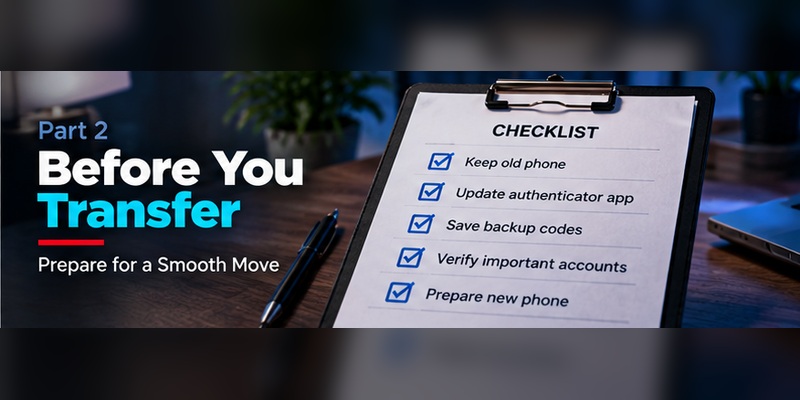
Step 1: Keep Your Old Phone Accessible
Keep your old phone charged, unlocked, and connected to the internet when needed.
You may need it to:
- Generate verification codes.
- Approve sign-in requests.
- Export accounts.
- Confirm a device change.
- Recover access if the new setup fails.
Do not remove the authenticator from the old phone at the beginning of the process.
Step 2: Check Your Authenticator Backup or Sync Settings
Open your authenticator app and review its settings.
Look for options such as:
- Cloud Sync.
- Cloud Backup.
- Account Recovery.
- Transfer Accounts.
- Export Accounts.
- Device Transfer.
The exact labels depend on the app.
If backup or sync is available, confirm that it is enabled and associated with the correct recovery account.
Do not assume that an ordinary iPhone or Android device backup contains every authenticator credential.
Step 3: Review Account Recovery Methods
Sign in to the security settings of your most important accounts.
Confirm that you have access to at least one alternative recovery method, such as:
- Backup or recovery codes.
- A registered security key.
- A passkey on another trusted device.
- A secondary authenticator, if supported.
- An approved recovery email or phone number.
Some services may require additional identity verification before allowing you to replace an authenticator.
Step 4: Save Backup Codes Securely
Many websites provide one-time backup codes when you enable two-factor authentication.
Save them in a secure location separate from your phone.
Do not store them in public notes, shared folders, or unprotected screenshots.
Remember that backup codes are generally issued by individual account providers. A Google backup code cannot be used to recover an unrelated Microsoft or social media account.
Step 5: Prepare Your New Phone
Before transferring accounts:
- Update your new phone to a supported operating system.
- Set a strong device passcode.
- Install the official authenticator app.
- Enable automatic date and time.
- Check that you can access the correct backup or synchronization account.
- Keep both phones nearby if you plan to transfer codes using QR codes.
Once both devices are ready, follow the method supported by your authenticator.
How to Transfer Google Authenticator to a New Phone
Google Authenticator offers two primary ways to move verification codes: Google Account synchronization and manual QR code transfer.
Choose the method that matches your existing configuration.
Method 1: Transfer Google Authenticator Using Google Account Sync
If your Google Authenticator codes are already synchronized with your Google Account, moving to a new phone is relatively simple.
- Install Google Authenticator on your new iPhone or Android phone.
- Open the application.
- Sign in with the same Google Account used for synchronization.
- Allow the app to load your synchronized verification codes.
- Confirm that the expected accounts appear.
- Test a sign-in to an important account.
Google confirms that codes saved to a Google Account can synchronize when you sign in to Authenticator on another device.
However, codes stored only on the old device will not appear automatically unless you transfer them separately.
Security tip: Protect the Google Account used for synchronization with strong authentication and appropriate recovery methods.
Method 2: Transfer Google Authenticator Using QR Codes
If you use Google Authenticator without Google Account synchronization, you can manually transfer codes while you still have your old phone.
On your old phone:
- Open Google Authenticator.
- Open the menu.
- Select Transfer codes.
- Choose Export codes.
- Unlock your device if prompted.
- Select the accounts you want to transfer.
- Tap Next to display the transfer QR code.
On your new phone:
- Install and open Google Authenticator.
- Open the menu.
- Select Transfer codes.
- Choose Import codes.
- Scan the QR code displayed on your old phone.
- Repeat if the old device generates multiple QR codes.
- Confirm that the transferred accounts appear.
After the transfer, test your important accounts before erasing the old device.
Never share or upload an authenticator transfer QR code. It can contain the information needed to generate authentication codes.
Can You Transfer Google Authenticator From Android to iPhone?
Yes. Google Authenticator supports both Android and iOS.
You can use supported Google Account synchronization or the app’s manual QR code transfer workflow.
If your codes were stored locally and you no longer have the old device, you may need to recover each affected account separately.
For additional help, read our Google Authenticator lost phone guide.
How to Transfer Microsoft Authenticator to a New Phone
Microsoft Authenticator uses a different recovery process from Google Authenticator.
Its backup and restore functionality depends on your device platform and account type.
Important: Microsoft states that Authenticator backups must be restored on the same device type. An Android backup cannot be restored directly on an iPhone, and an iPhone backup cannot be restored directly on Android.
Method 1: Back Up Microsoft Authenticator on Android
If you are moving from one Android phone to another:
- Open Microsoft Authenticator on your old Android phone.
- Open the app settings.
- Find Cloud Backup.
- Enable backup if it is available.
- Follow the instructions to select or configure the recovery account.
- Confirm that the backup process is complete.
- Keep the old phone available until recovery is verified.
Microsoft has announced changes to Android backup beginning in January 2027, so always follow the instructions shown in the current app version.
Method 2: Prepare Microsoft Authenticator Backup on iPhone
If you are moving from one iPhone to another, Microsoft Authenticator uses iCloud-related backup settings.
On your old iPhone:
- Open Settings.
- Confirm that iCloud Drive is enabled.
- Enable iCloud Keychain.
- Confirm that iCloud Backup is enabled.
- Find Microsoft Authenticator in the Saved to iCloud app list.
- Enable iCloud access for Authenticator.
- Update Microsoft Authenticator.
- Open the app at least once before switching phones.
The exact Settings labels may differ by iOS version.
Method 3: Restore Microsoft Authenticator on the New Phone
After preparing a supported backup:
- Install Microsoft Authenticator on your new phone.
- Open the application.
- Choose the recovery option if offered.
- Follow the app’s instructions to locate your backup.
- Restore the supported account information.
- Complete additional sign-in or verification steps for accounts that require them.
- Test important accounts before removing the old device.
Not every account can be restored without additional work.
For example:
| Account type | What to expect after restore |
|---|---|
| Third-party accounts using TOTP | Supported codes may be restored |
| Microsoft personal accounts using only OTP | Supported codes may be restored |
| Microsoft personal accounts with passwordless sign-in | Reauthentication may be required |
| Work or school accounts | Account names may restore, but reauthentication is required |
Some work or school accounts may require device re-registration or administrator assistance.
For detailed instructions, see our Microsoft Authenticator recovery guide.
Can You Transfer Microsoft Authenticator From Android to iPhone?
You cannot directly restore a Microsoft Authenticator Android cloud backup onto an iPhone.
The same limitation applies when moving from iPhone to Android.
Instead:
- Keep your old phone active.
- Sign in to each important account.
- Open its authentication or security settings.
- Register Microsoft Authenticator on the new phone using the provider’s approved procedure.
- Verify that the new device works.
- Remove outdated authenticator registrations only after successful testing.
For work or school accounts, follow your organization’s device change procedure.
Do not remove an existing authentication method before you have another working way to sign in.
How to Move Other Authenticator Apps and 2FA Accounts
Not every authenticator supports the same backup, synchronization, or transfer features.
For third-party applications, use the official documentation provided by the app developer.
Transfer Using Built-In Backup or Sync
If your authenticator supports encrypted synchronization or backup:
- Confirm that backup is enabled on the old phone.
- Install the official app on the new phone.
- Follow the supported sign-in or recovery process.
- Restore the available credentials.
- Test each important account.
Check whether the provider supports cross-platform transfers before switching between Android and iOS.
Transfer Using Export and Import
Some authenticator apps provide an export function.
Depending on the app, this may involve a QR code or encrypted backup file.
Follow the developer’s official instructions and keep exported authentication secrets private.
Avoid uploading backup files or QR codes to untrusted online tools.
Move Accounts Manually Through Security Settings
If an authenticator does not support transfer or the credentials cannot be restored:
- Sign in to the affected website using your old authenticator.
- Open Account Settings or Security Settings.
- Find Two-Factor Authentication.
- Look for an option to add or replace an authenticator.
- Register the new phone.
- Complete the verification test.
- Save new backup codes if the service issues them.
- Remove the old authenticator only when appropriate.
Some services require you to disable and re-enable authenticator-based 2FA. Follow the provider’s supported process and maintain a working recovery method throughout.
Moving an Authenticator App to a New iPhone
If you’re switching from an older iPhone to a new iPhone, remember that transferring ordinary phone data does not guarantee the transfer of every authentication credential.
Before erasing the old iPhone, verify:
- Google Authenticator synchronization or manual transfer.
- Microsoft Authenticator iCloud backup and reauthentication.
- Third-party authenticator recovery.
- Apple Passwords verification codes, if used.
- Organization-managed accounts.
- Recovery codes and alternative sign-in methods.
A new iPhone setup is complete only when you can successfully authenticate to your important accounts.
How to Recover Authenticator Without Your Old Phone
Losing your old phone makes authenticator migration more complicated, but recovery may still be possible.
The correct approach depends on whether you previously enabled synchronization, backup, or another authentication method.
Option 1: Restore From an Existing Backup
Install your authenticator app on the new device and follow its official recovery instructions.
For Google Authenticator, synchronized codes may appear after signing in to the correct Google Account.
For Microsoft Authenticator, restoration requires a compatible platform backup and may still require reauthentication.
If no usable backup exists, continue with another recovery method.
Option 2: Use Backup Codes
Many services provide backup codes when 2FA is enabled.
If you saved them:
- Open the official sign-in page.
- Select the option to use another verification method.
- Choose a backup or recovery code if supported.
- Enter an unused code.
- Sign in and update your authentication methods.
Backup codes are usually account-specific and may be single-use.
Option 3: Use Another Registered Sign-In Method
Depending on the service, you may be able to sign in using:
- A passkey.
- A security key.
- Another registered authenticator.
- A trusted device.
- An organization-approved recovery method.
Availability depends on the account provider.
Option 4: Contact the Account Provider
If you have no authenticator backup and no alternative sign-in method, follow the account provider’s official recovery process.
You may be asked to verify your identity or demonstrate account ownership.
For work or school accounts, contact your IT administrator.
Do not use websites or individuals claiming they can bypass 2FA instantly.
Can You Recover Authenticator Codes Without Backup?
Sometimes, but not directly.
If the original authenticator secret is unavailable and no synchronized or backed-up copy exists, the app generally cannot recreate the old code generator from your username alone.
You may still regain access through the account provider’s recovery process and register a new authenticator afterward.
Authenticator App Not Working on New Phone: Common Fixes
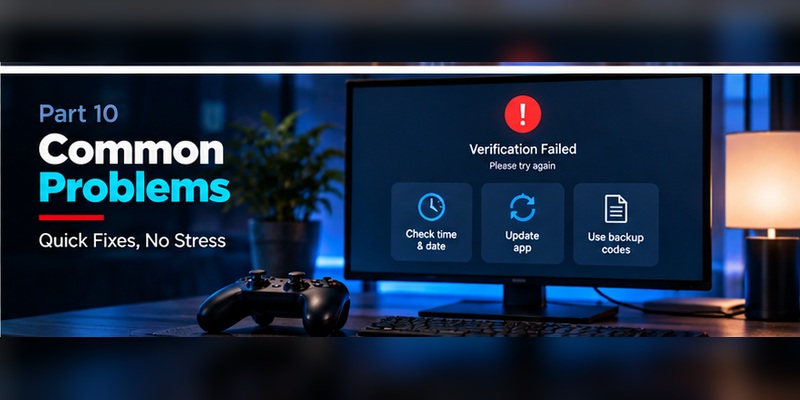
After an authenticator app transfer to a new phone, some accounts may be missing or verification codes may fail.
Authenticator Codes Not Working After Transfer
If codes appear but are rejected:
- Confirm that you selected the correct account.
- Enable automatic date and time on your phone.
- Wait for a fresh verification code.
- Enter it before it expires.
- Check whether the service still expects the old authenticator registration.
If the service requires re-enrollment, follow its official security settings.
Google Authenticator Accounts Missing
If Google Authenticator opens without your expected accounts:
- Confirm that you signed in with the correct Google Account.
- Check whether your codes were stored locally rather than synchronized.
- Look for another Google Account that may contain the synchronized codes.
- Use QR code transfer if your old phone is available.
- Recover individual accounts if the old device and unsynced secrets are unavailable.
Microsoft Authenticator Backup Not Appearing
If Microsoft Authenticator does not find your backup:
- Confirm that you are restoring to the same device platform.
- Verify the correct recovery account or iCloud configuration.
- Check that backup was enabled before the phone change.
- Update Microsoft Authenticator.
- Follow Microsoft’s current recovery instructions.
If you are moving from Android to iPhone or vice versa, remember that direct backup restoration is not supported.
Microsoft Authenticator Accounts Need Verification Again
This can be normal.
Microsoft personal accounts with passwordless sign-in and work or school accounts may require reauthentication after restoration.
For work accounts, additional organization-managed registration may be necessary.
Push Notifications Not Working on the New Phone
If the new phone does not receive approval notifications:
- Check internet connectivity.
- Enable notifications for the authenticator app.
- Review Focus or Do Not Disturb settings.
- Update the application.
- Confirm that the new phone is registered as an authentication device.
- Review account security settings.
- Contact your IT administrator for organization-managed accounts.
Receiving TOTP codes does not necessarily mean that push approval registration has been transferred.
Authenticator App Works on Old Phone but Not New Phone
Keep using the old device while troubleshooting.
Check whether the new device requires account re-registration, additional verification, or a supported backup restore.
Do not erase the old device until the new one can authenticate successfully.
Security Tips When Transferring 2FA
During migration:
- Never share authenticator transfer QR codes.
- Never send recovery codes through untrusted chats.
- Download apps only from official stores or verified publishers.
- Keep both devices protected by strong screen locks.
- Review and remove outdated authentication methods after migration.
- Do not approve unexpected sign-in requests.
- Store backup codes separately from your phone.
A secure transfer is not only about moving codes. It also involves ensuring that the old device no longer has unnecessary access once the new setup is confirmed.
Frequently Asked Questions
How do I transfer authenticator to a new phone?
Install the same authenticator app on your new phone and use its supported cloud sync, backup recovery, or manual transfer method. Test your accounts before erasing the old phone.
Does an authenticator app transfer to a new phone automatically?
Not always. Some apps synchronize codes through an account, while others require backup restoration or manual transfer. The behavior depends on the application and its settings.
How do I transfer Google Authenticator to a new phone?
Use Google Account synchronization if enabled, or export codes from the old phone and import them on the new device using Google Authenticator’s QR code transfer feature.
How do I transfer Microsoft Authenticator to a new phone?
Prepare a supported backup on your old device, install Microsoft Authenticator on the new device, restore the backup, and reauthenticate accounts as required.
Can I transfer Microsoft Authenticator from Android to iPhone?
Not through direct cloud backup restoration. Microsoft Authenticator backups must be restored on the same device platform. For cross-platform moves, re-register accounts using their official security settings.
How do I move an authenticator app to a new iPhone?
Check the app’s backup or sync settings, install it on the new iPhone, restore or transfer supported credentials, and verify your important accounts before erasing the old iPhone.
What happens if I change phones without transferring Authenticator?
You may lose access to verification codes or sign-in approvals stored only on the old phone. Use available backups, recovery codes, alternative sign-in methods, or the account provider’s recovery process.
Can I transfer Authenticator without the old phone?
Yes, if you have a supported backup or synchronized credentials. Otherwise, you may need backup codes, another registered authentication method, or account recovery.
Why is my authenticator app not working on my new phone?
Common causes include missing account registration, incorrect device time, unsupported backup restoration, disabled notifications, or incomplete recovery.
Do I need to disable two-factor authentication before switching phones?
Usually not. Use the app’s official transfer or recovery process. Some services may require replacing or re-registering an authenticator through their security settings.
Will resetting my old phone delete my authenticator codes?
It can permanently remove locally stored credentials from that device. Do not reset your old phone until you have confirmed that all necessary accounts work on the new one.
Can I use the same authenticator on two phones?
Some authenticator apps support synchronization or multiple registered devices. Other services restrict authentication to a specific device. Check the app and account provider’s policies.
Can I transfer Google Authenticator from iPhone to Android?
Yes. Google Authenticator supports account synchronization and manual QR code transfer between supported devices.
Are authenticator transfer QR codes safe to share?
No. A transfer QR code may contain authentication secrets. Only scan it directly between trusted devices during the official transfer process.
What should I do after transferring my authenticator?
Test important logins, confirm recovery methods, update registered devices, securely store backup codes, and remove obsolete authentication methods when appropriate.
Conclusion
Knowing how to transfer authenticator to a new phone can prevent account lockouts and help maintain strong two-factor authentication when you upgrade your device.
The safest approach is to prepare your backup or synchronization settings, keep your old phone accessible, transfer credentials using the app’s official method, and test every important account.
Google Authenticator supports Google Account synchronization and manual QR transfers. Microsoft Authenticator uses platform-specific backups and may require account reauthentication or re-registration.
If you no longer have your old phone, use supported backups, recovery codes, alternative sign-in methods, or the account provider’s official recovery process.
Above all, never erase your old phone until you have confirmed that your new authenticator setup works.
For more security guidance, explore our complete authenticator app guide and learn how to protect your accounts with two-factor authentication.
