
How to Disable Steam Authenticator Safely: A Complete Guide
Published August 17, 2026 · Updated October 5, 2026
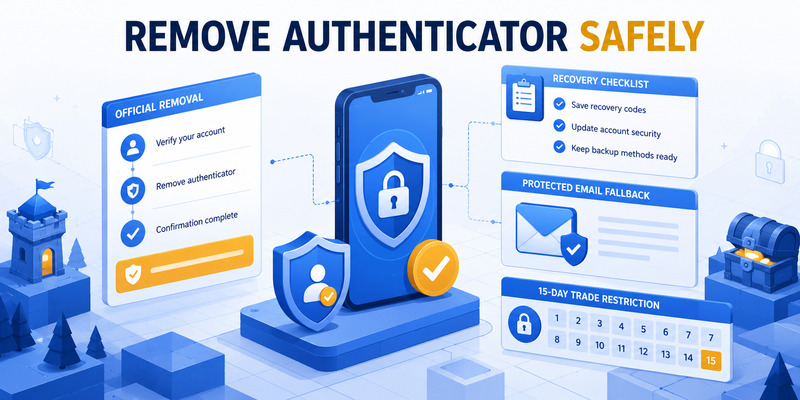
If you have your phone and need to disable steam authenticator safely, you can do it in just a few seconds using the Steam Mobile App.
Quick Steps to Disable Steam Guard:
-
Open the Steam Mobile App on your current device.
-
Tap the Steam Guard menu (the middle shield icon at the bottom).
-
Tap the Settings gear icon (or “Manage Steam Guard”).
-
Select Remove Authenticator.
-
Confirm your choice. Your account will now revert to email-based verification.
Are you changing phones, or did you lose your device? Read on to learn how to remove steam mobile authenticator under any circumstances without losing access to your account and games.
How to disable steam authenticator safely (If you have your phone)
If you are just upgrading to a new device, it is very easy to disable steam guard. You can do this either from the mobile app (using the quick steps above) or directly from your computer.
To disable steam authenticator safely from your PC desktop client:
-
Open Steam and log into your account.
-
Click on Steam in the top-left corner and select Settings.
-
Go to the Security tab and click Manage Steam Guard.
-
Choose the option to remove the mobile authenticator. You may be asked to confirm this action via an SMS code sent to your linked phone number.
Download Authenticator App
Secure your accounts with fast, reliable two-factor authentication. Download now and protect your login in seconds.
How to remove steam mobile authenticator without your phone
Losing your phone can be stressful, but you can still remove steam mobile authenticator without it. Steam provides failsafe methods to help you recover your account instantly.
When trying to log in on a new device, click “I no longer have access to my mobile authenticator.” You will then have two primary options:
-
Use your Recovery Code: When you first set up Steam Guard, you were given a unique backup code that starts with the letter “R”. Enter this code to immediately bypass and disable steam guard.
-
Use SMS Verification: If you don’t have your “R” code, Steam can send a verification code to the phone number linked to your account. Enter the SMS code to remove the lost authenticator.
If you have lost both your phone number and your recovery code, you will need to contact Steam Support and provide proof of account ownership (like old purchase receipts, credit card info, or CD keys) to disable steam authenticator safely.
Never lose your 2FA codes again with our secure Cloud Backup feature. Click here to Download our Authenticator App today!
💡 Discover Helpful Guides: Steam Mobile Authenticator: Setup and Security Guide
What Happens When You Disable Steam Authenticator?
Several things change immediately.
Mobile Authentication Stops
The Steam Mobile App will no longer act as your active Steam Guard Mobile Authenticator for that account.
You will lose:
- mobile authentication codes,
- mobile login approvals,
- QR-based login through that authenticator.
Steam Guard Falls Back to Email Codes
Steam states that after removing the mobile authenticator, you will return to receiving Steam Guard email codes for sign-in.
That means your Steam account may still have Steam Guard protection, but the protection method changes from mobile authentication to email verification.
Trading Is Restricted for 15 Days
This is the biggest consequence for users with valuable inventories.
After removal:
You cannot trade or sell items on the Community Market for 15 days.
Steam applies the restriction regardless of whether you removed the authenticator intentionally or as part of a recovery process.
📖 Read More Guides: Steam Guard QR Code: Complete Login and Setup Guide
How to Disable Steam Authenticator From the Mobile App
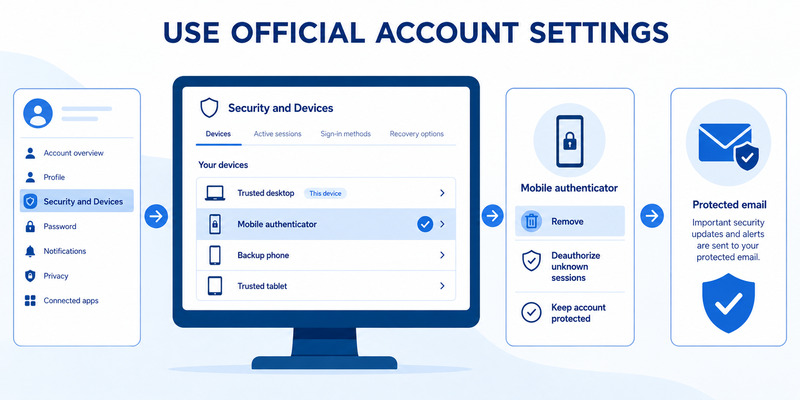
Use Steam’s official removal flow.
Step 1: Open the Steam Mobile App
Open Steam on the phone that currently contains your Steam Guard Mobile Authenticator.
Step 2: Open Steam Guard
Go to the Steam Guard page.
This is the section where you normally see authentication controls.
Step 3: Open Steam Guard Settings
Tap the gear icon.
Step 4: Select Remove Authenticator
Choose:
Remove Authenticator
Steam’s official support documentation identifies this as the correct removal option on Android and iOS.
Step 5: Confirm the Removal
Steam will ask you to confirm that you really want to remove the authenticator.
Read the warning before continuing.
Once confirmed, the authenticator is removed from that Steam account.
🗺️ Browse How-To Guides: Steam Guard QR Code: Complete Login and Setup Guide
How to Remove Steam Authenticator If You No Longer Have the Phone
If the device containing the authenticator is unavailable, Steam also provides an account-level removal path.
Steam currently states that you can remove the authenticator from:
Account Details → Security & Devices
if you no longer have the device.
The exact recovery steps can vary depending on what account information you still control.
You may need:
- access to your registered email,
- access to your phone number,
- your Steam recovery code,
- additional account verification.
If you lost the device and recovery code, use the dedicated Steam Authenticator recovery guide rather than repeatedly trying to remove security settings.
Disable Steam Authenticator vs Transfer It to a New Phone
These are very different actions.
| Action | Best use case | Trade impact |
|---|---|---|
| Transfer authenticator | Changing phones | Usually preferable |
| Remove authenticator | You genuinely no longer want mobile authentication | 15-day trade/Market restriction |
| Recover authenticator | Lost phone or access | Depends on recovery path |
| Re-add authenticator | Mobile authentication was previously removed | New security timing rules may apply |
If you still have access to the old phone and are moving to a new device, transfer is usually the safer path.
Steam itself recommends transfer instead of removal when possible.
📖 Read More Guides: Where to Find Steam Mobile Authenticator Code Fast
How to Safely Disable Steam Authenticator Before Selling an Old Phone
If you are getting rid of a phone, do not immediately remove Steam Guard.
Use this order.
Step 1: Decide Whether You Are Transferring the Authenticator
If you have a new phone, transfer it first.
Step 2: Confirm Steam Guard Works on the New Device
Test:
- login,
- Steam Guard code,
- QR login,
- approval notifications.
Step 3: Verify Recovery Information
Check your:
- email,
- phone number,
- recovery code.
Step 4: Sign Out on the Old Device
Once the new device works, sign out of Steam on the old phone.
Step 5: Factory Reset the Old Phone
Steam recommends factory-resetting a phone and removing personal data before selling or giving it away.
If you transferred the authenticator successfully, you may not need to remove it first.
Frequently Asked Questions
How do I disable Steam Authenticator?
Open:
Steam Mobile → Steam Guard → gear icon → Remove Authenticator
and confirm the removal.
What happens if I remove Steam Authenticator?
Your account loses the mobile authentication layer, Steam Guard sign-in falls back to email codes, and Steam currently restricts trading and Community Market selling for 15 days.
How long is the trade restriction after removing Steam Authenticator?
Steam currently states 15 days.
Should I remove Steam Guard before changing phones?
Usually, no.
Steam recommends transferring the authenticator whenever possible.
Can I remove Steam Authenticator without my old phone?
Steam says the authenticator can also be removed through account security settings if you no longer have the device.
Will removing Authenticator delete my games or inventory?
No.
It changes account security; it does not delete your Steam account or owned content.
Can I trade immediately after adding Steam Authenticator back?
Not necessarily.
Steam applies additional security rules to newly added authenticators, including possible holds during the first seven days.
🛠️ Learn with Step-by-Step Guides: How to Set Up Steam Mobile Authenticator For Everyone
10. Final Thoughts
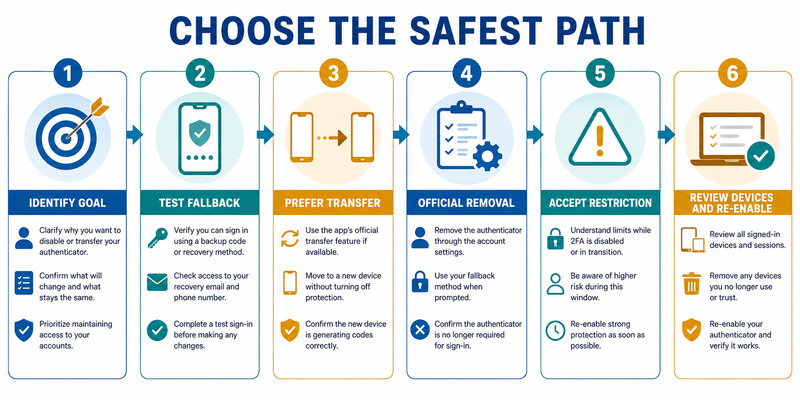
Use the official Steam Mobile app or Account Details > Security & Devices to disable steam authenticator. Read the warning, verify the intended account, protect every code, and expect Steam’s current 15-day restriction on trading and Community Market selling.
When changing phones, Move Authenticator is usually better than removal and currently carries a two-day restriction. When a code fails, correct automatic time and account selection before changing security. When the phone is lost, use the registered number, recovery value, backup codes, or Steam Support.
Do not confuse mobile removal with email Steam Guard. Test the contact mailbox and secure it with strong MFA before relying on email codes. Never share a password, current code, recovery credential, SMS removal value, or trade approval.
Visit Authenticator App for broader two-factor setup, transfer, recovery, and phishing-defense guidance. A safe disable steam authenticator workflow verifies ownership, accepts protective delays, reviews sessions, and leaves a tested fallback.
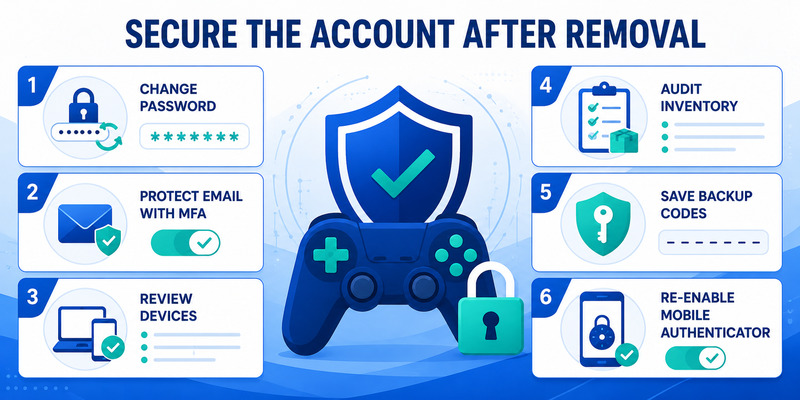
After removal, change compromised credentials, deauthorize old devices, inspect inventory and trade activity, generate fresh backup codes, and consider re-enabling the official mobile factor when the original reason is resolved.
The confirmation button is not the final step. Review account security throughout the restriction period and reject anyone offering a bypass. That discipline keeps disable steam authenticator from becoming an avoidable takeover.
Download Authenticator App
Secure your accounts with fast, reliable two-factor authentication. Download now and protect your login in seconds.
