
How to Set Up Steam Mobile Authenticator For Everyone
Published August 18, 2026 · Updated September 25, 2026
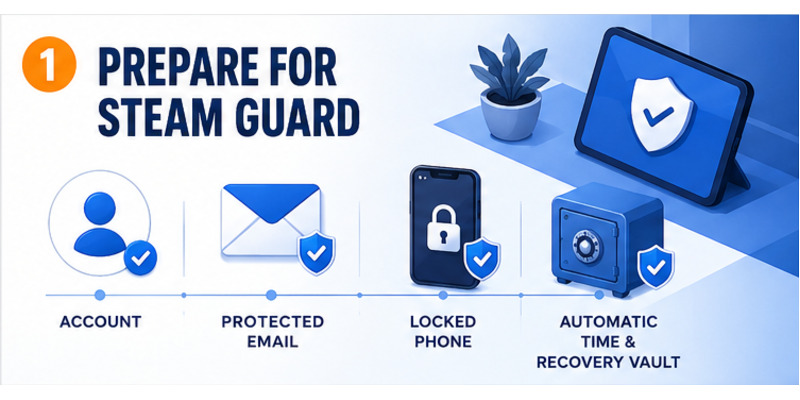
To learn how to set up steam mobile authenticator, install the official Steam Mobile app, sign in to the correct account, open Steam Guard, choose Add Authenticator, verify a long-term phone number, and save the recovery code outside the phone. Finish with a signed-out test login on a trusted device.
The setup adds a phone-held factor to the Steam password. It can generate rotating codes, scan a Steam login QR code, and present approval prompts. The feature is only dependable when the contact email, registered number, recovery code, and device security are prepared before an emergency.
This guide walks through prerequisites, official installation, enrollment, SMS verification, recovery storage, daily use, trading effects, troubleshooting, phone transfer, and ongoing maintenance.
Quick Answer: How to Set Up Steam Mobile Authenticator
To set up Steam Mobile Authenticator:
- Install the official Steam Mobile App.
- Sign in to your Steam account.
- Open Steam Guard.
- Choose Add Authenticator.
- Add or verify your phone number.
- Enter the SMS verification code Steam sends you.
- Save the Steam recovery code shown during setup.
- Finish activation.
- Confirm that Steam Guard displays an authentication code.
Once setup is complete, your phone becomes the Steam Guard Mobile Authenticator for that account.
Do not skip the recovery code. Steam recommends saving it because it can help recover your authenticator if you later lose access to the phone.
Download Authenticator App
Secure your accounts with fast, reliable two-factor authentication. Download now and protect your login in seconds.
2. What You Need Before Setting Up Steam Mobile Authenticator
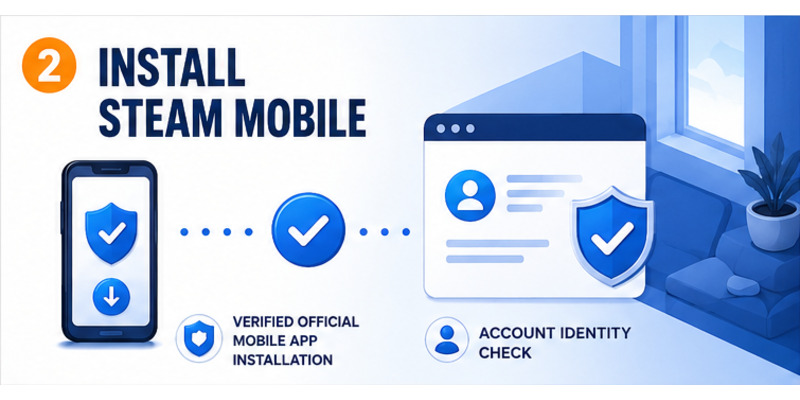
Before starting, make sure you have:
- a Steam account,
- the official Steam Mobile App,
- access to your Steam account email,
- a working phone number,
- access to SMS messages,
- an internet connection during setup.
It is also a good idea to know your Steam account credentials before making changes to authentication settings.
Use a Phone Number You Control
The phone number is important for verification and future recovery.
Avoid using:
- temporary SMS services,
- another person’s number,
- a phone number you expect to lose soon.
If Steam Guard later needs to be recovered, access to the registered phone number can make the process much easier.
Step 1: Download the Official Steam Mobile App
Start by installing the official Steam application.
Android
Open Google Play and search for:
Steam
Check that you are installing the official Valve application.
iPhone
Open the Apple App Store and search for:
Steam Mobile
Install the official Steam application.
Avoid third-party authenticator applications claiming to replace Steam Guard Mobile Authenticator.
Steam Guard is integrated into the official Steam Mobile App.
Step 2: Sign In to Your Steam Account
Open the Steam Mobile App.
Enter your:
- Steam account name,
- password.
If Steam asks for an existing verification method, complete that verification first.
Make sure you sign in to the exact account where you want to enable Mobile Authenticator.
This matters if you own multiple Steam accounts.
Step 3: Open Steam Guard
After signing in, open the Steam Guard section.
Look for the shield icon or Steam Guard option in the app navigation.
If the account does not already have a Mobile Authenticator, Steam should display an option similar to:
Add Authenticator
Select it to begin setup.
Step 4: Add or Confirm Your Phone Number
Steam Guard Mobile Authenticator uses a phone number as part of its security and recovery process.
If your account does not already have a phone number, Steam will ask you to add one.
Enter a number that:
- belongs to you,
- can receive SMS,
- will remain accessible to you.
If a phone number is already registered, Steam may ask you to confirm it instead.
Step 5: Verify the SMS Code
Steam sends a verification code to the registered phone number.
Enter that code in the Steam Mobile App.
This confirms that you control the number associated with the account.
If the SMS Does Not Arrive
Check:
- the phone has cellular reception,
- the number was entered correctly,
- SMS messages are not blocked,
- your carrier can receive Steam verification messages.
Wait briefly before requesting another code.
Repeatedly requesting codes in rapid succession may make troubleshooting harder.
Step 6: Save Your Steam Recovery Code
This is one of the most important steps.
When the authenticator is activated, Steam provides a recovery code.
Save it immediately.
Steam explicitly recommends keeping this recovery code because it can help you regain control of the authenticator if the phone is lost or unavailable.
Step 7: Finish Steam Guard Activation
After phone verification and recovery-code setup, complete the activation prompts shown in Steam.
Once successful, Steam Guard should begin displaying authentication controls for your account.
Your Steam Mobile App is now the active Mobile Authenticator.
Step 8: Check Your Steam Guard Code
Open:
Steam Mobile → Steam Guard
You should now see a current authentication code.
This is the code Steam can request when you sign in manually.
The code changes automatically over time.
If you want a dedicated walkthrough of where to find it, use the find Steam Mobile Authenticator code guide.
Step 9: Test Your New Authenticator
Do not assume setup is complete just because Steam says activation succeeded.
Test it.
Test a Login
Open Steam in:
- another browser,
- Steam desktop,
- another trusted device.
Start a login.
Steam should ask you to authenticate using Steam Guard.
Check the Mobile App
Confirm that your phone can:
- display the Steam Guard authentication code,
- receive relevant login confirmation requests,
- access Steam Guard normally.
Testing immediately catches setup problems before you actually need the authenticator.
Step 10: Test Steam QR Login
Once Mobile Authenticator is enabled, Steam can also support QR-code login.
On a Steam login screen on PC or browser:
- display the Steam QR code,
- open Steam Mobile,
- go to Steam Guard,
- select the QR scanner,
- scan the login QR,
- review the request,
- approve it.
Steam lists QR scanning as one of the available sign-in options after Steam Guard Mobile Authenticator is enabled.
For full QR troubleshooting, use the dedicated Steam Guard QR code guide.
 Discover Helpful Guides: Steam App Authenticator Not Working: Complete Fixes
4. Frequently Asked Questions
What app do I need for Steam Guard?
Use the official Steam Mobile app from Apple’s App Store or Google Play. Steam Guard Mobile Authenticator is built into it.
Can one phone protect multiple Steam accounts?
Steam Mobile can hold multiple accounts, but each Steam account can have one active mobile authenticator. Confirm the selected profile before reading a code or approving.
Can codes work offline?
Yes. Steam says mobile codes can be generated offline. Accurate date and time remain necessary, while QR and push features may need connectivity.
Where should I store the recovery code?
Use an encrypted password manager or secure offline record outside the phone. Do not keep the only copy as a screenshot on the enrolled device.
Why is my new code rejected?
Enable automatic time, select the correct Steam account, wait for a new value, and try once on an official login. Update the app if the problem persists.
Why are my trades held after setup?
Steam may hold trades or listings created during the first seven days after enrollment. Adding the authenticator does not shorten an existing hold.
Should I remove Steam Guard for a new phone?
No. Use Move Authenticator. Transfer preserves mobile protection and normally has a shorter documented restriction than removal.
How long does how to set up steam mobile authenticator take?
Enrollment usually takes minutes when the account, number, and email are ready. Allow additional time to store recovery access and test a trusted login.
10. Final Thoughts
The safe process for how to set up steam mobile authenticator is to prepare the account and phone, install verified Steam Mobile, open Steam Guard, add the factor, verify the number, save recovery access, and test a signed-out login.
Use codes, QR, and push approval only for actions you initiated. Reject unexpected prompts, never share SMS or recovery values, and distrust anyone who links security changes to an urgent trade or account-verification demand.
Understand the initial trading protections, plan phone transfers before wiping an old device, and preserve the contact email, registered number, and recovery code. A strong authenticator must be both difficult for an attacker to steal and practical for its owner to recover.
Visit Authenticator App for broader two-factor setup, recovery, and phishing-defense guidance. A careful how to set up steam mobile authenticator workflow ends with a tested factor, secure recovery records, and deliberate approval habits that continue long after enrollment.
Complete one final review after the first successful login. Check authorized devices, confirm that the protected email receives security notices, and make sure the recovery record can be found without unlocking the enrolled phone. Record the setup date and expected trading-protection period so normal restrictions do not cause unnecessary changes.
Revisit this checklist after a phone upgrade, number change, suspicious prompt, or major Steam account change. That small habit keeps how to set up steam mobile authenticator effective over time and ensures the owner—not an attacker or a lost device—controls the next recovery decision.
Download Authenticator App
Secure your accounts with fast, reliable two-factor authentication. Download now and protect your login in seconds.
