
Steam Guard QR Code: Where to Find and How to Use It
Published August 17, 2026 · Updated October 5, 2026
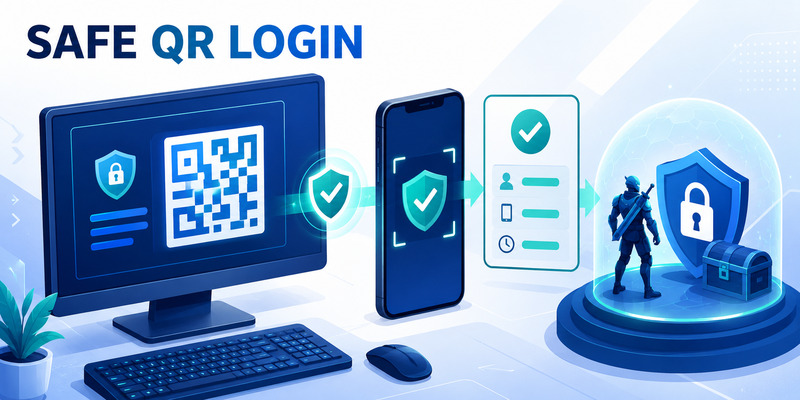
To log in to Steam using a steam guard qr code, you must have the Steam Mobile App installed on your phone and be actively signed into your account.
If you are wondering how to use steam guard code via the scanner, here is a quick step-by-step guide:
-
Open the Login Screen: Go to the Steam desktop client or a web browser login page where a QR code is displayed next to the standard username and password fields.
-
Open the App: Launch the Steam Mobile App on your phone and ensure you are logged into the right account.
-
Access the Scanner: Tap the Steam Guard menu (the middle shield icon at the bottom of the app).
-
Scan the Code: Select Scan a QR code and point your phone’s camera at the steam guard qr code on your computer or browser screen.
-
Approve the Login: Review the sign-in details on your phone—such as the approximate location, device, and browser—and tap Approve (or Sign into Steam) to finish logging in without typing your password.
Are you trying to log into a PC client, a web browser, or running into an error message with the scanner? Keep reading our complete guide to troubleshoot any issues.
Where to find steam guard qr code?
Many new users ask exactly where to find steam guard qr code. It appears directly on the main sign-in screen when you launch the Steam desktop client or access the Steam login page via any web browser. Instead of typing your username and password, the screen generates a unique steam guard qr code for instant and secure access.
To scan it, you need to open your Steam Mobile App and navigate to the middle shield icon at the bottom of the screen. Tapping this shield opens the scanner feature, allowing you to bypass manual typing while keeping your gaming account protected from unauthorized access.
Important: The Steam Guard QR code is mainly a login QR code. It is not your recovery code, backup code, or the normal rotating Steam Guard code.
Download Authenticator App
Secure your accounts with fast, reliable two-factor authentication. Download now and protect your login in seconds.
Where Is the Steam Guard QR Code?
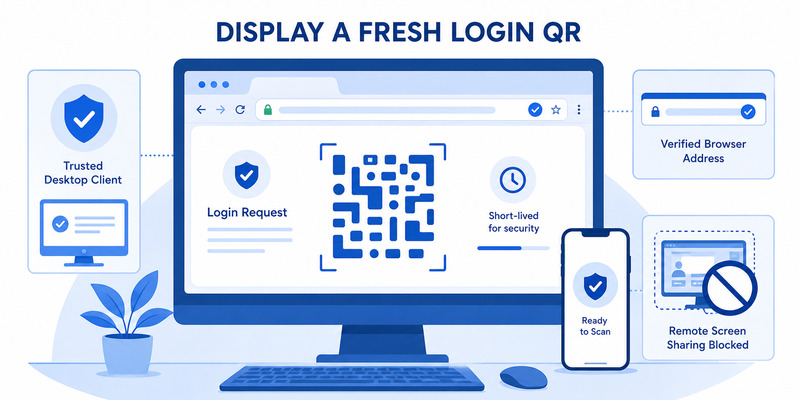
This is the main thing users searching for steam guard qr code usually want to know.
The QR code appears on the device you are trying to sign in to — normally:
- the Steam desktop client,
- a Steam login page in your browser.
The QR code does not normally appear as a permanent code inside your Steam account.
Instead, Steam generates a temporary QR code for the current login session.
Think of the flow like this:
PC/browser displays QR → phone scans QR → Steam Mobile confirms login
The QR code belongs to that particular sign-in attempt.
💡 Discover Helpful Guides: Steam Mobile Authenticator: Setup and Security Guide
How to Display the Steam Guard QR Code on PC
Step 1: Open Steam
Launch the official Steam client on your computer.
If you are already signed in, you may need to sign out to see the normal login screen.
You can also open an official Steam sign-in page in your browser.
Step 2: Go to the Login Screen
Steam’s login panel provides different ways to authenticate.
If QR login is available, you will see a QR code displayed beside or near the traditional username and password sign-in area.
Step 3: Leave the QR Code Open
Keep the Steam login window open while you get your phone.
Do not screenshot or save the QR for later.
The QR is temporary and is tied to the current login session.
Step 4: Scan It With Steam Mobile
Now move to your phone and open Steam Guard.
Protect your accounts from hackers today. Click here to Download our comprehensive Authenticator App!
How to Scan a Steam Guard QR Code
Steam provides the QR scanner inside the official Steam Mobile App.
Step 1: Open the Steam Mobile App
Open Steam on the phone where your Steam Guard Mobile Authenticator is already configured.
Step 2: Open Steam Guard
Tap the Steam Guard shield icon.
Steam’s official instructions identify Steam Guard as the place where the QR scan function is available.
Step 3: Tap Scan a QR Code
Choose:
Scan a QR code
If Steam asks for camera permission, allow the Steam app to use your camera.
Step 4: Point the Camera at Your PC Screen
Hold the phone so the entire QR code is visible inside the scanner.
You usually do not need to take a picture.
Simply hold the camera over the QR until Steam recognizes it.
Step 5: Review the Login Details
After scanning, Steam displays information about the login attempt.
Steam’s documentation says the confirmation screen can include information such as the approximate location of the device trying to sign in.
Check that the request matches the login you just initiated.
Step 6: Approve the Login
If the details look correct, approve the request.
The Steam client or browser should then complete the sign-in.
💡 Discover Helpful Guides: Where to Find Steam Mobile Authenticator Code Fast
Set Up Mobile Authenticator When QR Scan Is Missing
Enroll Steam Guard Mobile first
If Steam Mobile shows Add authenticator instead of scan and code controls, enrollment is incomplete. Open Steam Guard, choose Add authenticator, and follow Valve’s current setup walkthrough. Steam may confirm a phone number by SMS and then present a recovery code.
Write the recovery value down and store it away from the phone. It is not a steam guard qr code and should never be shared with another player. Generate backup codes through Account Details and Manage Steam Guard for emergency login.
Verify setup before QR login
Return to the Steam Guard page and confirm that the app can show a rotating code or receive a sign-in request. Perform one manual or push login before depending on QR. The steam mobile authenticator guide covers the full enrollment and recovery model.
Steam currently supports the mobile authenticator on iOS 13 or later and Android 5.0 or later. Platform requirements can change, so check current Steam Support. Unsupported devices or obsolete app versions may not show the expected scanner.
Protect the phone with a strong passcode, update the OS, enable automatic time, protect the contact email, and confirm the registered phone number. QR approval is only as secure as the phone credential and account-recovery channels.
After enrollment, return to the official PC login panel and display a fresh steam guard qr code. Do not reuse a screenshot from before the authenticator was activated.
🛠️ Learn with Step-by-Step Guides: Where to Find Steam Mobile Authenticator Code Fast
Fix Expired, Unreadable, or Rejected QR Sign-In
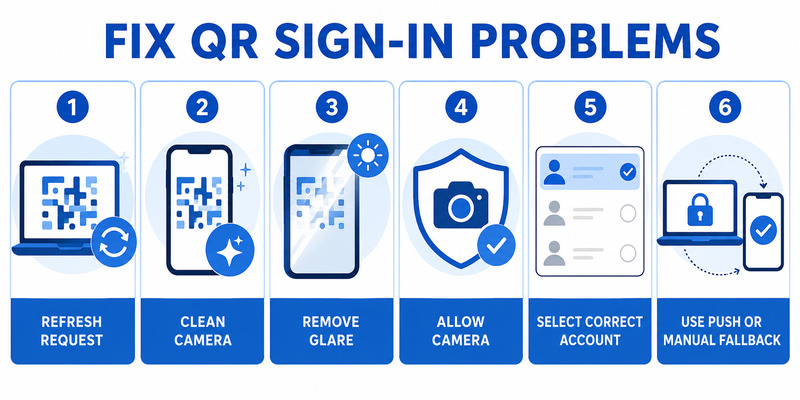
Refresh the request and camera conditions
If the phone cannot read the steam guard qr code, generate a fresh request, clean the camera lens, increase screen brightness, remove glare, keep the entire pattern visible, and hold the phone steady. Try normal browser zoom and avoid dark overlays or color filters.
Confirm camera permission for Steam Mobile. Close unrelated QR scanners and update the app and phone OS. Do not upload the image to an online decoder; that shares a live sign-in request with another service.
Check account, network, and session state
Ensure the correct Steam account is selected in the mobile app and the PC login has not expired. Check phone and PC connectivity, Steam service status, and automatic time. Restart the app and create one clean request instead of scanning repeated stale images.
| Symptom | Likely cause | Safe fix |
|---|---|---|
| Scanner never detects pattern | Glare, crop, permission, or camera issue | Show full fresh QR and fix camera access |
| Request recognized but rejected | Expired session or wrong account | Refresh and select intended identity |
| Approval succeeds but PC stays logged out | Browser/session or network problem | Restart official login flow |
| No scan option in app | Authenticator not enrolled or app outdated | Complete setup and update Steam Mobile |
Use push or manual code sign-in as a fallback. If every method fails, go to help.steampowered.com and record the device, OS, app version, network, exact error, and time without recording the steam guard qr code.
Do not remove the authenticator merely to fix scanning. Removal reduces security and Steam currently documents a 15-day restriction on trading and Community Market selling.
Test a manual code login before changing account security; success helps isolate the problem to QR capture or session state.
Steam Guard QR Code vs Steam Guard Code
These two are easy to confuse.
| Method | Where you find it | What you do |
|---|---|---|
| Steam Guard QR code | Steam login screen on PC/browser | Scan with Steam Mobile |
| Steam Guard code | Steam Guard section in mobile app | Type code into login form |
| Recovery code | Steam Guard recovery settings | Use for authenticator recovery |
QR Code
Displayed by the login device.
You scan it with Steam Mobile.
Steam Guard Code
Displayed inside the Steam Mobile App.
You type it manually into Steam when requested.
Recovery Code
Used when recovering or managing the Steam Guard Mobile Authenticator.
If you are specifically looking for the normal rotating authentication code, use the dedicated find Steam Mobile Authenticator code guide.
If you have lost access to Steam Guard, use the Steam Authenticator recovery code guide.
💡 Discover Helpful Guides: Steam Mobile Authenticator: Setup and Security Guide
Do You Need Steam Guard Mobile Authenticator Before Using QR Login?
Yes.
Steam’s documentation states that QR login becomes available after the Steam Guard Mobile Authenticator is successfully enabled.
So QR login is not normally the process used to create the authenticator itself.
The sequence is:
Enable Mobile Authenticator → QR login becomes available
not:
Scan login QR → create authenticator
If your Steam app only shows Add authenticator, complete the Mobile Authenticator setup first.
Keep the full setup process on the dedicated Steam Authenticator setup guide rather than expanding it here.
Frequently Asked Questions
Where can I find my Steam Guard Mobile authenticator code?
If you cannot use the QR scanner, you can generate a manual code. Open the Steam Mobile App, tap the Steam Guard shield icon, and you will see a randomly generated 5-character steam guard code that refreshes every 30 seconds.
Why am I not getting my Steam Guard code?
If you are not receiving your steam guard code via email or SMS, check your spam folder or ensure your phone has cellular service. If you are using the mobile app, verify that your device’s time and date settings are set to “Automatic.” Desynchronized time is the most common reason for code generation failures.
Is there a Steam Guard authenticator app?
Yes, the official Steam Mobile App includes the built-in Steam Guard feature for your gaming account. However, many users also rely on dedicated, secure third-party authenticator apps to protect their emails, social media, and other non-Steam accounts.
What if I lost my Steam mobile authenticator?
If you lose access to your phone, you can remove the authenticator using the backup recovery code (which begins with the letter “R”) provided to you when you first set up Steam Guard. Alternatively, you can contact Steam Support directly to prove your account ownership and reset your login methods.
📘 Find the Right Guide: Apple Authenticator: Complete Guide to 2FA, Verification Codes & Apple Devices
Final Thoughts
Use a steam guard qr code only when it appears on the official Steam client or Valve website login panel that you intentionally opened. In Steam Mobile, open the Steam Guard shield, scan the pattern, and review the account, device, location, and timing before approval.
Do not scan QR images sent in chat, email, trade offers, giveaways, tournaments, or third-party marketplaces. Never save or share a live request. Steam Support and Valve employees do not need a QR, mobile code, password, recovery value, SMS removal value, or trade approval.
If scanning fails, refresh the request, fix camera permission and glare, update the app, choose the correct account, and use push or manual code entry as a fallback. Avoid removing the authenticator for a simple camera problem.
Visit Authenticator App for broader two-factor setup, recovery, migration, and phishing-defense guidance. A safe steam guard qr code workflow combines an official login surface, enrolled phone, careful confirmation, protected recovery information, and active-device review.
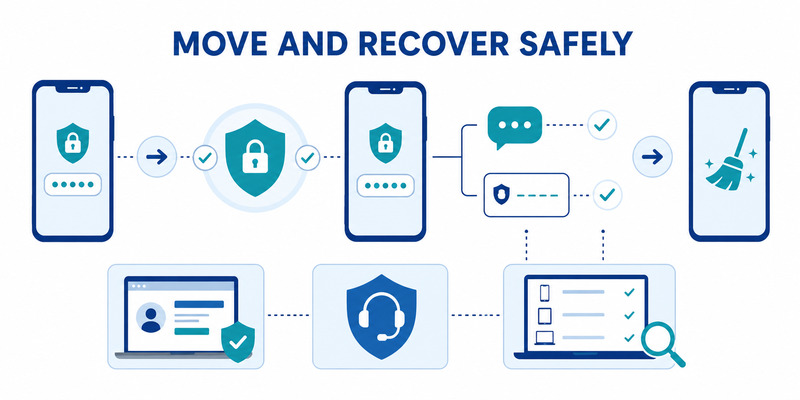
When changing phones, use Move Authenticator and expect Steam’s protective restriction. When access is lost, recover only through the registered number, saved recovery value, backup codes, or help.steampowered.com.
Review Security & Devices after shared-PC use and deny every request you did not initiate. The best steam guard qr code habit is simple: create the request yourself, inspect it on the phone, and approve only the session you recognize.
Download Authenticator App
Secure your accounts with fast, reliable two-factor authentication. Download now and protect your login in seconds.
