
Riot 2FA Setup With Email, Riot Mobile, and Authenticator Apps
Published November 20, 2026
By the Authenticator App Team
Last updated: November 2026
Enable Riot 2FA from the Multi-Factor Authentication card on your Riot Account page. Complete the confirmation sent to the linked inbox. You can then add Riot Mobile from the same account page if you want to verify through the official app. Riot Support also names Google Authenticator and Microsoft Authenticator as other methods.
Choose the proof your particular login screen requests. Riot Mobile activation, a quick login QR, and an email code for a password change are different actions. Start with an inbox you control, confirm the Riot account that owns your game profile, and check recovery before removing an existing factor or replacing a phone.
Turn On Riot 2FA From the Account Page

Confirm the Account and the Masked Email Hint
Open the official Riot account management page from a trusted browser. Check your Riot ID and the associated email. If you have a different account for League of Legends or VALORANT, match the account to the profile you actually use. A saved browser session can open the wrong account without showing another password prompt.
On the Multi-Factor Authentication card, check the hint for the destination. Open the associated inbox from a trusted device. Confirm it can receive Riot mail and that you can sign into it independently of the phone you use for games. This inbox can be essential for Riot 2FA activation and recovery.
Confirm the Email Enrollment
Riot Games Support’s Multi-Factor Authentication How-to & FAQ describes selecting the enable or resend action on the account card. That sends a confirmation to the linked inbox. Open the confirmation you requested and finish enrollment. Return to Riot account management to verify that the email method is active.
If the message is missing, compare the hinted destination, check spam, and wait for the request to finish before trying again. Open Riot directly to start a new request if you are unsure about a message. An email generated by a setup you started should match the account and action you see.
Test Access Before Adding Another Method
Keep the signed-in account page open and test an ordinary login from a separate trusted browser session or approved game client. Check which field appears and which account opens after verification. Keep the correct inbox open until that test succeeds. If you need to change the email, follow Riot’s account verification procedure first.
Riot’s guide says that some account changes, including updates to an email or password, can trigger a security code even when the account holder did not enable MFA manually. Use the state shown on the account page to confirm whether regular Riot 2FA is active. Receiving one verification message alone does not establish that enrollment finished.
An old inbox can receive the activation message while your current device shows a different account name. If you have changed usernames or moved regions, check the Riot ID and profile after the email confirmation. The setting needs to be active on the account that actually owns your progress. Keep the verified Riot 2FA result for that account in your private recovery notes.
Pair Riot Mobile After Email Is Active
Install the Official App and Sign In
Use the official Riot Mobile listing on your phone’s app store. Sign in to the same account you just verified. Riot Support says a new device may require the email MFA value during this first sign-in. Keep that inbox available until you can confirm that the account and mobile app are connected.
Check the name in Riot Mobile against the browser’s account page. If there are several mobile profiles, switch to the right one before starting the pairing. A QR for one account belongs in that account’s official flow, even if another Riot profile appears in the app.
Scan the Activation QR From Account Management
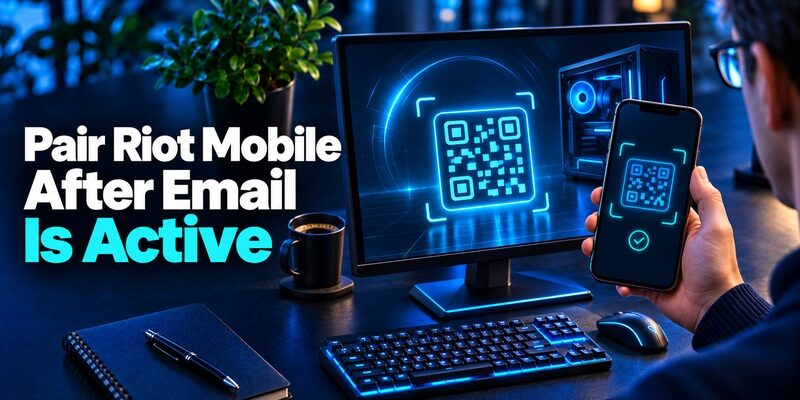
Riot Support describes using the activation control beside Riot Mobile on the account page. The browser displays a QR for enrollment. Use the QR button in Riot Mobile to scan it. On mobile, Riot’s guide says tapping the code can open the app. Follow the activation prompt on your device.
Look for Riot’s confirmation in both the app and account management. The guide says you will receive a confirmation email and the app can ask you to enable notifications if they are off. Check notification permissions on your phone if you plan to approve Riot 2FA requests through Riot Mobile.
Confirm an Approval You Initiated
Open the official sign-in on a trusted device while Riot Mobile is ready. Check whether the prompt asks for an approval, an app value, or an email code. Respond through the method named on the screen. If a notification appears unexpectedly, leave it unapproved and open account management independently.
When several requests are pending, compare the time of your latest sign-in with the request in the app. If you cannot identify the matching one, close the attempt and start a fresh request. It is easier to confirm a single new prompt than to guess which of several notifications belongs to your login.
If notifications are delivered to more than one phone, compare the current account and time on the device you intend to use. Complete the test only for the request you started. If the old phone remains associated with Riot 2FA after the change, use the official account controls to review its access and remove it when appropriate.
Distinguish Login, Enrollment, and Security Codes
| What the prompt shows | What it does | Where to verify |
|---|---|---|
| Email method activation | Enables email MFA | The confirmation requested from Riot account settings |
| Riot Mobile activation QR | Pairs the Riot Mobile app with the account | Riot Mobile scanner or app handoff |
| Riot Mobile sign-in challenge | Confirms a current login | The request displayed by Riot’s official flow |
| Quick login QR | Authorizes a new sign-in you started | Riot Mobile and the login screen you opened |
| Account-change email code | Confirms a particular sensitive change | The inbox and current Riot prompt |
Recognize Which QR You Opened
A Riot Mobile activation QR appears when you start enrollment in account management. A quick login QR appears during a sign-in flow. The same official app can interact with both, but each authorizes a different action. Read the screen and identify the account and device involved before scanning.
Keep a screenshot of the security state only if you need it for your own records, and exclude the QR itself. A third party asking you to scan a code for a tournament invitation, skin, or prize can be asking you to authorize a device you do not control. Open the official Riot service directly when in doubt.
Match the Value to the Delivery Channel
A code received by email belongs in the Riot prompt that requested it. A mobile approval belongs in Riot Mobile. If the sign-in screen offers more than one method, choose the one you are set up to use. Check whether the email field shows a masked destination before opening a code from your inbox.
Do the same during a sensitive account change. If you requested a password change and a login close together, the newest message could belong to a different action. Read the subject and prompt, then complete one request at a time. The Riot 2FA value is private until used.
Keep your email secure independently of Riot. A recovery record should say where the Riot 2FA inbox can be opened and how to recover that inbox if you replace a phone. A password manager or another approved method can help maintain access. Verify the mailbox’s backup options without sending a game login code to anyone.
Check Third-Party Authenticator Options

Read What Riot Offers in Account Management
Riot’s Multi-Factor Authentication How-to & FAQ names Google Authenticator and Microsoft Authenticator as supported options. Use the current security screen to see the choices and prompts available for your account. If the portal gives you a setup QR for an authenticator, scan it only in the app you chose and verify the current value Riot requests.
The Riot Mobile activation QR belongs to Riot Mobile. Use the app named on the screen rather than assuming every QR represents a standard rotating-code credential. If you are unsure whether your account supports a different app, check Riot’s current support instructions for your specific setup before relying on it.
Verify the App Entry With the Live Account
If the selected app generates time-based codes, use automatic date and time on the phone and submit a fresh value. Give the entry a recognizable account label where the app allows it. Complete a normal test sign-in before erasing any older app data.
For other accounts that offer compatible rotating-code enrollment, can store those entries. Keep labels distinct when you use one device for both a Riot account and the email that supports Riot 2FA recovery. Verify each entry against the service that issued the enrollment.
Before moving an authenticator entry, inspect the actual login screen on the account. An account can show an active email method while a separate mobile factor still needs enrollment. Test the exact Riot 2FA path you intend to use. Then test the fallback the official challenge offers while you still have both devices.
Manage Trusted Sign-Ins and Account Sessions
Use Remember This App Only on a Trusted Device
Riot Support describes a launcher option to remember the app for 30 days. Its FAQ distinguishes that setting from the option that keeps the user signed in. On your own secured device, this can reduce how often the launcher asks for proof. Use your normal verification method when you sign in elsewhere.
Avoid enabling remembered status on a shared gaming PC or device you are about to return. If you test Riot 2FA on a familiar device and it skips the prompt, check whether that device was already remembered. Try an authorized session on a trusted device where you can observe a fresh request.
Review Access After an Unexpected Request
If you see a prompt or message for an attempt you did not initiate, open the account page from a known address. Review recent account changes and follow Riot’s security guidance. The provider’s Multi-Factor Authentication FAQ describes using Login Management to log out everywhere, which also revokes trusted-device status.
Before ending sessions during routine maintenance, make sure you can use the registered inbox or preferred factor. If you believe the account was compromised, follow Riot’s official account-security procedure promptly. Test the correct account after the response and check that any affected game profile is still associated with it.
If you access a shared PC at a tournament or gaming cafe, complete the login only on the device you are using and sign out when finished. When back on your own computer, check the account’s device controls. A fresh Riot 2FA request after ending trusted sessions may be expected. Keep your recovery inbox ready before starting the review.
Recover the Account After a Lost Phone or Email

| What is unavailable | First step | What to keep available |
|---|---|---|
| Riot Mobile phone | Use an offered email or other enrolled method | Your current inbox and account details |
| The linked email address | Use official Riot Player Support | The account identity and requested ownership evidence |
| Access to a previously trusted device | Sign in on an authorized replacement | An active MFA method you can use |
| A third-party authenticator entry | Use the supported alternative in the prompt | The old phone or app backup if available |
| An unfamiliar sign-in or security change | Use official Riot account-security controls | Timestamps and notices without live values |
Use an Approved Alternative if Your Phone Is Gone
Check the official challenge for a registered alternative. If Riot 2FA sends an email and you still control the inbox, verify the current request. Once you regain access, review the Riot Mobile setting and replace the enrollment through account management. Retain a working session until you test the replacement.
If you have the old phone during a planned change, use it until the new app has been verified. Install Riot Mobile from the official store, check the account, and confirm the new request. If your separate authenticator offers transfer, test the resulting entry through the live account instead of assuming the app label proves it works.
Contact Riot Player Support if the Email Is Lost
Riot Support’s MFA FAQ directs users who no longer have access to the registered mailbox to Player Support. Use Riot’s official account recovery route for your region. Provide the Riot ID, affected account and contact address, and which step blocked access. Follow the support process for proof of ownership.
An old browser session can help you identify the account, but a sensitive update can still ask for proof. Preserve the session if it is safe. Keep credentials and verification values out of ordinary messages. When Riot 2FA is restored, review the verified email and the methods associated with the account.
If a recovery ticket is still open, follow it through the same official channel instead of submitting proof to someone who contacts you through a game chat. Capture the ticket reference and the date you last controlled the linked email. Those facts help organize the ownership request without disclosing a one-time code.
Resolve Missing Codes and Approval Problems
Check Spam, Notifications, and Account Identity
For a missing email, compare the masked hint to your address and check spam or filtering rules. Request a new code from the official prompt when permitted, then use the value for that specific attempt. Check any forwarded mailbox separately if the registered address and the address you normally open are different.
For a missing Riot Mobile approval, open the app and confirm it is signed in to the matching account. Check notification permission and network access. If an approved alternate method is available, use it and review the mobile enrollment after signing in. A delayed Riot 2FA notification should be verified against the request you actually initiated.
Report the Exact Stage Where It Stops
Record the game or browser, time, Riot ID, and whether you reached the password, QR, email, or approval step. If the app fails before a prompt appears, explain which screen failed to load. If a valid prompt rejects the proof, say which method you selected and whether another approved route worked.
One practical test is to compare a fresh account-page login with the game client you normally use. If the account page works but the game opens an unexpected profile, inspect the username and account mapping first. Resetting a valid Riot 2FA factor will not resolve a sign-in under the wrong profile.
A new device can open the correct account page while the game client still uses a saved profile. Check the Riot ID in both after a replacement. Verify that Riot 2FA succeeds on a normal sign-in, and check the trusted-device setting separately. Keep the old phone until both parts have been checked. Also check whether you can still receive the email method after moving a SIM or changing the inbox’s sign-in policy.
Final Thoughts
Activate Riot 2FA through the official account page, verify the linked email, and pair Riot Mobile if it fits your sign-in. Match each QR, code, or approval to the request you started. Check the new device before removing the old one and use Player Support if you lose the registered inbox.
Download Authenticator App
Secure your accounts with fast, reliable two-factor authentication. Download now and protect your login in seconds.
