
Discord Auth App Setup, Backup Codes, and Sign-In Options
Published November 20, 2026
A Discord auth app is a compatible tool that generates a rotating verification code for your Discord account. To enroll it, open User Settings, go to the account security area, and select the authenticator app option. Follow Discord’s setup to scan its enrollment QR or enter the setup secret, then confirm the current code. Save the backup codes before you close the working session.
Discord’s Help Center also documents passkeys or security keys and an SMS backup option. It recommends a security key where supported and says SMS MFA requires authenticator app setup first. Discord Support says it cannot remove MFA from an account. Keep a recovery method you can use if the phone or app entry disappears.
Choose a Discord Auth App and an Independent Backup
| Method | What Discord checks | What you should keep available |
|---|---|---|
| Authenticator app | Current code from the enrolled secret | The entry and an independent recovery route |
| Passkey or security key | A supported cryptographic credential | The registered device or approved spare |
| SMS if already enabled | Code delivered to the verified number | A number you control and the offered SMS option |
| Backup code | An unused value issued for the account | A protected copy outside the missing phone |
| Discord QR sign-in | A supported sign-in approval through the Discord mobile app | The official sign-in screen and your own signed-in phone |
Compare Authenticator App, Google Authenticator, and Authy
Discord’s official authenticator article names Google Authenticator and Authy as examples. Compare which app works on the device you use and how you can move or restore its entry. Google Account Help describes optional Google sync and manual transfer. Review Authy’s current backup and device instructions if you choose it. Test your Discord auth app entry instead of assuming a device backup includes it. Before choosing an authenticator, compare its compatibility, backup options, and recovery features. Our guide to choosing the best authenticator app for your accounts explains what to consider when selecting a verification tool for Discord and other supported services.
For compatible standard TOTP enrollment, is another option to evaluate. Verify the listing, scan the QR from the actual Discord setup, and complete a fresh sign-in. Check whether you can recover the entry independently before using the app as your only everyday proof.
Consider a Supported Passkey or Security Key
Discord’s current MFA overview recommends a security key and documents passkey setup in account security. Check the option your account and device offer. A supported passkey can make sign-in phishing-resistant and may use local verification on the device. Compare the recovery and device requirements before switching.
An authenticator app remains a useful option for a supported code flow, but a user can type its value into a fake page. A Discord auth app and a passkey can be separate registered methods. Test each one from an official sign-in and keep an unused backup code accessible.
Read more: Passkeys vs Passwords: Security Differences and How They Work
Secure your accounts with fast, reliable two-factor authentication. Download now and protect your login in seconds.Download Authenticator App
Enroll the App From Discord’s Account Settings
Use the Official Desktop, Browser, or Mobile Settings
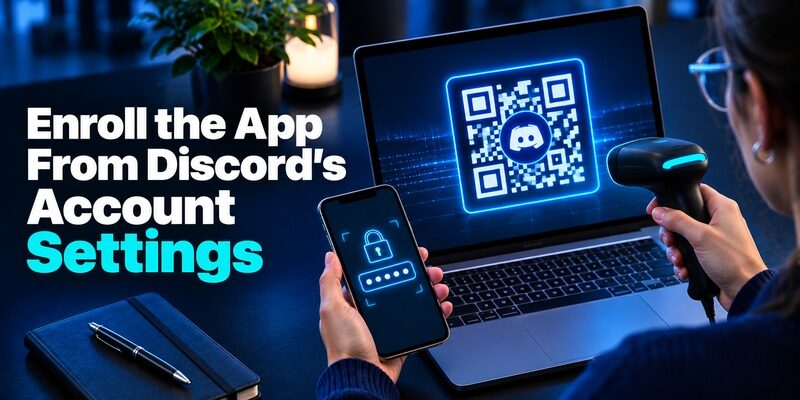
Open Discord through an approved app or browser and verify the account. Discord’s setup guide describes the authenticator app option in account settings on mobile, desktop, and browser. On desktop, open the account page in User Settings and look under password and authentication for the control to enable an authenticator app. On mobile, open Account and choose the same enable action. Enter your password only when the official account asks for it. Keep the enrollment open until you finish.
Install the Discord auth app you intend to use and check which device will hold the entry. If the QR and app are on the same phone, use a second trusted screen or follow Discord’s manual option when shown. Never send the enrollment secret to another person or to an online scanner.
Scan the Setup QR and Confirm the Current Code
Use the authenticator app’s add-entry control to scan the QR. If you use the manual key, enter it directly in the app. Check the account label and submit the current six-digit value in Discord. Its MFA overview says app codes refresh every 30 seconds. Wait for the next value if the current one is almost done.
Finish setup and verify that the account reports the method. Keep your original session active and open a separate sign-in. Use the new Discord auth app entry and check that you reach the intended account. The app showing an entry is useful evidence only after the website accepts its proof. For a complete walkthrough of Discord’s verification settings, see our Discord two-factor authentication setup and recovery guide. It covers enabling 2FA, using authenticator codes, and preparing backup methods before you lose access to your device.
Keep the Setup QR Separate From a QR Login
Discord’s login guide describes signing in to a desktop or browser by scanning a QR with the Discord mobile app. That QR login flow is different from enrolling a rotating code app. The enrollment QR carries information used to register an authenticator. A sign-in QR can lead to approval of a session.
Scan only a QR displayed by the official action you started. If someone sends a QR claiming it will verify a server membership or restore access, leave it unused and open Discord independently. Check what the current prompt is asking you to authorize before confirming.
Read more: What to Do if You Clicked a Phishing Link: Immediate Security Steps
Save Backup Codes Before the Device Is Lost
Open the Official Backup-Code Option While Signed In
Discord’s MFA guide describes viewing backup codes from User Settings and the account area. Use the current View Backup Codes option and complete any required verification. Save the values in a protected place you can reach without the phone that holds your Discord auth app entry. Keep them separate from ordinary screenshots and shared notes.
If you have more than one Discord account, label the records by account. Verify which account you are viewing before generating a replacement set. A code issued for a different account cannot recover the one you want. Do not give a backup code to a moderator, bot, or person claiming to be Discord Support. Discord backup codes should be stored separately from the device that generates your everyday verification codes. Understanding what an account recovery code is and how to store it securely can help you prepare for account lockouts without exposing sensitive authentication information.
Use One Unused Backup Code in the Matching Prompt
Discord describes backup codes as one-time values. During a lockout, choose the backup option in the official sign-in if offered and use one unused value. Read the screen because Discord notes that the backup option may not appear for other security operations. Do not enter the saved value into a QR setup or passkey registration field.
After you regain access, review your current methods and configure a replacement. Discord recommends generating fresh backup codes when the account is under your control again with new MFA. Update the protected record and test the new Discord auth app or supported credential.
Recover Based on the Proof You Still Control
| What you have left | First route | What to verify afterward |
|---|---|---|
| An unused backup code | Use the official alternate sign-in method | The correct Discord account opens |
| A registered passkey or security key | Use it where Discord offers it | The intended account and device are recognized |
| SMS backup enabled before the loss | Request the code through Discord’s official screen | The verified number still works |
| Another signed-in Discord session | Review the account and backup settings | What additional confirmation is required |
| No working proof or session | Read Discord’s official lockout guidance | Which routes actually remain available |
Use an Already Registered Alternate Where Offered
If you lost access to the Discord auth app, check whether a supported passkey, security key, saved backup code, or previously enabled SMS option is available. Discord’s guide says SMS authentication must be enabled before it can serve as a backup. Adding a phone number in advance and enabling the SMS option are separate steps.
Keep any working session open while you verify what is available. A signed-in desktop or phone may let you review account and backup settings, subject to the confirmation Discord requires. Verify the identity and methods for the intended account. Do not remove the only working route before the replacement passes.
Understand What Discord Support Can Do
Discord’s current MFA overview states that its support team cannot remove MFA from an account. Review official lockout guidance and check the original device, saved backup codes, and already registered alternatives before giving up a working session. An unofficial recovery service cannot issue an account credential or safely bypass the verified methods.
If you suspect someone else accessed the account, follow Discord’s official compromised-account route separately. Record the event and error without including the current value. If you regain authorized access, review the registered methods, contact details, and active sessions through the official controls.
Read more: Why Does My Authenticator App Not Work? Common Verification Problems and Fixes
Fix a Rejected Code or a Missing Entry
Confirm the Account Label and the Device Time
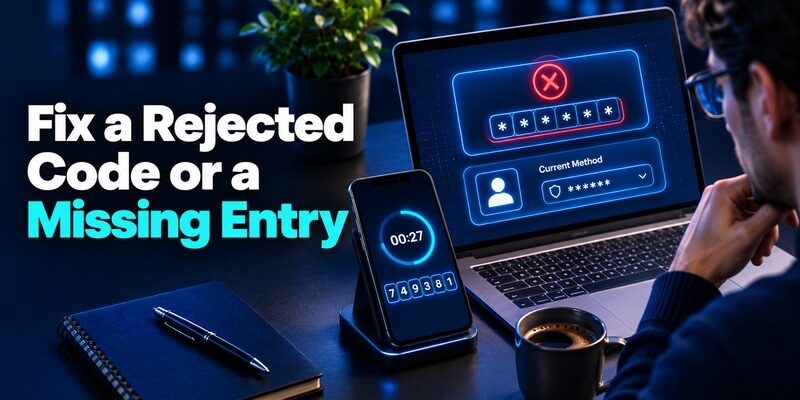
Open the current Discord auth app entry and compare it with the account signing in. Set automatic date and time where appropriate, wait for a fresh value, and submit it in the same prompt. An old enrollment can continue to generate values after the account switched to another secret. Keep both entries until you verify which one belongs to the active account.
If a new phone has no Discord entry, check the original device and the app’s official transfer or sync route. A reinstalled app can open without restoring any account data. Test the intended entry from the official Discord sign-in before retiring the original device.
Check Whether the Prompt Is for a Different Action
A Discord login, QR sign-in, security settings change, and server permission check can show different screens. Read the exact instruction and verify what proof belongs there. If you completed account authentication but cannot open a server or perform a moderator action, check the role or server policy separately.
When seeking help, describe the account, device, and stage. Say whether the app generates a value, whether the value is rejected, and whether another method remains. Keep the live code and backup material private. Before replacing your phone, verify that your Discord authenticator entry can be transferred or restored using the app’s supported method. Following an authenticator app new phone transfer guide can help you prepare the replacement device, test your verification codes, and avoid losing access to your account.
Verify Access on the Devices and Accounts You Use
Check a Phone Move Before Returning the Original
Use the approved app transfer or the account’s official method change. Verify one new Discord auth app entry first. Start a fresh Discord sign-in and check the intended username. Keep the old session and backup record until you know the replacement works. If you have several Discord accounts, repeat the check for each one.
After the test, review any obsolete registration and the currently usable recovery codes. If the device belonged to an organization, follow its return process. Keep your personal entries and the organization’s access policies separate.
Review Community Access Without Sharing a Credential
If you moderate or manage a server, check the authorized role after sign-in. A working Discord auth app does not grant permissions your user does not have. If someone needs to cover a task during your lockout, they should use their own account and authorized role. Never send them a password or backup code.
Use official account settings to handle security changes. Use the server’s authorized administrative route for community permissions. A short record of the user, device, and successful test can help support without containing secrets.
Compare the Backup Methods Before You Pick One
Check a Passkey on the Devices You Actually Use
If you register a passkey in Discord, check whether it is tied to a particular device or managed by a credential provider you can access on a replacement. Start a separate sign-in and use the official passkey option. Verify the account afterward. A working Discord auth app can remain available while you test the new method.
When a device is shared, check who can unlock it or access the browser profile that holds the credential. Keep the account proof under the authorized user’s control. If a passkey becomes unavailable, use an approved alternate you already enrolled and review the account after recovery. A backup code stored outside the missing device can give you an independent route.
Verify the SMS Option Before Assuming It Is Active
Adding a phone number and activating SMS authentication are distinct steps in Discord’s guidance. After the Discord auth app is enrolled, confirm whether you intentionally enabled SMS and what number it uses. If the official sign-in offers it during your test, check that you can receive the current value. Follow the latest Discord instructions if you choose to change the number.
Text delivery depends on the registered number, while the app code depends on the enrolled entry. Losing the phone can affect both at once. Keep a separate backup instead of assuming SMS will be available after a phone loss. If you do not want to rely on SMS, check the approved passkey or security key option and the saved backup set.
Read more: SMS vs Authenticator App: Which Is Safer for Two-Factor Authentication?
Check the Security Change From the Account Owner’s Perspective
Test the Actual Prompt on Desktop and Mobile
Start on your usual desktop browser or app, then repeat the account verification from an approved mobile sign-in if you use both. Check whether the current Discord auth app entry is accepted on each. A remembered session can open without exercising the new factor. Keep one working session while you test another.
When the login involves a QR, check what your phone is about to approve. A Discord mobile QR sign-in can create a session on the device displaying the QR. Use it only for an official sign-in you initiated. For app enrollment, open the code app and scan the setup QR from your own settings. Keep the two actions separate during support or screen sharing.
Prepare for a Creator or Community Account Lockout
If you need the account to manage a server, verify your login and the expected permissions ahead of time. Check which authorized teammate can perform their own work if you cannot sign in. They should use their own credentials. Give them the official support or server administration contact if needed, while keeping your Discord auth app, backup codes, and account credentials private.
When a lockout occurs, ask which methods are still available before making changes to a signed-in browser. A successful login to another account does not recover the intended community role. Record the Discord account and resource that passed, and report any remaining permission issue separately.
Common Questions About Discord Auth App Setup

Can I Use the QR Scanner in Discord to Enroll the Authenticator?
Use the scanner the official setup calls for. A rotating-code enrollment normally uses the authenticator app’s scanner or its manual setup option. A Discord mobile QR login is a separate sign-in flow. Verify which action you started before scanning.
Can I Recover the Account Using SMS if I Never Enabled It?
Use the methods Discord actually shows. Its MFA guidance says the SMS backup must be enabled before you can use it as an alternate. Check a registered passkey, security key, or unused backup code if your Discord auth app is unavailable.
Does a Restored App Icon Mean the Entry Moved?
No. Verify that the intended Discord entry is present and that a fresh sign-in accepts its code. Check the app’s official transfer or sync guide while you still have the previous device. If the entry cannot be recovered, follow the account’s registered fallback.
Where Should I Keep Backup Codes?
Keep them in a protected place the account owner can reach without the phone. Label the record for the correct account and update it if Discord replaces the codes. Use each only as the official Discord prompt directs.
Before changing the phone or browser you normally use, confirm that the account email is still reachable. If you use a password manager for your Discord auth app backup codes, verify you can open that vault independently of the same lost phone. Make a separate test of the actual Discord account and method. Keep the original session available until the account owner completes it. If a backup code was used during recovery, review the current backup list and store any replacement in your own protected recovery record.
Final Thoughts
Set up a Discord auth app in the official account settings and test its current code in a clean sign-in. Register an approved alternate if appropriate and keep unused backup codes somewhere you can reach without the primary phone.
If access fails, try the proof you already registered and preserve any working session. Verify the intended account and recovery route before retiring the old device.
