
Truist Authenticator App Setup for One View
Published November 17, 2026
By the Authenticator App Team
Last updated: November 2026
The Truist Authenticator app is a mobile token for supported Truist sign-ins, including Truist One View for commercial treasury users. Install the official app, sign in through your organization’s One View route, and scan the activation image that Truist presents during token registration. After activation, use the code generated on the registered phone when One View asks for it. Truist also documents a hard token option for One View.
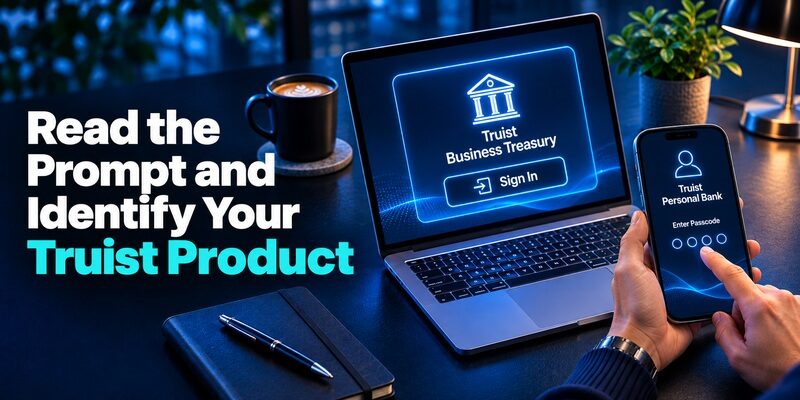
If you use personal Truist online banking, check the prompt before installing anything. Truist’s customer service guidance says the bank can send a one-time passcode by text or email when it detects unusual activity at sign-in. The Truist Mobile app also offers biometric authentication on supported devices. Those prompts have their own instructions, separate from the Truist Authenticator app activation used by eligible treasury customers.
Read the Prompt and Identify Your Truist Product
| Where you sign in | What the official materials describe | Where to go for help |
|---|---|---|
| Truist One View commercial treasury portal | Username and password with a Truist Authenticator app code or hard token | Your One View administrator and authorized treasury support |
| Truist personal online banking | A text or email passcode may be sent after an unusual sign-in | The official Truist customer service route |
| Truist Mobile on a supported personal device | Biometric authentication can be available for the banking app | The app’s security settings and Truist customer service |
| A treasury payment or approval screen | An additional security procedure may apply to the action | The authorized treasury team for that workflow |
Identify the Service Before Installing an App
If your employer assigned Truist One View to manage business cash or treasury services, start with the organization’s authorized sign-in route. Truist’s One View product page specifically describes signing in with a username and password and either a hard token or the Truist Authenticator app. An employee who only uses a retail checking account will see a different sign-in experience.
Check what the prompt names. A field for a passcode that Truist has sent to a masked contact calls for a delivered value. A One View soft-token prompt asks for the code from the registered app. If you are already signed in but cannot view an account or approve a payment, ask the administrator to verify the role and the specific transaction procedure.
Verify Who Can Authorize a Token Change
An organization can assign several users to One View, each with particular permissions. Truist’s Treasury Terms and Conditions describe administrative approval for certain actions, including profile and permission changes, subject to the client’s configuration. Ask your administrator who can handle token registration or a lost device and whether another approval is needed.
If you are a consumer, rely on the verification and recovery options that personal online banking presents. Truist’s support page explains how to recover a user ID or password and where to update the contact information used for text or email passcodes. A Truist Authenticator app entry from a workplace does not replace a personal banking challenge.
Activate the Truist Authenticator App With Your Own Token Image
Install the Official Soft-Token App
Search the approved app store for Truist Authenticator and verify the publisher and listing details. The official Google Play listing describes a registered mobile device, a PIN or supported biometrics, and verification codes that can be generated without a data connection after activation. Follow your company’s mobile device policy before installing or granting permissions.
The Truist Authenticator app is separate from Truist Mobile and from the tools you use to view or approve treasury activity. Select the app indicated in the enrollment instructions for your assigned service. Confirm whether your organization expects a company-owned phone, allows a personal phone, or uses a hard token instead.
Scan the Activation Image From the Live Flow
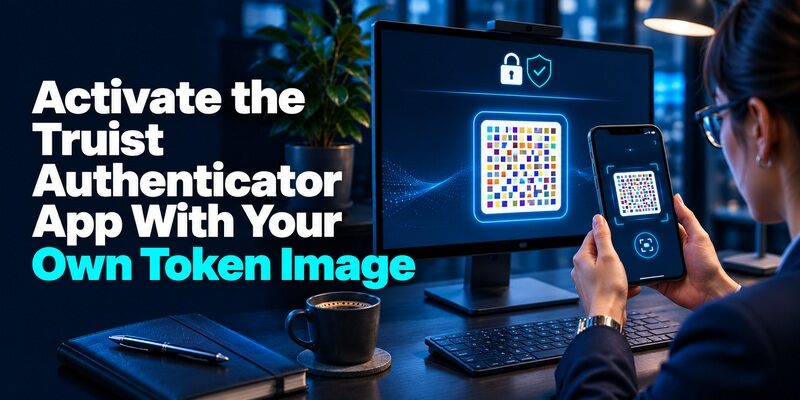
Open the authorized One View sign-in and complete the initial credential step. When the service prompts for soft-token registration, follow the on-screen directions and use the official app to scan the activation image from that session. Truist’s app listing describes it as a CRONTO image containing one-time activation credentials.
Keep the image in the enrollment session and prevent other people from viewing or capturing it. A photocopy or screenshot can expose the token activation data. If the page expires or the scanner cannot read the image, restart through the authorized flow or ask your One View administrator how to get a fresh activation. Avoid using a generic QR scanner for the Truist Authenticator app enrollment.
Finish the First Sign-In and Confirm Your Entitlements
Complete the setup prompts in the app, including the local PIN or biometric choice where supported. Return to One View and enter the currently displayed app code in the token field. If it is about to change, wait for the next value. Record that the first sign-in completed without writing down the activation image, PIN, or live code.
After verification, confirm that the dashboard shows the organization and permissions you expect. A correct Truist Authenticator app code establishes the token proof. The One View administrator still controls which treasury services and accounts an individual can access. If a payment workflow needs an additional authorization step, verify it through the organization’s approved test or procedure.
Choose Between a Hard Token and an Approved Soft Token
Use a Soft Token When the Registered Phone Is Practical
The Truist Authenticator app can generate the code on a registered phone without waiting for an SMS, according to its official listing. You still need access to the service you’re signing into. For a user who routinely carries the approved phone, a local unlock and code can be convenient, including when cellular reception is poor.
Check whether that same phone is likely to be replaced during a company device refresh. Plan enrollment with the administrator ahead of time. An app restored to a new phone may look present without having an active token tied to the new device. A usable replacement requires the service to accept the new device’s verification.
Check the Hard Token Path When Phones Are Restricted
Truist’s One View materials also describe a physical token that can be used with the username and password. If a treasury workstation or location restricts phones, ask the authorized administrator about the hard token. Confirm how it is assigned, stored, and replaced, including what to do if its display is unreadable or it is misplaced.
Avoid assuming that a hard token issued for one user will verify a different person’s login. Keep each device with its authorized owner. A team should plan access around the work each person is allowed to do and the organization’s approval rules, especially for payment releases near a deadline.
Use a Generic Code App Only Where the Service Supports It
The Truist Authenticator app uses the bank’s activation process. A QR-like image can carry different enrollment data from a standard time-based code app’s QR. Follow Truist’s specified app or hard token for One View. An unrelated app may read the image visually without being able to register the required token.
For a separate service that explicitly supports standard TOTP, is an option to evaluate for rotating codes. Review that service’s enrollment and recovery instructions independently. Installing another code app does not make a Truist token available or turn a bank-delivered passcode into an app code.
Replace the Registered Phone Before a Treasury Deadline
Ask Your Administrator for the Approved Replacement Route
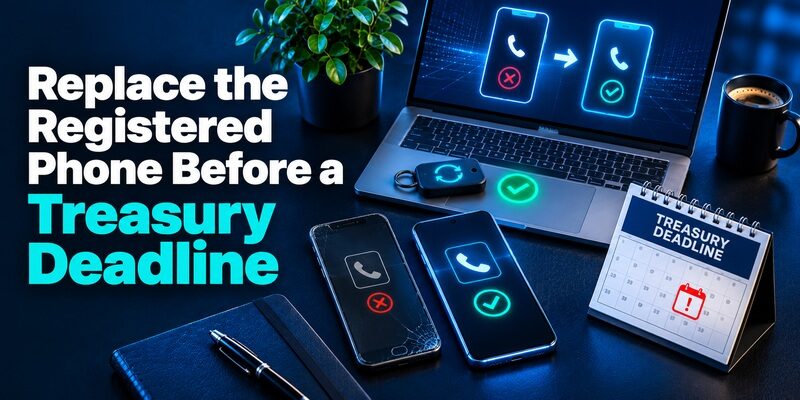
Tell the administrator whether the old phone still works, whether it is managed by your company, and which One View user is affected. Ask whether the bank or an authorized administrator needs to reset the existing token before you activate a replacement. Keep the old Truist Authenticator app available until your approved process tells you when to retire it.
Schedule the move away from a payment release or reporting deadline. If the device is replaced as part of a company refresh, confirm the person or team that can authorize re-enrollment and the time they will be available. A fresh activation might require a distinct approval depending on the client setup.
Verify the Replacement With a Separate Sign-In
Install the official app on the replacement and follow the organization’s current Truist activation instructions. Use the new enrollment image for the intended user. When you return to One View, enter the code from the new device and confirm that the separate sign-in reaches the expected portal and organization.
If the first code passes, verify the next step relevant to your responsibilities through the organization’s approved procedures. A user who prepares payments should verify the correct role without making an unauthorized transaction. An approver should verify access separately from the person who entered a payment. Review whether the old token is still registered and follow the official retirement or device-return process.
Troubleshoot the Failure at the Stage Where It Occurs
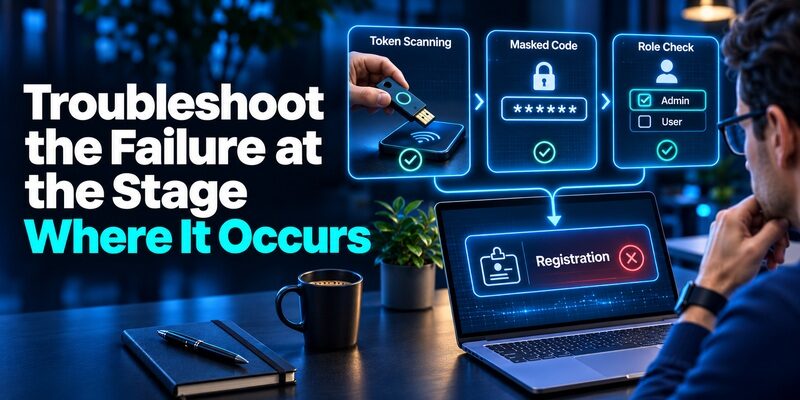
| Symptom | Likely stage | What to check first |
|---|---|---|
| Activation image will not scan | Registration | Use the official app scanner, check camera access, and verify that enrollment is still open |
| Code displays but One View rejects it | Token verification | Check the account, current code, and whether the device is the active registered token |
| The app was restored but shows no usable token | Device replacement | Ask the One View administrator for the official reactivation route |
| Personal banking passcode never arrives | Bank delivery | Check the destination and the current contact details through Truist |
| Dashboard opens but access is limited | Entitlements or transaction approval | Ask the administrator to confirm role and applicable approval procedure |
Activation Fails Before the App Produces a Code
Check camera permissions, glare, focus, and the size of the activation image on the trusted screen. Confirm that you opened the official Truist Authenticator app and that the activation came from the One View flow for your user. An older or previously used image may need replacement. Return to the live enrollment and follow the administrator’s instructions if the first attempt ended.
Keep the error wording and a record of the step that failed. If your company uses managed phones, ask the device administrator whether camera access or app installation is restricted. Preserve the enrollment secret while asking for help. An ordinary setup problem can often be explained without sharing a screenshot of the activation image.
A Working App Shows a Code That Is Rejected
Check that the app belongs to the device registered for this One View user. If you have recently changed phones, compare the tested device with the one recorded during activation. Follow the portal’s timing and try a new code from the correct device. If the Truist Authenticator app still fails, report whether the failure started during enrollment, immediately after a device change, or during a normal sign-in.
When support asks for diagnostic information, provide the service, time, affected user through an approved channel, and the stage at which it failed. Keep the actual token value private. If other users can access the same service, check whether your account or device was recently changed before assuming the whole portal is unavailable.
Sign-In Succeeds but the Treasury Action Fails
Truist’s Treasury Terms explain that some activities can require additional security procedures. Once the Truist Authenticator app code has completed sign-in, check the role, account, and specific action. An approval may need to come from a different authorized user. A payment limit or a missing entitlement will persist even if you replace a working token.
Capture the error in the approval workflow rather than requesting a new token immediately. Ask the treasury administrator to compare the user permissions with the intended action. This avoids changing a working login and keeps the actual payment issue visible.
Authenticator Website Options and How to Protect Your Setup Key
Handle a Lost Phone or Unexpected Truist Prompt
Report the Device Loss Through the Correct Account Route
For One View, notify the authorized administrator and follow the company’s device-loss procedure. State when the device last worked and whether it was in your control after that. Ask about disabling or replacing the Truist Authenticator app registration. If you have an approved hard token or another authorized recovery route, use it according to the treasury team’s directions.
For personal online banking, contact Truist through its official website, the app, or a trusted number from your banking materials. Review the current contact details and follow the bank’s security process if you suspect someone has accessed the account. Keep the personal recovery separate from any work token change.
Handle Unrequested Codes and Suspicious Calls
If you receive a Truist passcode or activation message you did not request, leave the value unused. Open the correct banking or treasury service from a trusted starting point. Truist’s security guidance provides a route to report suspected fraud. If this concerns a commercial login, involve the company administrator and follow the escalation procedure.
A caller or message may ask you to read a Truist Authenticator app code or scan an image to stop an unauthorized action. End the interaction and contact the bank or administrator independently. Write down the time and nature of the request without including the value.
Passwordless Multi Factor Authentication With Passkeys and Security Keys
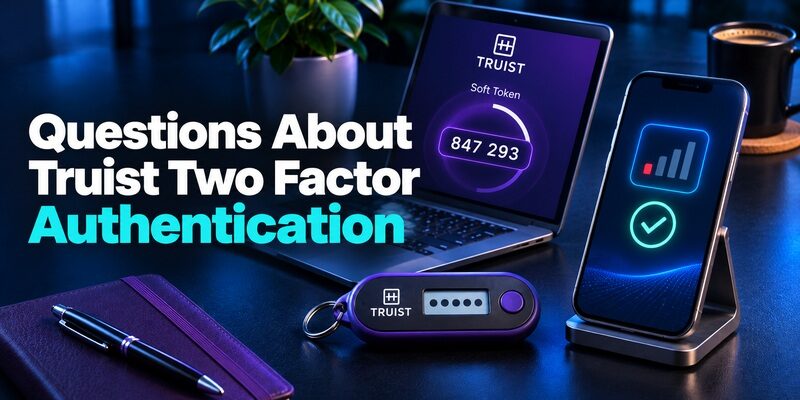
Questions About Truist Two Factor Authentication
Can I Use the App With Poor Cellular Reception?
The official app listing says the Truist Authenticator app can generate verification codes without a data connection after it is activated. The browser or portal still needs to reach Truist to complete the sign-in. Test the actual service using an approved connection before relying on the phone away from the office.
Does Truist Personal Online Banking Use the Same App?
Truist’s retail support describes delivered one-time passcodes for some sign-ins, and its security pages describe biometric access in Truist Mobile on supported devices. Truist’s One View materials identify the dedicated Truist Authenticator app or hard token for its commercial portal. Use the method the relevant service actually requests.
Who Should Help When I Change Phones?
For a work token, ask your One View administrator and follow the approved treasury support route. For a retail account, use Truist’s official customer service and online banking recovery options. If you rely on both products, verify each sign-in separately before giving up the old phone.
Check That the Team Can Still Approve Time-Sensitive Work
Before a planned phone replacement, identify the next time the user needs to review balances, submit a file, or approve an action. Ask the administrator to confirm an authorized backup for the work, including any required second approver. This planning covers the interval between deactivating the original token and confirming the replacement.
For example, a treasury operator might confirm the new device and reach One View successfully, while a second approver has a replacement scheduled for the same morning. Stagger the changes if the team’s authorization process depends on both users. Confirm each person can complete the approved test independently and record the outcome without retaining the token codes.
If a lockout occurs outside normal hours, follow the support path the company approved for the commercial service. Have the internal contact and escalation instructions available from a separate device or secure location. The case record can state which user and service were affected, whether the original device remained in the user’s control, and which authorized role confirmed recovery.
Close the case when the intended users can sign in and perform the authorized work. If the bank or administrator retired a device, verify the resulting status through the approved process. Keep only the information your organization needs to confirm the change later.
2Factor Login for the Log2X Dashboard and OTP Troubleshooting
Final Thoughts
Set up the Truist Authenticator app from your authorized One View enrollment and confirm the first code before relying on it. Keep the activation image private and make sure the expected treasury service and role appear after sign-in. A hard token may be available when that is the organization’s approved method.
For personal online banking, use the verification method shown in the bank’s own prompt. If you are replacing a phone or cannot reach your registered contact, choose the recovery route for the specific product before making changes to a working factor.
Download Authenticator App
Secure your accounts with fast, reliable two-factor authentication. Download now and protect your login in seconds.
