
MFA Setup Checklist for a Team Rollout: Step-by-Step Guide
Published November 16, 2026

By the Authenticator App Team
Start MFA setup by choosing the accounts and applications to protect, then enable an approved factor and test enforcement with a pilot group. Keep an independent administrative recovery route and verify it before applying the policy more widely. The rollout is ready only when users can enroll, sign in, and recover through an authorized process.
The steps below are for administrators coordinating a rollout. An end user should follow the instructions supplied by their organization. Separate what the platform can offer from what the policy actually requires, and test both before changing defaults.
Define the MFA Setup Scope Before Enabling a Policy
List the applications and roles the change will affect. Identify who owns each sign-in, whether the identity is personal or managed, and where the provider verifies the factor. A policy can only protect traffic that reaches the sign-in component where it runs. For MFA setup on a team, work from actual entry points rather than from a list of product names.
Inventory Users and Sign-In Paths
- List regular users, administrators, contractors, guests, and service identities.
- Identify the browser, mobile, and alternative login paths used for each application.
- Record which applications use the organization’s identity provider.
- Locate accounts that already have a registered factor and accounts that still need enrollment.
Ask owners to confirm who can change the policy and which support team can reset it. A provider’s organization settings may cover members and collaborators differently from a separate workforce identity platform. Keep that distinction in your scope notes.
Give the Pilot a Pass Condition
Write a short expected outcome for each high-priority path. For example, require a registered security key for a new sign-in to an administrative tool, then confirm that an authorized recovery route still works. Include an app or user that should remain outside the initial rollout. MFA setup is easier to evaluate when both the targeted and untargeted cases have a known expected result.
Pick Factors and Recovery Together

Select factors users can enroll and the team can maintain. CISA’s phishing-resistant MFA guidance favors FIDO methods where possible and discusses limits of typed codes and ordinary push. A compatible key or passkey can be a good choice for privileged access. A standard app code may be appropriate where the service does not offer a stronger method.
| Factor or workflow | When it fits | Pilot check |
|---|---|---|
| FIDO security key or passkey | Supported applications and users with compatible devices | Fresh sign-in, backup, and removal of a lost credential |
| App-generated TOTP | Service offers a standard authenticator setup | Clock, entry label, and independent recovery |
| Push approval | Organization registers a supported device and app | Recognize the right request and reject unexpected ones |
| Authorized recovery | Primary method is unavailable | Identity verification, replacement, and audit |
Build the Factor List From Real Devices
Some users share workstations, cannot install software on a phone, or need an accessible alternative. Check what your provider supports in those conditions. Ask which device will be available during enrollment and sign-in. A plan that assumes everyone has an approved personal smartphone can create avoidable exceptions. Check supported browsers and devices before selecting a default.
Keep the Spare Independent
A recovery method that disappears with the main device does not solve a device loss. During MFA setup, verify what each group can use if its everyday factor is unavailable. Record who can approve a reset and where users can reach that team without the locked account. Do not ask people to send their verification values to the help desk.
For MFA setup on administrative accounts, check that a spare factor is available before you test a stronger requirement. A security key may be a practical default for people who use compatible browsers and can keep a separate key. Other roles may need an approved method that works on a shared workstation. The goal is a supported factor for each legitimate path rather than the largest possible list of options.
Configure Enrollment and Enforcement as Separate Controls
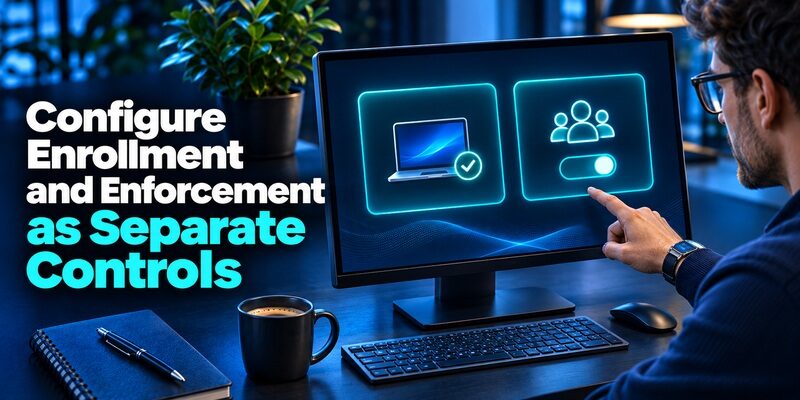
Turning on an authentication method makes it available. Enforcing a policy determines who must use it and when. Some providers combine parts of the setup, so read the documentation for your platform. Configure the supported method before broad enforcement and test what a person sees when they have never enrolled.
Check Where the Provider Applies the Policy
Microsoft Learn documents Conditional Access report-only mode for evaluating many policies before enforcement. Use the platform’s supported test mode if available. In Microsoft Entra, eligibility and behavior depend on your configuration. Check the relevant sign-in records and do a real pilot. A report can show expected policy impact without proving that a user can complete the actual challenge.
Verify Application-Level Requirements
GitHub Docs describes an organization requirement that can affect members, outside collaborators, and billing managers. That is a different control from enabling an app in a workforce directory. If MFA setup spans several services, review each service’s rules and access consequences. Confirm what happens to an unenrolled collaborator before you enforce a requirement.
Keep a record of who is allowed to change both parts of MFA setup. An enrollment administrator may help register a factor, while a policy owner determines when it is required. If one person performs both tasks, keep the actions distinct in the change record. During the pilot, verify each control separately so a successful enrollment does not get mistaken for enforcement.
Prepare the Enrollment Instructions Users Will See
Give users one trusted entry point and the factor options actually allowed for their role. Tell them how to recognize the prompt and what to do if they cannot use the default device. Keep the instructions short enough to follow while signing in. Put the approved support route where someone can reach it from outside the protected account.
Test the Instructions With a New User
Use a test identity that does not already have a factor. Start at the same page a regular user will open, register the chosen method, and verify the first successful sign-in. Record where the instructions differ from the prompt. Keep real secrets, account QR screenshots, and live codes out of training materials. If a diagram helps, use a decorative example rather than a copy of a real enrollment.
Explain How to Handle an Unexpected Request
Show users the difference between a challenge they started and a request that appeared on its own. Tell them how to deny or leave an unexpected request unused and report it through the approved route. CISA describes number matching as a mitigation against push fatigue when a phishing-resistant option cannot be used. Explain what the user should match in the actual prompt without collecting the value yourself.
During MFA setup, prepare one message for people who already enrolled and one for people starting for the first time. They need different instructions. Include how to recognize an authorized sign-in, where to find the approved app if needed, and what to do when the prompt differs. Ask a tester unfamiliar with the plan to follow each message from a clean session.
Download Authenticator App
Secure your accounts with fast, reliable two-factor authentication. Download now and protect your login in seconds.
Run a Pilot That Checks More Than the Happy Path

Treat MFA setup as a rollout with observable outcomes. Choose a pilot with representatives who use different devices, applications, and account roles. Use fresh sessions where appropriate and compare results to the planned policy. Test exceptions and recovery while the help desk and administrators are available.
| Scenario | Expected evidence | Stop or investigate if |
|---|---|---|
| New user starts from an app | Enrollment completes and returns to the intended service | Instructions differ or the app never gets the user back |
| Enrolled user signs in again | The policy asks for the intended factor | An unrelated method completes the challenge |
| User is outside the pilot | The prior sign-in remains unchanged | The policy affects users outside scope |
| User loses the primary device | Authorized recovery restores access | The user cannot reach the help desk or recovery repeats |
| Administrator tests emergency access | Approved route works and the event is recorded | The new policy blocks the recovery path |
Record What Actually Happened
Capture the application, user category, device type, policy state, and outcome. Test one difference at a time when possible. If the new behavior only appears on a fresh browser, note that. If the challenge passed but the application failed afterward, investigate the application’s return path separately. MFA setup records should explain where a sign-in changed without including its secret values.
Decide Who Can Proceed or Roll Back
Assign a person to approve broad enforcement and a person who can restore the previous policy if needed. Define what will stop the rollout, such as repeated lockouts, an unusable recovery route, or a critical application that cannot accept the chosen factor. Agree on who can make the decision while the team still has administrative access.
If your organization supports account recovery across different teams, rehearse the handoff. A support agent should know whether the user needs an application owner, a directory administrator, or a service desk reset. During MFA setup, capture how long that handoff takes and which details help locate the case. Do not advance the rollout if the only person who can fix the policy is affected by the same lockout.
Protect Administrative Recovery Before Enforcing MFA

An administrator’s recovery route should remain available when the normal sign-in path fails. Microsoft’s emergency access guidance describes how some Conditional Access policies can accidentally block the account intended for recovery. Follow your provider’s design for emergency access and test it before enforcement. Do not assume a spare account works merely because its credentials were stored.
Verify Access and Logging
Test the designated path under controlled conditions. Confirm that it reaches the controls needed to recover the identity system. Record the event through the authorized monitoring process and check that alerts or logs are visible to the right team. An emergency route is an operational control that needs ownership, testing, and review.
Keep Reset Authority Separate From User Claims
Use an established process to verify the requester before replacing a factor. If a person calls about a lost phone, record the case and verify their identity through approved evidence. Do not ask them to read a live code. Test whether support can explain which registration was changed and what the user must do at the next login. MFA setup includes preventing account recovery from becoming an easy route around enforcement.
A test of MFA setup should also check what happens when the primary identity system is unavailable. Follow the provider’s documented emergency process under controlled conditions. Confirm which people have access, whether access is monitored, and what they must do after using it. Keep those procedures separate from the ordinary support path so a routine request does not expose emergency credentials.
Roll Out in Waves and Check Real Sign-Ins
Move beyond the pilot only after you understand its failures. Start with a group that has a known support route and predictable devices. Communicate when the change begins and what users need before their next sign-in. Review observed prompts, failure reports, and recovery outcomes before increasing the scope.
Watch for Enrollment and Coverage Gaps
Compare planned users with successful enrollment and verified access. Check accounts that never reached the pilot, such as outside collaborators or people who work from a shared device. A green status in the management console is helpful, but confirm that the applications and entry points in scope actually enforce the new method. Log gaps so someone owns the follow-up.
Adjust Policies With a Clear Change Record
If MFA setup produces unexpected lockouts, narrow the issue to the relevant group, device, application, or factor. Avoid broad exclusions as a first reaction. Where an exception is necessary, document why it exists, who owns it, and when it will be reviewed. Test changes with a known account before extending them. Keep the rollback decision within the authorized change process.
After the first wave, check which support issues were predictable and which were missed. A short list of common symptoms and their owners can reduce the time to diagnose the next wave. If MFA setup changes the user experience only for certain apps, update the instructions for those apps specifically. Check whether policy exceptions are still needed after users have enrolled their replacement method.
Choose a Compatible App Only Where Policy Allows It

A general authenticator can generate codes for a compatible TOTP enrollment. Begamob’s documents adding compatible accounts by QR or manual key and producing codes offline. An organization can permit such apps when its MFA setup includes standard TOTP. A policy that requires a provider-specific push or security key still requires that factor.
Check Whether Users Can Recover Approved Apps
If you allow a compatible app, explain whether users can back up or transfer work entries, and which device policies apply. Ask users to test a replacement before wiping the old device. If the app also holds personal entries, use clear labels and keep the work recovery route separate. Keep enrollment QR codes and manual keys out of shared instruction documents.
Support Device Changes Deliberately
Ask what the user still controls before removing any registered method. If they have an approved alternate, use it to regain access and register the new device. If they have no available factor, follow the authorized reset process. Confirm the next login and remove obsolete registrations where appropriate. A successful reinstall of an app does not prove that the original registration moved.
If a compatible code app is allowed, add a practical check to MFA setup. Confirm the first value from a fresh enrollment, then test recovery on a second approved device or with another supported factor. If you cannot confirm how the organization permits work entries to be moved, direct the user to help before the old phone is removed.
Final Thoughts
A successful MFA setup protects the sign-in paths you intended and leaves authorized users a way to recover. Define the scope, choose methods that fit your users, and test enrollment and enforcement separately. Verify the emergency access path before you expand the rollout.
Keep records of actual sign-ins, failed scenarios, and supported recovery. Use them to improve user instructions and clarify support ownership. When the policy changes, repeat the tests for a fresh user, an enrolled user, and a person who lost their usual factor.
Give support an approved route to verify identity and replace the correct registration. Keep codes and secrets out of tickets. Review exceptions and policy scope after each deployment wave. A brief final check of the applications, account groups, and recovery paths tells you whether MFA setup is ready to move beyond the pilot.
Before closing the change, record the approved support channel and which sign-in owner should be contacted for each application. If an administrator changes the factor policy later, rerun the checks that confirmed coverage and recovery. Make sure the next team can understand what worked without needing access to a user’s credentials.
Check who reviews the rollout after the first full deployment month. That review should cover users who still have temporary exceptions, apps that could not use the chosen factor, and recovery cases that required manual help. Use what you learn to update the next enrollment guide and remove temporary permissions that are no longer needed.
Download Authenticator App
Secure your accounts with fast, reliable two-factor authentication. Download now and protect your login in seconds.
