
MYOB Authentication App Setup for Your MYOB ID
Published November 17, 2026
By the Authenticator App Team
Last updated: November 2026
Set up the MYOB authentication app method from your MYOB sign-in prompt or the Account security page in My Account. Choose Authenticator app, scan the MYOB QR code or enter its manual key, and submit the current value from the app. Save the recovery code MYOB displays before you finish.
If you already use MYOB with another factor, keep it working while you add or replace the app. The factor belongs to your MYOB ID. It can be needed for an online MYOB product even when that product has its own company file, user roles, or payroll access. Check which email address is signing in before you scan anything. If you cannot reach the original factor, start with an enrolled alternate or the recovery code you saved.
Complete First-Time MYOB Authentication App Setup
Check the MYOB ID on the Sign-In Screen
Sign in through the official MYOB product or My Account and check the email address. If you switch between a bookkeeping practice and a client’s file, the company name you expect to open is different from the login identity you are about to enroll. Use your own authorized MYOB ID. An administrator can confirm who has access to the business data without giving you someone else’s verification value.
Choose the Authenticator Option
MYOB’s Australian setup guide documents an authenticator option during the first online sign-in. Select it and follow the prompts for your device. If the MYOB authentication app is already installed, keep the security page open and use the app’s add-account action. Check the publisher if you still need to download it. The purpose of this step is to add a specific MYOB entry, not to create a new MYOB ID in the app.
Scan the Code or Use the Manual Setup Key
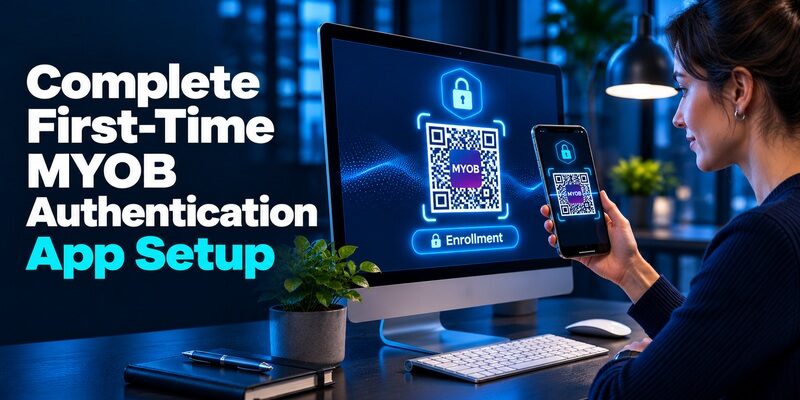
Use the app to scan the MYOB QR code from the official page. If the device cannot scan it, MYOB documents a manual option on that page. Enter the displayed setup key in the app’s manual-entry field and give the entry an identifiable name. Do not confuse this longer key with the shorter code the MYOB authentication app starts generating. Keep the setup data out of screenshots, shared albums, and support messages.
Confirm the Entry and Save the Recovery Code
Enter the current MYOB authentication code back on the setup page. If the code is about to change, wait for a fresh value. MYOB’s setup guide then asks you to copy and acknowledge the recovery code. Keep it somewhere you can access without the enrolled phone, and complete the final confirmation. Reopen the security screen or test in a separate sign-in to check that the method is active.
If you are setting this up for the first time at work, ask which MYOB ID is attached to the company before you start. Some teams invite a personal address and later move the user’s access to a work address. When the browser shows an account you no longer use, sign in with the right identity before you add the MYOB authentication app. Keep credentials separate during the transition.
Add the App From My Account After Initial Setup
Find the Account Security Screen
If you already configured a factor, open My Account for the same MYOB ID. MYOB’s enterprise support article on managing methods describes adding another option from Account security. Open the Authentication section and select the control beside Authenticator app. Follow the official prompts for enrollment and verification. Keep the existing factor available until the MYOB authentication app can complete a real sign-in.
Check the Product That Uses Your MYOB ID
MYOB’s enterprise guidance says Acumatica users who sign in with MYOB ID can reach Account security using that same identity, even though other My Account sections are limited for those customers. If a payroll or accounting product redirects to a different identity provider, read its sign-in page before changing anything. Test the sign-in in the product you need once you confirm the MYOB ID method. A change in one identity portal does not affect credentials registered somewhere else.
Keep a Short Setup Checklist
– Confirm the displayed email and account before adding a factor.
– Keep a known working session open while you enroll the MYOB authentication app.
– Enter the current app value in the official confirmation field.
– Save the recovery code in a protected place outside the phone.
– Open a separate sign-in to test the method, then open the correct business file with your own permissions.
The final check matters when you manage multiple company files. A successful MYOB ID verification does not change which file or payroll features your role can access. If the second factor succeeds but you cannot open the intended business, check the company invitation or permissions with its authorized administrator.
For an existing user, open Account security before a busy period and check which methods are currently listed. Compare the device and address you actually control with the method shown. If the authenticator option is already present and you only need to test it, use a fresh sign-in. Adding a second enrollment without knowing which entry belongs to the account can make a future rejection harder to diagnose.
Know Which Verification Method MYOB Is Asking For
| What MYOB asks you to use | Where to look | What to check |
|---|---|---|
| Authenticator app | The enrolled MYOB entry on your device | Account label and current value |
| SMS | Messages on the enrolled phone number | Destination and latest valid code |
| Existing email method | Inbox for the associated MYOB ID | Whether the account still has the method enabled |
| Recovery code | The protected copy you saved | The official alternate sign-in or recovery screen |
Read the Source Named on the Sign-In Page
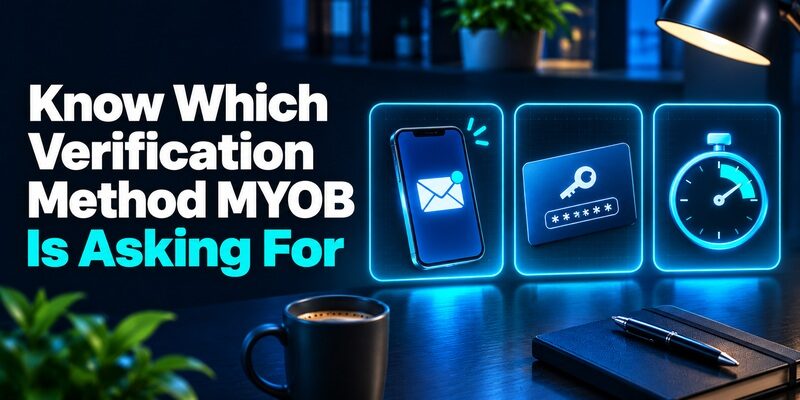
A code from the MYOB authentication app appears on your phone or tablet even if you did not request a message. An SMS code is delivered to the registered number. If you have an existing email method, check whether the page explicitly asks for a value from the inbox. Enter each kind of proof where the account requests it. If you have more than one method set up, the sign-in can offer a different route through its alternate method control.
Check MYOB’s Current Email Transition
MYOB’s Australian setup guide says new email 2FA enrollment is no longer available and describes a phaseout planned for 2027. Its support guidance recommends an app or passkey and describes SMS as a backup option. Follow the current account controls rather than removing an existing email route before the MYOB authentication app works. If you cannot see an option you expected, check the current regional and product instructions before making other changes.
Consider a bookkeeper who uses an app on a tablet but receives work calls on a different phone. A delayed SMS does not stop the enrolled MYOB authentication app from calculating a value. The account still needs to accept that app as an alternate. Check the selector before entering it. If an email method is going away, test the approved replacement before retiring the old recovery route.
Choose a Compatible Authenticator for MYOB
Check the Supported Setup and Store Listing
MYOB’s setup guide names Google Authenticator and Microsoft Authenticator as examples for the code workflow. Install from the publisher’s official listing and verify the device requirements. Microsoft Authenticator can also show work approvals for other accounts, so choose the separate MYOB code entry when MYOB asks for a code. The MYOB authentication app download is only the first step. Registration happens when you add the provider’s setup information and MYOB accepts the code.
Use the App You Can Restore or Replace
Begamob’s is an option to review when the MYOB account offers compatible standard code enrollment. Compare how you will recover the entry and whether you can open its backup without the original device. If your practice has an approved app policy, use that app. Ask each staff member to enroll their own MYOB ID. Sharing a single QR can allow several devices to generate the same values without identifying who used them.
Plan for a Tablet or Work Phone
MYOB documents app-based verification on a phone or tablet. A tablet can keep the MYOB authenticator app available while your phone receives SMS, if your policy permits both. Check that you can reach the tablet when working remotely or during a phone replacement. Label its MYOB entry clearly. The device needs accurate time to calculate rotating values, while the sign-in device still needs to reach MYOB.
An authenticator app for MYOB should be usable when you travel or work from a client’s premises. Verify that the device can generate a code without a mobile connection and that your sign-in device has network access. If your device backup needs a separate account, confirm you can reach it without the device being replaced. Then test the registered entry on the actual MYOB sign-in.
Move to a New Phone Without Losing Access
| What still works | First step | Check before retiring the old device |
|---|---|---|
| Original phone and MYOB session | Review the publisher’s approved transfer or MYOB’s new-phone steps | The replacement passes a fresh sign-in |
| An enrolled alternate | Use the alternate method in MYOB | You can access Account security and add the app |
| The saved recovery code | Use the provider’s official recovery option | You regain the intended MYOB ID and can verify the replacement |
| No factor or recovery value | Use official MYOB support for the account | The support route and new enrollment are verified |
Move the App Factor and the Phone Number Separately
If you are replacing the device and the SIM, test both methods independently. MYOB’s new-phone guidance describes using Account security to set up the chosen method. If a code app restore is supported, confirm the restored entry before assuming it is valid. An SMS that arrives on the new number does not prove the MYOB authentication app moved successfully. Likewise, an app code cannot prove that the provider has the correct phone number.
Keep Access Through a Payroll or Reporting Deadline
Schedule the account change while the original device and an authorized fallback are available. Use a separate session to test the code and open the intended MYOB product. Check who else has their own authorized access if you share responsibility for processing payroll or month-end work. A second user with their own credentials can preserve operational access without storing your recovery code in a team document.
Confirm the Replacement Before Removing a Working Method
Check the Account security list and verify which app or method belongs to the replacement. MYOB’s support guidance says an account needs at least one 2FA method, so removal applies to additional methods. Follow the official prompts and keep one verified recovery option while updating the account. If the old device is missing or may be compromised, ask the provider how to revoke its enrollment and review the account’s active access.
Do a low-impact test before retiring the old phone. Open the MYOB security page with the first session intact and use another trusted browser to see which method it requests. If you also changed your number, choose SMS separately if offered. Record which factor passed, which account was used, and whether the business file opened under the expected role. Leave codes out of the record.
Fix a Rejected MYOB Code or Missing QR
Start With the Field and the Account Label
Confirm that the provider asks for an app value and that the selected entry belongs to the current email address. If you had an older MYOB ID for another company, compare the login screen with the identifier in the app. Wait for a fresh code and use automatic date and time. If a backup restored two entries, keep the original device available and identify which MYOB authentication app code actually passes.
Resolve Scanning and Setup Problems Separately
If the camera cannot read the QR, use the official manual option documented by MYOB. If you are starting on the same phone, a trusted second screen can help when supported. Follow the setup page you actually opened. A QR from an earlier setup attempt can represent a different secret. Once MYOB accepts the new code, check the confirmation screen and test a fresh sign-in before removing any entry.
Use the Alternate Route When the App Is Missing
If the MYOB authentication app is unavailable, choose an enrolled alternate method if MYOB offers it, or follow its recovery-code route. If you cannot use any proof, contact MYOB through the support channel for your product. Provide the account type, exact error and whether another device is still signed in. Leave setup keys, recovery codes and live values out of the record.
If the MYOB authentication app value works on the old phone but fails on the new one, check whether the app’s backup actually contains that entry. Some restores recover an account label without the most recent secret. Keep the known working session and use the official account settings to verify the current method. After re-enrolling, label the entry again so you can distinguish it from the stale copy.
Verify Security After Access Returns

Confirm the Login and File Access Independently
Open a fresh session and check whether the account uses the intended MYOB authentication app entry. Then open the relevant product and company file. If the login succeeds and the file is still unavailable, ask the authorized administrator to check the user’s role or invitation. Keep those two results separate in the support record. That makes it easier to see whether the next action belongs to the identity provider or the business administrator.
Replace a Factor That May Have Been Exposed
If an unauthorized person saw the setup key or QR, replace the enrollment through MYOB’s official controls. Confirm the new entry before removing older copies. Review the account and recovery contacts using the provider’s official tools. If you shared a password or other account proof, follow the applicable security process for that credential too. Deleting the MYOB authentication app entry on your own phone cannot remove another person’s copy.
Keep Recovery Material Available for the Owner
Store the current recovery code separately from the main device and verify who should have access under your organization’s policy. Do not record the value in payroll or customer files. A short handover note can name the support contact, account owner, and verification method without copying sensitive data. Review it whenever the account owner or registered device changes.
If MYOB’s alternate sign-in gets you back in during an urgent task, confirm the intended company and product first. Finish the critical account activity using authorized access. Then return to Account security to repair the primary MYOB authentication app route. Verify the current recovery code and test the next normal sign-in while you still have a known session. This separates immediate access from the longer-term device repair.
Final Thoughts
Set up the MYOB authentication app from the security settings for the correct MYOB ID. Confirm the first code, save the recovery code away from the enrolled phone, and verify a fresh login to the product you use. Keep the original factor until the replacement works.
If you cannot sign in, identify whether MYOB expects the app, a message, or a recovery code. Follow the official alternate or support process for that account. After recovering, test access to the intended file separately from authentication. Verify which individual owns the account and who can approve any file permissions that are still missing.
Download Authenticator App
Secure your accounts with fast, reliable two-factor authentication. Download now and protect your login in seconds.
