
MFA Login From Your First Sign-In to Account Recovery
Published November 17, 2026
By the Authenticator App Team
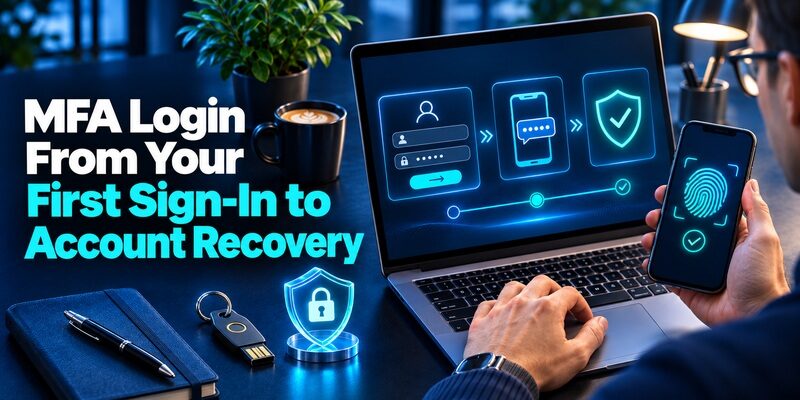
An MFA login verifies more than one type of evidence before the service opens a session. For example, after entering your password, you may provide a code from your registered authenticator, approve a request on an enrolled device, or use a security key. The service’s challenge tells you which method to use. Complete only the sign-in that you started through an official page or app.
If a challenge stops you, check the account name and method before trying another code. Use a registered alternate method or the service’s recovery process if the primary factor is unavailable. For a work account, the employer’s identity provider and policy determine which options you can use.
What an MFA Login Checks
Identify the Different Factors
A password is something you know. A registered security key can demonstrate possession. A device may also verify a local PIN or biometric as part of its supported authentication process. For an MFA login, the service needs evidence that satisfies its policy for distinct factor types. Entering two passwords can still be one type of proof. Count the factor types the provider verifies, not the number of screens you encounter.
Read What the Service Expects From You
An MFA challenge is a request for the proof associated with your sign-in. It can ask you to type a rotating code, complete an approval, or use a registered credential. Compare the account and the action shown before responding. A device’s lock screen can look similar to the provider’s challenge, but opening the device by itself does not necessarily finish the account login.
Understand Why Frequency Can Vary
The same account can prompt at different times depending on device trust, session status, and policy. A remembered browser may already have an active session. A new browser can require the MFA login again. An app may also require fresh proof before a sensitive action. If you need to check whether a method works, test in a trusted separate session rather than judging by how often your normal browser prompts.
Consider a user who has both personal and work accounts with one identity platform. The address looks similar, but selecting the wrong tenant sends the request to a different policy. Start from the application you need, verify the provider and identity, and use the factor registered to that account. A working proof for the personal account does not establish work access.
Download Authenticator App
Secure your accounts with fast, reliable two-factor authentication. Download now and protect your login in seconds.
Follow the MFA Flow From Password to Session
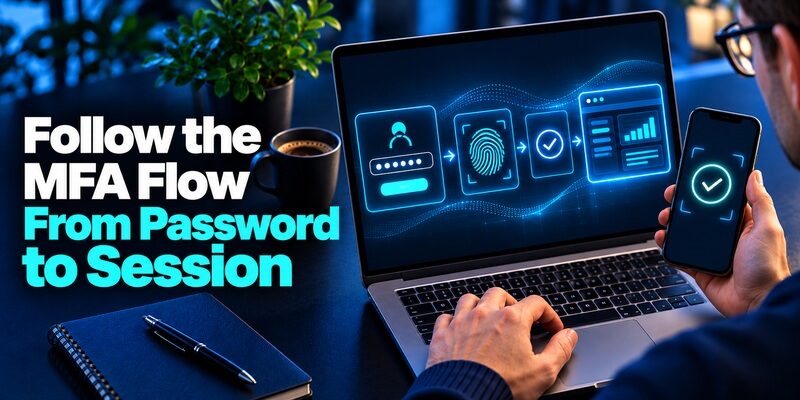
| Stage | What happens | User check |
|---|---|---|
| Account identification | The provider selects the account or tenant | Confirm email, organization, or profile |
| First verification | The provider checks the initial proof | Use the official page or system prompt |
| MFA challenge | The provider asks for an enrolled method | Match the method and action before responding |
| Session creation | The provider or application opens the verified session | Confirm you reached the intended account and service |
Start at the Service or Approved Sign-In Portal
Open the service through a known bookmark or official app. A work service can redirect to the employer’s identity provider. Check that the redirect follows the organization’s documented route, especially when you manage multiple accounts. If the page shows an unexpected organization, return to the original service and select the intended identity before entering credentials.
Complete the First Proof and Read the Second
A password-based MFA login first checks the password, then asks for the next required proof. Other supported flows may use a credential that verifies more than one factor as part of the interaction. Follow the method named by the provider. If the screen offers a choice, select the device or app you actually enrolled. A text value cannot replace an app-generated code in the app-code field.
Verify the Session After the Challenge
Successful verification can open an application session or return you to the service that requested it. Confirm the intended username and role. If the page accepts the code but you still cannot see a resource, check the application permissions. MFA login verifies identity under the provider’s policy. A separate authorization check can still deny access to a particular resource.
Separate an Initial Challenge From a Later Step-Up
A service can ask for fresh or stronger proof before a particular action, even within a signed-in session. For example, a team member can browse their account but need another check to change an administrator role. Read the action named in the prompt. A legitimate later challenge should relate to something you initiated. If it is unexpected, open the service independently to check.
A useful way to understand the MFA flow is to name each place where the result can fail. The account can be wrong, the initial proof can fail, the second proof can be unavailable, or the destination application can refuse access after successful sign-in. Identify which screen last confirmed success before requesting an account reset.
Match the Challenge to the Factor You Enrolled

| Prompt | Use | If it is unavailable |
|---|---|---|
| Type an authenticator code | Current value for the registered app entry | Select a supported alternate or recovery option |
| Approve or match a number | The enrolled phone or device | Check registration and notifications |
| Use a key or passkey | A supported registered credential | Use an approved spare or provider fallback |
| Use a recovery code | An unused value issued for that account | Follow official recovery if no valid code remains |
Use the Current Code From the Matching Entry
For a compatible TOTP account, the enrolled app calculates a value from the secret and time. Choose the entry for the email or profile in the MFA login. Wait for a fresh value if the timer is close to expiring. Type it directly in the official field. A secret or QR from setup serves a different purpose and should remain in the approved authenticator.
Compare a Push Request With the Action You Started
A managed approval may show a number, app name, or other context. Compare those details with the current sign-in and approve only if they match. If a request arrives unexpectedly, deny it or leave it unused according to the provider’s instructions. Open the account or contact your organization through its verified channel to investigate.
Follow the Device Prompt for a Passkey or Key
A registered key or passkey uses a supported browser or operating system to complete the verification. Choose the right account if the credential manager shows several. Do not enter an app code into a field that asks for a security key. If you cannot use the registered device, select the official alternate method before trying another proof.
If a method appears on the MFA login page but you cannot reach its device, select another enrolled option where allowed. Changing the method does not change the identity you are trying to use. If the available methods look unfamiliar, stop and check the account before continuing. An official support team can identify whether a managed registration was assigned to you.
Authenticator Website Options and How to Protect Your Setup Key
Enroll a Method Before You Need It
Start With the Account’s Own Settings
For a personal service, open its security settings and choose an available factor. For work, use the approved identity portal and method. If the service offers standard app codes, use its setup QR or manual key and confirm the first value. Begamob’s is one option to review for compatible TOTP. A managed MFA login can require a different named app or device registration.
Check That the Method Fits Your Devices
Verify which browsers, operating systems, or managed devices the provider supports. A method that works on your laptop might need a different connection or registration on your phone. Test from a supported client you normally use. If you often work in a place with unreliable mobile connectivity, confirm which approved offline or alternate proof the service accepts.
Keep a Working Session During the Test
After setup, try a fresh MFA login in a separate trusted session. Confirm that the new method can complete the account’s real challenge. Keep the original signed in until the test passes. If you cannot test because the provider remembers the browser, use a supported fresh profile. Save the approved recovery material before removing older factors.
When you enroll a code app, a preview in the app can display the first value while the account is still waiting for confirmation. Keep the setup screen open and submit the value there. Then run a fresh MFA login and confirm which proof the service requested. This prevents a partially completed enrollment from becoming your only assumed fallback.
Troubleshoot an MFA Login That Stops Midway
Check Whether the Password or Challenge Failed
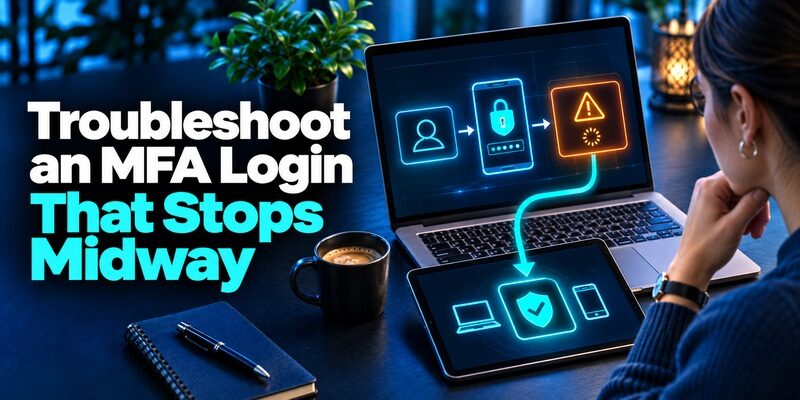
Read the error. If it appears before the factor is requested, check the identity, password, provider, or access policy first. If a code is rejected after the password succeeds, compare the prompt and app entry. For time-based codes, check automatic device time and try a fresh value. If your organization limits attempts, follow the displayed instruction.
Check Whether the Device Received the Request
For a push-based MFA login, verify the enrolled phone, notification permission, and network connection when the provider requires them. If the device received a prompt for another account, decline it and select the correct identity. If ordinary app codes work but managed notifications do not, check the managed registration separately. Use a listed alternative if policy permits it.
Check Whether the Service Opened a Session
If the identity provider reports success but the application remains blocked, note the application, browser and error wording. The login can fail during the return to the application, or the account may lack the requested access. Try the normal entry point again while you keep a known-good session. Tell support whether the MFA challenge itself succeeded.
Separate a Device Policy Denial From a Code Problem
A workplace may require a compliant device, approved network, or specified browser. A correct code does not override those requirements. Read any message about device registration or organization policy and use the approved route. If the support request concerns an MFA login policy, record the client, device status and time without sharing verification values.
If you see a successful challenge but the browser returns to the login screen, check whether the application uses a documented identity provider and whether the browser is supported. Keep the specific error and time for support. It may be a session return problem, and repeated code entry can make the failure look like a different issue.
Use Recovery When Your Usual Factor Is Unavailable

Use an Alternate Method You Already Registered
Open the provider directly and select another method if it is offered. Use an enrolled key, approved device, or unused recovery code for the account. Keep the old device if it still works. If a recovery code is consumed, check the remaining options and whether the provider lets you generate a new list.
Contact the Provider That Controls the Factor
If the account is personal, follow the service’s official recovery. If the MFA login comes from a work identity provider, contact the organization’s authorized help desk. They may need to verify your identity before issuing or allowing a replacement. A new app cannot reproduce an enrollment without the original setup information or a new enrollment from the provider.
Re-Enroll and Verify the Replacement
Once access returns, follow the provider’s security settings to add the approved method. Test a fresh sign-in and verify that the original factor is retired where appropriate. If the phone was lost or an enrollment key exposed, review active sessions and recovery contacts. An app entry being deleted on one device does not necessarily revoke other copies.
Before retiring a phone, run an MFA login with the replacement and separately check the recovery route. A signed-in device that does not prompt can still help you reach settings, but it does not verify the replacement. If you lost the phone rather than replacing it, ask the provider how to revoke that registration and review any active sessions.
Verify MFA Behavior for a Team
Test an Ordinary Employee and Administrator Separately
Choose approved test accounts and check the baseline MFA login for each role. Verify that the normal account reaches its expected resources and that a privileged account meets any stronger method requirement. Include remote and managed-device scenarios where applicable. Record the expected challenge and outcome without keeping credentials. A test account with exceptions may not represent the users affected by the policy.
Test an Unavailable Method and a Rejected Request
Simulate a lost device, an incorrect code, and an unexpected approval in a controlled test. Confirm that the provider rejects the wrong proof and exposes only the approved fallback. Check whether the support team can replace the enrollment without collecting live codes. Confirm that the replacement succeeds and that the lost registration is no longer accepted where revocation was required.
Monitor the Point Where Login Fails
Track whether failures happen at account selection, first verification, MFA challenge, or return to the application. This can reveal a configuration or role problem that looks like a code failure. Use the provider’s event data and avoid logging reusable secrets. Support staff should be able to explain which stage failed and which official action resolves it.
For a team rollout, test a contractor or guest identity in addition to the usual employee account when the application serves them. They may use a different identity provider or policy. Confirm what happens when their first factor works but the application denies access. Record the correct support route so the user is not referred to the wrong administrator.
Questions About MFA Login
Will MFA Appear Every Time?
It depends on the session, provider and policy. Some browsers or devices are remembered. A fresh sign-in or sensitive action can require another proof. Test from a supported separate session if you need to verify enrollment.
Can I Sign In if My Phone Has No Service?
An enrolled time-based app can often calculate its value offline if the phone time is accurate. The account still needs to receive the code. SMS or push methods can need connectivity or access to a registered channel.
Does an Approved MFA Challenge Grant Every Permission?
The service can verify your identity and still deny access to an application or resource. Check the requested account and role. If the login succeeded, report the application denial separately.
What if the Prompt Arrives Without a Login I Started?
Do not approve it. Open the provider directly or contact the authorized help desk. Review active sessions or security events where the provider offers them. A request by itself does not prove that someone accessed the account.
Can I Remove the Old Device After Testing a New One?
Use the official settings to remove or revoke the old registration after the new MFA login succeeds. If the old device was compromised, follow the provider’s session and credential review. Preserve a backup route that does not depend on either device.
An MFA login on a borrowed or shared device deserves a session check after you finish. Use only the service’s approved access route and sign out when you are done. If your usual browser trusts the device, use a separate approved test environment to verify a new factor without changing the day-to-day session.
Final Thoughts
An MFA login verifies the evidence required for the account and action. Identify the service, choose the method actually enrolled, and check the session that opens. If a challenge fails, determine whether it is a code, device, policy or application access problem before changing the factor.
Test the ordinary sign-in and an independent recovery option while you still have access. If the factor is lost, use the provider or employer’s official recovery and verify the replacement before relying on it.
Download Authenticator App
Secure your accounts with fast, reliable two-factor authentication. Download now and protect your login in seconds.
