
Slack Authentication App Setup and Workspace Recovery
Published November 20, 2026

By the Authenticator App Team
Set up a Slack authentication app from the Account page for the workspace you want to protect. Expand Two-factor Authentication, choose Set Up Two-Factor Authentication, enter your password, and select Use an app. Scan the setup QR code or enter the provided key manually in a compatible app. Enter the current six-digit value on Slack’s setup page and select Verify Code. Save the backup codes and test before signing out of your working session.
Slack documents separate enrollment for each workspace account. If your organization sends you to a single sign-on provider, its sign-in policy controls the factor for that route. Before resetting a Slack authentication app or asking an administrator to help, check which service displayed the challenge.
Identify the Slack Workspace and Sign-In Method
| What you see | Who controls the verification | First step |
|---|---|---|
| Slack’s password and six-digit app code prompt | Slack for the workspace account | Use the app entry for the exact workspace |
| A company sign-in page after choosing SSO | The organization’s identity provider | Use the method enrolled with that provider |
| Slack requests an SMS value | Slack for the workspace account | Use the current message if the workspace allows SMS |
| Another workspace with the same email address | That workspace’s Slack account or identity provider | Check its own sign-in and recovery policy |
| The desktop client opens a browser | The service named on the browser prompt | Confirm the workspace and sign-in route there |
Verify Which Workspace Is Asking
A person can belong to several workspaces with the same email address. Open the intended workspace and check the name or domain before changing account settings. If you have several accounts in one workspace, confirm the sign-in email as well. Slack Help’s Set up two-factor authentication guide says enrollment is separate for each workspace account.
The Slack authentication app entry follows the account that created it. Give the entry a label you can distinguish from your personal account, another employer, or a client workspace. After verifying a code, check which workspace actually opens and which email it shows. A successful sign-in to a different workspace can hide the mistake.
Determine Whether You Use Slack Sign-In or SSO
Slack can send you to the organization’s identity provider, for example when a workspace requires SAML single sign-on. The company login may request an approval, passkey, or code that was enrolled there. Use the method named by that identity-provider page. Your Slack authentication app entry for the workspace account serves Slack’s own two-factor prompt.
If your organization offers both routes, ask which one you are authorized to use. Slack’s documentation describes certain owners and administrators who can still use a backup password flow in SSO workspaces or organizations. The identity provider’s normal requirements still apply to the SSO route.
A common handoff issue occurs when a user belongs to the main company workspace and a project workspace that uses a different identity policy. Compare the workspace name and the sign-in provider shown on the page. Write down which one you are setting up before you add a new Slack authentication app entry.
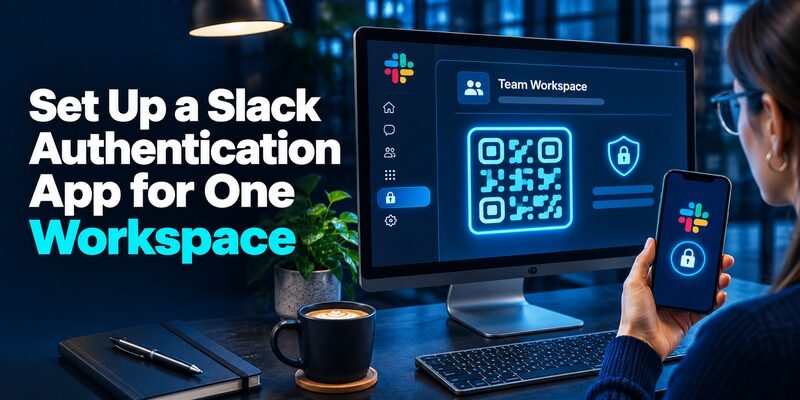
Set Up a Slack Authentication App for One Workspace
Choose an Approved Time-Based Code App
Slack Help says most apps that generate time-based one-time passwords, or TOTP, can work with its built-in 2FA. It lists examples including Google Authenticator, Microsoft Authenticator, and Duo Mobile. If your employer specifies an app or requires a managed device, use that approved option. For compatible accounts, the is another app to evaluate against the service’s enrollment flow.
Make sure you can unlock the phone and open the app before starting. If you use a different app for your organization’s SSO, check that you know which one you are pairing with Slack. The setup test establishes whether the new entry is valid for this workspace.
Open the Workspace Account Page and Pair the App
From the correct signed-in workspace, open the account settings page. Expand Two-factor Authentication, select Set Up Two-Factor Authentication, and enter your Slack password if requested. Choose Use an app. Start a new account entry in your authenticator and scan the QR from the official Slack setup page.
Slack also documents a manual-entry option. It can help if you are setting up the Slack authentication app on the same device as the setup page. Copy the entire provided key into the app only if you are on the official enrollment screen. Clear it from the clipboard after pairing. Keep the QR and setup key out of shared screenshots and messages.
Verify a Current Six-Digit Value
Return to Slack with the new entry open. Enter the currently displayed value, then select Verify Code. If it is about to change, wait for the next one. Confirm in account settings that 2FA is active and that the new Slack authentication app entry has a recognizable label.
If the first code is rejected, keep the signed-in session open. Check the time on the device generating the value, select the entry you just added, and try a fresh code. If the page has expired, follow the official setup flow again from a trusted session and use its current QR or manual key.
If enrollment is required, complete the process from the device and network your organization permits. A code can verify the pairing even while a separate device policy still prevents access. Test a full workspace sign-in after you see the successful setup message. Record any additional approved steps so you can repeat them on a new device.
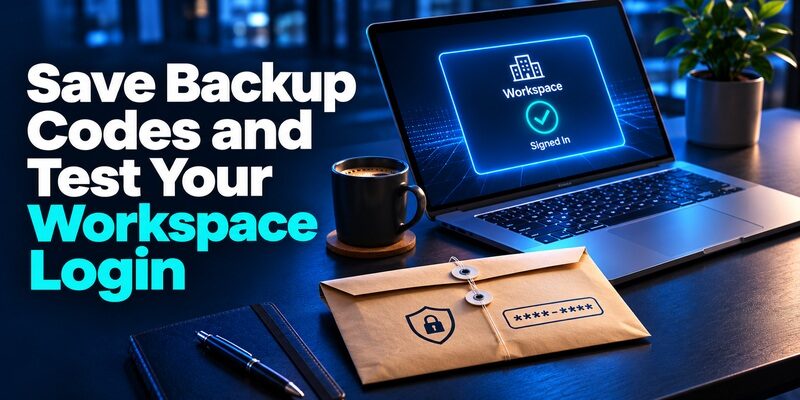
Save Backup Codes and Test Your Workspace Login
Store the Backup Codes Where You Can Retrieve Them
Slack Help says the backup codes are provided at enrollment and remain available on the workspace Account page while you have access. Each code can be used once. Save them somewhere you can reach even if the Slack authentication app is unavailable. A private password manager or a physically secured record may work if it remains accessible during recovery.
Label the record with the workspace and account email. If you have a guest role in a client workspace, keep its backup set distinct from your main company set. Do not store the only copy in the Slack account you may need it to recover. Keep codes out of shared channel messages and help desk tickets.
Run a Separate Sign-In for the Same Workspace
Keep your original session open. In a separate trusted browser profile or private window, sign in to that workspace using its approved route. If Slack asks for a code, use a fresh one from the workspace entry. Verify the correct workspace opens and that your role or expected channels are available.
If a work machine signs you in automatically through SSO, confirm who authenticated you before drawing conclusions. That successful route may have used the identity provider rather than the Slack authentication app. A Slack password test is relevant only where the workspace and your role allow it.
Confirm That the Backup Set Matches the Account
Check the workspace identifier in the secure record against the one shown in account settings. If you used a backup code during recovery, retire that specific code. When a new enrollment displays a new set, update the record and keep the current one clearly identified. A set copied during a prior enrollment may not be the one you want to use.
If you are helping a team prepare for a rollout, give members the official storage instructions without collecting their codes. Ask them to confirm they have a backup and can retrieve it. Keep access to support instructions outside the workspace so people can find them when locked out.
Consider a person who opens Slack from a bookmarked workspace and sees a code prompt after entering a password. They should verify the workspace and the selected sign-in route before opening the app. If they get sent to a company identity page instead, the same Slack authentication app entry may not answer the company’s challenge.
Use the Right Policy for SSO and Multiple Workspaces
| Sign-in arrangement | Where to manage the factor | What to verify |
|---|---|---|
| Slack password login | Slack Account page for the current workspace | Built-in app code or allowed SMS and a current backup set |
| Required SSO | Company identity provider | The approved provider method and help desk route |
| Optional SSO | The service used for that particular login | Which route and recovery options apply to your role |
| Guest workspace | Workspace settings and the host organization’s policy | Whether the guest uses Slack sign-in or an approved SSO path |
Check Each Workspace Separately
Slack’s guide says to set up built-in 2FA separately for each account when you are a member of several workspaces. Use distinct names for each Slack authentication app entry. Verify the login and save the current backup set for each workspace where you use that method. Use the policy for each workspace even if a different workspace has the same owner.
For guest access, ask the host organization which team owns recovery. Your employer might manage your device or identity, while the client controls the Slack workspace. Determine whether the error is in your company identity flow or in the client’s workspace account before contacting either team.
Follow the SSO Provider’s Security Settings
Slack’s Mandatory workspace two-factor authentication guide says to set up MFA with the identity provider for SSO. It describes plan- and role-specific handling of Slack’s backup password and guest paths. The provider’s methods may include choices that do not appear in Slack’s Account page. Verify the sign-in path the organization assigned you.
Slack also says owners can restrict use of SMS for built-in 2FA. If your workspace offers only an app, use its supported enrollment instructions. If the MFA prompt comes from the provider instead, use that provider’s approved app, passkey, or security key where offered.
If you administer more than one workspace, document whether SMS is allowed, which members use built-in 2FA, and which sign-in rules come from the identity provider. Check the instructions given to guests separately. A guest who sees a Slack password prompt needs the recovery route for that workspace, even when most employees use SSO.
Troubleshoot Slack Codes and New Phones

Confirm the Entry and Phone Clock
Open the entry for the exact workspace and email. Enable automatic date and time on the phone that generates the code, then submit a fresh value. Include a leading zero when the app shows one. If the value expires before you submit, wait for another and use it promptly.
If your Slack authentication app still fails after those checks, determine whether the prompt is coming from Slack or from an identity provider. A copied or restored entry can keep generating values even after a newer enrollment replaced it. Keep the working session available and use a verified recovery option before removing an entry.
Move the Factor While the Original Device Works
If your app supports transfer or restore, follow its documented process and check the resulting workspace entry with a real challenge. Otherwise, prepare the replacement app and follow the official Slack account controls to set it up while you can still prove ownership. Recheck every workspace that uses a Slack authentication app code.
Do the same separately for any SSO accounts in your identity provider. A successful Slack password test does not tell you that a corporate push or passkey is working. Test the identity-provider flow before removing a managed device or returning the old phone. Keep the current backup set for each workspace.
When changing phones for several workspace accounts, work through them one at a time. Record which app entry is verified, which backup set remains available, and which support team owns each sign-in. A successful test for one workspace leaves each remaining Slack authentication app entry to be verified separately.
2Factor Login for the Log2X Dashboard and OTP Troubleshooting
Recover Access Through the Correct Admin

Use an Unused Backup Code if Slack Offers the Field
On the correct workspace sign-in screen, enter an unused Slack backup code when prompted for two-factor proof. Slack says each backup code is single-use. Once you regain access, preserve the working session, restore or reenroll the Slack authentication app, and verify a fresh login with the replacement.
If the prompt belongs to your identity provider, its recovery process applies. A Slack backup code cannot satisfy a company’s SSO challenge. If you do not know which service owns the prompt, record the workspace, sign-in route, and timestamp, then ask the verified support channel for that account.
Ask the Workspace Owner or Admin About Built-In 2FA
Slack Help says a Workspace Owner or Admin can disable built-in 2FA for a locked-out member. It directs a locked-out Workspace Owner to the Workspace Primary Owner. Contact the appropriate person through a channel you already know and complete their identity verification. Share the workspace and your account email without sending passwords or codes.
An authorized admin can find the member in Manage members and use the member’s two-factor management option documented by Slack. Once access is restored, follow the workspace’s current policy to reenroll the Slack authentication app promptly. If a company provider controls the challenge, use your organization’s identity help desk instead.
Prepare a Recovery Handoff for Teams and Guests
Record the Recovery Owner for Each Sign-In Path
A workspace can include members who use SSO, guests who sign in directly, and administrators who hold a documented backup route. Ask the workspace owner to document the recovery contact and procedure for each. Keep those instructions where a locked-out member can reach them. Include who can verify identity and who can perform the relevant reset.
Run a test with a permitted account before a rollout or a planned phone replacement. Document the screen that asked for proof, the correct administrator, and the verification used to confirm that the new device works. Store procedural details separately from passwords and recovery codes.
Handle Unexpected Requests Through a Known Channel
If a message claims to come from an administrator and asks for a Slack authentication app value, open Slack or the approved support portal directly. An unsolicited message may try to collect a current value before it expires. Complete code entry only in the official prompt you initiated.
When reporting a rejected code or unexpected request, include the time, workspace, method, and visible error. Crop out secrets from screenshots. If an administrator verifies the issue and resets the factor, open the proper workspace, verify the new entry, and confirm which other workspace accounts still need checking.
Common Questions About Slack Verification

Can I Use One App for Several Slack Workspaces?
Yes, a compatible Slack authentication app can hold separate entries for several workspace accounts. Set up and verify each account individually. Label each entry and backup set with the workspace so you can match them to the prompt.
Where Can I Find My Backup Codes While Signed In?
Slack’s Set up two-factor authentication guide points to the workspace Account page. Use the page for the correct account. Store the codes outside the workspace in a secured place you can access when the phone is unavailable.
Why Does My Workspace Send Me to a Company Login Page?
The workspace may use SSO. Complete the challenge shown by the organization’s identity provider and contact its help desk for provider recovery. If you are an authorized owner with a separate Slack password route, follow your organization’s procedure for that route.
If a failed sign-in started in the desktop app, use the official browser page to identify which service displayed the error. Report whether it happened before or after the verification challenge. A support owner can use that detail to direct you to the right account team without collecting secrets.
2FA Live Verification Codes: How They Work and Safer Options
Final Thoughts
A Slack authentication app is ready when you can verify a fresh sign-in to the correct workspace and reach the backup codes separately. Check each workspace and its SSO policy before changing phones. If you lose access, use the backup code or contact the administrator who controls the sign-in route.
Download Authenticator App
Secure your accounts with fast, reliable two-factor authentication. Download now and protect your login in seconds.
