
Autenticación de Dos Factores and How to Use It on Your Accounts
Published November 16, 2026

By the Authenticator App Team
Last updated: November 2026
Autenticación de dos factores means proving your identity with two different types of evidence, such as a password and a registered security key. On a Spanish-language account page you may also see verificación en dos pasos, autenticación de doble factor, or 2FA. Read the method beside the prompt before choosing an app or entering a code.
This guide shows how to identify the requested factor in Spanish settings, how Google and Apple handle their own account verification, and what to do before changing phones. Start with the service you want to protect and keep any working sign-in available until the replacement factor passes a test.
Read the Autenticación de Dos Factores Setting
Look in the official account’s security and sign-in settings. The label autenticación de dos factores can lead to a page with several choices, including codes, approvals, and security keys. The service controls which ones you can enroll. A login asking for a code and an enrollment page showing a setup QR can look related, but they ask for different information.
| Spanish label | Usual meaning | What to do |
|---|---|---|
| Verificación en dos pasos | A sign-in feature or setup section | Read which methods the provider allows |
| Código de verificación | A current code for a challenge | Use the method and destination named |
| Aplicación de autenticación | A registered code or approval app | Use the exact tool the service specifies |
| Llave de seguridad or llave de acceso | A security key or passkey | Follow the browser or device prompt |
| Código de respaldo | A backup code issued in advance | Choose the provider’s recovery option |
Check Whether You Are Enrolling or Signing In
A setup key or QR belongs in the approved authenticator during enrollment. A current code belongs on the genuine service’s challenge. If a page asks for a long secret when you expected a short code, stop and reopen the account directly. The exact wording in Spanish can help you distinguish the two. If an app or page uses the phrase código 2FA, look for the sentence that explains where the value comes from.
Identify the Account in a Multilingual Browser
Your browser may automatically translate an account page or show the organization name in a different language. Check the provider address and the full account identifier. If you manage a personal and work account under the same brand, compare the email address and organization before confirming any change. Autenticación de dos factores on one account does not protect the other account automatically.
Look at the action as well as the wording. A screen that says confirmar can mean typing a current code, approving a sign-in, or confirming the setup before it is saved. During autenticación de dos factores enrollment, keep the real account page open until the provider confirms the change. If the browser redirects to another sign-in service, read the account identifier again before approving.
Check That the Proof Comes From Different Categories
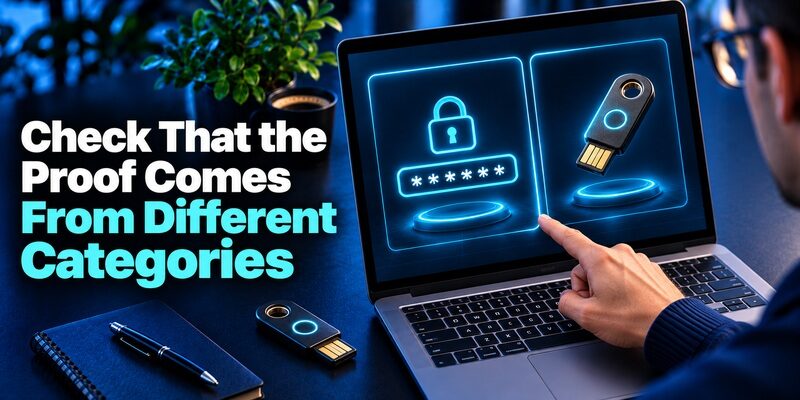
NIST’s Digital Identity Model groups authentication evidence into something you know, have, or are. Autenticación de dos factores uses exactly two different categories. A password and a security answer both ask for knowledge, even if they appear on two screens. A password and a registered key use knowledge and possession.
Identify What the Code Represents
An app code usually demonstrates access to a device or secret registered for the account. A code sent by message instead depends on access to the destination the service uses. If the prompt says it sent the code by text, the app’s current number will not fit that request. A code does not carry the same security properties in every implementation. Read how the provider enrolled the method and how it verifies it.
Compare With a Passkey or Security Key
A compatible passkey can use possession of a credential and a local PIN or biometric during one interaction. A physical FIDO key can serve as a separate factor where the provider supports it. For important accounts, check whether those options are available and recoverable. NIST treats manually entered OTPs as lacking phishing resistance because a fake page can relay a current value. Autenticación de dos factores can still improve access protection where a provider offers only a code.
For a practical comparison, consider two accounts at the same service. One can use a passkey where supported, while the other asks for a password and an app code. Both can provide distinct evidence, but the recovery options may differ. Before you change autenticación de dos factores, check which device or credential you could use when the primary method is unavailable.
Turn On Google Verification in a Spanish Interface
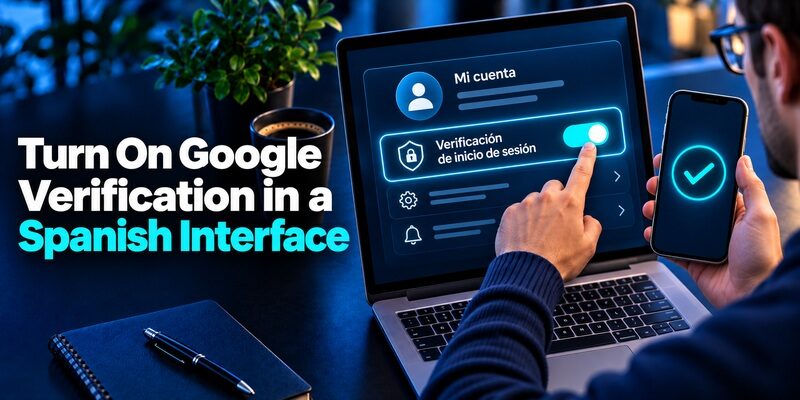
Google’s Spanish help calls the feature Verificación en dos pasos. It directs users to the security and sign-in area of their Google Account and the option to activate it. Follow the methods Google offers for the specific account. Work or school accounts can have settings controlled by an administrator.
Match the Google Account You Want to Protect
Check the full email address in the account settings before setting up autenticación de dos factores. A phone can hold more than one Google session, and the account used for Gmail may differ from the one opened in the browser. Start with the email account you rely on for password resets. Then confirm which method the security settings show and which device or destination belongs to it.
Keep a Supported Backup Before Leaving Setup
Google’s Spanish help describes backup codes as a second-step option when eligible users lose access to their usual method. Review the options shown in your account. Store a backup where you can reach it without the everyday phone, and check how to use it before you change devices. Test a fresh sign-in without ending the original trusted session. If Google skips the challenge, check whether it used a remembered session or a different sign-in route.
Read the account security page in the language you will normally use. Menu wording can vary with region, browser, or version. Google’s Spanish help uses different phrasing in some variants. If a guide does not match, search the help center for your exact account type and confirm the setting through the official route.
Use the Trusted-Device Flow for Apple Account
Apple’s Spanish support calls its feature autenticación de doble factor and describes codes on trusted devices or through trusted phone numbers for Apple Account sign-in. This workflow applies to the Apple Account identity itself. A general-purpose authenticator configured for a different website cannot generate that Apple verification value.
Check the Device or Number Named by Apple
When Apple asks for verification, read the device and account shown. Use a trusted device or the delivery option Apple provides. Do not approve a request you did not start. If you no longer control a trusted number or device, use Apple’s official account recovery guidance. An app for third-party codes does not replace the Apple Account recovery process.
Keep Apple Account and Other App Codes Separate
Apple devices can also store compatible third-party verification codes through Passwords, as Apple documents. This is a separate role from verifying access to Apple Account. If you see autenticación de dos factores during a sign-in for another provider, follow that provider’s official settings and supported enrollment. The fact that you are using an iPhone does not establish which account owns the challenge.
If a new browser asks for Apple verification, confirm that you initiated the request and check the account details rather than relying on the notification’s location alone. Apple explains that an approximate location can reflect the device’s IP address. For autenticación de dos factores, use the trusted-device or number process the provider actually documents.
Enroll an Authenticator When the Service Offers TOTP

Some providers allow a compatible app to generate time-based values. Open the official security settings and choose the authenticator option. Scan the setup QR from inside a trusted app, or enter the manual key if the provider offers one. Keep the setup data private. RFC 6238 explains how the generator and verifier use the shared secret and time to compute corresponding values.
Enter the Current Code to Confirm the Registration
After you add the entry, check its label and wait for a fresh value if the countdown is nearly over. Type the code on the service’s official setup page. Once the service confirms enrollment, try a fresh sign-in while the original session is still available. A code shown in the app does not by itself prove the account accepted autenticación de dos factores enrollment.
Choose an App You Can Restore
Begamob’s documents QR and manual setup and offline generation for compatible accounts. It can be useful for standard time-based codes if the provider supports that method. If you need a particular workplace approval, follow the app or key named by the organization. Check the selected app’s backup process before moving a real account, and keep recovery information outside the device where possible.
If the service displays the QR on the same phone, look for its supported manual key or open setup on another trusted screen. Do not forward the image to a public decoder. Complete the first code before you close the session, then test autenticación de dos factores from a fresh browser if the service permits it.
Fix the Prompt Without Removing a Working Factor

Autenticación de dos factores can fail when the code expired, the entry belongs to a different account, the device clock drifted, or the page expects another method. Start with the active challenge and keep any trusted session open. Make one change at a time so you can tell which step affected the result.
| Symptom | Check first | Next step |
|---|---|---|
| App timer changes while you type | Time remaining | Wait for the next value |
| Several time-based entries fail | Automatic time on the device | Correct it and retry with a fresh code |
| Only one account fails | Account and recent re-enrollment | Compare the full entry label |
| Text or email does not arrive | Masked destination and selected method | Use an enrolled alternate or official recovery |
| Apple asks for a trusted device | Apple Account’s own verification route | Use its supported device or number |
Use the Exact Method Named by the Page
An authenticator can display a valid value for one account while the site asks for a different proof. Read the page without entering any code. If it says approve a request, open the registered approval tool. If it says text, confirm the masked number. Start a fresh official challenge when the page itself timed out. Autenticación de dos factores is easier to diagnose when you know which step failed rather than assuming all failures are code errors.
Use an Alternate Before Resetting
If the page allows another method, use the one you enrolled and can still access. Keep the working device until the replacement has passed an actual sign-in. If no method works, use the provider’s recovery process. If a work account has special rules, contact the authorized support team. Give them the service, device, and error message without sharing the code or setup QR.
If only one account fails after a phone transfer, compare its old and new entries. A duplicated label may hide a stale secret that still generates a number. Keep the existing working route while you test. If you cannot confirm what the service registered, ask for its official support rather than deleting both copies.
Respond to Unexpected Codes and Protect Recovery
An unexpected código de verificación can be a mistaken request or an unauthorized sign-in attempt. It does not establish that somebody accessed the account. Leave the code unused and open the service through a route you already know. Review account activity and connected devices where the provider offers those controls.
Keep Codes Out of Calls and Messages
The FTC warns that impersonators can ask you to read a code to confirm an account or cancel a transaction. A current code belongs only on the genuine page for the request you started. If somebody contacts you unexpectedly, end the interaction and check the account directly. If you shared an enrollment secret, use the provider’s approved change flow to replace it and verify the replacement.
Prepare for a Phone or Number Change
Check what each service uses before replacing the device. Autenticación de dos factores that relies on app data may need a supported transfer or re-enrollment, while a text-based factor depends on the registered number. Test each account separately before wiping the old phone. Keep an independent recovery path and the provider’s official support route where you can reach them.
When you travel or replace a SIM, check which accounts use your number and which use an enrolled app. Autenticación de dos factores can continue through a time-based app after enrollment, but delivered messages depend on the registered destination. Confirm the number or recovery option from the service’s own settings while the old method is still available.
Questions About Autenticación de Dos Factores

Does Two-Step Verification Always Use Two Categories?
The wording alone does not show which evidence the service checks. Two-factor authentication requires two distinct categories. Read which methods are registered and what the service requests at sign-in.
Can a Code App Work Without Cell Service?
Yes, a configured time-based app can calculate a code offline. The device signing into the provider still needs a connection. A text or approval request follows a separate process and may require service.
Can I Use the Same App for Google and Other Accounts?
Sometimes. A compatible app can hold entries for multiple services if each permits standard setup. Enroll each account separately and give it a clear label. Use the provider-specific method where the account requires one.
Can I Recover With My Password Alone?
That depends on the provider and enrollment. If the service requires a second factor, a password cannot create the missing code. Use a registered alternate or the provider’s authorized recovery process.
Why Does the Prompt Look Different on a New Device?
A service can remember a familiar session or ask for fresh verification on a new device. Check the account and sign-in method the prompt shows. If you did not initiate the request, leave it unused and open the provider directly.
A translation or regional help page can help you identify the right menu, but rely on the active provider screen for which method it supports. Confirm any unfamiliar request by opening the service directly. If you are helping another person set up a factor, have them enter their own code and store their own recovery information.
Final Thoughts
Use autenticación de dos factores through the service’s own security settings. Start with an account that matters, choose an approved factor, and verify a fresh sign-in while the old route still works. Keep a recovery method you can access separately from the usual device.
Read the Spanish prompt for the account and action before using a code. Google’s Verificación en dos pasos and Apple’s trusted-device flow follow their own instructions. If another provider offers a standard authenticator setup, use a compatible app and protect its enrollment data.
When you change phones, test each service and check its recovery route. Keep a short record of the account, method, and official support path, without adding passwords, keys, or live codes. That gives you a starting point if a new prompt appears in another language or on a device you have not used before.
For a final check, verify autenticación de dos factores on one important account today and confirm what you would do if your phone were unavailable. Record the provider’s official support path and test any replacement before you remove a working factor.
Download Authenticator App
Secure your accounts with fast, reliable two-factor authentication. Download now and protect your login in seconds.
