
Microsoft Authenticator for PC Windows: Full Setup Guide From A-Z
Published August 13, 2026 · Updated October 13, 2026
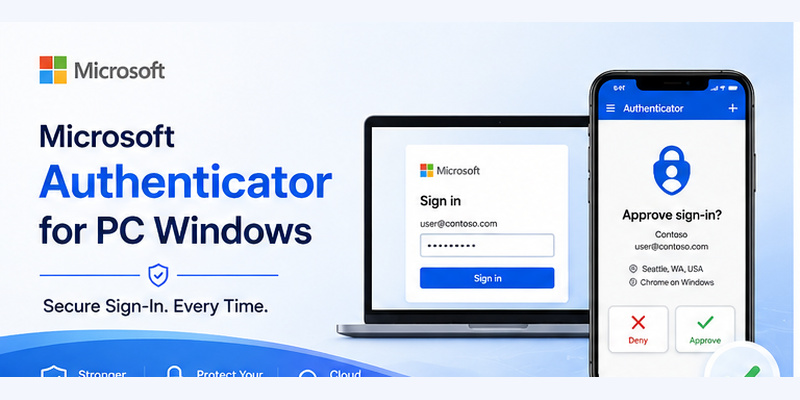
Looking for Microsoft Authenticator for PC Windows to secure your Microsoft account, approve Microsoft 365 sign-ins, or manage two-factor authentication (2FA) on Windows 10 or Windows 11?
You may have searched for a Microsoft Authenticator download for Windows, expecting an application you can install directly on your desktop or laptop. However, Microsoft’s official authenticator works differently.
Quick Answer: Microsoft Authenticator is not available as an official Windows desktop application. You cannot download a native Microsoft Authenticator app for Windows 10 or Windows 11. Instead, install Microsoft Authenticator on a supported Android or iOS device and use it to approve sign-ins initiated on your Windows PC. If you need authentication directly on Windows, consider Windows Hello, passkeys, or a compatible desktop TOTP authenticator.
In this guide, you’ll learn how to download Microsoft Authenticator safely, configure it for Windows sign-ins, use it with Microsoft accounts, and explore secure alternatives when a smartphone is unavailable.
Can You Download Microsoft Authenticator for PC Windows?
No. Microsoft does not currently provide an official Microsoft Authenticator desktop application for Windows PCs.
According to Microsoft’s official Authenticator download page, the application is designed for supported Android and iOS devices.
This means there is no official Microsoft Authenticator Windows EXE, MSI installer, or standalone desktop application.
However, you can still use Microsoft Authenticator to secure accounts accessed from Windows.
Microsoft Authenticator Download for Windows 10 and 11
Whether you use Windows 10 or Windows 11, the supported setup is essentially the same.
Your Windows computer displays the login or account registration page, while Microsoft Authenticator runs on your smartphone.
| Feature | Windows 10 | Windows 11 |
|---|---|---|
| Official Microsoft Authenticator desktop app | No | No |
| Microsoft Authenticator mobile integration | Yes | Yes |
| Microsoft 365 sign-in approval | Yes | Yes |
| QR code setup through browser | Yes | Yes |
| Windows Hello | Supported on compatible devices | Supported on compatible devices |
| Passkey support | Depends on browser and platform | Supported in compatible scenarios |
| Hardware security key support | Where supported | Where supported |
The main difference is not the Windows version but the authentication method you choose.
Important: Windows 10 reached the end of standard support on October 14, 2025. If you still use Windows 10, review Microsoft’s Extended Security Updates options or upgrade to a supported Windows version.
Is Microsoft Authenticator Available in the Microsoft Store?
Microsoft does not distribute its standard mobile Authenticator application as an official Windows desktop app through the Microsoft Store.
Be cautious if you find an application claiming to be an official Microsoft Authenticator for PC download.
A similarly named application may be developed by a third party and may not provide the same functionality or security guarantees.
Before installing any authentication software, verify its publisher, supported platforms, and official documentation.
Avoid Fake Microsoft Authenticator Windows Downloads
Some websites advertise Microsoft Authenticator for Windows as an EXE, MSI, ZIP file, browser extension, or Android emulator package.
These downloads should not be confused with Microsoft’s official mobile application.
Potential warning signs include:
- Websites promising an official Windows Authenticator installer.
- Requests to disable antivirus protection.
- Instructions to bypass Windows SmartScreen.
- Unexpected browser extension installations.
- Requests to upload authentication QR codes.
- Websites asking for verification codes or recovery keys.
Never share an authenticator setup QR code or secret key with an untrusted website.
For more information about the application, see our Microsoft Authenticator overview.
Download Authenticator App
Secure your accounts with fast, reliable two-factor authentication. Download now and protect your login in seconds.
How to Set Up Microsoft Authenticator on Windows 10 and 11
Although you cannot install Microsoft Authenticator directly on Windows, you can configure it to protect accounts accessed from your PC.
The process requires a Windows computer and a compatible smartphone.
Step 1: Download Microsoft Authenticator on Your Phone
First, install Microsoft Authenticator on your Android or iOS device.
- Open Google Play Store or Apple App Store.
- Search for Microsoft Authenticator.
- Confirm that Microsoft Corporation is the publisher.
- Download and install the application.
- Open Microsoft Authenticator.
- Allow the necessary camera and notification permissions.
Make sure your phone has a secure screen lock and is running a supported operating system.
Microsoft Authenticator is free to download and use for its standard authentication features.
Step 2: Open Your Account Security Settings on Windows
Next, open a browser on your Windows PC.
The setup location depends on your account type.
For personal Microsoft accounts:
- Visit https://account.microsoft.com/security.
- Sign in to your Microsoft account.
- Open the relevant security settings.
- Look for options to add or manage authentication methods.
- Select Microsoft Authenticator when available.
For work or school accounts:
- Visit https://mysignins.microsoft.com/security-info.
- Sign in with your organization account.
- Select Add sign-in method.
- Choose Microsoft Authenticator if your organization permits it.
- Follow the instructions displayed on your PC.
Your organization’s administrator may control which authentication methods are available.
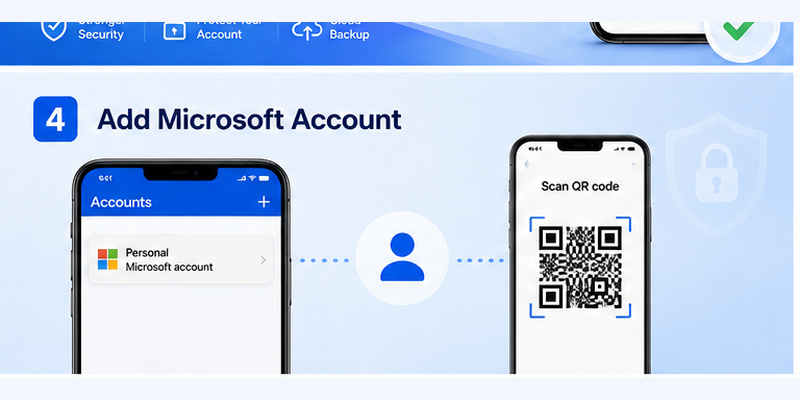
Step 3: Scan the QR Code With Microsoft Authenticator
During account registration, the website may display a QR code.
On your smartphone:
- Open Microsoft Authenticator.
- Tap the option to add an account.
- Select the appropriate account type.
- Choose to scan a QR code when prompted.
- Point your phone’s camera at the QR code on your PC.
- Follow the remaining instructions.
For supported Microsoft accounts, you may also be able to register by signing in directly through the mobile application.
Security tip: Only scan a QR code generated by the legitimate account provider. Avoid screenshots or QR codes sent by unknown third parties.
Step 4: Complete the Verification Process
After scanning the QR code, the website may request a test authentication.
Depending on your account, you may need to:
- Approve a notification.
- Complete number matching.
- Enter a temporary verification code.
- Unlock the authenticator with your device’s biometric authentication or PIN.
Once the verification succeeds, Microsoft Authenticator is configured for that account.
Test the setup with a new sign-in before removing any existing authentication methods.
For a more detailed walkthrough, read our how to use Microsoft Authenticator guide.
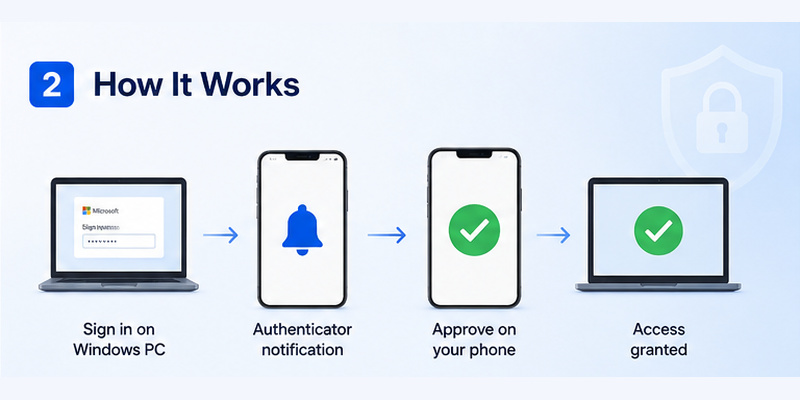
How to Use Microsoft Authenticator on a Windows PC
Once configured, Microsoft Authenticator can help protect sign-ins initiated from your Windows computer.
You do not need to keep an Authenticator application running on the PC itself.
Approve Microsoft 365 and Outlook Sign-Ins
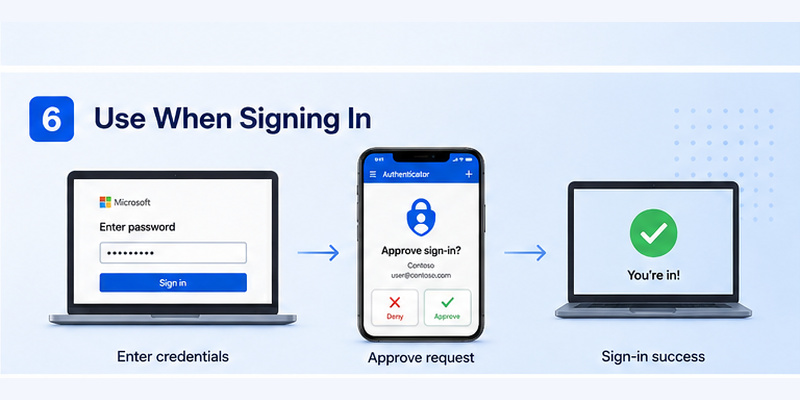
Suppose you are signing in to Microsoft 365 from a Windows 11 laptop.
The authentication process may look like this:
- Open Microsoft 365 or Outlook in your browser.
- Enter your Microsoft account credentials.
- Wait for the authentication request.
- Open Microsoft Authenticator on your phone.
- Review the request and complete number matching if required.
- Approve the sign-in only if you initiated it.
- Return to your Windows browser.
This method is commonly used with supported Microsoft personal, work, and school accounts.
Use Verification Codes on Windows
Microsoft Authenticator also supports time-based one-time passwords for compatible accounts.
For example, when signing in to a third-party website:
- Enter your username and password on Windows.
- Open Microsoft Authenticator on your phone.
- Find the account associated with the website.
- Enter the current verification code.
- Complete the login.
Verification codes can be generated without an internet connection after setup.
However, push notifications require an internet connection to receive and approve sign-in requests.
Set Up Microsoft Authenticator for Work or School
Many organizations use Microsoft Entra ID to manage employee authentication.
Depending on the organization’s security policies, Microsoft Authenticator may be required for:
- Microsoft 365 access.
- Outlook and Teams sign-ins.
- Enterprise cloud applications.
- Remote access authentication.
- Passwordless authentication.
- Multi-factor authentication.
The setup may differ from personal Microsoft accounts because administrators can enforce specific authentication requirements.
If you cannot add Microsoft Authenticator to your work account, contact your IT administrator before attempting another method.
For more information, see our Microsoft Authenticator for business guide.
Best Microsoft Authenticator Alternatives for Windows
If your goal is to authenticate directly on your Windows computer without constantly using your smartphone, several alternatives are available.
However, these methods do not necessarily replace every Microsoft Authenticator feature.
1. Windows Hello
Windows Hello is a built-in Windows authentication technology that supports device-based sign-in methods such as:
- Facial recognition.
- Fingerprint authentication.
- Windows Hello PIN.
Unlike Microsoft Authenticator, Windows Hello is designed to authenticate users directly on compatible Windows devices.
How to enable Windows Hello:
- Open Windows Settings.
- Navigate to Accounts.
- Select Sign-in options.
- Choose an available Windows Hello method.
- Follow the setup instructions.
Windows Hello can also support passkey authentication for compatible services.
However, Windows Hello does not function as a general replacement for Microsoft Authenticator’s TOTP codes or mobile push approvals.
2. Windows Passkeys
Passkeys allow users to sign in to supported websites and services using cryptographic credentials rather than traditional passwords.
On compatible Windows devices, passkeys can be protected using Windows Hello.
Advantages include:
- Phishing-resistant authentication.
- No manually entered TOTP codes.
- Convenient sign-in on supported devices.
- Device-based credential protection.
However, not every website or organization supports passkeys.
If your employer specifically requires Microsoft Authenticator, a Windows passkey may not satisfy that requirement.
3. Hardware Security Keys
Hardware security keys provide another alternative for users who cannot or prefer not to use a smartphone.
Supported FIDO2 security keys can authenticate users through USB or NFC, depending on the device and service.
They can provide strong phishing resistance because authentication is bound to the legitimate website or service.
Before purchasing a security key, confirm that your account provider or organization supports it.
For important accounts, consider registering a backup key where supported.
4. Third-Party Desktop Authenticator Apps
Some third-party applications can generate standard TOTP verification codes directly on Windows.
These tools may be useful for accounts that accept ordinary authenticator codes.
However, a desktop TOTP app cannot automatically replace Microsoft Authenticator push notifications, Microsoft Entra registration, or organization-managed authentication requirements.
When evaluating a desktop authenticator, check:
- Developer reputation.
- Supported Windows versions.
- Encryption and local data protection.
- Backup and recovery capabilities.
- Support for standard TOTP.
- Maintenance and security updates.
Storing passwords and authentication secrets on the same device may reduce the separation between authentication factors.
For this reason, use desktop authenticators only when they fit your security requirements.
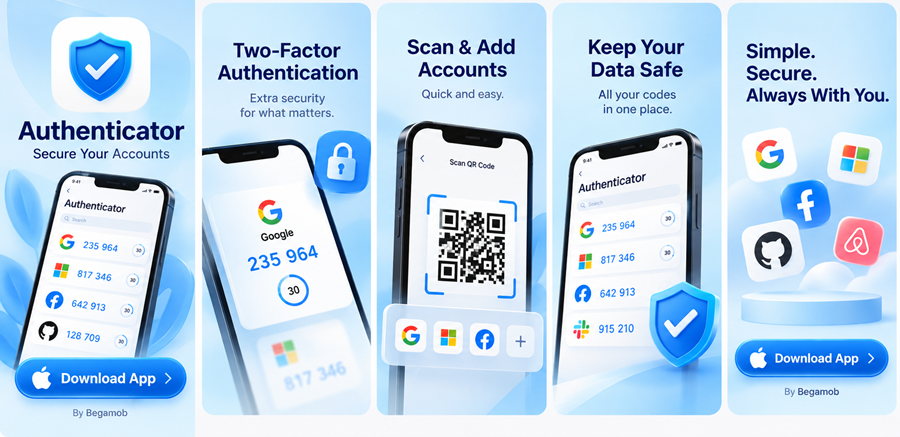
You can also explore Authenticator App by Begamob for supported two-factor authentication and account protection features.
Can You Use Microsoft Authenticator on PC Without a Phone?
If you do not have a smartphone, you cannot run the official Microsoft Authenticator mobile application natively on Windows.
However, you may be able to access your accounts through alternative authentication methods.
Option 1: Use Windows Hello or Passkeys
For supported accounts, Windows Hello and passkeys can provide convenient authentication directly on your computer.
These methods are particularly useful if your main goal is secure Windows or website sign-in.
They are not interchangeable with every Microsoft Authenticator workflow.
Option 2: Use a FIDO2 Security Key
If your organization allows FIDO2 authentication, a compatible hardware security key may provide a phone-free sign-in method.
You can register the key through the account’s security settings or your organization’s approved enrollment process.
Always confirm compatibility before removing your existing authenticator.
Option 3: Ask Your Administrator for Another MFA Method
If your work or school account requires Microsoft Authenticator but you do not have a smartphone, contact your IT administrator.
Depending on organizational policy, alternatives may include:
- Hardware security keys.
- Approved hardware OTP tokens.
- Temporary Access Pass for supported enrollment or recovery scenarios.
- Other administrator-approved authentication methods.
Availability varies by organization.
Can You Use an Android Emulator?
Some users attempt to install Microsoft Authenticator inside an Android emulator running on Windows.
However, Microsoft does not provide this as an officially supported Windows desktop installation method.
Emulators may introduce compatibility issues, security risks, or problems with device registration and authentication policies.
For sensitive personal or enterprise accounts, use officially supported authentication methods instead.
Recommendation: If you need Microsoft Authenticator specifically, use the official mobile application. If you need phone-free authentication, choose a method supported by your account provider.
Common Microsoft Authenticator Windows Problems
Even when Microsoft Authenticator is correctly configured, authentication problems can occur during Windows sign-ins.
Microsoft Authenticator Is Not Available for Windows 11
This is expected because Microsoft does not offer a native Windows 11 Authenticator desktop application.
Download the official app on your smartphone and configure it through your Microsoft account or organization security settings.
Avoid unofficial Windows installers.
Microsoft Authenticator Notification Not Showing
If your phone does not receive a sign-in approval request:
- Confirm that your phone has an internet connection.
- Check notification permissions.
- Disable restrictive battery optimization settings if necessary.
- Check Focus or Do Not Disturb settings.
- Update Microsoft Authenticator.
- Verify that the correct account is registered.
- Try an approved alternative sign-in method.
Push notifications require connectivity, while standard TOTP codes can work offline.
QR Code Not Working During Setup
If Microsoft Authenticator cannot scan the QR code displayed on your PC:
- Confirm that the QR code is generated by the official account provider.
- Increase the browser zoom if the code is too small.
- Check the phone’s camera permissions.
- Refresh the setup session if the QR code has expired.
- Use the provider’s manual setup option if available.
Never upload authentication QR codes to an online scanning website.
Microsoft Authenticator Code Not Working
If a verification code is rejected:
- Confirm that you selected the correct account.
- Enable automatic date and time on your phone.
- Wait for a new code.
- Enter the code before it expires.
- Confirm that the account has not been reset or reconfigured.
If the problem persists, use a recovery method offered by the account provider.
Lost Phone or Changed Device
If you lose the phone containing Microsoft Authenticator, you may need to recover your account through a previously configured authentication method.
Microsoft Authenticator supports backup and recovery in certain configurations, but not all account credentials can be fully restored.
Work and school accounts may require authentication registration again.
For detailed instructions, see our Microsoft Authenticator recovery guide.
Installed a Fake Microsoft Authenticator for Windows?
If you downloaded a suspicious application claiming to be Microsoft Authenticator for Windows:
- Stop using the application.
- Disconnect from the network if you suspect active compromise.
- Uninstall the suspicious software.
- Run a security scan using Microsoft Defender or another trusted security tool.
- Change affected account passwords from a trusted device.
- Review recent account sign-in activity.
- Revoke suspicious sessions or authentication methods where possible.
- Contact your organization’s security team if a work account was involved.
If you entered an authenticator setup key, recovery code, or verification code into the suspicious application, treat that information as potentially compromised.
Frequently Asked Questions
Can I download Microsoft Authenticator for PC Windows?
No. Microsoft Authenticator is officially available for supported Android and iOS devices, not as a native Windows desktop application. You can use the mobile app to approve sign-ins initiated from your Windows PC.
Is Microsoft Authenticator available for Windows 11?
There is no official Microsoft Authenticator Windows 11 desktop application. You can install Microsoft Authenticator on your smartphone and use it with Microsoft accounts accessed from Windows 11.
Can I download Microsoft Authenticator for Windows 10?
No. Microsoft does not provide an official Microsoft Authenticator download for Windows 10. The supported application runs on mobile devices.
Is Microsoft Authenticator free for PC?
Microsoft Authenticator is free to download on supported mobile devices. There is no official Windows PC edition to install. Some enterprise identity services may involve separate licensing.
How do I install Microsoft Authenticator on my laptop?
You cannot install the official Microsoft Authenticator app directly on a Windows laptop. Instead, install it on your phone and configure your account through the security settings displayed on your laptop.
Can I use Microsoft Authenticator without a smartphone?
Not as a native Windows application. However, depending on the account provider, you may be able to use Windows Hello, passkeys, hardware security keys, or another approved authentication method.
Does Microsoft Authenticator work with Windows 11?
Yes. Microsoft Authenticator can approve sign-ins and generate verification codes for accounts accessed from Windows 11. The application itself runs on a supported mobile device.
Is Windows Hello the same as Microsoft Authenticator?
No. Windows Hello provides device-based authentication using a PIN, fingerprint, or facial recognition. Microsoft Authenticator provides mobile-based authentication methods such as verification codes and sign-in approvals.
Can Microsoft Authenticator generate codes offline?
Yes. Once configured, Microsoft Authenticator can generate standard verification codes without an internet connection. Push approval requests require connectivity.
Where can I find the Microsoft Authenticator setup QR code?
The QR code is generated through the security settings of the account you want to protect. For work or school accounts, it may appear during Microsoft Entra security information registration.
Can I use Microsoft Authenticator for multiple Windows computers?
Yes. The same registered mobile authenticator can approve supported account sign-ins initiated from multiple Windows computers. The account’s security settings and organizational policies determine the available methods.
Can I install Microsoft Authenticator using an EXE file?
No official Microsoft Authenticator Windows EXE installer is available. Avoid downloading executable files from websites claiming to distribute Microsoft’s desktop authenticator.
Conclusion
Although Microsoft Authenticator for PC Windows is a popular search term, the official Microsoft Authenticator application is designed for supported Android and iOS devices rather than Windows desktops.
You can still use Microsoft Authenticator to secure Windows 10 and Windows 11 sign-ins by installing the app on your phone and connecting it to your Microsoft account.
If your goal is direct Windows authentication, Windows Hello, passkeys, and supported hardware security keys may provide suitable alternatives.
For the safest experience, download authentication software only from trusted sources, protect your recovery methods, and never approve unexpected sign-in requests.
To learn more about two-factor authentication, explore our Microsoft Authenticator setup guide and other security tutorials on Authenticator App.
Download Authenticator App
Secure your accounts with fast, reliable two-factor authentication. Download now and protect your login in seconds.
