
How to Move Steam Authenticator to New Phone Safely
Published August 17, 2026 · Updated October 5, 2026
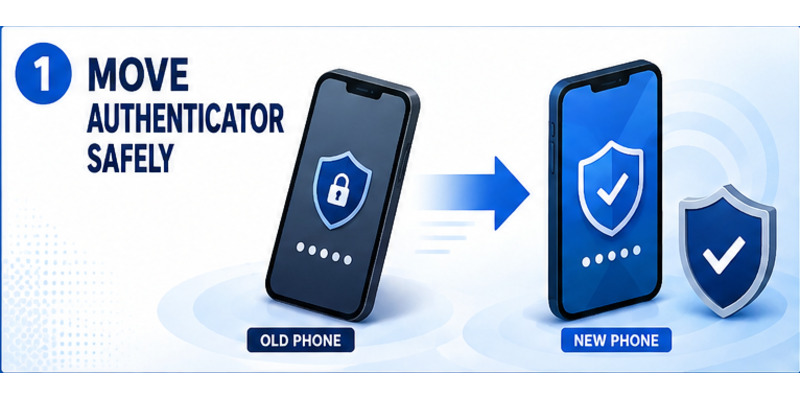
Need to switch phones without getting locked out of Steam? Here is how to move Steam authenticator to new phone in about two minutes: sign in on the new phone, open Steam Guard, tap Move Authenticator, and confirm with your old phone or an SMS code, as described in Steam Support’s official FAQ. Do it this way and you only face a short 2-day trade hold, not the 15-day one.
This guide covers preparation, the normal two-phone path, same-number verification, lost-device recovery, invalid codes, trade restrictions, old-session cleanup, and the final checks that make a phone migration dependable.
1. How to Move Steam Authenticator to New Phone? (Quick Answer)
The fastest way to move Steam authenticator to new phone is to use Steam’s built-in Move Authenticator option. Never remove Steam Guard first.
If you still have your old phone:
- Keep the old phone on. Do not uninstall Steam or remove Steam Guard.
- Install the official Steam Mobile app on the new phone and sign in.
- Approve the sign-in on the old phone if Steam asks.
- Open the Steam Guard tab and tap Move Authenticator.
- Enter the SMS code sent to the phone number on your Steam account.
- Save the new recovery code somewhere safe.
If you no longer have your old phone:
- Install Steam Mobile on the new phone and try to sign in.
- When asked for a Steam Guard code, tap “Please help, I no longer have access to my Mobile Authenticator codes.”
- Verify with the SMS code sent to your registered number, transfer the authenticator to the new device, and save the new recovery code.
After the move, Steam holds new trades and Market listings for about two days to protect your items.
Download Authenticator App
Secure your accounts with fast, reliable two-factor authentication. Download now and protect your login in seconds.
2. How to Switch Steam Authenticator to New Phone When You Still Have the Old One?
This is the easiest case, and the one Steam recommends. When you switch Steam authenticator to new phone while the old one still works, Steam can verify you with the existing authenticator or an SMS code, so the move takes minutes. Here are the steps in detail:
- Do not touch the old phone yet. Leave Steam installed and Steam Guard active until the transfer is finished.
- Install Steam on the new phone. Download the official Steam Mobile app from the App Store or Google Play and sign in with the same account.
- Confirm it is you. Approve the sign-in request on the old phone, or enter the code it shows.
- Open Steam Guard and choose Move Authenticator. Once you are signed in on the new device, the option is on the Steam Guard page.
- Enter the SMS code. Steam texts a code to the phone number linked to your account. Type it in to finish the transfer.
- Save the recovery code. Steam shows a fresh recovery code. Write it down or store it in a password manager, and keep it away from the new phone.
Menu names can shift slightly between app versions, so follow the on-screen prompts if they differ.
Do not remove the authenticator on the old phone to make room for the new one. That is the mistake behind most 15-day trade bans.
💡 Discover Helpful Guides: Steam Mobile Authenticator: Setup and Security Guide
3. How to Move Steam Authenticator to New Phone Without Old Phone?
You can still move Steam authenticator to new phone without old phone, as long as you can receive SMS on the number linked to your Steam account. The official recovery path works like this:
- Install the Steam Mobile app on the new phone and start signing in.
- When the app asks for your Steam Guard code, select “Please help, I no longer have access to my Mobile Authenticator codes.”
- Steam sends an SMS code to your registered phone number. Enter it.
- Choose to transfer the authenticator to this device. (The same screen can also offer to remove it. Do not pick that unless you want Steam Guard off.)
- Save the new recovery code.
What if the registered number is gone too? Steam cannot text you, so the automatic route is closed. Contact Steam Support and verify account ownership through the email on the account. Be careful with anyone who offers to “recover” your account for a fee. They are scammers.
What about the recovery code? Your recovery code (it starts with an “R”) is a backup for account recovery. It is not a shortcut to copy the old authenticator. If you use it to remove Steam Guard, the 15-day trade and Market restriction applies.
Download Authenticator App: secure your 2FA codes with biometric lock and encrypted backup
4. Why Can’t I Move Steam Authenticator to New Phone? (5 Common Fixes)
If you can’t move Steam authenticator to new phone, one of these is usually the cause:
- You tapped “Add Authenticator,” not “Move Authenticator.” Steam blocks adding a second authenticator. Use the Move option on the Steam Guard page. Removing and re-adding triggers the 15-day restriction.
- The SMS code never arrives. Check that the number in Account Details is current and the SIM is active. Wait a few minutes before retrying, because too many attempts can pause the SMS option.
- The Steam app is outdated. Update it from the App Store or Google Play, sign out, and sign in again.
- You are signed in to the wrong account. Confirm the Steam username matches the account that has the authenticator.
- The phone number changed and the old phone is gone. Steam cannot verify you by SMS. Contact Steam Support.
If none of these work, stop retrying. Repeated failed attempts can make the delay longer.
5. How Long Is the Trade Hold After You Transfer Steam Guard to a New Phone?
When you transfer Steam Guard to a new phone the right way, Steam holds new trades and Community Market listings for about two days. Steam does this in case someone malicious ever transfers your authenticator. Removing it instead costs far more:
| What you do | Result |
|---|---|
| Move the authenticator (recommended) | About 2 days of held trades and Market listings |
| Remove it, then add it again | 15 days without trading or Market access |
| Authenticator active less than 7 days | New trades may be held up to 15 days |
You cannot shorten these windows yourself. Even Steam Support does not remove them early. That is why the move route beats remove-and-re-add. See Steam’s Trade Holds FAQ for the current rules.
6. What to Do After You Move Steam Authenticator to a New Phone?
Do not wipe the old phone yet. First run these checks.
Test the new phone before you erase the old one
- Open Steam Guard and confirm a live code appears.
- Sign in to Steam on a browser and approve it from the new phone.
- Scan a QR login with the new phone if you use it.
- Check that your email, phone number and recovery code are all safe.
Moving from Android to iPhone, or iPhone to Android
The process is the same. Steam ties the authenticator to your account, not to the operating system. Install Steam on the new device and use Move Authenticator. There is no need to disable Steam Guard first.
What happens to the old phone?
After the transfer, the old phone is no longer your active authenticator, and its codes stop working. Once the new phone passes the tests above, sign out of Steam, deauthorize the device and factory reset it before you sell or recycle it.
7. FAQ: Move Steam Authenticator to New Phone
You will probably have a few more questions before you move Steam authenticator to new phone. Here are the quick answers.
How to remove Steam authenticator without old phone?
Sign in to Steam on a browser, then open Account Details → Security → Manage Steam Guard and choose Remove Authenticator. Steam may ask for an SMS code or your recovery code. Removing it triggers a 15-day trade and Market restriction, so only do this if you want Steam Guard off. If you simply have a new phone, move the authenticator instead.
Why won’t Steam let me move my authenticator?
If you can’t move Steam authenticator to new phone, most often you chose Add instead of Move, you can’t receive the SMS code on your registered number, the app is out of date, or you are in the wrong account. See the five fixes above. If the number is lost, contact Steam Support.
Is there a way to move authenticator to new phone?
Yes. Use Move Authenticator on the Steam Guard page of the new phone. If you no longer have the old phone, choose “Please help, I no longer have access to my Mobile Authenticator codes” and verify by SMS.
What to do if I lost my Steam Mobile authenticator?
Install Steam Mobile on a new phone, choose “Please help, I no longer have access to my Mobile Authenticator codes,” and verify with the SMS code. Save the new recovery code. If your registered number is also lost, contact Steam Support.
How to move my Steam authenticator to another phone, Android to iPhone?
To move my Steam authenticator to another phone, install Steam on the iPhone, sign in, open Steam Guard and tap Move Authenticator. The same steps work from iPhone to Android.
Can I factory reset my old phone before moving the authenticator?
No. Finish the transfer and test the new phone first. A reset before that can force you into the recovery route.
Will moving the authenticator affect trading?
Yes, briefly. When you transfer Steam Guard to a new phone, expect about a 2-day hold on new trades and Market listings. Removing the authenticator instead causes a 15-day restriction.
Can I use the same Steam Guard code on both phones?
No. Only the phone that holds the active authenticator produces valid codes. After a successful move, use the new phone only.
Download Authenticator App
Secure your accounts with fast, reliable two-factor authentication. Download now and protect your login in seconds.
