
Google Authenticator Google Play: Download, Setup & 2FA App Guide
Published August 8, 2026 · Updated October 20, 2026
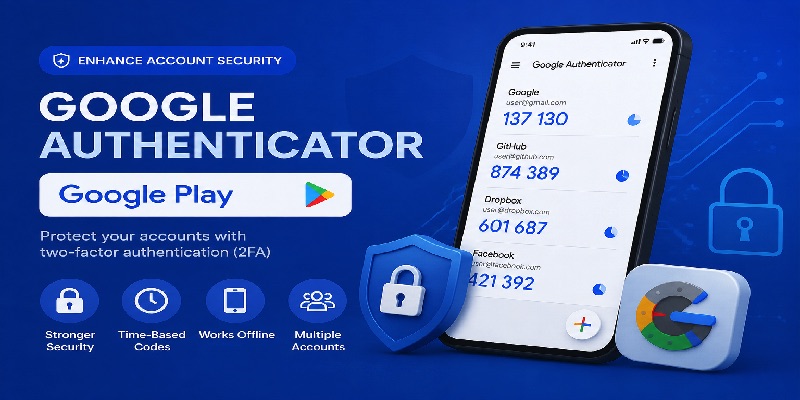
Looking for Google Authenticator on Google Play? Google’s official authentication app helps protect your online accounts with temporary verification codes, adding an extra security step beyond your password.
Whether you want to install the Google Authenticator app for Android, set up two-factor authentication (2FA), transfer codes to a new phone, or fix an invalid verification code, this guide explains the process.
Quick Answer: Download Google Authenticator from the official Google Play Store listing. Verify that the developer is Google LLC, tap Install, and open the app. To start generating codes, enable authenticator-based 2FA in your account’s security settings, then scan its setup QR code or enter the setup key in Google Authenticator. You can optionally synchronize codes with your Google Account or keep them locally on your Android device.
Google Authenticator is free and can generate verification codes without an internet or cellular connection after setup.
How to Download Google Authenticator from Google Play
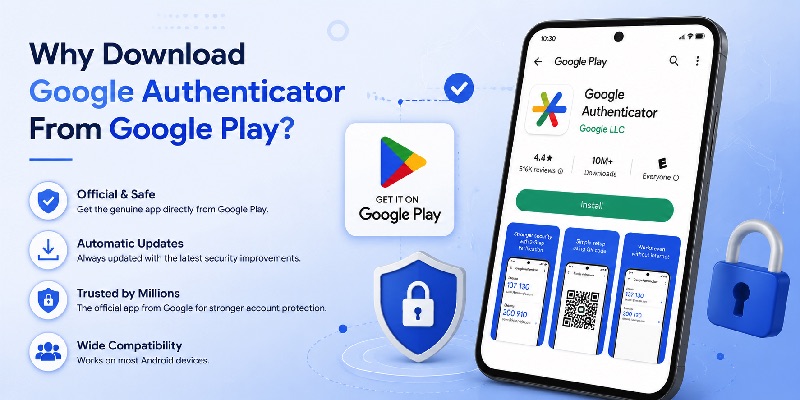
The safest way to install Google Authenticator on a supported Android phone or tablet is through its official Google Play listing.
Step 1: Open the Official Google Authenticator Google Play Listing
Open the Google Play Store on your Android device and search for Google Authenticator.
Alternatively, use this direct link: Download Google Authenticator from Google Play
Before installing, confirm these details:
| Item | Official information |
|---|---|
| App name | Google Authenticator |
| Developer | Google LLC |
| App store | Google Play |
| Price | Free |
| Primary purpose | Two-step verification codes |
| Supported devices | Compatible Android phones and tablets |
Check the current Google Play listing for compatibility with your device and Android version.
Do not assume that every application containing the words “Authenticator,” “Google,” or “2FA” is Google’s official product.
Step 2: Install Google Authenticator on Android
Once you have opened the correct listing:
- Tap Install.
- Wait for Google Play to download the application.
- Tap Open.
- Review the introductory screens.
- Choose whether to use Google Account synchronization or local-only storage.
Installing the app does not automatically enable 2FA for your online accounts. You must connect each supported account separately.
Step 3: Choose Google Account Sync or Local-Only Storage
Google Authenticator supports two storage approaches.
Use with a Google Account: Supported verification codes can synchronize across devices signed in to the same Google Account within Authenticator.
Use without an account: Codes remain stored locally on your device rather than synchronizing through your Google Account.
If you choose local-only storage, plan how you will transfer codes before replacing your phone.
Both options can generate standard verification codes offline.
Is Google Authenticator Free on Google Play?
Yes. The official Google Authenticator application is free to download and use.
It generates temporary verification codes for compatible accounts without requiring a paid subscription.
You do not need to purchase a separate Google Authenticator license to enable standard TOTP authentication.
Can You Download Google Authenticator Without Google Play?
Google Play is the recommended installation source for supported Android devices.
If your phone does not have Google Play services, consult Google’s official distribution and compatibility information before attempting installation.
Avoid modified APKs and unverified websites claiming to offer premium, unlocked, or special editions of Google Authenticator.
An authenticator app stores sensitive authentication information, so its installation source matters.
For a broader overview of official mobile download options, see our Google Authenticator download guide.
📖 Read More Guides: Google Authenticator 2FA: Complete Guide to Two-Step Verification
Secure your accounts with fast, reliable two-factor authentication. Download now and protect your login in seconds.Download Authenticator App
How to Set Up Google Authenticator on Android
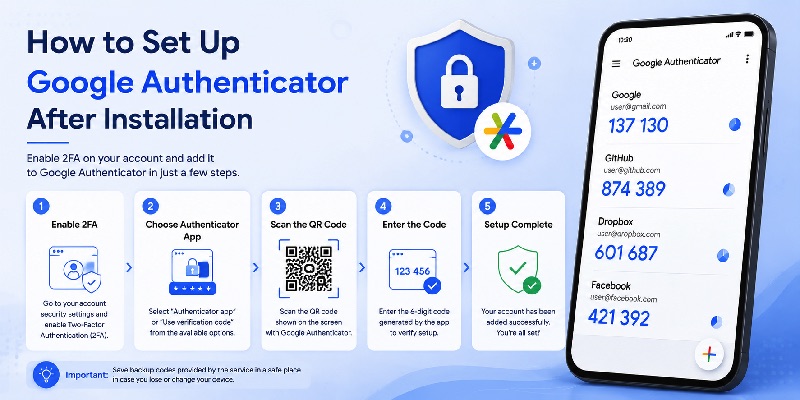
After installing the Google Authenticator app on Android, connect it to an account that supports authenticator-based two-factor authentication.
You can use Google Authenticator for a Google Account or many third-party services that support standard TOTP codes.
Step 1: Enable Two-Factor Authentication
Open the website or app you want to protect.
Sign in and find its security settings.
Look for an option labeled:
- Two-Factor Authentication
- Two-Step Verification
- Authenticator App
- Authentication App
- Multi-Factor Authentication
Choose the authenticator app option.
The website should display a QR code or provide a manual setup key.
Do not use a QR code from an unfamiliar email, message, or website.
Step 2: Scan the Setup QR Code
On your Android phone:
- Open Google Authenticator.
- Tap the + button.
- Select Scan a QR code.
- Allow camera access if requested.
- Scan the QR code displayed by the account provider.
- Confirm that the new account appears in the app.
Google Authenticator will begin generating verification codes for that account.
Step 3: Enter a Setup Key Manually
If the QR code cannot be scanned, many services offer a manual setup key.
To use it:
- Open Google Authenticator.
- Tap +.
- Choose Enter a setup key.
- Enter a recognizable account name.
- Enter the secret key supplied by the service.
- Choose the appropriate key type, usually time-based.
- Save the account.
Keep the setup key private. Anyone who obtains it may be able to generate valid verification codes.
Step 4: Verify the New Authenticator
Return to the account provider’s security page.
Enter the current code shown in Google Authenticator.
If the website accepts the code, complete the remaining enrollment steps.
Do not assume setup is complete until the provider confirms that authenticator-based 2FA is enabled.
Step 5: Save Backup Codes
Many account providers offer backup codes or alternative verification methods.
Save these securely in a location separate from your phone.
For example, you might use a protected password manager or a secure offline record.
Do not keep your only recovery codes as an unprotected screenshot on the same Android device.
For instructions specific to Google accounts, read our Google Account two-step verification guide.
How to Use Google Authenticator Codes on Android
Once configured, Google Authenticator generates temporary verification codes for your registered accounts.
Where to Find Your Google Authenticator Code
When a website requests an authenticator code:
- Open Google Authenticator.
- Find the correct service or account.
- Read the current verification code.
- Return to the legitimate sign-in page.
- Enter the code before it expires.
- Complete the sign-in process.
Most standard TOTP codes contain six digits and refresh approximately every 30 seconds.
If a code is close to changing, wait for the next one.
How to Add Multiple Accounts
Google Authenticator supports multiple accounts.
To add another:
- Sign in to the new service.
- Open its 2FA settings.
- Select authenticator-based verification.
- Display the setup QR code.
- Open Google Authenticator.
- Tap +.
- Scan the code.
- Complete the website’s verification step.
Repeat for additional accounts.
You can organize your entries and use the app’s search functionality to find a specific account.
If you have multiple accounts with the same provider, check the username carefully before entering a code.
Can Google Authenticator Work Without Internet?
Yes.
Once an account is configured, Google Authenticator can generate standard verification codes without Wi-Fi, cellular data, or mobile reception.
This is because the app calculates codes locally using the stored authentication secret and the device’s current time.
However, you may still need internet access to sign in to the website, synchronize codes, or complete account recovery.
Is Google Authenticator Better Than SMS Verification?
Google Authenticator avoids certain risks associated with SMS, including some phone-number takeover attacks.
It also works without waiting for a text message.
However, standard TOTP codes are not fully phishing-resistant.
An attacker may trick someone into entering a valid code on a fraudulent website.
For accounts that support passkeys or FIDO2 security keys, consider those methods for stronger phishing resistance.
Google Authenticator Sync, Backup, and Privacy
One of the most important decisions when using Google Authenticator on Android is how to protect your codes if your phone is lost, damaged, or replaced.
How Google Authenticator Sync Works
Google Authenticator can synchronize verification codes through your Google Account.
When synchronization is enabled, you can install Google Authenticator on another supported device, sign in with the same Google Account, and access synchronized codes.
Google states that Authenticator codes are encrypted in transit and at rest across its systems.
This helps reduce the risk of losing access when changing devices.
However, it also means that protecting the Google Account used for synchronization is essential.
Use strong account security and maintain independent recovery methods.
How to Use Google Authenticator Without a Google Account
Google Authenticator also supports local-only storage.
When first opening the app, choose Use without an account if that option is available.
If you already synchronize codes, Google provides a way to switch to using Authenticator without an account.
Be careful: switching away from Google Account synchronization changes where your codes are stored and may remove them from synchronized Google Accounts.
Review the app’s warning before confirming the change.
How to Enable Privacy Screen on Android
Google Authenticator includes a Privacy Screen option.
When enabled, it requires device authentication, such as a PIN, pattern, or biometric verification, before opening the app.
To enable it:
- Open Google Authenticator.
- Open the menu.
- Select Settings.
- Tap Privacy Screen.
- Turn on the feature.
- Complete the required device verification.
Privacy Screen provides additional protection against someone casually viewing your codes on an unlocked phone.
It does not replace the need for a secure device passcode.
Important Security Practices
For stronger protection:
- Install Google Authenticator only from a trusted source.
- Keep your Android operating system updated.
- Use a strong screen lock.
- Enable Privacy Screen where appropriate.
- Never share setup QR codes or manual secret keys.
- Never send live verification codes to another person.
- Keep backup codes separate from your phone.
- Review old authentication registrations when changing devices.
If you receive an unexpected request for an authentication code, do not provide it.
How to Transfer Google Authenticator to a New Android Phone
If you are upgrading your Android phone, transfer your authenticator codes before erasing the old device.
Google Authenticator supports both synchronized and manual transfer methods.
Method 1: Transfer With Google Account Sync
If your codes are synchronized:
- Install Google Authenticator on the new Android phone.
- Open the application.
- Sign in with the same Google Account used for synchronization.
- Allow the app to display synchronized codes.
- Confirm that your important accounts are present.
- Test a sign-in.
- Keep your old phone until everything works.
If an account is missing, check whether it was stored locally on the previous device.
Method 2: Transfer Codes Using QR Codes
If you use Google Authenticator without a Google Account, you can transfer codes manually.
On the old Android phone:
- Open Google Authenticator.
- Open the menu.
- Select Transfer codes.
- Tap Export codes.
- Unlock your phone if prompted.
- Select the accounts to transfer.
- Tap Next to display a transfer QR code.
On the new Android phone:
- Install and open Google Authenticator.
- Open the menu.
- Select Transfer codes.
- Tap Import codes.
- Scan the QR code displayed on the old phone.
- Repeat if multiple QR codes are generated.
- Verify that the imported accounts appear.
Never share or upload the transfer QR code because it contains sensitive authentication information.
Can You Transfer Google Authenticator From Android to iPhone?
Yes.
Google Authenticator supports Android and iOS, and you can use supported synchronization or manual QR code transfer methods between compatible devices.
Always test your accounts on the destination device before removing the old installation.
For detailed migration instructions, see our authenticator transfer guide.
What If You Lost Your Old Android Phone?
If you no longer have your old phone:
If codes were synchronized: Install Google Authenticator on another supported device and sign in with the same Google Account.
If codes were stored locally: Use backup codes, another registered authentication method, or the account provider’s official recovery process.
Google Authenticator cannot recreate an unsynchronized secret from an email address alone.
Read our Google Authenticator lost phone recovery guide for more information.
Google Authenticator Android Not Working: Common Fixes
If Google Authenticator fails to install, displays invalid codes, or loses account entries, start with the least disruptive troubleshooting steps.
Google Authenticator Not Downloading From Google Play
If the app will not install:
- Check your internet connection.
- Confirm that Google Play is working.
- Check available device storage.
- Restart your Android phone.
- Install available Android and Google Play updates.
- Check whether your device meets the current compatibility requirements.
- Review any work or school device restrictions.
If Google Play reports that your device is incompatible, consult the official listing and device support information.
Do not bypass compatibility warnings by installing unverified APK files.
Google Authenticator Code Not Working
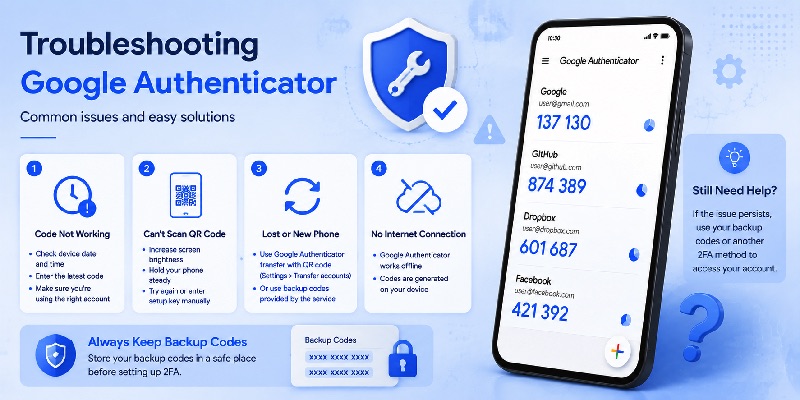
If the website rejects your code:
- Confirm that you selected the correct account.
- Enable automatic date and time on Android.
- Check the automatic time zone setting.
- Wait for a fresh code.
- Enter it promptly.
- Confirm that the account’s authenticator registration has not been replaced.
Google notes that the older time correction setting inside Authenticator is no longer available in version 7.0. Time correction now relies on your operating system settings.
Avoid instructions telling you to look for a Sync now option in older Google Authenticator menus.
Google Authenticator Account Missing
If an account disappears:
- Confirm that you signed in with the correct Google Account.
- Check whether the code was stored locally.
- Look for another Google Account that may contain synchronized codes.
- Use manual transfer if your old phone is available.
- Recover the account through the provider if no backup or transferable credential exists.
Do not immediately uninstall Google Authenticator.
QR Code Not Scanning on Android
If Google Authenticator cannot scan a setup QR code:
- Check camera permission.
- Clean your phone camera lens.
- Adjust the distance from the QR code.
- Increase the brightness of the screen displaying the code.
- Generate a new setup QR code if necessary.
- Use a manual setup key when supported.
Never scan a setup QR code from an unknown source.
Google Authenticator Not Working on Older Android Devices
Google Authenticator requires a compatible Android version.
The exact minimum requirements can change, so check the current Google Play listing before installation.
Older devices may be unable to run the latest release.
Avoid downloading outdated or modified authenticator APKs as a workaround.
If your device is no longer supported, consider upgrading to a supported phone and transferring your credentials securely.
Google Authenticator Codes Lost After Reinstalling
Reinstalling the app may remove locally stored authentication credentials.
If synchronization was enabled, your codes may be available after signing in with the correct Google Account.
If your codes were stored only on the deleted installation, use saved backup codes or the account provider’s recovery process.
For a detailed explanation of verification codes, see our Google Authenticator app code guide.
Google Authenticator vs Other Android Authenticator Apps
Google Authenticator is not the only authenticator available on Google Play.
Some alternatives offer additional authentication methods or different backup models.
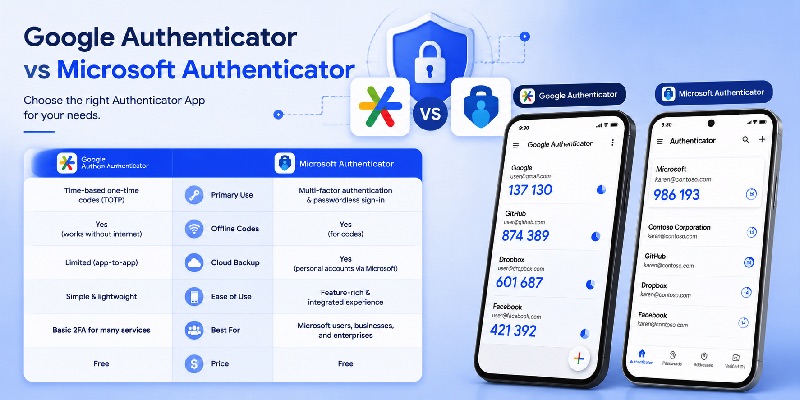
| App | Main strengths | Best for |
|---|---|---|
| Google Authenticator | Simple TOTP, optional Google Account sync | General Android users |
| Microsoft Authenticator | TOTP, Microsoft push approval, passwordless features | Microsoft accounts |
| 2FAS Auth | Open-source mobile TOTP and browser integration | Free dedicated authentication |
| Aegis Authenticator | Encrypted local vault and backup control | Advanced Android users |
| Ente Auth | Encrypted cross-platform synchronization | Multi-device users |
| Duo Mobile | Enterprise authentication and Duo Push | Work or school accounts |
If you only need standard verification codes, Google Authenticator is a straightforward option.
If your organization requires Microsoft Authenticator or Duo Mobile, follow its approved authentication policy.
For a broader comparison, read our best authenticator app comparison.
Frequently Asked Questions
Is Google Authenticator available on Google Play?
Yes. Google’s official Authenticator app is available on Google Play for compatible Android devices.
What is the official Google Authenticator Google Play link?
The official listing is https://play.google.com/store/apps/details?id=com.google.android.apps.authenticator2.
How do I download Google Authenticator for Android?
Open Google Play, search for Google Authenticator, verify Google LLC as the developer, and tap Install.
Is Google Authenticator free on Android?
Yes. The official Google Authenticator app is free to download and use.
How do I set up Google Authenticator on Android?
Enable authenticator-based 2FA in your account’s security settings, scan the setup QR code using Google Authenticator, and complete the verification step.
Can Google Authenticator work without a Google Account?
Yes. Google Authenticator supports local-only storage without Google Account synchronization.
Does Google Authenticator work offline?
Yes. Standard verification codes can be generated without internet or cellular connectivity after setup.
How do I get a Google Authenticator code on Android?
Open Google Authenticator, select the correct account entry, and enter the current verification code on the legitimate sign-in page.
Can I add multiple accounts to Google Authenticator?
Yes. You can register multiple compatible accounts and manage their verification codes in the same app.
Does Google Authenticator sync across Android phones?
Yes, when Google Account synchronization is enabled. You can also transfer codes manually using QR codes.
How do I transfer Google Authenticator to a new Android phone?
Sign in with the same Google Account if codes were synchronized, or use the Export codes and Import codes options on your old and new devices.
Can I move Google Authenticator from Android to iPhone?
Yes. Supported Google Account synchronization and manual transfer options allow migration between compatible Android and iOS devices.
Why is my Google Authenticator code invalid?
Common causes include incorrect device time, expired codes, selecting the wrong account, or an outdated authenticator registration.
Does Google Authenticator work on Android 5?
Do not assume older Android versions are supported. Check the current Google Play compatibility requirements before attempting installation.
Can I install Google Authenticator APK from another website?
Using the official Google Play listing is recommended. Avoid unverified or modified APKs because authenticator apps handle sensitive account credentials.
What happens if I lose my Android phone with Google Authenticator?
If your codes were synchronized, sign in to Google Authenticator on another supported device. Otherwise, use backup codes or the account provider’s official recovery process.
Is Google Authenticator better than SMS?
Authenticator-generated codes avoid some SMS-related risks and work offline. However, TOTP codes can still be stolen through phishing.
Can Google Authenticator protect Facebook, GitHub, and other accounts?
Yes. Google Authenticator works with many services that support standard TOTP-based two-factor authentication.
Should I uninstall Google Authenticator if it stops working?
Not immediately. First confirm that your codes are synchronized, transferable, or recoverable. Uninstalling may remove locally stored credentials.
Conclusion
Google Authenticator on Google Play is a free and practical option for Android users who want to protect compatible accounts with two-factor authentication.
To get started, download the official app from Google Play, verify Google LLC as the developer, and connect your accounts through their security settings.
The Google Authenticator app for Android supports offline verification codes, multiple accounts, optional Google Account synchronization, manual transfers, and Privacy Screen protection.
Before replacing or resetting your phone, confirm that your authentication codes are backed up or transferable and save recovery methods for important accounts.
For more information, explore our Google Authenticator guide and Google Authenticator 2FA tutorial.
