
Best Password Manager for Family: Four Real Choices and Who Should Pick Each
Published October 7, 2026
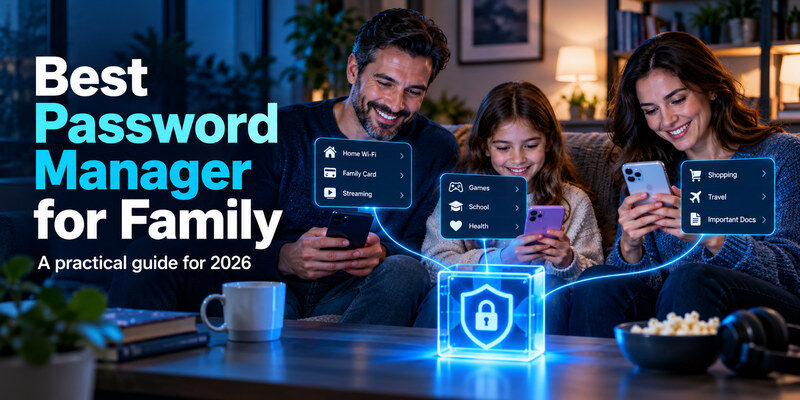
For a mixed-device household, 1Password is the easiest family-first starting point; choose Bitwarden if control and value matter more, Apple Passwords for an Apple-only family, or Proton Pass if private sharing is your priority.
The best password manager for family use has to give each person a private account and a clearly bounded shared space. A common vault login for everyone defeats that separation. This comparison focuses on the day-to-day questions: who can see which passwords, what happens when a child grows up, and how you recover from a lost phone.
1. Compare the family options at a glance
| Option | Best fit | Shared access model | Main trade-off |
| 1Password Families | Mixed devices and straightforward household administration | Individual accounts plus shared and private vaults | Paid family plan; test the entire household’s AutoFill before committing |
| Bitwarden Families | Households wanting flexible organization and control | Individual vaults plus organization collections | More setup decisions for the family organizer |
| Apple Passwords | Everyone already uses compatible Apple devices | iCloud Keychain shared groups alongside personal passwords | Less convenient for a household with Android or many non-Apple devices |
| Proton Pass | People who value item-level sharing and Proton’s ecosystem | Shared vault and secure sharing features according to plan | Check the current plan’s member and feature limits |
All four can store individual logins. The decisive test is whether a parent can share a streaming account without exposing a bank login, and whether another member can fill it on their own phone. Features and plan limits change; confirm current terms on each provider’s official page before paying.
Download Authenticator App
Secure your accounts with fast, reliable two-factor authentication. Download now and protect your login in seconds.
2. 1Password Families: the simplest mixed-device pick
What it does well
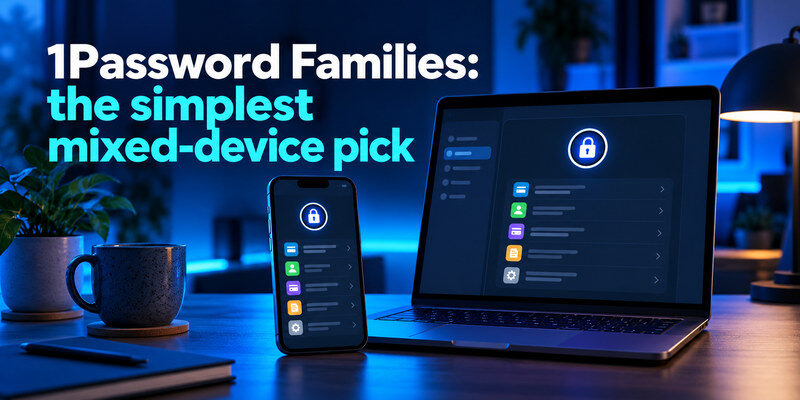
1Password gives every member an account and lets the organizer create vaults with separate permissions. A family can keep personal items private and put selected household credentials in a shared vault. The concept is easy to teach: save your own email in your private area; place the household utility account in the shared area. Apps cover common desktop and mobile platforms, and a designated organizer can help manage membership.
Where to be careful
The plan is a paid commitment, and the convenience of a shared vault can encourage dumping too many credentials into it. A shared vault item remains a shared secret even if the user interface looks polished. Review access whenever someone leaves the household or no longer needs an account; rotate the password at the service when needed. Run the trial on the oldest phone and least familiar browser in the family, since those are often where AutoFill friction appears.
Who should choose it
Choose 1Password if your household has iPhones, Android phones, and computers and wants one clear pattern for private versus shared items. It is also a good fit when a less technical member needs an organizer to set up sharing, provided that person still has their own account. Do not choose solely because one adult likes the interface; have every participant complete a real sign-in during the trial.
💡 Discover Helpful Guides: How to Choose a Password Manager: A Practical Checklist for 2026
3. Bitwarden Families: control and transparent organization
Strengths and limits
Bitwarden separates individual vaults from an organization used for common household items. Collections let you decide which members can access which shared material. Its broad platform support and documented sharing model make it attractive to families that want finer control and are willing to learn its structure. The organizer needs to understand where an item lives: an entry moved into an organization can behave differently from a personal item.
Who benefits most
Pick Bitwarden when you want to define collections such as Household, Parents, and Travel, and you do not mind a little administrative work. It is especially useful when family members use different operating systems. Test the exact sharing permissions you intend to use; do not assume that everyone should have access to the whole organization. Current plan entitlements and prices belong on Bitwarden’s official pricing page, not in a permanent article.
📘 Find the Right Guide: How to Use a Password Manager: Your First Week with a Vault
4. Apple Passwords: cleanest for an Apple household
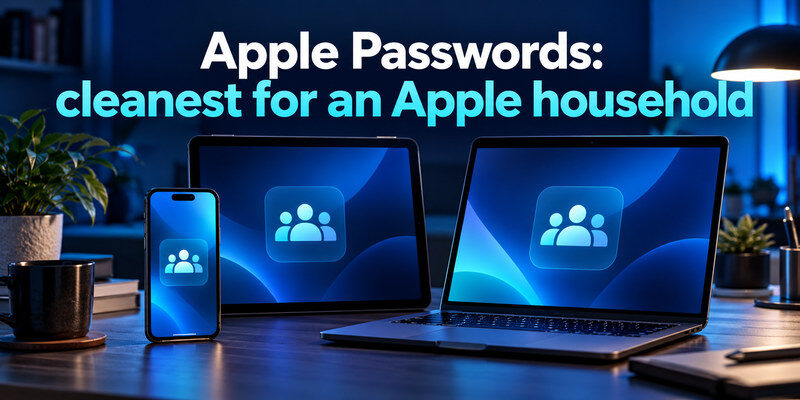
Apple Passwords and iCloud Keychain already sit close to sign-in on iPhone, iPad, and Mac. Shared Groups let trusted people share selected passwords and passkeys while personal entries stay outside the group. For a family whose devices and Apple Accounts are already set up, this reduces the number of new apps and accounts to introduce.
The device-mix question
Apple’s sharing flow depends on compatible Apple devices and individual Apple Accounts. Check its current requirements before treating it as a universal family vault. If someone primarily uses Android, another operating system, or a browser outside the household’s Apple workflow, a cross-platform manager will usually be easier. Windows access through Apple’s supported route does not turn it into an equally native Android option.
Who should choose it
Choose Apple Passwords if everyone uses Apple devices, the desired sharing is modest, and no one needs sophisticated vault permissions. Try one shared household login and one private login on each member’s device. If your family later becomes mixed-platform, plan an export and migration rather than giving the Android user a screenshot of passwords.
5. Proton Pass: a privacy-oriented alternative
Proton Pass supports private vaults and sharing capabilities that can work well for a family already using Proton services. Its appeal is straightforward: a household can keep individual credentials distinct while collaborating on selected logins. Proton documents how to share a vault and how to share individual items, but feature availability and limits depend on the current plan.
Test the details before switching
Try the actual member invitation, shared-item access, and AutoFill flow on your devices. Confirm whether a recipient needs a Proton account for the specific sharing route you plan to use and what happens when you revoke access. A one-time shared link and a continuing shared vault serve different needs. Choose Proton Pass when this sharing model and its privacy ecosystem suit the family, rather than assuming it has the same administration model as 1Password or Bitwarden.
📖 Read More Guides: How to Import Passwords into a Password Manager Without Losing Access
6. Which manager should your household choose?
| Household situation | First choice | Why | Check before committing |
| Three or more device types and simple onboarding | 1Password Families | Clear private/shared vault model | Everyone’s AutoFill and recovery |
| Detailed control over shared categories | Bitwarden Families | Organization collections | Organizer permissions and ownership |
| iPhone, iPad, and Mac across the household | Apple Passwords | Built-in sign-in and Shared Groups | Every participant’s device eligibility |
| Existing Proton users seeking selective sharing | Proton Pass | Shared vault/item tools | Current plan limits and invitation flow |
Avoid a blanket “best for everyone” claim. A parent who handles billing, a teenager using a school laptop, and a grandparent on an older phone may each reveal a different blocker. An effective family manager is the one all members can use without sending passwords through chat as a fallback.
7. Set up a family vault without over-sharing
Before inviting anyone, inventory the actual shared accounts. A streaming profile, a home Wi-Fi credential, and a utilities portal have very different access needs. Write down who should use each service and whether the service’s own family seats solve the problem better. This small exercise keeps the shared vault from becoming a dumping ground for every login the organizer happens to own.
Invite each person separately
Create your own account first, record your recovery information, and invite each member through the manager’s official family flow. Help them create their own master secret and secure their account. Do not sign everyone into the organizer’s vault. For a child, follow the service’s age and account policies and choose an appropriate supervision arrangement.
Start with two or three shared logins
Create a narrowly named shared vault or group, then add the household streaming, utility, or travel account that truly needs shared access. Keep private email, bank, healthcare, and personal social accounts in individual vaults. If a service offers its own family profiles, invitations, or delegated access, prefer that over sharing a single credential where possible.
Verify access and revocation
Ask one other member to fill a shared login on their device. Check that a private item is invisible to them. Practice removing a test item or member; remember that someone who has seen a password may have copied it. Revoking vault access does not necessarily invalidate the password at the underlying service, so rotate it there when access must truly end.
During the trial, have the least technical member perform this task without the organizer touching their phone. Ask them to locate a shared entry, identify the correct website, fill it, and report a change. If they resort to a screenshot or chat message, the chosen structure needs a clearer shared-vault name or a simpler app. A family plan’s success is measured by independent use, not the organizer’s ability to configure it.
📘 Find the Right Guide: Best Password Manager for Family: Four Real Choices and Who Should Pick Each
8. Secure the household’s recovery paths

A family account can become a single point of failure if the organizer alone knows how it works. Know the provider’s recovery process, retain required recovery keys in a safe place, and give another responsible adult the information they are permitted to hold. Keep the recovery email and phone current. Before replacing a phone, confirm the manager works on another trusted device and that the vault’s second factor can be restored.
Make recovery a scenario rather than a vague promise. Suppose the organizer’s phone is lost on a trip: which device receives account email, which adult can manage invitations, and where are the backup codes? Some products offer family-organizer recovery features with eligibility conditions. Read the current provider instructions and practice a harmless test while you still have access. Never share an organizer’s entire master password as a shortcut to helping a member.
Separate password storage and second factor
Use a second sign-in factor for the family organizer’s vault and high-value services. An authenticator app creates time-based codes when a service supports them; it does not organize the household’s passwords. For an independent code app, Authenticator App is described at and its iPhone listing is . Keep each account’s backup codes accessible to the right person, outside a single device that could be lost.
Plan for changes in membership
When a teenager takes ownership of an account, move it out of the shared area or use the site’s account-transfer option if offered. When a caregiver or former household member no longer needs access, remove their vault permissions and change any credential they used. Do not delete a person’s private vault because the shared plan changed; ask the provider how personal data and membership are handled first.
9. Frequently Asked Questions
Can a family use one free account together?
You may be able to sign in on multiple devices, but a shared master login exposes every item and makes access hard to revoke. Separate member accounts and a limited shared area are the safer family design. Check each provider’s current free sharing limits if cost is the deciding factor.
Should parents know a child’s master password?
That depends on age, provider policy, and the household’s supervision needs. A better general goal is an explicit recovery arrangement rather than quietly using one shared master password for all members. Explain to the child which credentials are private and which are shared.
Is Apple Passwords enough for a family?
For an Apple-only household with modest sharing, it may be. A mixed-device household or one needing more granular administration should trial a cross-platform family manager.
What happens after a family member is removed?
Their future access to shared vault items should end according to the provider’s membership rules. Any password they previously saw could still be known to them. Rotate affected service passwords and review active sessions at those services when the change is sensitive.
Can family members share passkeys?
Some providers, including Apple, support specific passkey sharing paths. Support varies by provider, website, device, and plan. Test the real account before promising that a shared passkey will replace a shared password for your household.
10. Final Thoughts

Choose 1Password Families for an easy mixed-device start, Bitwarden for finer control, Apple Passwords for an Apple-only home, or Proton Pass when its sharing approach fits your privacy preferences. Give each member an account, share only selected items, test AutoFill and revocation, and prepare recovery before moving the whole household.
Use a two-week trial with the people who will actually sign in, not just the person buying the plan. Put one common credential in the shared space and keep one test item private. If the family can understand access, recover on another device, and avoid sending a password in chat, the chosen manager has passed its most important test.
Download Authenticator App
Secure your accounts with fast, reliable two-factor authentication. Download now and protect your login in seconds.
