Email Authentication in Zoho CRM: How to Set Up DKIM, SPF and DMARC
Published September 22, 2026 · Updated November 3, 2026
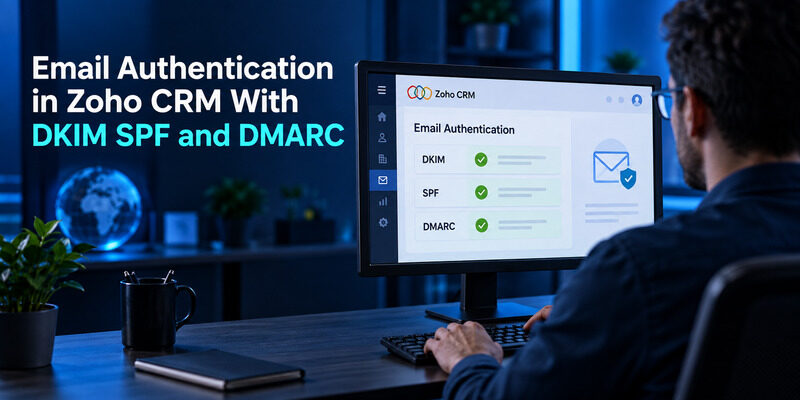
Email authentication in Zoho CRM helps verify that your business is authorized to send emails using its domain. By completing domain verification and configuring DKIM and SPF, you can improve sender authentication and reduce problems caused by unauthenticated outgoing emails.
Quick Answer: To set up email authentication in Zoho CRM, go to Setup → Channels → Email → Email Deliverability → Email Authentication. Add your sending domain, verify ownership using the confirmation email, publish the DKIM and recommended SPF records in your DNS, and return to Zoho CRM to validate them.
For additional protection, configure DMARC and verify that messages sent from Zoho CRM pass the appropriate authentication checks.
This guide explains how to authenticate your domain in Zoho CRM, configure DNS records, verify the results, and troubleshoot common authentication errors.
What Is Email Authentication in Zoho CRM?
Email authentication in Zoho CRM is a security process that helps verify emails sent from your business domain through Zoho CRM.
For example, if your company uses [email protected] to contact customers, Zoho CRM needs to establish that your domain is authorized for the relevant sending workflow.
Without proper domain authentication, recipients may see unexpected sender information, and messages may be more likely to encounter delivery problems.
Zoho CRM uses domain verification, DKIM, and SPF to support sender authentication.
Why Is Email Authentication Important?
Configuring email authentication can help:
- Reduce unauthorized domain spoofing.
- Improve the credibility of outgoing email.
- Support email deliverability.
- Protect your business domain’s reputation.
- Meet email sender requirements.
- Reduce the risk of messages being rejected because of authentication failures.
However, authentication does not guarantee inbox placement.
Receiving servers also evaluate sending reputation, message content, recipient engagement, and other factors.
Which Authentication Methods Does Zoho CRM Use?
| Method | Purpose | Zoho CRM requirement |
|---|---|---|
| Domain verification | Confirms control of the sending domain | Required |
| DKIM | Adds a cryptographic signature to outgoing messages | Required |
| SPF | Identifies authorized sending infrastructure | Recommended |
| DMARC | Evaluates aligned SPF or DKIM authentication and domain policy | Recommended for domain protection and sender compliance |
Zoho CRM also displays whether a DMARC policy has been detected for the domain.
Download Authenticator App
Secure your accounts with fast, reliable two-factor authentication. Download now and protect your login in seconds.
📘 Find the Right Guide: Email Authentication Outlook: Setup and Recovery
How to Set Up Email Authentication in Zoho CRM
You need access to Zoho CRM’s administrative email settings and the DNS management panel for your domain.
The setup involves verifying domain ownership, publishing authentication records, and validating the configuration.
Step 1: Open Zoho CRM Email Authentication Settings
Sign in to your Zoho CRM account using a profile with the required administrative permissions.
Navigate to:
Setup → Channels → Email → Email Deliverability → Email Authentication
Open the Email Authentication tab.
You will find the option to add a new sending domain or manage an existing one.
Step 2: Add Your Sending Domain
Click Add Domain.
Enter an email address associated with the domain you want to authenticate.
For example:
Zoho CRM will use the address and domain details to begin the verification process.
Confirm that you are adding the same domain your organization intends to use for outgoing CRM messages.
If your organization uses multiple sending domains, configure and validate the relevant domains separately.
Step 3: Verify Domain Ownership
After adding the domain, Zoho CRM sends a verification code to the email address supplied during setup.
To complete verification:
- Open the verification email.
- Copy the verification code.
- Return to Zoho CRM.
- Locate the domain and select Enter Code.
- Paste the code.
- Click Verify.
Zoho states that the verification email is valid for 15 days. If the code expires, use the available option to resend the verification email.
Successfully verifying the domain does not mean DKIM and SPF have already been configured.
You must still complete DNS authentication.
Step 4: Get Your DKIM and SPF Records
After domain verification, locate the domain in Email Authentication.
Click Validate Records.
Zoho CRM displays the authentication records required or recommended for your configuration.
Copy the information for each record, including its type, host name, and value.
Use the values generated by your Zoho CRM account rather than copying DNS values from an unrelated tutorial.
Step 5: Publish the Records in DNS
Sign in to the DNS provider hosting your domain’s authoritative DNS records.
Add the DKIM record supplied by Zoho CRM.
Then review your existing SPF policy and incorporate Zoho’s recommended authorization if necessary.
Save the changes.
DNS updates may not be immediately visible because of caching and propagation.
Step 6: Validate Email Authentication
Return to:
Zoho CRM → Email Authentication
Select the relevant domain and click Validate Record or the equivalent validation action.
Zoho CRM will check whether the required authentication information can be found.
If validation succeeds, review the domain’s authentication status.
Finally, send a test message from Zoho CRM to confirm that the intended sending workflow works correctly.
💡 Discover Helpful Guides: Email 2FA: Protect Your Inbox and Understand Email Codes
How to Configure DKIM for Zoho CRM
DomainKeys Identified Mail (DKIM) uses cryptographic signatures to authenticate messages sent on behalf of a domain.
Zoho CRM provides the DNS information needed to configure DKIM for your sending domain.
Find Your DKIM Record
Open the verified domain in Zoho CRM’s Email Authentication settings.
Look for the DKIM record details.
A DKIM DNS record commonly uses a host name resembling:
selector._domainkey.example.com
The value contains a public key used to verify message signatures.
The actual selector and public key must come from your Zoho CRM configuration.
Add the DKIM TXT Record
Open your domain’s DNS management dashboard.
Create the DNS record using the values Zoho CRM provides.
Check that:
- The record type matches Zoho’s instructions.
- The host name is entered correctly.
- The entire public key is copied without modification.
- The DNS provider has not duplicated your domain in the host field.
Save the record.
Then return to Zoho CRM and validate DKIM.
Check Whether DKIM Is Working
Send a test email from the relevant Zoho CRM workflow to a Gmail inbox you control.
In Gmail, open the message and select More → Show original.
Review the authentication results.
A successful DKIM result commonly appears as:
dkim=pass
Also check that the signing domain is appropriate for your visible From domain.
If DKIM fails, confirm that the DNS key matches the record Zoho CRM generated and that the test message was sent using the expected Zoho CRM sending method.
How to Configure SPF for Zoho CRM
Sender Policy Framework (SPF) allows a domain to publish which servers are authorized to send email using that domain in the SMTP envelope.
Zoho CRM recommends configuring SPF as part of its email authentication process.
Check Your Existing SPF Record
Before adding Zoho CRM’s SPF authorization, inspect the TXT records for your domain.
Look for a record beginning with:
v=spf1
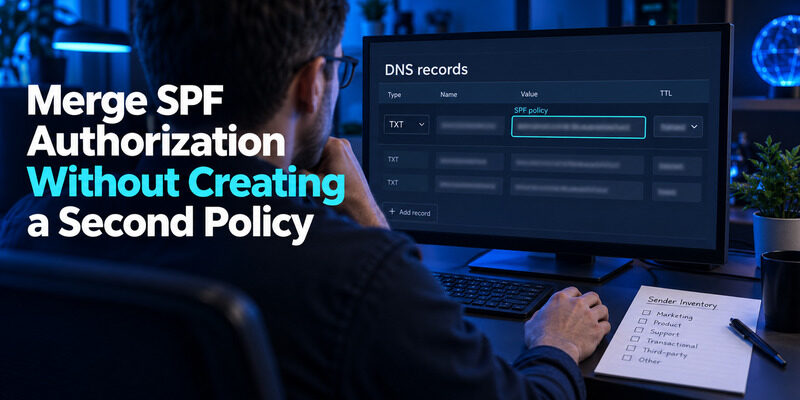
If an SPF record already exists, do not create another SPF policy at the same domain name.
Multiple SPF records for one name can cause authentication errors.
Add the Authorization Provided by Zoho CRM
Zoho CRM provides SPF information for the relevant sending configuration.
Use the authorization value displayed in your account.
If your domain already sends messages through another provider, such as Microsoft 365 or Google Workspace, you may need to combine the authorized sending services into a single SPF record.
For example, Zoho’s documentation illustrates how multiple authorized services can appear within one policy.
However, your final SPF record must be based on the providers and sending systems your organization actually uses.
Do not replace an existing working SPF record without checking which services depend on it.
Validate Your SPF Record
After updating the DNS record:
- Save the configuration.
- Wait for the record to become publicly visible.
- Check the domain’s published TXT records.
- Confirm that only one SPF policy exists at the relevant name.
- Return to Zoho CRM and validate the record.
- Send an email through the intended workflow.
An SPF authentication result may appear as:
spf=pass
A passing SPF check does not necessarily mean DMARC also passes, because SPF domain alignment must be considered separately.
Important: SPF has a limit of 10 DNS-querying mechanisms and modifiers during evaluation. Avoid adding numerous nested includes without checking the complete policy.
📘 Find the Right Guide: Email Authentication Failed Fixes for Login and Sending
How Does DMARC Work With Zoho CRM?
DMARC builds on SPF and DKIM by checking whether an authenticated domain aligns with the domain displayed in the email’s From address.
This is particularly important when a platform sends email on behalf of your organization’s domain.
Why SPF Can Pass While DMARC Fails
When Zoho CRM sends a message, the SMTP envelope sender may use a Zoho-controlled domain for operational purposes, including bounce tracking.
As a result, SPF can pass for the envelope sender domain while failing to align with your organization’s visible From domain.
DMARC can still pass if the message has a valid DKIM signature aligned with the visible From domain.
This is one reason Zoho CRM emphasizes DKIM authentication.
Add a DMARC Record
If your domain does not have a DMARC policy, review your existing authentication configuration before publishing one.
An example monitoring policy is:
v=DMARC1; p=none; rua=mailto:[email protected]
Publish the TXT record at:
_dmarc.example.com
Replace the example address with a reporting mailbox or service that can receive DMARC aggregate reports.
A p=none policy allows monitoring without requesting quarantine or rejection based on DMARC failures.
Once you have verified legitimate sending services, consider stronger policies such as p=quarantine or p=reject.
Do not enable strict rejection without confirming that all important email workflows authenticate correctly.
Google Email Two Factor Authentication Setup for Gmail
Zoho CRM Email Authentication Not Working? Common Fixes
If your domain remains unverified or authentication records fail validation, troubleshoot the specific step that is failing.
| Problem | Likely Cause | Recommended Fix |
|---|---|---|
| Verification email not received | Incorrect email address or filtered message | Check mailbox and resend verification |
| Domain verification pending | Verification step incomplete | Enter a valid verification code |
| DKIM record not found | Incorrect DNS host name or unpublished record | Check authoritative DNS |
| DKIM validation failed | Incorrect or incomplete public key | Compare record with Zoho’s generated value |
| SPF record missing | Policy not published or not visible | Check public TXT records |
| SPF PermError | Duplicate records or invalid SPF configuration | Correct the SPF policy |
| DMARC failed | No aligned SPF or DKIM authentication pass | Check DKIM signing and alignment |
| CRM validates but email goes to spam | Deliverability issue beyond DNS setup | Inspect headers, reputation, and sending practices |
Fix 1: Check the DNS Record Name
Some DNS providers automatically append the domain name to a record’s host field.
For example, entering a full hostname into a provider that automatically adds example.com can produce an incorrect record name.
Check the final publicly visible DNS name instead of relying only on what appears in the editing form.
Fix 2: Remove Duplicate SPF Policies
If two TXT records both begin with v=spf1 at the same domain name, consolidate the authorized senders into one valid policy.
Do not delete another provider’s SPF authorization without confirming that it is no longer needed.
Fix 3: Allow DNS Updates to Become Visible
DNS changes may take time to propagate through caches.
If Zoho CRM cannot find the record immediately, check the published DNS response before making additional changes.
If SPF validation remains unsuccessful after 24 hours, Zoho recommends contacting its support team.
Fix 4: Verify the Actual Sending Method
A successful test from an employee’s connected mailbox does not necessarily prove that an organizational email address or mass-email workflow is authenticated correctly.
Zoho CRM may use different sending paths depending on the message type.
Test the email workflow you intend to use.
Fix 5: Check Whether the Domain Is Already Authenticated
Zoho CRM can recognize domains authenticated through other Zoho products under documented conditions.
Before creating new records, inspect the current domain status and existing DNS configuration.
Avoid generating duplicate records for a domain that is already properly authenticated.
💡 Discover Helpful Guides: How to Add Email to Authenticator App With QR or Manual Setup
Frequently Asked Questions

What Is Email Authentication in Zoho CRM?
Email authentication in Zoho CRM is the process of verifying a sending domain and configuring its email authentication records. It helps receiving mail servers recognize messages sent legitimately on behalf of your organization.
How Do I Authenticate My Domain in Zoho CRM?
Open Setup → Channels → Email → Email Deliverability → Email Authentication. Add your domain, verify the email confirmation code, publish the authentication records supplied by Zoho, and validate the records.
Is DKIM Required for Zoho CRM?
Zoho CRM’s documented email authentication process requires DKIM configuration. The DKIM record allows receiving servers to verify signatures associated with your organization’s sending domain.
Does Zoho CRM Require SPF?
Zoho CRM recommends SPF as part of its email authentication configuration. Use the SPF authorization provided for your account and incorporate it into your existing policy when needed.
Why Is My Zoho CRM Domain Authentication Pending?
Common causes include missing DNS records, incorrect host names, incomplete values, caching, or records added to the wrong DNS zone. Check the public DNS records and compare them with the values generated by Zoho CRM.
Why Does Zoho CRM Show an SPF Alignment Warning?
Zoho CRM may use a Zoho-controlled Return-Path domain for sending operations. SPF can pass for that domain without aligning with your visible From address. Correctly configured, aligned DKIM can allow DMARC to pass.
Can I Use Zoho CRM With Google Workspace or Microsoft 365?
Yes. Zoho CRM can coexist with other email services on the same business domain. You must preserve the authentication requirements of each legitimate sending system and test the relevant email workflows.
📖 Explore Articles: How to Add Email to Authenticator App With QR or Manual Setup
Final Thoughts
Email authentication in Zoho CRM is an important step in sending business emails from your own domain.
Start by verifying your sending domain, publishing the DKIM record provided by Zoho CRM, and reviewing the recommended SPF configuration. Then check DMARC alignment and test actual emails sent from your CRM.
A properly authenticated domain helps establish legitimate sender identity, reduce spoofing risks, and support more reliable email delivery.
Use Authenticator App where compatible second-factor enrollment is available for the accounts managing these settings. That supports the people-side access controls while DNS authentication supports the message-side checks. With both responsibilities assigned, email authentication in Zoho CRM becomes a configuration your team can verify, maintain, and troubleshoot without relying on a single green badge or an outdated screenshot of a DNS panel.