
Authenticator App for Mac: How to Get 2FA Codes on macOS
Published September 3, 2026 · Updated October 1, 2026
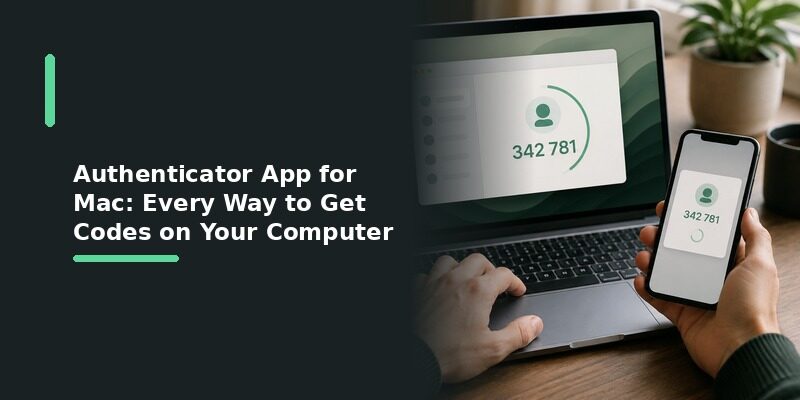
If you need an authenticator app for Mac, you have several ways to generate two-factor authentication codes directly on macOS.
For most Mac users, the simplest option is Apple Passwords, which can store verification codes and automatically fill them when you sign in.
Other options include dedicated cross-platform authenticator apps and hardware-based solutions such as Yubico Authenticator.
The best approach depends on whether you want:
- A built-in Mac solution
- Codes synchronized across Apple devices
- A dedicated standalone authenticator
- A hardware-backed authenticator
Use Apple Passwords as an Authenticator on Mac
For users already inside the Apple ecosystem, the built-in Passwords app is usually the most direct place to start.
Apple Passwords can store a verification code alongside the login credentials for a website or app.
How to Add a Verification Code
First, open the account you want to protect and enable two-factor authentication.
Choose Authenticator App as the verification method.
The website will usually show:
- A QR code
- A setup key
- Or both
On your Mac:
- Open Passwords.
- Find the account you want to protect.
- Click Edit.
- Select Set Up Code.
- Copy the setup key from the website.
- Paste it into Passwords.
- Click Use Setup Key.
Passwords will begin generating a temporary verification code.
Copy that code back into the website to confirm the setup.
Apple officially documents this workflow for setting up automatic verification codes on Mac.
Using the Code When You Sign In
After setup, sign in to the website normally.
When the site requests a verification code, macOS may offer the code automatically through AutoFill.
If it does not appear automatically:
Passwords → Select account → Copy verification code
Then paste the code into the website.
For users who mainly use Safari and Apple devices, this is often the most convenient Mac authentication workflow.
Download Authenticator App
Secure your accounts with fast, reliable two-factor authentication. Download now and protect your login in seconds.
Dedicated Authenticator Apps for Mac
Apple Passwords is not the only option.
A dedicated authenticator may make more sense if you want stronger separation between your passwords and your second-factor codes or if you use several operating systems.
Examples of Mac-compatible approaches include:
Ente Auth
Ente Auth is designed for cross-platform authentication and synchronization.
It is useful if you want access to authentication codes across:
- macOS
- Windows
- Linux
- Android
- iPhone
This is particularly relevant for users who move frequently between Apple and non-Apple devices.
Yubico Authenticator
Yubico Authenticator provides a desktop option for users in the YubiKey ecosystem.
It is most useful when you already use Yubico hardware and want authentication credentials tied more closely to a physical security key.
It is not necessarily the simplest option for someone who only wants ordinary TOTP codes on a Mac.
Other Cross-Platform Authenticators
Some authenticator products provide native desktop clients, browser integrations, or synchronized account access.
Before installing one, check:
- macOS support
- Intel vs Apple Silicon compatibility
- Backup method
- Sync behavior
- Import and export
- Developer reputation
Do not assume that every popular phone authenticator has an official Mac application.
🗺️ Browse How-To Guides: Authenticator App New Phone: How to Transfer It the Right Way
What About Google Authenticator and Microsoft Authenticator on Mac?
Two commonly searched products need clarification.
Google Authenticator
Google Authenticator is primarily designed as a mobile authenticator.
There is no standard dedicated Google Authenticator desktop app for macOS comparable to the Android or iPhone versions.
If your goal is specifically Google Authenticator for Mac, use a dedicated guide covering that product rather than downloading an unofficial application that uses Google’s name.
Microsoft Authenticator
Microsoft Authenticator also does not provide a native Mac desktop application.
Microsoft’s typical workflow is:
Mac → Start login → Microsoft Authenticator on iPhone or Android → Approve login
So if a work or school account specifically requires Microsoft Authenticator, installing another Mac authenticator may not replace that requirement.
This distinction matters because “authenticator app for Mac” does not mean every mobile authenticator has a Mac version.
💡 Discover Helpful Guides: How to Reset Your Authenticator App Without Losing Access
5. How to Set Up a Third-Party Authenticator on Mac
The exact interface varies by app, but most TOTP authenticators follow the same setup process.
Step 1: Enable 2FA on the Website
Open the security settings of the account you want to protect.
Look for:
- Two-Factor Authentication
- Two-Step Verification
- Multi-Factor Authentication
- Authenticator App
Choose Authenticator App.
Step 2: Get the Setup Information
The website should display a QR code or manual setup key.
On a Mac, the manual setup key is often easier to use because the QR code may be displayed on the same screen as the authenticator.
Step 3: Add the Account
Open your Mac authenticator and select:
Add account
Then either scan the QR code if supported or paste the setup key.
Step 4: Verify the Code
The authenticator will generate a temporary verification code.
Enter it into the website.
If the website accepts the code, the setup is complete.
Step 5: Save Recovery Options
If the website provides recovery codes, save them somewhere secure.
Do not rely only on the Mac authenticator as your recovery method.
📘 Find the Right Guide: Authenticator App Desktop: Safe Ways to Use 2FA on Windows and Laptops
6. Mac Authenticator vs Phone Authenticator
Both can generate TOTP codes, but the workflow is different.
| Feature | Mac authenticator | Phone authenticator |
|---|---|---|
| Convenient while working on Mac | Excellent | Requires another device |
| Portable | Limited to computer | Excellent |
| AutoFill integration | Strong with Apple Passwords | Depends on app |
| Cross-platform options | Available | Widely available |
| Separate device factor | No | Yes |
| Useful when phone unavailable | Yes | No |
The biggest convenience advantage of a Mac authenticator is that the code is already available on the computer where you are signing in.
However, some people deliberately prefer keeping their authentication codes on a separate physical device.
That decision depends on your security model rather than a universal rule.
If convenience within the Apple ecosystem matters most, Apple Passwords is particularly practical.
If separation between password and second factor matters more, a phone or hardware authenticator may suit you better.
🛠️ Learn with Step-by-Step Guides: Authenticator App Is Not Showing Code: How to Fix Missing Verification Codes
7. How to Choose an Authenticator App for Mac

Focus on a few practical questions.
Do You Mainly Use Apple Devices?
If yes, Apple Passwords is the simplest starting point.
Verification codes stored in Passwords can be available across supported devices signed into the same Apple Account with the relevant iCloud Passwords settings enabled.
Do You Use Windows or Android Too?
Look for a cross-platform authenticator instead of choosing an Apple-only workflow.
This makes migration and daily use easier when you switch devices.
Do You Want Passwords and 2FA Separate?
If yes, avoid storing both in the same password manager.
Use a standalone authenticator instead.
Do You Use a Hardware Security Key?
If you already use a YubiKey, Yubico Authenticator may fit naturally into your existing security setup.
How Will You Recover Your Accounts?
Before committing to any authenticator, understand:
- Backup
- Sync
- Export
- Recovery
- Device migration
This matters more than visual design or the number of features.
💡 Discover Helpful Guides: How to Use an Authenticator App: Setup, Codes, and Every Account Type
Frequently Asked Questions About Authenticator App for Mac

Does Mac have a built-in authenticator?
Yes.
Apple’s Passwords app can store and generate verification codes for websites and apps that support compatible two-factor authentication.
What is the easiest authenticator to use on Mac?
For users already using the Apple ecosystem, Passwords is one of the simplest options because it is integrated directly into macOS and supports verification-code AutoFill.
Can I use Google Authenticator directly on Mac?
Google Authenticator is primarily a mobile authenticator rather than a dedicated macOS desktop application. If you need codes directly on a Mac, use a Mac-compatible authenticator or Apple Passwords instead.
Can I install Microsoft Authenticator on Mac?
Microsoft does not currently provide Microsoft Authenticator as a native Mac desktop app. It is designed primarily for iOS and Android.
Can a Mac generate six-digit 2FA codes?
Yes.
Apple Passwords and compatible third-party TOTP authenticators can generate temporary verification codes directly on macOS.
Can I use the same verification code system on Mac and iPhone?
Yes, depending on the app.
For example, Apple’s Passwords system can make verification codes available across supported Apple devices when Passwords is enabled through iCloud.
Should I use a browser extension as my authenticator?
Browser-based solutions exist, but a dedicated Mac authenticator or Apple’s built-in Passwords app generally provides a clearer long-term workflow.
If you choose a browser extension, verify the developer carefully because the extension will handle sensitive authentication information.
🗺️ Browse How-To Guides: Is Authenticator App Safe? A Complete Security Breakdown for 2026
Final Thoughts
Authenticator app for mac isn’t a single fixed option, but a choice between an iPhone app running through Mac Catalyst, a browser extension, a hardware-tied client like Yubico Authenticator, or a cross-platform app like Authenticator App, depending on what you already own and how much consistency you want across devices.
Match the authenticator app for mac option to what you already carry, confirm sync works before you need it, and the rest of the day-to-day experience becomes routine rather than something to think about again.
Whichever option you choose, pairing it with the same account already set up on a phone keeps you covered if the Mac itself is ever unavailable.
Want the same consistent experience across Mac, iPhone, and everywhere else? Download and keep every code in sync.
Download Authenticator App
Secure your accounts with fast, reliable two-factor authentication. Download now and protect your login in seconds.
