
Roblox 2FA Authenticator: How to Set Up and Use an Authenticator App
Published August 24, 2026 · Updated October 5, 2026
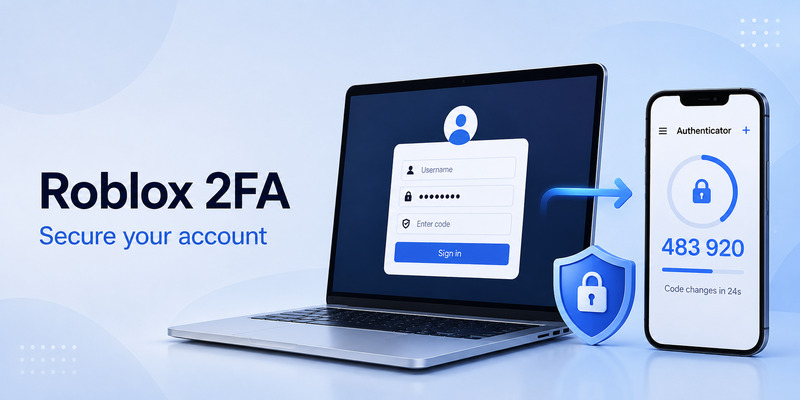
If you want to protect your Roblox account with an authenticator app, you can enable Roblox 2FA Authenticator from your account’s Security settings.
The setup is simple: verify your email, enable Authenticator App under 2-Step Verification, scan the QR code, and enter the verification code generated by your authenticator.
After setup, Roblox can ask for a code from your authenticator when you sign in.
Quick answer:
To set up a Roblox 2FA Authenticator, log in to your Roblox account, navigate to Settings > Security, and enable Authenticator App under 2-Step Verification. Open your authenticator app (such as Begamob Authenticator or Google Authenticator), scan the displayed QR Code, and enter the 6-digit verification code to complete setup. Be sure to save your backup recovery codes immediately in case you lose access to your device.
Looking for an easy, secure way to manage your 2FA codes across all your devices? Download Begamob Authenticator today for instant setup, cloud backup, and multi-layer protection.
1. What Is a Roblox 2FA Authenticator?
Roblox 2FA Authenticator refers to using an authenticator app as the second verification step for your Roblox account.
Instead of relying only on your Roblox password, you connect your account to an authenticator app on your phone. The app then generates temporary verification codes that Roblox can request during login.
The process works like this:
- Enter your Roblox username and password.
- Roblox asks for additional verification.
- Open your authenticator app.
- Find your Roblox account.
- Enter the current verification code.
- Roblox verifies the code and completes the login.
This is part of Roblox’s 2-Step Verification system.
You do not need a special app called “Roblox Authenticator.” Roblox works with compatible third-party authenticator apps.
Download Authenticator App
Secure your accounts with fast, reliable two-factor authentication. Download now and protect your login in seconds.
2. What Do You Need to Set Up Roblox 2FA?
Before enabling an authenticator for Roblox, prepare two things.
A Verified Email Address
Your Roblox account must have a verified email address before you can enable 2-Step Verification.
You can check your email status from your Roblox account settings.
If your email has not been verified yet, complete that step before trying to connect an authenticator.
An Authenticator App
You also need an authenticator app installed on your phone.
Common options include:
- Google Authenticator
- Microsoft Authenticator
- Duo
- Twilio Authy
- Other compatible authenticator apps
These apps generate temporary verification codes after you connect them to Roblox.
The authenticator does not need your Roblox password. Instead, Roblox provides setup information that allows the app to generate codes specifically for your account.
💡 Discover Helpful Guides: 2FA Authenticator App: Complete Guide to Setup, Use, Download, and Secure Your Accounts
3. How to Enable Roblox 2FA With an Authenticator App
To set up Roblox 2FA Authenticator, sign in to the Roblox account you want to protect.
Step 1: Open Roblox Settings
Log in to Roblox.
On the website, open the gear icon and select Settings.
On mobile, open your account settings from the Roblox app.
Step 2: Go to Security
Open the Security tab.
Look for the section related to 2-Step Verification.
Roblox provides different verification methods, so make sure you select the option for an Authenticator App.
Step 3: Enable Authenticator App
Turn on the authenticator-app option.
Roblox may ask you to confirm your identity before continuing.
Follow the instructions shown on the screen.
Once you reach the authenticator setup page, Roblox will provide information that can be added to your authenticator app.
💡 Discover Helpful Guides: 2FA Authenticator App: Complete Guide to Setup, Use, Download, and Secure Your Accounts
Secure your Roblox account in seconds—click the banner below to download Authenticator App by Begamob for free!
4. How to Scan the Roblox 2FA QR Code
During setup, Roblox may show a QR code.
This QR code connects your Roblox account to your authenticator.
On your phone:
- Open your authenticator app.
- Tap Add account, +, or a similar option.
- Select Scan QR code.
- Point your phone camera at the QR code displayed by Roblox.
- Wait for the Roblox account to appear inside the authenticator.
Your authenticator should then start generating a temporary code for Roblox.
If the authenticator offers manual setup, you may also be able to enter the setup key provided by Roblox instead of scanning the QR code.
Keep the QR Code Private
Do not share your Roblox authenticator QR code with another person.
The QR code contains information used to create verification codes for your account.
Avoid:
- Posting screenshots of it
- Sending it through Discord or social media
- Sharing it with another player
- Uploading it publicly
- Showing it during screen sharing
Treat it like account-security information.
5. Enter the Roblox Authenticator Code
After adding Roblox to your authenticator, the app will display a verification code.
Return to Roblox and enter the current code in the verification field.
For example, your authenticator may display:
Roblox
384 291
Enter the code currently displayed in the app.
Because authenticator codes change regularly, use the current code rather than one you copied earlier.
Once Roblox accepts the code, your authenticator is connected and 2-Step Verification is enabled.
6. How to Use Roblox 2FA Authenticator When Logging In
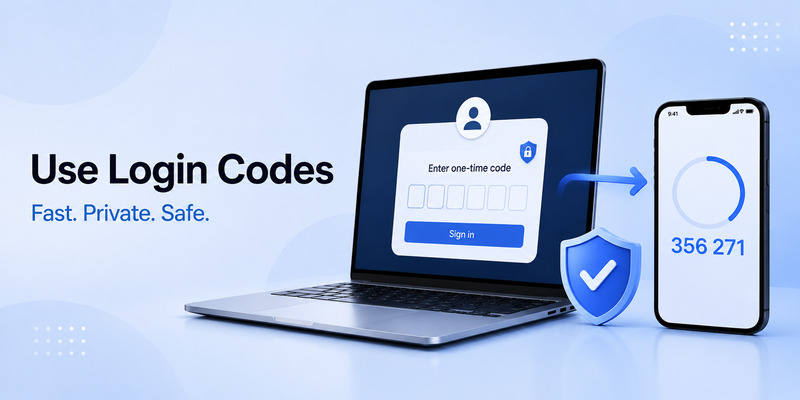
Once setup is complete, using your authenticator is straightforward.
When Roblox asks for two-step verification:
- Open your authenticator app.
- Find Roblox in your account list.
- Read the current verification code.
- Return to Roblox.
- Enter the code.
- Continue signing in.
If you store several accounts in the same authenticator, make sure you select the correct Roblox entry.
A valid code from another account will not work.
📘 Explore More Useful Guides: Discord 2FA Code: Setup, Backup Codes, Errors, and Account Recovery Guide
7. How to Turn Off 2-Step Verification on Roblox
If you need to disable or switch your authenticator app, you can turn off 2FA directly from your security settings:
- Step 1: Log in to your Roblox account.
- Step 2: Go to Settings > Security.
- Step 3: Find 2-Step Verification and toggle off the Authenticator App option.
- Step 4: Enter your current password or 2FA code to confirm disabling.
8. How to Recover a Roblox Account Without an Authenticator
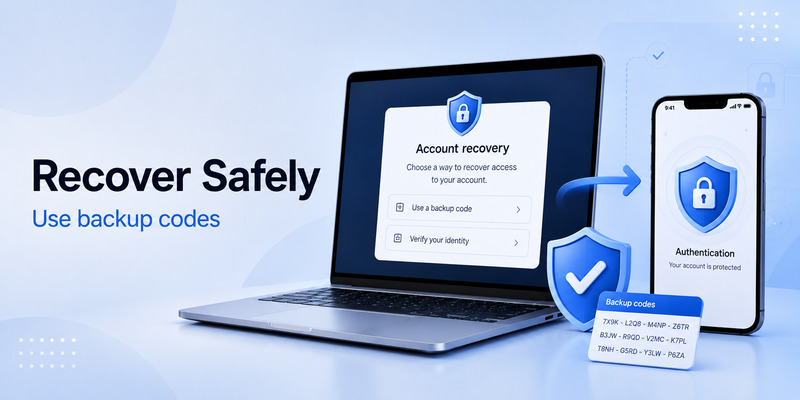
The search phrase how to disable 2fa on roblox without authenticator often comes from users who no longer have their phone. In that situation, do not rely on third-party recovery services, YouTube tricks, browser extensions, or people claiming they can remove 2FA. These methods can lead to a stolen account.
Instead, try official recovery options in this order:
- Use a saved Roblox backup code.
- Choose an available verified-email verification option.
- Sign in with a passkey if you previously added one.
- Use another device that is already signed in, when Roblox offers that path.
- Contact Roblox Support through the official support channel if no approved option is available.
A roblox 2fa authenticator is intentionally difficult to bypass. That protects you from attackers, but it also means recovery can require strong proof that you own the account. Roblox advises users with two-step verification to maintain separate recovery methods, including a verified email, backup codes, passkey, or eligible phone number.
When contacting support, provide accurate ownership details only through official channels. Avoid sharing passwords, full backup-code lists, current authenticator codes, or personal information in public posts and direct messages. Support should not need your password or a live security code to begin helping you.
📘 Explore More Useful Guides: 2FA Authenticator Instagram: Complete Setup, Login, Recovery, and Troubleshooting Guide
9. Frequently Asked Questions
What authenticator app does Roblox use?
Roblox does not require one specific authenticator. You can use a compatible authenticator app such as Google Authenticator, Microsoft Authenticator, Duo, or another supported option.
How do I get a Roblox 2FA code?
Open the authenticator app you connected to Roblox. Find the Roblox entry and enter the current verification code displayed there.
Where is Roblox 2FA in settings?
Sign in to Roblox, open Settings, and go to Security. Look for the 2-Step Verification settings and select the Authenticator App option.
Does Roblox send authenticator codes by email?
Authenticator-app codes are generated inside your authenticator. Email-based 2-Step Verification is a separate Roblox verification method.
Why does my Roblox authenticator code keep changing?
Authenticator codes are intentionally temporary. A new code is generated regularly so an old code cannot continue to be used indefinitely.
Can I use the same authenticator app for multiple Roblox accounts?
An authenticator can generally hold multiple account entries. Each Roblox account must be connected separately and will have its own code.
Do I need a verified email for Roblox 2FA?
Yes. Roblox requires a verified email address before you can enable 2-Step Verification.
To set it up:
Roblox Settings → Security → 2-Step Verification → Authenticator App → Scan QR code → Enter verification code.
After setup, open your authenticator whenever Roblox requests verification and enter the current code associated with your Roblox account.
Keep your QR code, setup information, verification codes, and recovery information private. Most importantly, configure and manage Roblox 2FA only through the official Roblox website or app.
13. Final Thoughts
A Roblox 2FA Authenticator lets you protect your account by requiring a temporary verification code in addition to your normal login credentials.
Download Authenticator App
Secure your accounts with fast, reliable two-factor authentication. Download now and protect your login in seconds.
