
Apple Watch Authenticator: How to Use 2FA Codes on Your Watch
Published August 19, 2026 · Updated October 6, 2026
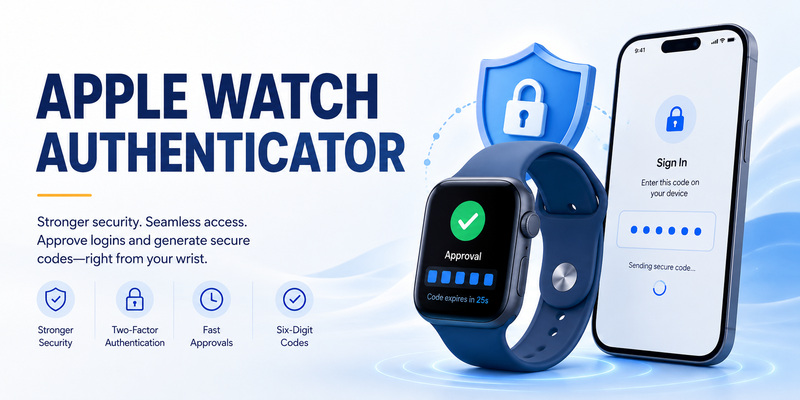
Yes, Apple Watch can be used in some authentication workflows, but watchOS does not include a built-in general-purpose authenticator for generating TOTP codes for every website.
You have three different possibilities:
- Apple Account: Apple Watch can act as a trusted Apple device and display Apple verification codes.
- Third-party accounts: A compatible third-party authenticator may let you view TOTP codes on Apple Watch.
- Microsoft Authenticator: Microsoft currently does not support Apple Watch for Authenticator security features, although Authenticator notifications from the iPhone can be mirrored to a wearable.
Quick answer: If you want Google, Facebook, Amazon, or other TOTP codes directly on your wrist, you need an authenticator that specifically supports Apple Watch. If you are signing in to your Apple Account, your Apple Watch itself can serve as a trusted device and display Apple’s six-digit verification code.
1. Can You Use Apple Watch as an Authenticator?
Yes, but the answer depends on what you mean by “authenticator.”
Apple Watch can participate in several types of authentication.
Apple Account verification
Apple considers a signed-in Apple Watch a trusted device for an Apple Account using two-factor authentication.
When you sign in to your Apple Account on a new device or browser, Apple may display a sign-in notification and verification code on your trusted Apple devices.
That includes supported Apple Watch models running compatible watchOS versions.
Third-party TOTP authentication
For services that use standard rotating authenticator codes, you need an authenticator app that supports Apple Watch.
The app stores the authentication information required to generate or display the temporary code.
Not every iPhone authenticator includes an Apple Watch companion app.
Check current watchOS support before choosing one.
Push authentication
Some authentication services use push approvals rather than a rotating six-digit code.
Whether these can be completed from an Apple Watch depends on the authentication provider and its current wearable support.
Do not assume that seeing a mirrored notification means the Watch can securely complete the entire authentication operation.
Download Authenticator App
Secure your accounts with fast, reliable two-factor authentication. Download now and protect your login in seconds.
2. What Authentication Can Apple Watch Do
Push approval versus rotating codes
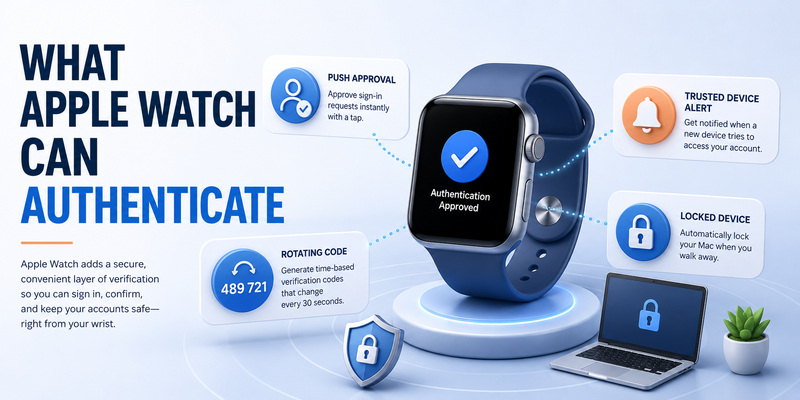
Push approval sends a sign-in request from the provider to an enrolled app. The screen may show the account, service, location, or a number-matching challenge. A watch companion can present an approve or deny action when the vendor supports it. This workflow needs connectivity and depends on the provider’s enrollment state.
Rotating TOTP codes work differently. They are calculated locally from a secret and time, often every 30 seconds. An apple watch authenticator that truly generates TOTP must possess or securely access the enrollment secret. Mirroring a notification from the iPhone is not the same as storing that secret on the watch.
Apple Account verification is a third model. Apple’s trusted-device system can show a six-digit value on an eligible watch after a sign-in request. It does not mean the watch has imported website TOTP entries from Google Authenticator, Microsoft Authenticator, or Apple Passwords.
Device unlock is another security layer
Apple watch authentication also describes unlocking the watch with its passcode, using Wrist Detection, unlocking a Mac, approving Apple Pay, or confirming another Apple action. These local trust functions do not automatically satisfy a third-party website’s authenticator requirement.
When removed from the wrist, a properly configured Apple Watch locks and requires its passcode. Use a strong watch passcode and keep Wrist Detection enabled. The watch inherits risk from the paired iPhone, Apple Account, and installed companion apps, so protect the entire chain rather than treating the watch as an isolated security key.
For sensitive accounts, prefer phishing-resistant passkeys or physical security keys when supported. A watch prompt is convenient, but convenience does not verify the website domain or make an unexpected request legitimate.
Treat every apple watch authenticator action as an account decision, not merely a wearable notification.
📘 Find the Right Guide: Microsoft Authenticator Apple Guide for iPhone
3. Apple Account Verification Codes
How trusted-device alerts work
When a new device or browser signs in to an Apple Account, Apple may alert trusted devices and ask whether to allow the attempt. Apple documents that an Apple Watch running supported watchOS can automatically display the six-digit verification code. Enter that value only on the Apple sign-in page you opened.
This form of two factor authentication apple watch participation belongs to Apple Account security. It is not a generic code list. The alert may show an approximate location based on the network address, which can differ from your exact position. Confirm the time, service, and whether you initiated the sign-in before choosing Allow.
If a request is unexpected, deny it. Change the Apple Account password from a trusted device, review the device list and trusted phone numbers, and remove anything unfamiliar. Repeated prompts can indicate that someone already knows the password.
Recovery cannot depend on the watch
An apple watch authenticator alert is useful when the paired iPhone is not in your hand, but the watch should not be the only recovery path. Maintain trusted phone numbers, another trusted device where practical, and an appropriate recovery contact or recovery key. A watch can be lost, erased, unpaired, discharged, or unable to connect.
If no trusted device is available, Apple can send a code to a trusted phone number by SMS or automated call. If every trusted route is permanently unavailable, official account recovery may take days or longer. Support cannot legitimately bypass the waiting period.
Do not share an Apple verification code with a caller or message sender. A time-limited code can still be relayed by a live phishing attacker before it expires.
An Apple Account apple watch authenticator alert should always match a sign-in you personally began.
📖 Explore Articles: Google Authenticator for Apple: iPhone Setup Guide
4. Duo Mobile on Apple Watch
Current documented capabilities
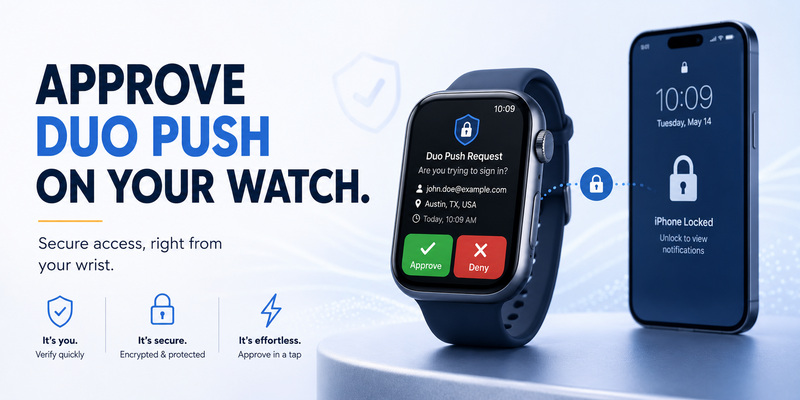
Duo’s official guide states that duo mobile apple watch support can approve Duo Push requests and generate passcodes. The companion requires a compatible recent Duo Mobile version; Duo currently cites version 4.88.0 or later for the full companion experience. Requirements may change, so check the guide and installed app version before rollout.
Install Duo Mobile on the paired iPhone first and complete enrollment with the organization or service. In the iPhone Watch app, find Duo under Available Apps and choose Install, then enable Show App on Apple Watch. Also allow the appropriate notifications.
Duo notes a routing detail that surprises users: a Duo notification appears on the watch when the paired phone is locked. When the iPhone is unlocked, the notification goes to the phone instead. This behavior can make a working apple watch authenticator appear inconsistent even though notification routing is functioning as designed.
Approvals and passcodes are not identical
A Duo Push approval is tied to a request initiated at a protected application. A Duo passcode generated by the watch is a separate fallback that the service must allow. Organizational policy may disable particular methods, require number context, or limit offline use.
Never approve a Duo request merely because it reached the wrist. Compare the account, application, timing, and any displayed information. If the apple watch authenticator shows an unexpected push, deny it and report the event through the organization’s security process.
Keep another permitted factor. Administrators may offer a hardware token, security key, backup code, help-desk recovery, or another device. The organization, not the watch app alone, determines which methods can regain access.
💡 Discover Helpful Guides
Apple Authenticator: Complete Guide to 2FA, Verification Codes & Apple Devices
5. Microsoft and Google Authenticator Limits
Microsoft removed watchOS support
Microsoft’s Entra documentation states that the January 2023 iOS Authenticator release no longer included a watchOS companion because it was incompatible with current security features. Users cannot install or use Microsoft Authenticator on Apple Watch and should sign in with Authenticator on another supported device.
Searches for ms authenticator apple watch often return old instructions showing approvals on the wrist. Those guides describe retired behavior. Reinstalling an old watch app, repeatedly unpairing, or changing notification settings will not restore a companion that the vendor no longer supports.
Use Microsoft Authenticator on iPhone or Android as documented. For eligible accounts, consider approved passkeys, FIDO2 security keys, platform credentials, or organizational alternatives. Do not downgrade to SMS only for watch convenience without reviewing account risk.
Google lists iPhone and iPad, not watchOS
Google Authenticator’s current Apple listing identifies iPhone and iPad compatibility. It does not list an official apple watch authenticator companion. Use the iPhone or iPad to view Google Authenticator codes, synchronize them to a protected Google Account if desired, or keep them on-device with a tested migration plan.
Third-party watch utilities may generate standard TOTP, but they are separate publishers with their own security and backup models. Adding a Google, Microsoft, social, or financial account to one copies enrollment material outside the official app. Evaluate encryption, export, device lock, updates, privacy disclosures, and recovery before trusting it.
The absence of a watch app does not weaken TOTP on the phone. It simply means authentication occurs on another supported device.
Use that supported device instead of forcing an unofficial apple watch authenticator workflow into a high-value account.
📖 Explore Articles: Apple Watch Authenticator: Apps, Codes, and Limits
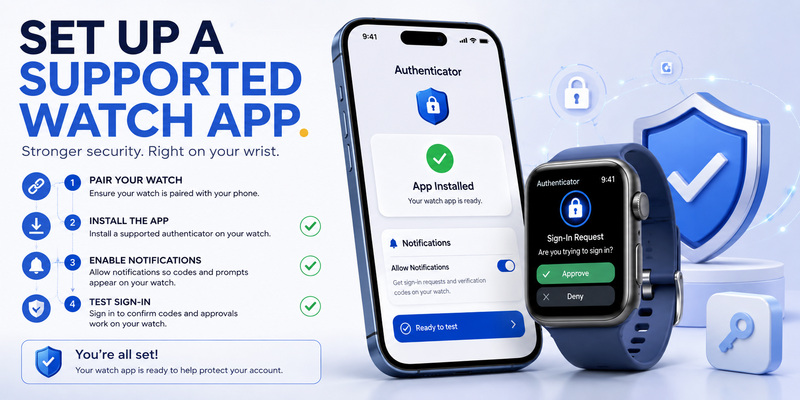
6. Install and Configure a Supported Watch App
Verify compatibility before enrollment
Open the App Store listing and the provider’s current documentation. Confirm Apple Watch or watchOS compatibility, supported versions, publisher identity, and whether the feature handles push, TOTP, or both. Do not assume every iPhone authenticator automatically installs a watch companion.
Update the iPhone, watchOS, the authenticator app, and the Watch app connection. Pair the watch to the intended personal iPhone and Apple Account. Set a watch passcode, enable Wrist Detection, and review notification privacy. An apple watch authenticator can expose account names or approval context on the wrist if previews are too broad.
Install the companion through the iPhone Watch app or the watch App Store as the vendor directs. Open both phone and watch applications during initial pairing. Complete a test approval and, when supported, a test passcode sign-in before relying on the watch.
Keep fallback methods independent
Store provider recovery codes outside the watch and phone. Enroll a hardware security key or another permitted method for high-value accounts. For work systems, record the administrator or help-desk reset route and understand whether a new phone requires device re-registration.
Do not erase the old iPhone, unpair the watch, or remove the existing factor until the replacement apple watch authenticator workflow passes real logins. A visible app icon is not proof that provider enrollment survived.
If a companion app asks to scan an export QR code, treat the code as a durable secret. Perform the process privately, never photograph it, and rotate the factor if exposure is suspected.
After setup, document exactly which apple watch authenticator provider and fallback method each account uses.
7. Approve Sign-Ins Safely
Match every prompt to an action
Use an apple watch authenticator only after starting the sign-in yourself. Check the account, application, device, approximate location, number, or other context the provider displays. If the prompt is incomplete, open the official app on the iPhone or cancel the attempt and restart from the genuine website.
MFA fatigue attacks send repeated requests and hope the victim eventually accepts. A buzzing wrist makes accidental approval easier. Deny unexpected requests, stop interacting with the prompts, change the password from a trusted device, and contact organizational security where applicable.
Never accept a push while speaking to an unsolicited caller who claims to be support, a bank, an employer, or law enforcement. Legitimate support does not need a customer to approve an unexplained sign-in.
Protect the physical watch
Use a nontrivial passcode and Wrist Detection so the watch locks after removal. Enable Find My, keep Activation Lock, and mark a lost watch appropriately. Review installed apps and remove unused authenticator companions after disabling their factors at each service.
An apple watch authenticator may be visible in crowded environments. Limit sensitive notification previews, avoid tapping codes where others can observe them, and do not take photos of the watch screen. A TOTP code expires quickly, but a live attacker can use it immediately.
Update watchOS promptly. Security fixes, notification behavior, and companion compatibility can depend on current software on both the watch and iPhone.
📖 Explore Articles: Apple iPhone Authentication: Face ID, 2FA, Passkeys
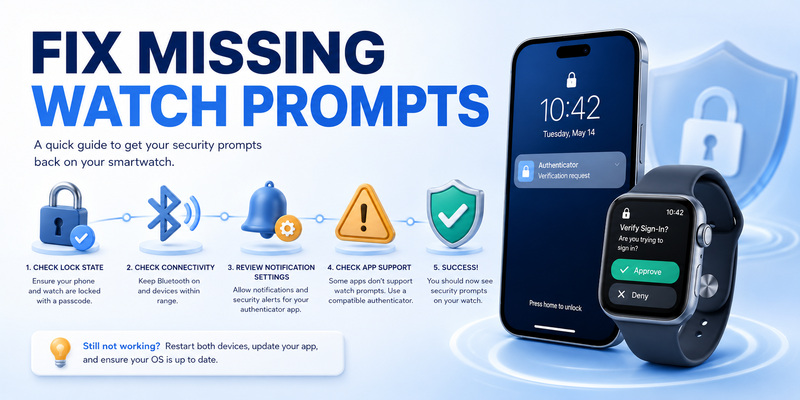
8. Fix Missing Watch Prompts or Codes
Check routing, lock state, and connection
If Duo Push does not appear, remember that Duo says watch notifications are shown when the paired iPhone is locked; when the phone is unlocked, the prompt routes there. Confirm Bluetooth or network connectivity, Watch notification settings, Show App on Apple Watch, the installed Duo Mobile version, and a valid provider enrollment.
Restart the sign-in from the genuine service after clearing duplicate sessions. Open the phone app to see whether the request arrived there. An apple watch authenticator should never be “tested” by approving a prompt whose origin is unknown.
For Apple Account codes, verify that the watch is signed into the intended Apple Account context, runs compatible software, and remains paired properly. Use another trusted device or request a code at a trusted phone number if the watch is unavailable.
Identify unsupported apps and stale guides
If Microsoft Authenticator cannot be installed, that is expected current behavior, not a pairing fault. Use the supported phone app or another method allowed by the account. If Google Authenticator has no watch companion in the listing, avoid unofficial instructions that promise to enable a hidden setting.
For a third-party apple watch authenticator, consult its publisher’s support page. Verify whether codes sync from the iPhone, require a subscription, or need the watch app open. If codes are rejected, check automatic time and the correct account label; if the secret is stale, recover the provider account and re-enroll.
When troubleshooting fails, preserve the existing factor until another method works. Deleting an authenticator entry locally does not disable 2FA at the website and can turn a notification problem into an account lockout.
Safe apple watch authenticator troubleshooting protects access first and changes enrollment only after recovery is confirmed.
📖 Explore Articles: Apple Authenticator: Complete Guide to 2FA, Verification Codes & Apple Devices
9. Frequently Asked Questions
Can Apple Watch be used as an authenticator?
Yes for specific supported workflows, not universally. Apple Account codes can appear on compatible watches, and Duo offers a watch companion. Microsoft removed watch support, while Google’s listing does not include watchOS.
Is Apple Watch authenticator safe?
It can be safe with a passcode, Wrist Detection, current software, careful prompt review, and independent recovery. Unexpected approvals, unlocked devices, weak account recovery, and unvetted third-party apps remain risks.
Does Microsoft Authenticator work on Apple Watch?
No. Microsoft says the watchOS companion was removed in 2023 and cannot be installed or used. Complete Microsoft Authenticator actions on a supported phone or approved alternative.
Does Google Authenticator work on Apple Watch?
Google’s current App Store compatibility lists iPhone and iPad, not Apple Watch. Use the supported mobile app. Treat any watch TOTP utility as a separate third-party product.
Can Duo Mobile approve requests from Apple Watch?
Yes, when the current supported companion is installed and configured. Duo notes that watch notifications appear when the paired iPhone is locked; unlocked-phone requests route to the phone.
What happens if I lose the watch?
Mark or erase it through Find My where possible, protect the paired iPhone and accounts, review sessions, and revoke or replace affected factors. Use backup codes or another enrolled method to maintain access.
Is a security key better than a watch prompt?
For phishing resistance, a FIDO security key is generally stronger because it validates the website origin. A watch push may be more convenient. Many users benefit from both daily convenience and an independent key.
Why does the prompt appear on my iPhone instead?
Notification routing depends on provider and device state. Duo explicitly routes a request to the watch when the paired iPhone is locked, and to the phone when it is unlocked.
The best apple watch authenticator choice is provider-supported, tested, protected by the watch passcode, and never the only route back into an account.
10. Final Apple Watch Security Checklist
Configure the full device chain
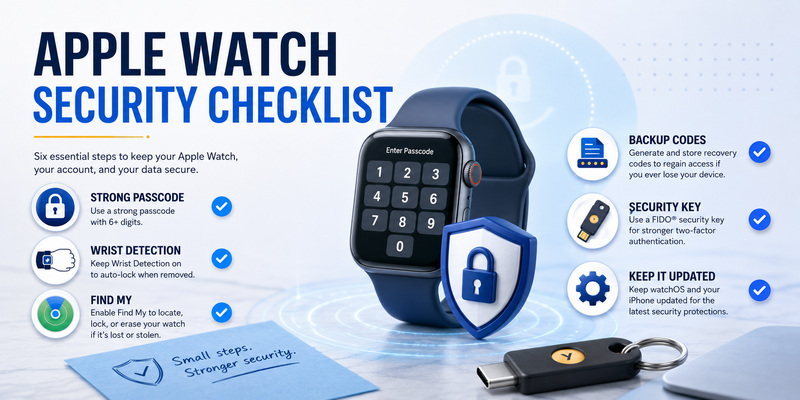
A secure apple watch authenticator starts with a supported provider, current iPhone and watch software, a strong watch passcode, Wrist Detection, Find My, and restrained notification previews. Install companion apps only from verified publishers and confirm current watchOS support before enrollment.
Test push approvals and passcodes from a genuine login. Learn whether requests route to the phone or watch in different lock states. Deny unexpected prompts and investigate repeated requests rather than accepting them to stop the vibration.
Use this checklist:
- Confirm the provider officially supports Apple Watch.
- Identify whether the feature uses push, Apple codes, or TOTP.
- Update watchOS, iOS, and the authenticator app.
- Enable a watch passcode, Wrist Detection, and Find My.
- Test a real sign-in while the iPhone is locked and unlocked.
- Save provider recovery codes away from both devices.
- Add a security key or another approved factor where possible.
- Remove retired factors only after the replacement works.
Keep recovery off the wrist
The convenience of an apple watch authenticator should not create a single point of failure shared with the paired iPhone. Store backup codes independently, maintain current account recovery details, and know the organization’s reset process. Review permissions and installed watch apps after device changes.
For general help with TOTP enrollment, backup, and migration outside watchOS, visit Authenticator App. A wrist approval can be fast, but secure authentication still requires verified context, protected devices, and a tested alternative when the watch is unavailable.
Recheck vendor support periodically. Microsoft’s retired companion is a reminder that platform availability changes, while Duo’s current companion has explicit version and routing requirements. Build the account around durable recovery, not one convenient screen.
Download Authenticator App
Secure your accounts with fast, reliable two-factor authentication. Download now and protect your login in seconds.
