
How to Enable Mobile Authenticator on Steam Safely
Published August 17, 2026 · Updated September 25, 2026
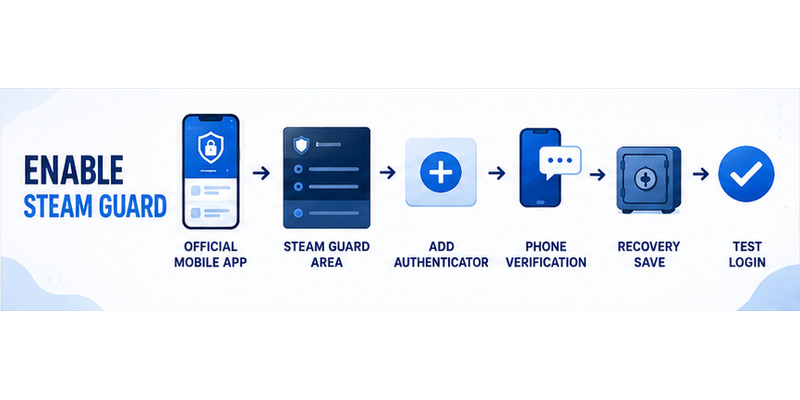
To learn how to enable mobile authenticator on steam, install the official Steam Mobile app, sign in to the correct account, open the Steam Guard tab, choose Add Authenticator, verify a phone number, and save the displayed recovery code somewhere outside the phone. Complete one test sign-in before relying on the new setup.
Steam Guard Mobile Authenticator creates a rotating code about every 30 seconds and also supports QR sign-in and approval prompts. It strengthens account access, but the setup is only complete when the recovery path works. A saved recovery code, protected email, and current phone number matter as much as the code generator itself.
This guide explains preparation, enrollment, daily use, troubleshooting, trading considerations, recovery, phone changes, and ongoing account hygiene without asking you to reveal a live code or password.
1. How to Enable Mobile Authenticator on Steam
The fastest way to enable Steam Guard Mobile Authenticator is to start directly inside Steam Mobile.
Step 1: Install the Official Steam Mobile App
Download Steam Mobile from the official Apple App Store or Google Play.
Before signing in, verify that you are installing Valve’s official Steam application. Avoid modified Steam clients, unofficial authenticator generators, or download links sent through chat.
Steam Guard Mobile Authenticator is included inside Steam Mobile, so you do not need a separate “Steam authenticator” application.
Step 2: Sign In to Your Steam Account
Open Steam Mobile and sign in to the Steam account you want to protect.
If you manage several Steam accounts, check the account name carefully before continuing. Activating the authenticator on the wrong account creates unnecessary recovery work later.
Step 3: Open Steam Guard
Open the Steam Guard section inside the mobile app.
If the account does not already have a mobile authenticator, select:
Add authenticator
This begins the official Steam Guard enrollment process.
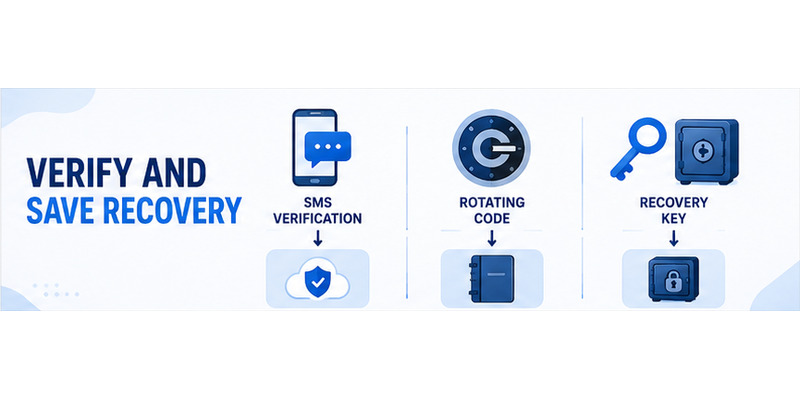
Step 4: Complete Phone Verification
Steam normally asks you to enter or confirm a phone number that can receive a verification text.
Choose the correct international country code, enter the number, and submit the verification code Steam sends.
However, a phone number is not an absolute requirement. Steam’s current setup documentation states that users without access to a phone number can select:
I don’t have access to a phone number
and continue through the alternative setup path provided by Steam.
Never send the SMS verification value to another person. Enter it only inside the Steam Mobile setup process you started yourself.
Step 5: Save the Recovery Code
After verification, Steam displays a recovery code.
Do not skip this step.
The recovery code can help you regain access if you lose the phone or the authenticator becomes unavailable.
Store it somewhere separate from the enrolled phone, such as:
- An encrypted password manager
- A secure offline record
- Another protected recovery location
Avoid keeping your only copy as a screenshot on the same phone. If the phone disappears, the recovery information would disappear with it.
Step 6: Confirm Steam Guard Is Active
Once setup finishes, return to the Steam Guard section.
You should now be able to use Steam’s mobile authentication features for new sign-ins.
A simple final check is to sign in on a trusted computer or browser and confirm that Steam asks you to authenticate through the mobile app.
At this point, you have successfully completed the process to enable mobile authenticator on Steam.
Download Authenticator App
Secure your accounts with fast, reliable two-factor authentication. Download now and protect your login in seconds.
2. What You Need Before Starting
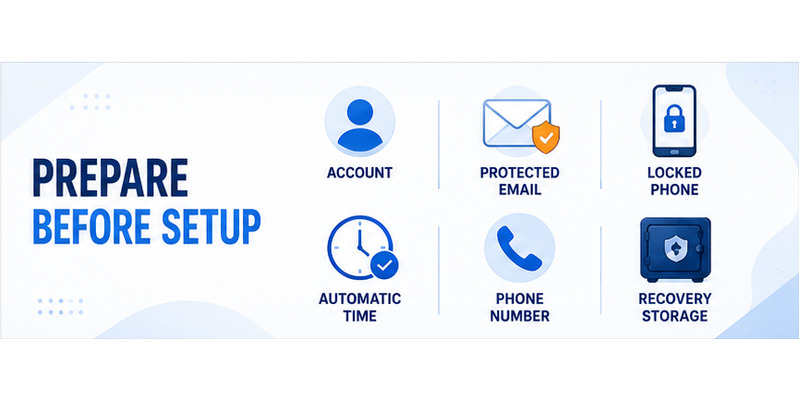
You do not need much preparation, but a few checks can prevent setup problems.
| Requirement | What to check |
|---|---|
| Steam account | You can sign in normally |
| Steam Mobile | Installed from an official source |
| Phone OS | iOS 15.1+ or Android 7.0+ |
| You can access the account email | |
| Phone number | Useful for verification and recovery, but Steam offers an alternative path |
| Recovery storage | Somewhere secure outside the enrolled phone |
Steam’s current mobile page lists iOS 15.1 and Android 7.0 as the minimum supported versions.
It is also a good idea to update Steam Mobile and your phone before enrollment.
If your Steam account already has an authenticator associated with another phone, do not remove it just to restart setup. Use Steam’s official transfer or recovery process instead.
💡 Discover Helpful Guides: Steam Mobile Authenticator: Setup and Security Guide
3. Why the Steam Recovery Code Matters
The recovery code and the normal Steam Guard login code are different.
A Steam Guard login code is temporary and used to authorize a sign-in. A recovery code exists for situations where access to the authenticator is lost.
| Credential | Purpose |
|---|---|
| Steam password | Primary account sign-in |
| SMS verification code | Verifies the phone during setup |
| Steam Guard code | Authorizes a current login |
| Recovery code | Helps recover authenticator access |
Treat the recovery code as sensitive account information.
Do not:
- Post it in a support forum
- Send it to another Steam user
- Give it to someone claiming to verify your inventory
- Enter it into an unrelated trading website
- Store the only copy on the enrolled phone
Valve specifically tells users to write down the recovery code and keep it somewhere safe.
For more detailed recovery guidance, use your site’s dedicated Steam Authenticator Recovery Code guide rather than expanding account recovery inside this setup article.
💡 Discover Helpful Guides: Where to Find Steam Mobile Authenticator Code Fast
4. How to Check That Steam Guard Is Working
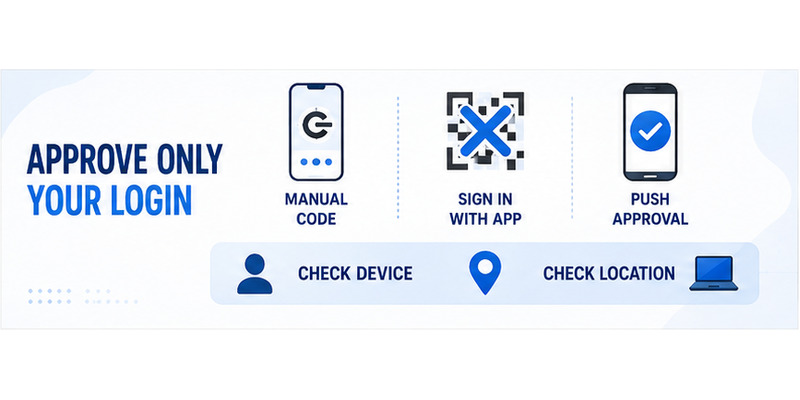
Once Steam Guard Mobile Authenticator is enabled, Steam currently provides three common ways to authorize a login.
| Login method | How it works |
|---|---|
| QR sign-in | Scan the Steam QR code with Steam Mobile |
| Push approval | Enter your credentials and approve the notification in the app |
| Steam Guard code | Enter the current code generated by Steam Mobile |
Steam Guard Code
If you choose manual authentication, open Steam Guard and use the current code shown for the correct account.
Steam Guard codes refresh frequently, so use the newest code when signing in.
If you need a dedicated walkthrough, see where to find Steam Mobile Authenticator code.
QR and Push Login
QR login can be faster because you scan the code shown on the Steam login screen and confirm the request from the phone.
Only scan a QR code from a Steam login that you intentionally opened.
A Steam QR image sent through:
- Discord
- Direct message
- Trade chat
- A random website
should not be treated as a legitimate Steam Guard setup request.
For more detail, see the Steam Guard QR code guide.
Push approvals should be treated the same way: approve only sign-ins you initiated.
5. What If Steam Mobile Authenticator Setup Does Not Work?
Most setup failures fall into a few categories.
| Problem | First thing to check |
|---|---|
| SMS does not arrive | Phone number, country code and cellular service |
| Verification code rejected | Use the newest SMS code |
| Steam Guard code rejected | Correct Steam account and phone date/time |
| Add authenticator is unavailable | Check whether an authenticator already exists |
| Steam Mobile crashes | Update app and phone OS |
| QR does not scan | Camera permission and official Steam screen |
SMS Problems
If Steam sends a verification text but you do not receive it, first confirm:
- Country prefix
- Phone number
- Cellular signal
- SMS filtering
- Whether you requested several codes
If multiple messages arrive, use the latest verification value rather than an older one.
Steam notes that carrier delays can occur. If verification messages continue to fail for an extended period, use Steam Support rather than a public SMS-receiving service.
Invalid Steam Guard Codes
Make sure the correct Steam account is selected in Steam Mobile.
Also enable automatic:
Date → Time → Time Zone
on the phone.
Authentication codes depend on accurate time. A clock that is significantly wrong can make a valid-looking code fail.
If the problem goes beyond initial setup, move troubleshooting to the dedicated Steam authenticator-not-working article instead of repeatedly removing and re-adding Steam Guard.
💡 Discover Helpful Guides: Steam Mobile Authenticator: Setup and Security Guide
6. What Happens to Steam Trading After You Add the Authenticator?
Adding Steam Guard Mobile Authenticator improves account security, but it does not necessarily remove trading restrictions immediately.
Steam currently states that trades or Community Market listings created during the first seven days after adding the mobile authenticator may receive holds of up to 15 days.
Adding an authenticator also does not shorten a trade that is already being held.
This means a temporary trading hold does not necessarily mean the setup failed.
Avoid this pattern:
Add authenticator → see trade hold → remove authenticator → add it again.
Removing Steam Guard Mobile Authenticator can create additional restrictions and reduces account security.
If you regularly trade Steam inventory, enable the authenticator before you urgently need to trade rather than immediately before a time-sensitive transaction.
💡 Discover Helpful Guides: Disable Steam Authenticator Safely: Complete Guide
7. What Should You Do Before Changing Phones?
If Steam Guard works and you are simply buying a new phone, do not remove the authenticator first.
Use Steam’s official authenticator-transfer process.
Keeping the old phone until the transfer is complete makes migration much easier.
Before erasing or selling the old device:
- Install Steam Mobile on the new phone.
- Sign in to the same Steam account.
- Follow Steam’s authenticator transfer process.
- Confirm authentication works on the new device.
- Save the new recovery information when shown.
- Only then erase the old phone.
If the original device has already been lost or broken, use your saved recovery code, registered recovery options, or Steam’s official account-recovery process.
Do not pay another user or unofficial “recovery service” to move the authenticator for you.
8. Can You Use Another Authenticator App for Steam Guard?
No, not as a replacement for Steam Guard Mobile Authenticator.
Steam’s mobile authenticator is integrated into the official Steam Mobile app and supports Steam-specific functions such as:
- Steam Guard login codes
- QR login
- Sign-in approvals
- Trade and Market confirmations
- Account recovery workflows
A generic TOTP authenticator should not be presented as the app you use to activate Steam Guard.
If you use other online accounts that support standard authenticator-based 2FA, an Authenticator App can be useful for managing those verification codes.
But for Steam Guard itself, use Steam Mobile.
That distinction is important both for successful setup and account security.
9. Frequently Asked Questions
What Authenticator Does Steam Use?
Steam uses Steam Guard Mobile Authenticator, which is built into Valve’s official Steam Mobile app for iOS and Android. You do not need Google Authenticator or another standalone TOTP app to activate Steam Guard.
Do I Need a Phone Number to Enable Steam Mobile Authenticator?
Not necessarily. Steam normally offers phone-number verification because it is useful for setup and account recovery, but Valve’s current instructions also provide an “I don’t have access to a phone number” option.
Where Do I Find My Steam Guard Code?
Open Steam Mobile, go to the Steam Guard section, and select the correct Steam account. The current Steam Guard code can be displayed there when mobile authentication has been successfully enabled.
Can Steam Guard Codes Work Without Internet?
The rotating authentication code can still be available when the phone does not have an active internet connection, provided the authenticator has already been configured and the device time is accurate. QR and push-based authentication normally rely more heavily on connectivity.
What Happens If I Lose My Phone?
Use Steam’s official recovery process. A saved recovery code and access to your registered recovery methods can make this substantially easier. Never give a recovery code or current Steam Guard code to someone offering account-recovery help.
10. Final Thoughts
The safe method for how to enable mobile authenticator on steam is straightforward: prepare the account and phone, install Steam Mobile from an official store, open Steam Guard, add the authenticator, verify the number, save the recovery code, and test a login. The setup becomes durable when email, phone, recovery storage, and device security are all maintained.
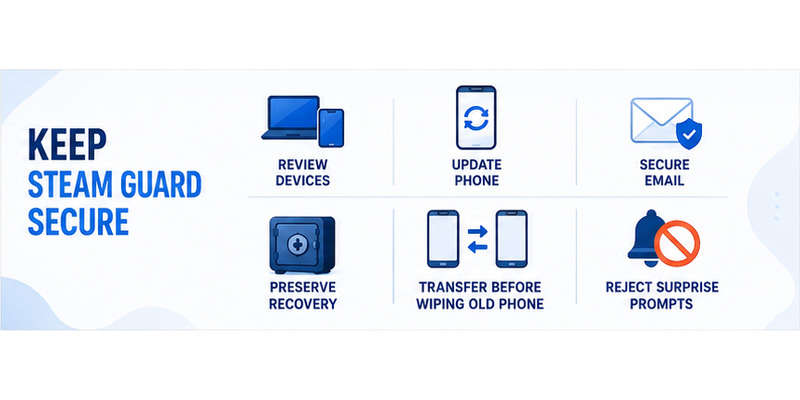
Use rotating codes, QR sign-in, and push approvals only for actions you initiated. A code or approval can authorize an attacker just as effectively as it authorizes you. Reject unexpected prompts, distrust urgent requests, and never reveal the SMS value or recovery code to another person.
Plan phone transfers before wiping an old device, understand the initial trading safeguards, and use official Steam Support when normal recovery options are unavailable. Avoid third-party code generators, public SMS services, and anyone claiming they can bypass account ownership checks.
For broader guidance on account protection, recovery, and two-factor authentication, visit Authenticator App. A careful how to enable mobile authenticator on steam process creates a factor that is both harder to steal and practical for the legitimate owner to recover.
Complete the setup when you have time to verify it calmly, then record the date and recovery location in your private security checklist. Revisit that checklist after a phone upgrade, number change, suspicious login, or major account change.
Download Authenticator App
Secure your accounts with fast, reliable two-factor authentication. Download now and protect your login in seconds.
