
Microsoft Authenticator Keeps Asking for Approval? Quick Fixes for 2026
Published August 14, 2026 · Updated October 5, 2026
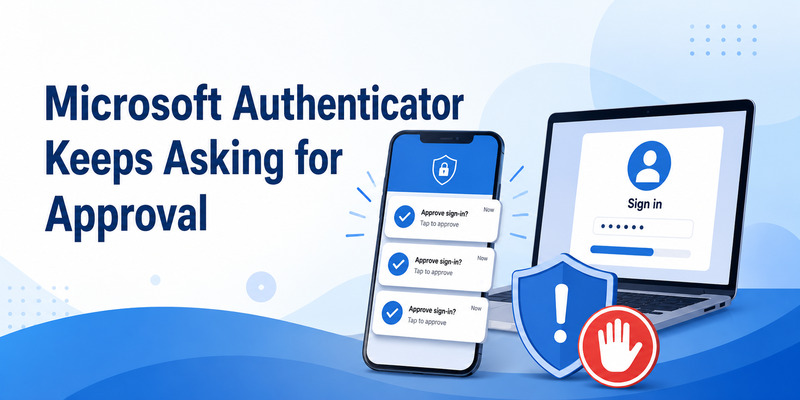
Microsoft Authenticator keeps asking for approval for three main reasons: someone is trying to sign in with your password (MFA fatigue), an app is reusing stale saved credentials, or a new phone or single-method lock has trapped you in a loop. Deny any request you didn’t start, change your password, then follow the fix that matches your case below.
Quick answer
- You didn’t start the sign-in: tap Deny, change your password, check recent sign-in activity, sign out of all sessions, and turn on number matching.
- It happens when you open Outlook, Word or Teams: delete the saved Microsoft Office credentials (Windows Credential Manager or Mac Keychain), restart, and sign in once.
- You changed phones or the app asks you to approve from the app itself: choose Sign in another way; work accounts need an admin to reset MFA, personal accounts use account recovery.
- Never tap Approve just to make prompts stop.
Why Does Microsoft Authenticator Keep Asking for Authentication?
When Microsoft Authenticator keeps asking for authentication, the pattern tells you the cause. Match what you see to the table, then jump to the matching fix.
| What you see | Likely cause | Fix first | Go to |
|---|---|---|---|
| Prompts arrive when you aren’t signing in | Someone has your password (MFA fatigue) | Deny, change password | Section 2 |
| Prompt loops when you open Outlook, Word or Teams | Stale saved credentials or token | Clear Credential Manager / Keychain | Section 4 |
| Prompt repeats after you approve | Expired request, duplicate sign-in window, or sign-in frequency policy | One clean sign-in | Section 3 |
| App asks for a code from the app you can’t open | New phone or single-method lock | Sign in another way | Section 5 |
| No prompt arrives at all | Notifications, battery, time or network | Quick checks | Section 6 |
Why does Microsoft Authenticator keep asking for authentication even after you tapped Approve? A request can expire, a second browser window can start a duplicate sign-in, or your organization may require fresh MFA every few hours. Close extra windows and test one sign-in at a time.
Download Authenticator App
Secure your accounts with fast, reliable two-factor authentication. Download now and protect your login in seconds.
Microsoft Authenticator Keeps Asking for Approval When You Didn’t Sign In: What to Do
If Microsoft Authenticator keeps asking for approval while you’re not using your phone or computer, assume someone has your password. As long as you deny every request, they can’t get in. Act in this order:
- Tap Deny (or “No, it’s not me”). Never enter a number or code that a caller or message gives you.
- Change your password from a trusted device. Use a strong, unique one.
- Check sign-in activity. Personal accounts: open your Microsoft account’s recent activity page. Work or school accounts: open My Sign-ins.
- Sign out of all sessions so anyone already inside is forced out.
- Remove unknown methods in Security info: unfamiliar phones, numbers or devices.
- Turn on number matching if you’re prompted. It makes you type the number shown on the sign-in screen instead of approving by reflex.
Still getting prompts after changing your password? Many people report this in Microsoft’s Q&A threads, often with no matching sign-in in their activity log. Keep denying: a prompt on its own can’t sign anyone in. Review activity, remove unknown methods, and consider passwordless sign-in or a passkey. If you use Outlook mobile for sign-in requests, you can switch it off under Settings → Accounts → your account → Sign-in requests. On a personal account with heavy attempts, Microsoft volunteers also suggest making a new primary alias for sign-in and keeping the old address as a non-primary alias (don’t delete it).
How to Approve a Request on Microsoft Authenticator App (Without Getting Stuck in a Loop)
Here is how to approve a request on the Microsoft Authenticator app the safe way. This also stops the “Microsoft Authenticator keeps asking for approval” cycle caused by duplicate prompts:
- Close every open sign-in window, then start one sign-in in a private browser window.
- Open the notification (or open Authenticator directly if it doesn’t appear).
- Compare the number on the sign-in screen with the number in the app and enter it.
- Unlock with your fingerprint, face or PIN.
- Approve only the request that matches what you just did. Let older prompts expire or deny them.
If the prompt returns after you approve, note the exact time and error, then sign out of that one app and try again. Avoid uninstalling Authenticator or deleting your account while you test: that can remove your only working sign-in method.
Microsoft Authenticator App Asking to Approve Sign-In Request Every Time You Open Outlook, Word or Teams
If the Microsoft Authenticator app is asking you to approve a sign-in request each time you open an Office program, the app is almost always submitting old cached credentials. Microsoft Authenticator keeps asking for approval because the saved token is expired or wrong.
Windows
- Close Outlook and all Office apps (use Task Manager if needed).
- Open Credential Manager → Windows Credentials.
- Remove entries containing MicrosoftOffice, Outlook, ADAL, MSAL, MSOID, msteams, or your organization’s domain.
- Restart, open Outlook, and approve the single prompt.
Mac
- Quit Office apps and open Keychain Access.
- Search for Microsoft Office, Outlook, ADAL, MSAL and Exchange, then delete the matching entries.
- Reopen Outlook and sign in once.
This doesn’t delete your email. It only rebuilds the saved sign-in token. If you recently changed your password, also update it in your phone mail app, OneDrive, Teams and any printer or scanner that sends mail. Any of them can keep triggering prompts with the old password.
If prompts come at predictable times (every morning, every few hours) on a work account, a Conditional Access sign-in frequency policy is likely. That’s set by your admin, so ask IT rather than clearing more caches.
Microsoft Authenticator App Asking Me to Use Authenticator App After a New Phone? How to Break the Loop
After you replace or wipe your phone, the Microsoft Authenticator app asking you to use the Authenticator app is a loop: the sign-in wants approval from a device you can no longer open. Microsoft Authenticator keeps asking for approval because the only registered method is the old phone.
- On the sign-in screen, choose Sign in another way or Use a different verification method and look for SMS, email or a security key.
- Personal account: use Microsoft’s account recovery page and your recovery options.
- Work or school account: contact your IT help desk. Ask them to revoke your MFA sessions or require MFA re-registration, and to issue a Temporary Access Pass if available.
- Once you’re in, open Security info, remove the old phone, then choose Add sign-in method → Authenticator app and scan the QR code with the new phone.
Test the new phone with one signed-out login before you erase the old one. For the full transfer steps, see our Microsoft Authenticator change phone guide.
Download Begamob Authenticator: free 2FA codes with biometric lock and encrypted backup
Why Isn’t My Microsoft Authenticator Working in 2026? Quick Checks
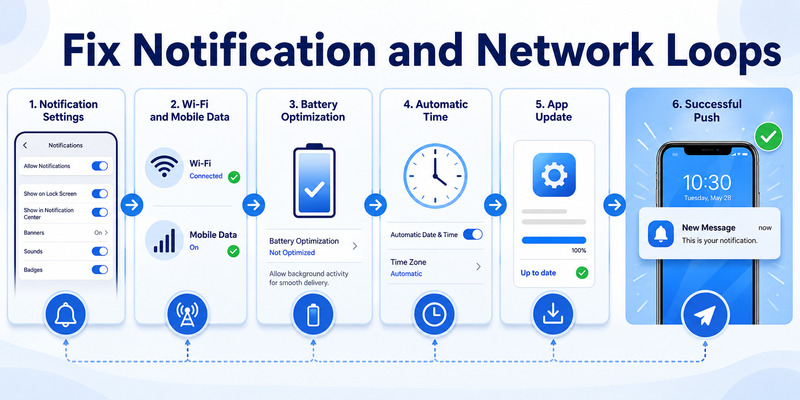
If your Microsoft Authenticator isn’t working in 2026, or late pushes make Microsoft Authenticator keep asking for approval, run these checks before resetting anything:
- Update Authenticator and your phone’s operating system.
- Notifications: allow them in phone settings and in the app. Turn off Focus or Do Not Disturb during sign-in.
- Android battery: set Authenticator to “Not optimized” or “Unrestricted” so pushes aren’t delayed.
- Date and time: set to automatic. A wrong clock breaks codes and delays approvals.
- Network: switch between Wi-Fi and mobile data, and pause any VPN. Router or DNS filters (such as Pi-hole) can block push delivery.
- Last resort: remove and re-add the account only after you’ve confirmed another sign-in method works.
For iPhone-specific steps, see our Microsoft Authenticator for iPhone guide.
How to Stop Microsoft Authenticator From Asking for Approval Again
To keep Microsoft Authenticator from asking for approval over and over, remove the weak points attackers and old devices rely on:
- Use a unique password and update it everywhere after a change.
- Keep number matching on, and switch to a passwordless or passkey sign-in where possible.
- Keep two independent recovery methods (for example, a recovery phone or security key).
- Remove old phones and unused methods from Security info.
- Don’t turn off notifications permanently: it hides attacks and blocks legitimate approvals.
A third-party TOTP app can generate codes for services that accept standard codes, but it can’t replace Microsoft Authenticator push approval when Microsoft or your organization requires it.
Frequently Asked Questions
Why does Microsoft Authenticator keep asking for authentication?
Usually because someone is using your password, an Office app is resubmitting old saved credentials, or your account is stuck after a phone change. Check whether you started the sign-in first, then use the matching fix above.
Why isn’t my Microsoft Authenticator working in 2026?
Most failures come from blocked notifications, battery optimization, a wrong phone clock, an outdated app, or a network or VPN blocking pushes. Update the app, fix those settings, and test one sign-in. If nothing helps, use Sign in another way.
What is the trick to get a Microsoft work account on Authenticator?
Start from your computer, not the app. Open Security info, choose Add sign-in method → Authenticator app, then in the phone app tap Add account → Work or school account and scan the QR code. If you’re locked out, ask IT for a Temporary Access Pass.
How do I stop Microsoft from asking for a verification code?
You shouldn’t turn MFA off. Instead, reduce prompts: change your password if the codes are unrequested, use passwordless sign-in or a passkey, and ask your admin about sign-in frequency on work accounts. Unrequested codes stop mattering as long as you never approve them.
Should I approve a prompt just to stop it?
No. Approving an unrecognized request can give an attacker access. Deny it and secure the account.
Can I turn off Authenticator notifications?
You can, but it’s a poor fix: it hides suspicious activity and blocks real approvals. Fix the app, registration or policy causing the prompts instead.
When should I contact my IT administrator?
Contact IT for a work or school account if prompts persist after one clean sign-in, re-registration is blocked, you’re locked out after a phone change, or approval succeeds on the phone but access is still denied. Mention “Microsoft Authenticator keeps asking for approval” in the ticket.
Download Authenticator App
Secure your accounts with fast, reliable two-factor authentication. Download now and protect your login in seconds.
Sources
- Microsoft Support — Troubleshoot problems with Microsoft Authenticator
- Microsoft Learn — How number matching works in Microsoft Authenticator
- Microsoft Learn — Configure a Temporary Access Pass
- Microsoft Learn — Revoke user access in Microsoft Entra ID
