
Google Account Two Step Verification: Complete Setup Guide
Published August 9, 2026 · Updated October 12, 2026
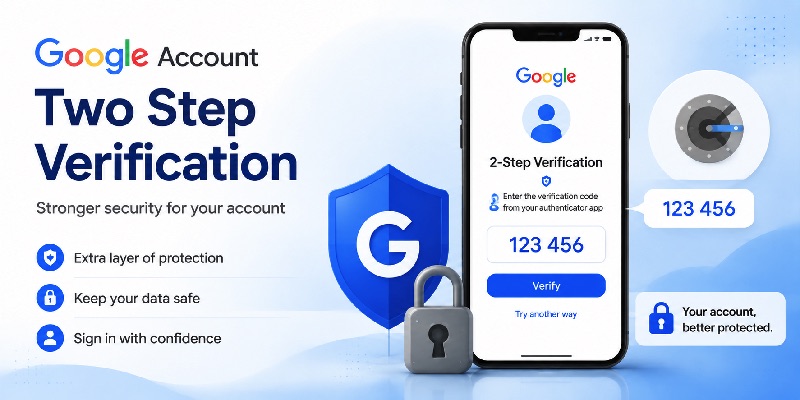
Quick Answer: To enable Google Account two-step verification, open Google Account Security, select Security & sign-in, and find 2-Step Verification under How you sign in to Google. Choose Turn on 2-Step Verification and follow the on-screen instructions. You can then manage available verification methods, including Google Prompts, Google Authenticator, passkeys, security keys, and backup codes.
Google Account two-step verification adds extra protection to your Gmail, Google Drive, Google Photos, YouTube, and other services connected to your Google Account.
Even if someone discovers your password, an additional verification requirement can make unauthorized access more difficult.
However, Google’s authentication system now supports several sign-in methods, so you may not always be asked to enter a six-digit code.
This guide explains how to turn on Google 2-Step Verification, choose the right authentication method, manage your settings, and recover access if verification stops working.
How to Turn On Google Account 2-Step Verification
You can enable Google Account 2-Step Verification from a computer, Android phone, or iPhone.
The process is similar across devices, although the exact menu names may vary.
Enable 2-Step Verification on a Computer
Step 1: Open Your Google Account
Visit https://myaccount.google.com/security.
Sign in with the Google Account you want to protect.
Step 2: Find Security & Sign-In
Open Security & sign-in.
Under How you sign in to Google, locate 2-Step Verification.
Step 3: Turn On 2-Step Verification
Select Turn on 2-Step Verification if it is not already enabled.
Google may ask you to confirm your password or verify your identity.
Step 4: Follow the Setup Instructions
Complete the instructions shown by Google.
Depending on your account and available devices, Google may offer different verification methods.
Step 5: Review Your Security Settings
Once 2-Step Verification is enabled, return to the security page.
Review the available verification and recovery methods.
Configure additional supported methods so you are not dependent on a single device.
Enable Google 2-Step Verification on Android
To configure Google Account two-step verification on an Android phone:
- Open your device’s Settings app.
- Select Google or the Google Account management option.
- Open Manage your Google Account.
- Go to Security & sign-in.
- Find 2-Step Verification.
- Follow the on-screen instructions to enable it.
The browser method may be easier if your device’s Settings interface is different.
Enable Google 2-Step Verification on iPhone
On an iPhone, the easiest method is to use your browser.
- Open Safari or Chrome.
- Visit myaccount.google.com/security.
- Sign in to your Google Account.
- Open Security & sign-in.
- Select 2-Step Verification.
- Choose the option to turn it on.
- Complete the required verification steps.
If you use Gmail, Google Photos, YouTube, or another Google app, you may also be able to reach your Google Account settings through your profile menu.
Note: If you use a Google Workspace account managed by your employer or school, your administrator may control which verification methods you can enable.
Secure your accounts with fast, reliable two-factor authentication. Download now and protect your login in seconds.Download Authenticator App
2. How Google 2-Step Verification Works
Google 2-Step Verification is an account security feature designed to reduce the risk of unauthorized access.
In a traditional password-based login, you enter your password and complete another verification step.
For example, Google may send a prompt to a trusted phone or ask for a code from an authenticator app.
What Happens When You Sign In?
A typical password-based Google sign-in may follow this process:
- You enter your Google Account email address.
- You enter your password.
- Google determines whether additional verification is required.
- You complete the verification challenge presented.
- Google grants access if the authentication succeeds.
The exact challenge depends on your account settings, available devices, and Google’s security assessment.
Google may also allow you to sign in with a passkey, which works differently from a traditional password-plus-code login.
Is Google 2-Step Verification the Same as Two-Factor Authentication?
The terms are closely related.
Two-factor authentication, or 2FA, uses authentication factors from different categories, such as something you know and something you possess.
Google’s 2-Step Verification is its account security system for requiring additional verification in applicable sign-in flows.
However, not every Google authentication method requires two separate screens or two manually entered credentials.
For example, a passkey can authenticate you using a registered device and its local unlock mechanism.
Does Google Ask for Verification Every Time?
Not necessarily.
Google may remember a trusted device or choose a different authentication challenge based on its security checks.
On some sign-in screens, you can select Don’t ask again on this device.
Only use this option on personal devices that you control and do not share.
Google may still request verification when it detects unusual activity or needs additional confirmation.

3. How to Add Google Authenticator to a Google Account
Connect Google Authenticator as a second step
Users searching add authenticator to google account or google authenticator for google account generally want Authenticator to generate the temporary codes used during sign-in.
After enabling google account two step verification, open the 2-Step Verification settings and select the option for Google Authenticator or an authentication application when it is available.
Follow Google’s displayed setup process and connect the Authenticator App to the account.
Once configuration is complete, Google Authenticator can generate verification codes even when the phone does not have cellular service or an internet connection.
That makes a google account google authenticator configuration particularly useful when traveling or when connectivity is unreliable.
A google authenticator gmail account setup does not create separate security specifically for Gmail. Gmail uses your Google Account, so protecting the underlying Google Account also protects access to Gmail associated with it.
Adding another entry inside Authenticator
Search queries such as google authenticator app add account, google authenticator add new account, google authenticator how to add account, and add account google authenticator can describe two different actions.
One is connecting a website to the Authenticator App by scanning its setup QR code.
The other is adding another Google Account to Authenticator for code synchronization.
Google currently supports multiple Google Accounts inside Authenticator. From the profile menu, users can select Add another account, choose or sign into the account, and allow codes to be saved there.
The same general concept applies to google authenticator add another account and google authenticator new account.
For add account to google authenticator iphone, the interface may look slightly different from Android, but Google Authenticator is also available for iPhone and iPad.
📖 Explore Articles: Google OTP App: Complete Guide to OTP, TOTP, and 2FA
4. How to Transfer, Remove, or Delete Authenticator Accounts
Transfer codes to another device or Google Account
If you purchase a new phone, google account two step verification does not necessarily need to be configured from scratch.
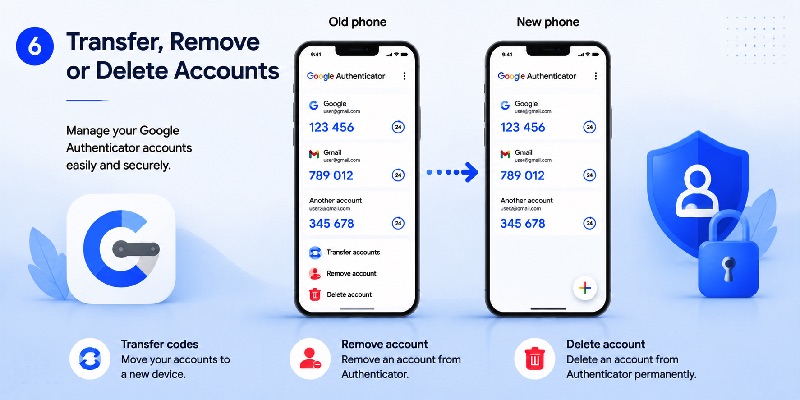
When codes are synchronized to your Google Account, signing into that same Google Account within Authenticator on the new device automatically synchronizes those codes to the device.
If Authenticator is being used without a Google Account, Google also supports manual transfer.
The old device can generate one or more export QR codes through Transfer accounts → Export accounts. The new device then uses Transfer accounts → Import accounts to scan them. Manual transfer requires access to the old device.
For google authenticator transfer codes to another account, Google also currently allows Android users to edit an Authenticator entry and change the associated Google Account where that code is saved.
Remove an Authenticator code safely
Users searching google authenticator remove account, google authenticator how to remove account, or google authenticator how to delete account should distinguish deleting an Authenticator code from disabling 2FA on the service itself.
On Android, Google says users can swipe right on an Authenticator code to reveal the delete option. If the code is synchronized, deleting it also deletes the synchronized copy from other devices using that Google Account.
Deleting the Authenticator entry does not necessarily disable the protected website’s two-factor authentication.
Before removing anything, confirm that you can still sign into the service through another method or first disable/replace the old authenticator inside that service’s security settings.
This precaution is especially important when google account two step verification depends on the code you are about to remove.
📖 Explore Articles: FIDO Google: Complete Guide to Secure Login and FIDO2
5. What to Do If You Lose Google Authenticator Access
Recover a Google Account without Authenticator
A lost google authenticator account situation does not automatically mean the Google Account itself is lost.
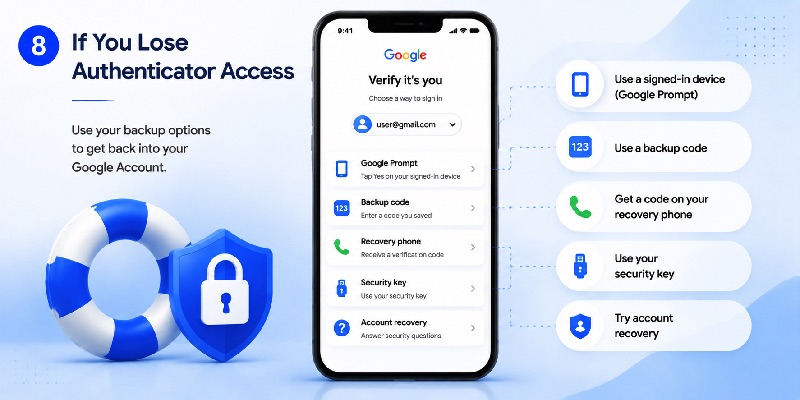
If google account two step verification asks for a code you cannot generate, choose another verification method when available.
Google currently lists alternatives that may include:
- another phone signed into the Google Account;
- another registered phone number;
- a previously saved backup code;
- a hardware security key;
- a passkey on another device;
- or a previously trusted device.
Google backup codes are specifically intended for situations where normal 2-Step Verification cannot be completed. Google provides a set of 10 backup codes, and each becomes inactive after it is used. Generating a new set invalidates the previous set.
If none of your verification methods is available, use Google’s official account recovery process. Google notes that some 2-Step Verification recovery cases can require several business days while account ownership is verified.
What about Facebook or other services?
The query how to recover facebook account with google authenticator describes a Facebook recovery problem, not Google Account recovery.
Google Authenticator only generates the authentication code. Facebook controls the Facebook account and its recovery methods. Meta currently supports recovery login codes for users who previously enabled two-factor authentication and saved those codes.
The same principle applies to nintendo account google authenticator. Nintendo currently supports Google Authenticator for Nintendo Account 2-Step Verification and provides backup codes that can be used when Authenticator is unavailable.
For third-party services, always use the recovery process provided by that service rather than attempting to change google account two step verification.
📖 Read More Guides:
Google Account Two Step Verification: Complete Setup Guide
6. How to Turn Off Google Account Two Step Verification
Disable 2-Step Verification
Users searching google account 2 step verification off generally want to remove the additional verification requirement.
Google currently provides the following process:
- Open your Google Account.
- Open Security & sign-in.
- Select 2-Step Verification.
- Sign in again if required.
- Select Turn off.
- Confirm the change.
Google warns that turning off google account two step verification removes an additional security layer and can make unauthorized account access easier.
Because of that, disabling the feature should not normally be the first response to inconvenience caused by a particular verification method.
Instead, consider changing the second-step method.
Clean up old backup codes and app passwords
When google account two step verification is disabled, Google recommends destroying previously saved backup codes.
Google also recommends reviewing and revoking App Passwords that are no longer needed.
If the reason you want to turn off 2-Step Verification is that Authenticator is difficult to use, consider replacing Authenticator with another supported verification method rather than eliminating the additional account protection completely.
For example, Google supports prompts, passkeys, security keys, Authenticator codes, and other account-dependent verification options.
The best choice depends on the devices you control and how you want to balance convenience, phishing resistance, and account recovery.
Final Checklist for Google Account Two Step Verification
A good google account two step verification configuration should provide stronger security without creating a single point of failure.
Start by opening your Google Account and enabling 2-Step Verification under Security & sign-in → How you sign in to Google.
Then choose appropriate authentication methods.
Google Authenticator is useful because it creates one-time verification codes without requiring cellular service or an internet connection. If you sign into Authenticator with a Google Account, the app can synchronize codes and make moving to a new device easier.
Users who prefer google authenticator without account can keep codes only on the device, but they should understand that manual migration requires access to the old phone.
For reliable google account two step verification, remember these principles:
- enable more than one recovery method;
- create backup codes;
- never share verification codes;
- protect Authenticator with device security;
- verify Authenticator migration before wiping an old phone;
- regularly review trusted devices and sign-in methods;
- and use official account recovery if every second-step method becomes unavailable.
Whether you searched for google account two factor, google account 2 step verification, google authenticator for google account, or set up mfa on google account, the objective is ultimately the same: make it significantly harder for someone else to access your account while making sure you still have a secure recovery path.
Google account two step verification works best when it is treated as a complete security system rather than simply an extra code at login. Configure Authenticator carefully, maintain backup options, and review your Google Account security settings whenever you change phones or authentication methods.
Download Authenticator App
Secure your accounts with fast, reliable two-factor authentication. Download now and protect your login in seconds.
