
Google Authenticator Web: Is There an Official Version, and How Do You Use It?
Published August 8, 2026 · Updated October 6, 2026
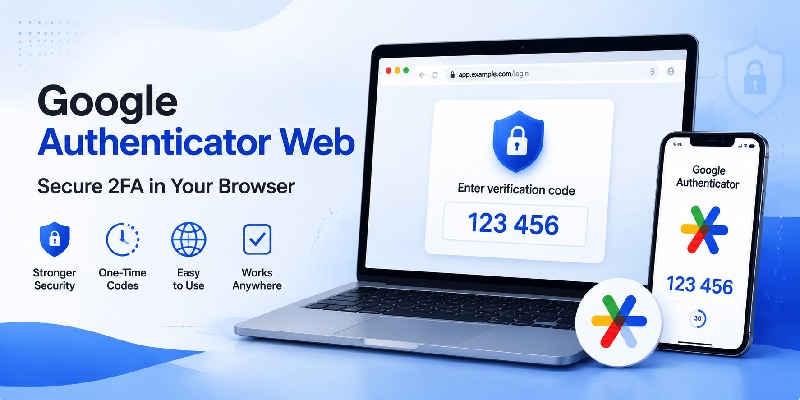
Google Authenticator web doesn’t exist as an official product. Google offers the app only for Android and iOS, and its codes sync to your Google Account for backup. To get codes on a computer, you can pair your phone with a browser login, use a trusted extension, or try a password manager. This guide shows which option is safest and how to set each one up in minutes.
Quick answer: No, Google doesn’t provide an official web app or desktop client, so there is no real google authenticator web version. To use Google Authenticator on web logins, you have three options:
- Keep the app on your phone and type the 6-digit code on your computer (safest).
- Use a third-party Chrome extension.
- Use a password manager with built-in TOTP, such as 1Password or Bitwarden.
Is There an Official Google Authenticator Web Version?
No. Google describes Authenticator as a mobile app that generates one-time verification codes. Account sync only backs your codes up across devices. It does not give you a webpage where you can view them. Any site or extension that claims to be an official google authenticator web service is not made by Google.
People searching for google authenticator web usually mean one of three things: signing in to a website on a computer with a phone code, generating codes inside a browser, or adding authenticator codes to their own site. This guide covers all three. If you want a desktop install instead, read our Google Authenticator for PC guide.
📖 Explore Articles: Google Authenticator: Complete 2FA Setup & Security Guide
How to Use Google Authenticator on Web Logins Without an Extension?
This is the standard google authenticator web workflow, and it works in Chrome, Edge, Firefox and Safari:
- Open the website on your computer and sign in with your password.
- When the site asks for a verification code, open Google Authenticator on your phone.
- Find the account and read the current 6-digit code.
- Type it into the website before it refreshes.
The site and the app share a secret and the current time, so both calculate the same code. That’s why google authenticator web logins work even when your phone is offline.
Want codes that are fast and encrypted? The Authenticator App by Begamob is free, protected by biometric lock, and takes seconds to set up. Download Now →
Secure your accounts with fast, reliable two-factor authentication. Download now and protect your login in seconds.Download Authenticator App
📖 Read More Guides: Google Authenticator 2FA: Complete Guide to Two-Step Verification
How Google Authenticator Works With Websites
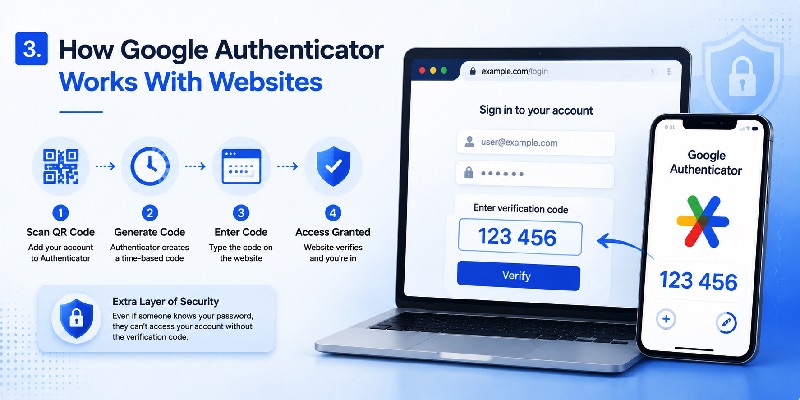
Even without an official browser client, google authenticator web is highly relevant to website authentication because Google Authenticator can generate codes used during web login.
The Basic TOTP Process
Many websites support time-based one-time passwords, commonly called TOTP.
During setup, the website creates a secret associated with the user’s account. That secret is commonly represented as a QR code.
The user opens Google Authenticator on a mobile device and scans the QR code. The authenticator can then generate temporary verification codes based on the shared secret and the current time.
Google confirms that its Authenticator app generates one-time verification codes for websites and applications that support authenticator-based two-step verification. It can also generate codes without an internet connection or mobile service.
This is the most common way people use google authenticator in web environments.
The website runs in the browser, while the second authentication factor remains on another device.
Why the Website and Authenticator Match
The website does not normally need to send every verification code to Google.
Instead, the website’s authentication system and the authenticator have information that allows them to calculate matching time-based codes.
During login, the user enters the current code into the website.
The website verifies it and, if the password and verification code are both correct, allows the login to continue.
This explains why google authenticator via web does not necessarily mean that the Authenticator itself runs on the web. The website simply accepts a code generated by the authenticator.
It is also why Google Authenticator can continue generating codes offline.
Can You Use Google Authenticator in a Web Browser?
The answer depends on what you mean by “use.”
You can absolutely use authenticator codes while accessing websites through Chrome, Edge, Firefox, Safari, or another modern browser. However, running the official Google Authenticator interface directly inside the browser is a different question.
Using Your Phone With a Browser
The safest conventional google authenticator web workflow keeps the authenticator separate from the computer where the password is being entered.
For example:
- Open a website on your computer.
- Enter your username and password.
- The website requests a verification code.
- Open Google Authenticator on your phone.
- Find the account.
- Enter the current code into the website.
- Complete the login.
This method does not require a google authenticator web browser extension.
It also preserves one of the useful properties of two-factor authentication: your password and authentication-code generator can remain on separate devices.
Browser-Based Authenticator Extensions
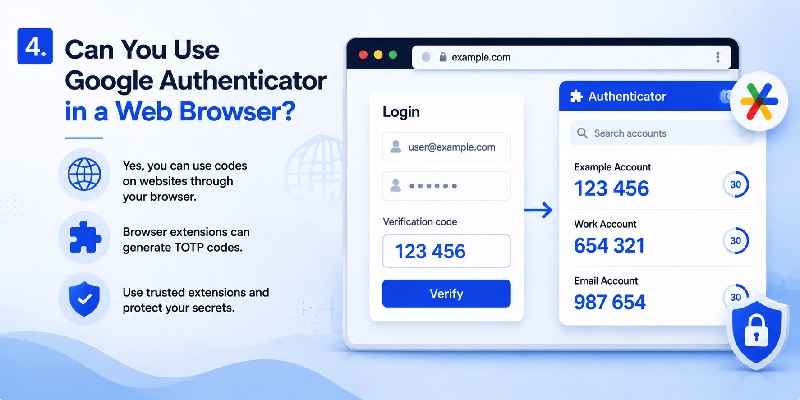
Users who specifically want google authenticator from web may consider browser extensions that implement TOTP functionality.
These extensions can make authentication faster because the code can be copied directly from the browser.
However, convenience changes the security model.
If both your password and authenticator secrets are stored in the same browser environment, malware, a compromised browser profile, or unauthorized access to the computer could potentially affect both factors.
That does not mean every browser authenticator is unsafe. It means a browser authenticator should be evaluated as its own security product rather than treated automatically as an official google authenticator web service.
Before importing authentication secrets, users should check the developer identity, permissions, storage method, encryption options, update history, and backup strategy.
📖 Read More Guides: Google Authenticator for PC: Windows, Desktop and Laptop Guide
Google Authenticator Web Login: How the Process Works
The phrase google authenticator web login can also create confusion because Google Authenticator is not a traditional account-login page.
Authenticator Codes Are Usually the Second Step
With google authenticator web, the normal sequence starts with the account’s primary sign-in method.
For example, a service may first request an email address and password.
After those credentials are accepted, the website requests a temporary authentication code.
The user then opens their authenticator and enters the current code.
Google’s own two-step verification guidance describes Authenticator as one method for generating one-time verification codes during sign-in.
Therefore, you normally do not “log in to Google Authenticator” through the website you are accessing.
Instead, Google Authenticator provides the second factor required by that website.
What If You Lose Access to Your Authenticator?
This is one of the most important considerations when using google authenticator web.
If a website relies on 2FA and you lose the device containing your codes, you need another recovery method.
Depending on the service, recovery options may include backup codes, another enrolled authenticator, a security key, account recovery, or another verification method.
For Google Accounts specifically, Google supports backup codes that can be used when a normal two-step verification method is unavailable.
Users should prepare recovery options before something goes wrong rather than waiting until they are locked out.
A good google authenticator web setup is therefore not just about generating codes. It also includes recovery planning.
Google Authenticator Web App Alternatives
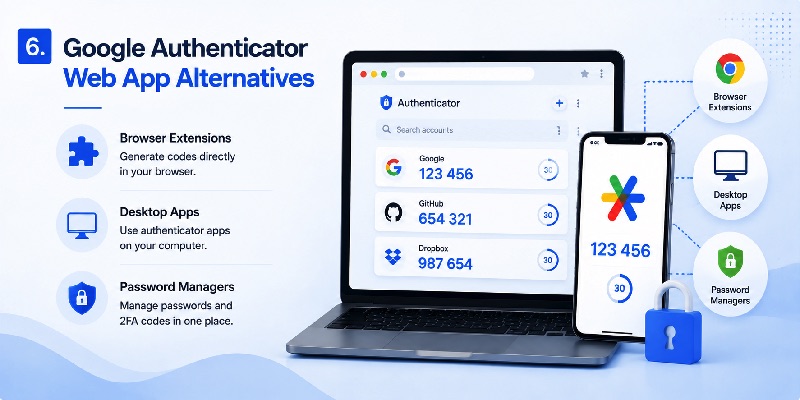
Because there is no separately documented official browser edition of Google Authenticator, some users search for a google authenticator web app or another desktop-friendly solution.
Several categories exist.
Browser Authenticator Extensions
A browser extension can generate TOTP codes without requiring you to open a phone.
This approach can be convenient for people who spend most of their time on a desktop computer.
For example, third-party Chrome extensions can scan QR codes, generate time-based codes, and sometimes provide encrypted backup or synchronization features. One widely used Chrome Web Store listing explicitly describes itself as generating 2FA codes directly in the browser.
However, these products should be evaluated independently.
A tool that is compatible with Google Authenticator is not necessarily google authenticator web made by Google.
Desktop and Password Manager Authenticators
Another alternative is a desktop password manager or authenticator application that supports TOTP.
Some users prefer having passwords and verification codes available from a synchronized application across multiple devices. Others intentionally keep passwords and authentication codes separate.
There is no single setup that is ideal for everyone.
For high-value accounts, separating factors can provide an additional barrier if one device or application is compromised.
For lower-risk accounts, convenience may be more important.
When comparing an Authenticator App with a browser-based solution, users should consider device security, encryption, backups, account recovery, and how much they trust the software provider.
The key point is simple: choosing an alternative google authenticator web solution should be a security decision, not just a convenience decision.
📖 Read More Guides: How to Use Google Authenticator: Complete Setup and 2FA Guide
How to Add Google Authenticator to a Website
Developers searching for google authenticator for web application usually have a different goal from end users.
They want their website to accept codes generated by Google Authenticator or another compatible authenticator.
How Authenticator Integration Usually Works
To add google authenticator to website authentication, the application needs a TOTP-based two-factor authentication flow.
A typical setup includes:
- The user signs in to the website.
- The user enables two-factor authentication.
- The server creates a unique authentication secret.
- The website presents that secret as a QR code.
- The user scans the QR code with an authenticator.
- The authenticator generates a temporary code.
- The user enters the code on the website.
- The server validates it.
- Two-factor authentication becomes active.
After enrollment, future logins require both the normal account credential and the current verification code.
This is how a website can support google authenticator web authentication without needing direct communication with Google Authenticator for every login.
Authenticator 2FA Is Different From Sign in With Google
Developers should also distinguish authenticator-based TOTP from Google’s web identity products.
Google Identity Services provides tools such as Sign in with Google for websites and web applications. Google’s developer documentation describes those services as browser-based authentication and authorization systems using Google Account credentials and tokens.
That is different from adding TOTP-based 2FA.
A website can use its own username/password system and support authenticator codes. It can use Sign in with Google. In some architectures, it may also combine external identity systems with additional security controls.
Understanding this difference is essential when researching google authenticator web development because “Google authentication” can describe several completely different technologies.
Is Using Google Authenticator on the Web Safe?
Security depends heavily on implementation.
The official mobile app and a third-party browser extension may both generate similar TOTP codes, but they do not necessarily provide the same security environment.
The Risk of Keeping Everything in One Place
Suppose your browser stores your password and also contains the extension generating your verification codes.
That setup is convenient.
However, if someone gains access to that browser profile, more than one part of your authentication process may become exposed.
By comparison, using google authenticator web in the conventional phone-plus-browser workflow keeps the code generator on a separate device.
This separation can make certain account compromises more difficult.
For sensitive accounts such as email, cloud storage, work dashboards, developer accounts, or financial services, separating authentication factors is worth considering.
Never Enter Authenticator Secrets Into Random Websites
Another important rule is to distinguish between entering a temporary verification code and exposing the underlying authenticator secret.
Entering a current six-digit code into the legitimate service you are signing in to is normal.
Uploading your QR setup image or authenticator secret to an unknown website is very different.
Anyone who obtains the underlying secret may potentially generate future valid codes.
Therefore, a website claiming to provide instant google authenticator web access should not automatically be trusted simply because it has “Google” or “Authenticator” in its name.
Always verify the software provider before importing an authenticator account.
📖 Read More Guides: Google Authenticator Google Play: Download, Setup & 2FA App Guide
Conclusion
The phrase google authenticator web can be misleading because it sounds like the name of a dedicated browser product.
In practice, Google Authenticator is primarily documented as an application that generates one-time verification codes for services using authenticator-based two-step verification. Google also supports synchronization of Authenticator codes across devices when users choose to save them to a Google Account.
That does not mean there is a normal official google authenticator web page where every user can open a browser and view their TOTP codes.
For most people, the recommended workflow is simple: open the website on a computer, sign in with the primary account credentials, open Google Authenticator on a trusted device, and enter the temporary code when requested.
Users who want browser-based codes can find third-party authenticator extensions, but those tools should be evaluated separately and should not automatically be assumed to come from Google.
Developers approaching google authenticator web from another direction can build TOTP-compatible two-factor authentication into their own websites. The website generates an enrollment secret, the user adds it to an authenticator, and the server verifies temporary codes during future logins.
Whether you are an everyday user or a website developer, the same principle applies: google authenticator web is primarily about securely using authenticator-based verification with web accounts not simply finding a website that reproduces the mobile Authenticator interface.
When implemented carefully, this approach provides a practical additional layer of account protection without making everyday sign-in unnecessarily complicated.
Download Authenticator App
Secure your accounts with fast, reliable two-factor authentication. Download now and protect your login in seconds.
