
Rockstar Authenticator App Setup and New-Device Recovery
Published November 20, 2026
By the Authenticator App Team
Set up a Rockstar authenticator app under Account, Manage Account, and Security on the official Rockstar Games site. Verify the account email first, scan the QR or enter the secret key, and confirm the current app value with your Rockstar Games password. Rockstar documents both mobile and browser-based authenticator options.
Before changing devices, check which Rockstar Games account owns your profile and which provider displays the challenge. A PlayStation, Xbox, Steam, or other platform sign-in has its own recovery procedure. If the Rockstar code fails, keep any working session, correct the time on the code-generating device, and test a fresh value before replacing the pairing.
Choose a Rockstar Authenticator App You Can Recover
| Option Rockstar lists or describes | Where it fits | What to verify before enrolling |
|---|---|---|
| Google Authenticator | A mobile code generator | Which Google account holds the codes if you enable sync |
| Microsoft Authenticator | A mobile app for supported one-time codes | Which platform and backup account can restore the entry |
| Twilio Authy | A mobile authenticator named by Rockstar | Whether backup is enabled and you have the recovery details |
| 1Password | A password manager that can hold a compatible one-time code | How you regain access to the vault without the current device |
| Browser-based authenticator | A browser profile you control | Publisher, permissions, and a tested recovery method |
Check the Provider’s Compatibility List
Rockstar Games Customer Support’s authenticator-app guide lists Twilio Authy, Google Authenticator, Microsoft Authenticator, and 1Password. Its setup guide also describes using a browser-based authenticator. Pick an app you can still open when replacing the device, and confirm the pairing through the official Rockstar flow.
When choosing a Rockstar authenticator app, ask where the enrollment will be stored and how you would restore it. A phone-based entry can be available separately from the gaming PC. A browser app may be convenient if you manage accounts on one machine, but it also depends on the browser profile and its permissions.
Confirm the Backup Setting Before Depending on It
Rockstar recommends enabling cloud backup where the chosen app supports it. Check what your app backs up, what account or password unlocks the backup, and whether the replacement platform can restore it. Backups from one app may use a different process from backups in another. Use the app provider’s own recovery instructions.
If you prefer an approved local backup, verify that it is protected and accessible away from the original device. For the Rockstar authenticator app and the Rockstar account, keep a separate record of which provider and recovery route apply. Seeing the app icon on a new phone proves only that the app installed.
Check whether access to a code app depends on the same password vault that holds the Rockstar password. In that setup, losing access to the vault can affect both credentials. Verify that you can open the vault on an independent trusted device. For a phone-based app, make sure your backup plan survives a lost handset as well as an ordinary upgrade.
Verify the Rockstar Email and Account Before Pairing
Match the Profile to the Correct Rockstar Account
Sign in directly to Rockstar Games and check the displayed email and account nickname. Rockstar’s setup guide requires verification of the associated email before two-step enrollment. If the current address is old or unavailable, follow Rockstar’s official email and account recovery guidance before starting.
If your browser is signed in to a second profile, compare the expected game account or connections before opening Security. A successful code verifies the account that supplied the QR. It does not tell you whether that account is the one associated with the game or launcher you intended to use.
Keep Platform Sign-In Details Available
A sign-in may begin in a console or PC store and then open a Rockstar Games prompt. Check which part of the screen asks for a password or code. The Rockstar authenticator app answers the Rockstar challenge after it is paired. A code requested by a platform account belongs to that platform’s registered method.
Keep the official portal open on a trusted device and note the account you are protecting. When supporting someone with a launcher problem, ask which browser or app displays the error. This can distinguish a platform login, a Rockstar sign-in, and a game entitlement problem without altering the account’s connections.
If you control more than one console profile, write down the Rockstar nickname beside the platform name before setup. The browser might use a different saved email from the launcher. You can see the intended profile after a successful login and compare that with your record. This is more reliable than trusting a code app’s label alone.
Enroll With Rockstar’s QR Code or Manual Key
Open Security and Start Two-Step Setup
Rockstar’s August 2026 setup instructions describe selecting the account icon, opening Account and Manage Account, then choosing Security. Some older Rockstar support pages refer to a Settings menu and a two-step tab. Follow the current labels displayed in your account. Confirm the correct email before starting.
Prepare the Rockstar authenticator app on a phone or in your trusted browser. Open its add-entry function. If you are pairing on a computer, close unrelated tabs that might show another account. Keep the setup page visible until the verification confirmation appears.
Scan the QR or Use Secret Key When Scanning Fails
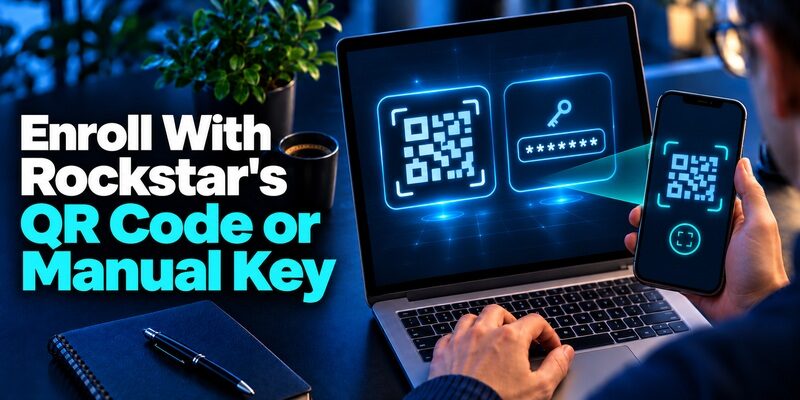
Scan Rockstar’s QR from the add-account view of the app. If you are using the same device and cannot scan the screen, Rockstar’s setup guide describes a Secret Key option for manual entry. Enter the full setup value and choose a time-based entry when the app asks. Use the key only in the app you selected.
Keep the QR and manual key private. Either can contain enough information to create a matching generator. Avoid placing them in screenshots, public notes, or messages. Close the setup page after the app pairs. Label the Rockstar authenticator app entry with a nickname or email that identifies this account.
Enter Both the Password and the App Value
Rockstar’s official instructions ask for the current verification code and the Rockstar Games password in separate fields. Check which one you are typing. If the value is close to changing, wait for the next value before selecting Verify. That gives you more time to finish both fields.
After setup, return to Security and verify the enrollment is active. In a separate trusted browser profile, sign in to the same account and complete the challenge. Preserve the original session during the test. If the new prompt works, confirm the account nickname and the expected profile or connection.
If the app shows two entries with the same issuer, rename them locally if the app permits it and confirm which one came from the current enrollment. Keep the most recent verified Rockstar authenticator app entry available. Avoid reusing a QR saved from a different account or older setup, even if the name looks familiar.
Fix Error 0.200.4 and Other Rejected Values
| Symptom | What to check first | What the result suggests |
|---|---|---|
| Code is rejected as the display changes | Wait for a fresh value and submit promptly | An expired value may explain the first failure |
| Several fresh values fail | Confirm phone time and exact Rockstar entry | Wrong account, time mismatch, or stale pairing |
| The Rockstar challenge never loads | Check the launcher, browser, and connection stage | The failure may be before verification |
| Website works but a platform prompt fails | Read the platform name and login route | A separate identity service may be asking for proof |
| New phone shows an entry but the code fails | Verify the live pairing with the correct account | The restored entry may reflect an older setup |
Synchronize the Device Generating the Value
Rockstar’s Incorrect verification code Error #0.200.4 guide advises checking time synchronization. On a phone, enable automatic date and time. For a browser-based generator, check the computer’s operating-system clock. After correction, use a fresh value from the right Rockstar authenticator app entry.
If you see one value change while you are entering it, stop and wait for the next one. Use the full value, including any leading zero. Keep the browser on the current official challenge. Repeated requests in multiple tabs can make it harder to identify the one you intend to complete.
Compare the Active Account and Enrollment
Match the Rockstar email in the browser to the saved entry. An older backup can contain an entry with the right name but an outdated pairing. If the previous phone works, compare that result with the replacement before removing either entry. Keep the working Rockstar authenticator app until the new one is confirmed.
If the launcher never reaches the code field, note what happens before it. A login stuck before account verification calls for a different check from a live challenge rejecting a code. Test the official account website independently and report which path succeeds. Avoid unlinking a gaming platform just to see if an app value works.
If a player can reproduce the error consistently, write down the code’s visible countdown stage without retaining the actual value. Note whether the app generated a new value during entry. With the same account, a fresh value from a corrected clock helps narrow the cause before an account reset is considered.
Move Two-Step Verification While the Old Device Works
Prepare the New Device and Check Existing Access
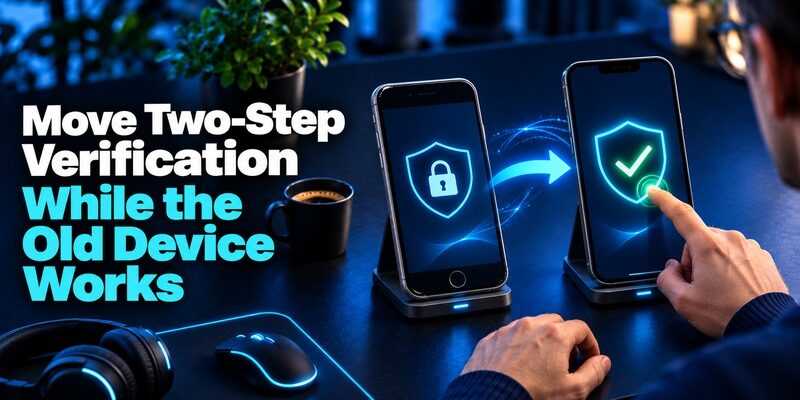
Install or configure the app you want to use and make sure you can unlock it. Confirm the Rockstar password and working email. Keep the existing app, original phone, and a trusted browser session available. If your Rockstar authenticator app can restore an enrollment, test it against the actual account before assuming that route is complete.
Check the app’s backup scope. If the source is a browser profile, see whether the backup is tied to that browser or another account. If the source is a phone, confirm you can open the saved entry after a restart. These checks make it easier to recover before the old device is reset or returned.
Use Rockstar’s Unlink and Reenroll Procedure if Required
Rockstar’s current error guide describes an Unlink control under the verification device in Security. The account can ask for a current code and your Rockstar password. That control concerns the authenticator enrollment. Check the section label before proceeding. The older device-move guide refers to the same purpose using the word Remove.
Once the old method is removed, pair the replacement promptly through Rockstar’s setup flow. Verify a current value and perform another authorized sign-in. Remove the stale Rockstar authenticator app entry only after confirming the replacement. Test the backup route for the new device before retiring the old one.
When both devices still work, test the Rockstar authenticator app from the replacement in a separate browser profile. Verify the account email and observe a fresh challenge. Then close the test session and reopen the account’s security page from your working device. This keeps a recovery route available while you check the change.
Recover Access When the Code App Is Gone
Restore the App Through Its Official Recovery Process
Rockstar’s article for users who lost their authentication device points to the relevant app providers’ recovery instructions. Open the provider’s support page independently and follow the procedure for your original app and platform. A backup works only if it was set up and the required recovery information is available.
After restore, check whether the entry is present and verify a fresh value on the official Rockstar screen. If you have multiple vaults or accounts, check which one you signed into. Do not erase the last working device until you have confirmed the Rockstar authenticator app on the replacement.
Contact Rockstar Support With Account Details
If the app cannot restore the pairing and you have no working authentication route, use Rockstar Games Customer Support’s official account access route. Explain the account you need, the proof you still control, and whether the device was replaced, reset, or lost. Follow the ownership review the support team provides.
If a browser is still open, use it to identify the correct account and the existing security setting. Preserve it while you check recovery. Avoid sending a live value, password, enrollment key, or backup-vault credential in an ordinary ticket or game message. Support can tell you which account evidence it requires.
Check whether the associated mailbox is itself protected by the lost phone. If so, follow the email provider’s recovery route separately before attempting sensitive account changes. An open launcher session can help identify the profile but may be unable to approve a new verification setting.
Keep the Authenticator and Gaming Platform Links Separate
Check the Security Page and the Connections Page
Rockstar’s support article on unlinking platform accounts describes using the account’s Connections page and notes that the process varies by platform. The Rockstar authenticator app is managed from Security. Check the page and option before you confirm any change. Unlinking a gaming platform is a different account operation with its own consequences.
If you open the wrong game profile after recovering access, identify the Rockstar account email and the external account. Compare the expected and observed profiles, then use the relevant provider’s account-access instructions. Preserve the current connection while you determine which account owns the data or entitlement you need.
Review Your Sign-In Records After a Device Change
Verify the account email, current security setting, and the location of the app backup. Test both your ordinary Rockstar sign-in and the game path you rely on. If a platform account asks for its own code, check that provider’s approved factor independently. Keep both recovery procedures available.
For accounts that offer compatible time-based QR enrollment, can store a rotating entry. Verify any new Rockstar authenticator app with the official challenge before relying on it. Store the details needed to recover the app separately from the device that holds it, and update the record if you change phones.
Check the Cause Before Changing Account Security
Isolate the Device, the App, and the Account
Try a single fresh official login from a trusted browser while you can still reach the original session. Observe whether the password succeeds and whether the app value is requested. If the old phone succeeds and the new one fails, focus on transfer and time settings. If neither succeeds, confirm the account and the latest enrollment.
If you contact support, include the displayed error number, the client or browser, and when the problem began. Report a failed Rockstar authenticator app value separately from a platform challenge or missing game profile. Crop any credential or QR from screenshots. A timestamp helps support distinguish a new issue from an older notice.
Respond to Requests You Did Not Start
Open the account independently if an unexpected email or message asks you to verify. Use the official security controls and check your linked email for signs of unauthorized access. If the request appears during a chat offering a game reward, avoid sharing a credential or scanning a QR that the other person supplied.
After resolving an unexpected sign-in, confirm that the Rockstar authenticator app still matches the account and that you control the recovery inbox. Check which devices and platform links you recognize through their official settings. Use Rockstar’s account support if you see a change you cannot explain.
If you need account help after a new-device change, identify the last successful login and the first screen that failed. Note whether the problem occurred on the official website, during launcher handoff, or at a platform login. That gives support a place to investigate without exposing your credential or recovery record.
Riot 2FA Setup With Email, Riot Mobile, and Authenticator Apps
Final Thoughts
Choose a Rockstar authenticator app you can recover, enroll it from the official Security page, and verify a fresh value before changing devices. If a code fails, check the phone clock and account entry first. Use the provider’s recovery process for a lost app and review gaming platform connections separately.
Download Authenticator App
Secure your accounts with fast, reliable two-factor authentication. Download now and protect your login in seconds.
