
How Does Microsoft Authenticator Work for Different Accounts
Published November 17, 2026
By the Authenticator App Team
How does Microsoft Authenticator work? It depends on which account you add. For a work or school account, Microsoft Authenticator can answer a sign-in notification or a supported passwordless flow after the organization registers the device. For a compatible third-party account, it can calculate a rotating one-time code from setup information. A personal Microsoft account has its own supported sign-in and verification options.
Read the official prompt before you open the app. If it asks you to match a number, use the registered account and the request you initiated. If it asks for a code, select the matching entry. When you change phones, test both the restored code entries and any managed accounts that need re-registration.
How Does Microsoft Authenticator Work by Account Type?
| Account or method | What the app can do | What controls setup |
|---|---|---|
| Microsoft work or school | Registered approvals, codes or eligible passwordless sign-in | Organization policy and Microsoft Entra registration |
| Personal Microsoft account | Supported sign-in verification and account security options | Personal Microsoft account settings |
| Compatible third-party account | Calculate a standard rotating code after enrollment | The third-party service’s security settings |
| Passkey or other credential | Use the capability where supported and enrolled | Provider and device policy |
Identify the Entry Before Responding
Open the app and check whether the account is listed as work or school, personal, or another account. Two entries can display similar email addresses while belonging to different services. How does Microsoft Authenticator work when both appear? Each entry answers the method associated with its own enrollment. Compare the account in the prompt before you approve or copy any value.
Separate a Managed Approval From a Rotating Code
Microsoft Entra can send a request to the registered device as part of an organization’s sign-in policy. A third-party TOTP entry calculates a value using its setup data and device time. A code displayed under another account cannot replace an Entra approval. When you contact support, identify whether the app did not receive a notification or whether the service rejected an actual code. Those symptoms point to different fixes.
Check What the App No Longer Does
Microsoft’s Authenticator FAQ says that its password autofill feature ended in August 2025. If you are reading an older guide for saved passwords or a browser extension, consult the current Microsoft documentation for that task. The app’s current sign-in approval, code, and supported credential capabilities should be evaluated separately from the former autofill workflow.
How does Microsoft Authenticator work when the same email can open a personal and work account? The provider can ask which identity to use. Compare the account type and tenant on the sign-in, then respond from the matching entry. If the wrong one opens, return to the original service rather than trying a value for another account.
Download Authenticator App
Secure your accounts with fast, reliable two-factor authentication. Download now and protect your login in seconds.
Set Up a Work or School Account With Your Organization

Start From Security Info or the Sign-In Prompt
Microsoft Support directs work and school users to the Security info page in My Sign-ins or to the registration prompt shown during an official sign-in. Select the authenticator method if your organization offers it. Use your work or school identity and verify the tenant. If the organization requires registration from a particular device or location, ask its approved help desk about that policy.
Add the Work or School Account in the App
Choose the work or school account option in Microsoft Authenticator and follow the provider’s enrollment. If the setup shows a QR, scan it into the app on your phone. How does Microsoft Authenticator work after scanning? The provider can run a test request or require another confirmation before the device is registered. Check the browser and app until both show the setup result. Keep the QR and enrollment material private.
Verify the New Method From a Fresh Session
After Security info shows the method, test a separate sign-in while your current session is available. Confirm that the prompt reaches the device and shows the expected work account. If your organization requires a managed phone or another factor, complete the additional steps it shows. If you have two work tenants, test them individually. One successful registration does not prove the other tenant enrolled that device.
Keep the Help Desk Route Accessible
Record the organization, approved sign-in portal and support contact. Leave passwords, codes and setup QR images out of the record. If you replace your phone away from work, check whether the organization offers a backup factor or an approved recovery process. How does Microsoft Authenticator work on an unregistered replacement? A restored account name may still need new registration before the phone can receive a managed request.
How does Microsoft Authenticator work if you enroll a second work phone? Check whether your organization permits another registered device and whether its policy requires the current device to verify the change. Keep the old registration available during setup. Verify a real sign-in on the replacement before deleting the original method from Security info.
Approve a Sign-In With Number Matching
Check the Number and the Original Action
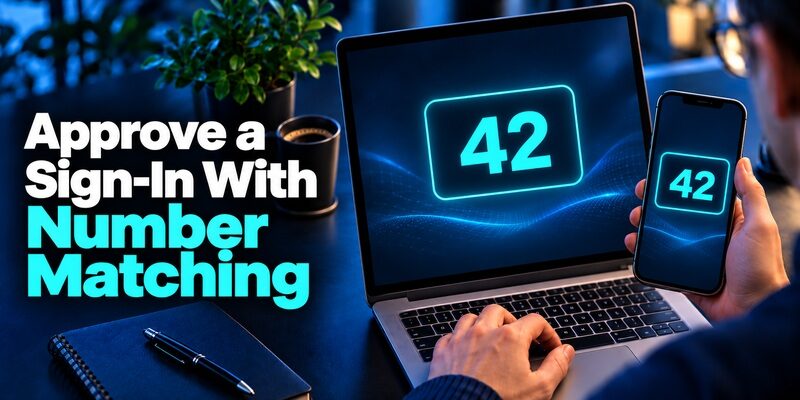
When Microsoft Entra asks for number matching, compare the browser or app’s number with the request on the enrolled phone. Enter or select it as the prompt requires. Check the account and confirm that you started this sign-in. If a request came out of nowhere, deny it or leave it unused and check the account through the official route. Do not approve to make notifications stop.
Recognize Same-Device Variations
Microsoft Learn documents that supported Microsoft apps on the same device can offer a yes-or-no confirmation in some number matching flows. Browser sign-ins can still ask you to enter the number. How does Microsoft Authenticator work when the prompts look different? Use the actual supported flow and confirm the account and action, rather than expecting the same screen for every client.
Distinguish MFA From Passwordless Phone Sign-In
A managed MFA request can follow an earlier proof such as a password. A supported passwordless phone sign-in uses its own configured Microsoft Entra method and device verification. The organization must allow the method and the account must be registered for it. A code-only third-party entry cannot enable passwordless Microsoft sign-in. Check the organization’s documented policy before choosing the option.
How does Microsoft Authenticator work if you sign in on a laptop and receive the request on a phone? The service connects the approval to the request it sent to the registered account. Check the account and number where shown. Approve only the request you started. If more than one appears, verify the current session before interacting with any of them.
Add a Personal Microsoft or Third-Party Account
Use the Personal Microsoft Account’s Own Settings
For a personal Microsoft account, follow the security options shown for that identity. Add the personal account in the app as directed and test the supported sign-in or verification. How does Microsoft Authenticator work with a personal account that shares a work email format? Choose the actual personal or organizational identity on the provider’s screen and verify the app entry separately. The two accounts can have different recovery routes.
Use a Compatible QR From the Third-Party Service
For a standard time-based third-party account, open that service’s security settings and add its authenticator entry to Microsoft Authenticator using the provider’s QR or manual setup. Submit the first value to the third-party service. Begamob’s is another option to review for compatible standard code enrollment. An employer may require Microsoft Authenticator for its own approval regardless of the code app you use elsewhere.
Test Each Type of Entry on Its Own
A code for a third-party service can usually be calculated offline if the phone time is accurate. The service still needs to verify it. A live Microsoft approval can require connectivity and registered device access. How does Microsoft Authenticator work when you switch between these during the same day? Read the method named by each service and open the entry for that identity before responding.
If you are adding a third-party entry, test it in the third-party provider rather than Microsoft’s account page. The app calculates the value, while that service verifies it. How does Microsoft Authenticator work when the first code is rejected? Check the current setup QR and phone time, then verify that the entry was created from the account you are configuring.
Restore Codes and Re-Register Work Accounts After a Phone Change

| What you are moving | What Microsoft documents | What to test |
|---|---|---|
| Eligible personal and third-party code entries | Supported backup and restore on the same device type | Current values work for the correct services |
| Work or school registration | Account name can restore, credentials require registration again | New phone can complete the organization’s real sign-in |
| iOS to Android or reverse | Microsoft’s documented backup does not restore across device types | Re-enroll using account or provider recovery options |
| No usable backup or device | Use another approved method or official support | Recovery works and the replacement is registered |
Check Backup Before Removing the Original
Microsoft Support documents same-device-type backup and restore for eligible one-time password entries. Check the supported backup settings for your current phone and confirm that you can reach the recovery account. How does Microsoft Authenticator work after a phone change? A restored entry can supply codes for eligible accounts, while managed work or school credentials may require a new enrollment.
Verify App Entries and Managed Registration Separately
Restore the eligible entries using the supported process. Complete the organization’s sign-in and register the work account again when required. Test the new phone before wiping the old one. If the account name is visible but the approval never arrives, check whether the device has actually been registered. The list entry and permission to respond are separate.
Keep an Independent Route for the Backup Account
If the backup depends on a Microsoft or platform account, verify how you can sign in without the phone you plan to replace. Keep another authorized method available. If you moved between operating systems, plan to re-enroll using the original accounts while the old phone still works. Ask the authorized administrator about work recovery before decommissioning the device.
How does Microsoft Authenticator work when you move from an iPhone to an Android phone? Microsoft’s documented backup restore does not transfer between those device types. Keep both phones available and use the provider-approved re-enrollment paths. Prioritize any account that is needed to reach your recovery email or work portal, then test it before changing the next one.
Fix Missing Prompts and Rejected Codes

Check Registration, Network and Notifications for Push
Verify that the account is registered on the phone you are checking and that it can receive the provider’s requests. Check the app and operating system notification settings and connectivity where the workflow requires them. How does Microsoft Authenticator work when the same account is on two phones? Review the official Security info records and verify which device responds. Keep the working registration until the new one is tested.
Check the Entry and Time for a Code
If a third-party service rejects a time-based value, confirm the account and prompt, enable automatic device time, and use a fresh value. An old entry can display a code after the provider has replaced its secret. If your Microsoft work or school account asks for an approval, an unrelated code will fail even if it is current. Verify the official method first.
Check Policy or Eligibility Before Reinstalling
A workplace can require a managed device or limit where you register security information. Read the official error and check the current organization’s instructions. Reinstalling the app can remove access to a still-working entry without resolving policy. Use an approved alternate method or ask the administrator for a replacement registration. Explain the sign-in type and device rather than sending a setup screenshot.
If the app displays the work account after a restore but the provider does not list the new phone, begin from the organization’s approved enrollment. How does Microsoft Authenticator work once the device is registered again? Test a fresh browser session and check that the notification reaches the replacement. Keep any independent fallback while you retire the original.
Protect the App and Account After Enrollment
Use the Device and App Protection Available
Microsoft’s Authenticator FAQ describes App Lock on supported devices. Check the device PIN or biometric requirements and verify that only the intended account holder can approve. A local lock helps protect the phone’s copy of the app. It does not revoke a credential that already exists elsewhere. If a phone was lost, review the provider’s registered methods and sessions.
Respond to Unexpected Requests Through the Official Account
If you receive an approval you did not initiate, deny it or let it expire. Open the provider independently, check your account security activity, and use the organization’s reporting route for work. How does Microsoft Authenticator work after you deny an unexpected prompt? The provider can record the outcome, while an administrator can evaluate the wider sign-in events. Keep sensitive values out of reports.
Replace Any Exposed Setup Data at Its Provider
If someone saw a live third-party setup key, replace that enrollment in the third-party account. If someone obtained an enrolled work phone or access to its approval, ask the organization to revoke the appropriate registration and review sessions. Do not assume removing an entry from your new phone controls another device’s access. Test the replacement and check the approved backup method.
If you are asked how does Microsoft Authenticator work after losing a phone, first identify the account type and what backup is actually accessible. An eligible code can be restored under Microsoft’s documented conditions. A managed work approval can need the organization’s reset and registration. Use the current support route and verify the replacement on the real service.
Questions About How Microsoft Authenticator Works
How Does Microsoft Authenticator Work Without Internet?
A configured TOTP entry can calculate a value offline using its stored setup data and device time. A managed approval can depend on connectivity and registration. The account service still needs to receive the proof to complete sign-in.
What Is Microsoft Authenticator App Used For at Work?
It can be an enrolled method for Microsoft Entra sign-in, subject to the employer’s policy. It may receive approvals, support a configured passwordless flow, or provide a verification method named by the account. Follow the actual organization prompt.
Can I Approve a Microsoft Prompt With a Code From Another App?
Use the method the account requests. Another standard code app can generate compatible TOTP only when the service offers and enrolls it. A Microsoft approval requires the registered workflow. Ask the official administrator about supported alternatives.
Does My Work Account Transfer With Backup?
Microsoft documents that work or school credentials are not backed up. The name may appear after restore, but the organization’s account needs sign-in and registration again on the replacement device. Keep the old phone or approved backup method until the test succeeds.
For a suspicious approval, record when it appeared and which account was shown. Leave the code or matching number out of the support ticket. If it concerns a workplace account, use the known help desk route. If you suspect access to a personal or third-party account, review sessions through that provider and replace the affected factor.
Final Thoughts
How does Microsoft Authenticator work in practice? The provider’s prompt and account type determine whether you use a rotating code, a registered approval, or a supported passwordless method. Confirm the exact identity before you respond.
Before changing phones, verify the backup for eligible code entries and the organization’s re-registration path. Test ordinary sign-in on the replacement and keep an independent recovery route while you retire the original device. Verify any third-party entries at their own providers before removing the original copy.
Download Authenticator App
Secure your accounts with fast, reliable two-factor authentication. Download now and protect your login in seconds.
