
Steam Mobile Authenticator: Download, Setup & Steam Guard Guide
Published August 17, 2026 · Updated October 20, 2026

Want to protect your Steam account, secure your game inventory, and avoid unnecessary trading delays? Steam Mobile Authenticator is one of the most important security features available to Steam users.
Whether you’re trying to understand Steam Guard, download the official authenticator, enable two-factor authentication (2FA), or recover access after losing your phone, this guide covers everything you need.
Quick Answer: Steam Mobile Authenticator is a two-factor authentication feature built into Valve’s official Steam Mobile app for Android and iPhone. To enable it, download Steam Mobile, sign in to your account, open the Steam Guard tab, select Add Authenticator, complete the required verification steps, and save your recovery code. Once activated, you can approve sign-ins, scan Steam login QR codes, and generate temporary Steam Guard codes.
You do not need to download a separate Steam authenticator application.
What Is Steam Mobile Authenticator?
Steam Mobile Authenticator, also called Steam Guard Mobile Authenticator, is a security feature that adds an additional authentication step to your Steam account.
Instead of relying only on a username and password, Steam can require confirmation from a registered mobile device.
The feature is included in Valve’s official Steam Mobile app.
It supports three primary sign-in methods:
- QR code login: Scan a Steam login QR code using your phone.
- Push approval: Review and approve a sign-in notification.
- Steam Guard code: Enter a temporary authentication code generated by the app.
Steam Guard codes refresh every 30 seconds and can be generated without an internet connection when your device’s time is accurate.
What Is Steam Guard Authenticator?
Steam Guard is Steam’s account security system. It includes both email-based authentication and mobile authentication.
The Steam Guard Mobile Authenticator is the mobile component of this system.
When someone attempts to access your Steam account from an unfamiliar device, Steam can require an additional verification step.
This helps reduce the risk of unauthorized access when a password has been stolen or exposed.
Steam Guard also supports security controls associated with Steam trading and Community Market activity.
Why Should You Enable Steam Mobile Authenticator?
Steam accounts can contain valuable digital assets, including purchased games, trading cards, cosmetic items, and marketable inventory.
Enabling Steam Mobile Authenticator provides several benefits:
- Additional protection against unauthorized account access.
- Convenient QR code sign-in.
- Mobile approval of login requests.
- Temporary verification codes that work offline.
- Mobile trade and market confirmations.
- Better account recovery options when recovery information is maintained.
However, enabling Steam Guard does not eliminate every security risk.
You should still use a unique password, protect your email account, and avoid suspicious Steam login links.
For more background on account protection, read our guide to authenticator apps.
Download Authenticator App
Secure your accounts with fast, reliable two-factor authentication. Download now and protect your login in seconds.
Steam Mobile Authenticator Download for Android and iPhone
If you’re searching for Steam Mobile Authenticator download, the correct application is the official Steam Mobile app.
Steam Guard Mobile Authenticator is not distributed as a separate app.
Download Steam Mobile Authenticator on Android
To install the Steam authenticator app on Android:
- Open Google Play Store.
- Search for Steam.
- Select the official application published by Valve Corporation.
- Review the app information and compatibility requirements.
- Tap Install.
- Open Steam Mobile.
- Sign in to your Steam account.
If Google Play is unavailable, consult Steam’s official distribution information rather than downloading modified APK files from unknown websites.
Download Steam Mobile Authenticator on iPhone
To download Steam Mobile Authenticator on iOS:
- Open the Apple App Store.
- Search for Steam Mobile or Steam.
- Verify that Valve Corporation is the developer.
- Tap Get.
- Confirm installation using your Apple Account or device authentication.
- Open the Steam Mobile app.
- Sign in to the account you want to protect.
The app is free to download.
Check the current App Store listing for minimum iOS requirements because supported versions can change.
Steam Mobile Authenticator System Requirements
Steam’s support documentation lists support for compatible Android and iOS devices.
Before installing, confirm that:
- Your phone supports the current Steam Mobile release.
- You have access to your Steam account.
- Your email address is current and secure.
- Your phone can receive verification messages if required by your setup path.
- You have a secure place to store recovery information.
A supported smartphone is required for the official Steam Guard Mobile Authenticator.
Can You Download Steam Authenticator on PC?
Steam Guard Mobile Authenticator is designed for mobile devices.
Although you can use Steam on Windows, Mac, or Linux, the official mobile authenticator runs on a supported phone.
Be cautious with third-party desktop tools claiming to generate Steam Guard codes or replace Steam Mobile.
Unofficial applications may introduce account security risks and may not support Steam’s official sign-in and trade confirmation workflows.
Recommendation: Use the official Steam Mobile app for Steam Guard authentication.
How to Set Up Steam Mobile Authenticator
Learning how to set up Steam Mobile Authenticator is straightforward once you have installed the official Steam Mobile app.
The setup process usually takes only a few minutes if you already have access to your account and verification methods.
Step 1: Sign In to Steam Mobile
Open the Steam Mobile app on your phone.
Enter your Steam account credentials and complete any existing authentication requirements.
Make sure you’re signing in to the correct account, particularly if you manage multiple Steam profiles.
Step 2: Open the Steam Guard Tab
Inside Steam Mobile, select the Steam Guard section, usually represented by a shield icon.
If your account does not already have a mobile authenticator, select Add Authenticator.
Follow the on-screen enrollment instructions.
Step 3: Add or Verify Your Phone Number
Steam may ask you to add or confirm a phone number.
If prompted:
- Select the correct international country code.
- Enter your phone number.
- Request the verification message.
- Enter the code Steam sends.
- Continue to the next setup step.
Steam’s official setup instructions also describe an I don’t have access to a phone number option for users who cannot provide one.
A phone number is strongly recommended because it can make account recovery and authenticator transfer easier.
However, it should not be described as universally mandatory for every setup path.
Step 4: Save Your Steam Recovery Code
During enrollment, Steam displays a recovery code.
Save this code immediately.
The recovery code can help restore access if you lose your phone or authenticator.
For better security:
- Store the recovery code separately from your phone.
- Use a secure offline location or another protected storage method.
- Never share it with friends, traders, or customer support impersonators.
- Avoid posting screenshots of recovery information.
- Make sure you can retrieve the code in an emergency.
If you lose your phone and have no recovery information, regaining access may require additional verification through Steam Support.
Step 5: Complete Steam Guard Activation
Follow the remaining instructions until Steam confirms that your mobile authenticator has been enabled.
Then open the Steam Guard page and verify that the authenticator is active.
You should be able to access the available authentication functions for your account.
Step 6: Test Your New Authenticator
Before relying on the new setup:
- Open Steam on a trusted computer or browser.
- Start a new sign-in.
- Choose an available authentication method.
- Approve the login using Steam Mobile or enter the current Steam Guard code.
- Confirm that the sign-in succeeds.
You can also test QR code sign-in if the login page offers that option.
Do not remove existing recovery methods until you are confident that the new authenticator works.
How to Use Steam Guard Codes, QR Login, and Confirmations
Once enabled, Steam Mobile Authenticator offers multiple ways to verify sign-ins.
Understanding these methods helps you use Steam securely and troubleshoot authentication problems.
Where to Find Your Steam Mobile Authenticator Code
To locate your Steam Guard code:
- Open the official Steam Mobile app.
- Sign in if necessary.
- Tap the Steam Guard shield icon.
- Select the correct Steam account if you manage several.
- Tap Show Steam Guard code.
- Enter the displayed code on the legitimate Steam sign-in screen.
Steam Guard mobile codes are typically five-character alphanumeric codes rather than the six-digit numeric codes used by many standard TOTP apps.
The code refreshes approximately every 30 seconds.
If it expires before you enter it, wait for the next code.
For a more detailed explanation, see our guide to finding your Steam Mobile Authenticator code.
How to Sign In With a Steam QR Code
Steam Mobile also supports QR code login.
To use it:
- Open the Steam login page on your computer.
- Find the QR code displayed on the sign-in screen.
- Open Steam Mobile on your phone.
- Navigate to Steam Guard.
- Select the QR scanning option.
- Scan the code shown on your computer.
- Review the sign-in details displayed on your phone.
- Approve the request only if it matches the login you initiated.
QR sign-in can reduce the need to manually type account credentials on your computer.
However, never scan an unexpected Steam login QR code sent through chat, email, or an unfamiliar website.
How to Approve Steam Login Notifications
Another sign-in method uses mobile approval notifications.
When you enter your Steam account credentials on a new device, Steam may send an authentication request to your phone.
Open Steam Mobile, review the request, and approve it only if you recognize the login attempt.
If you receive an unexpected request, reject it.
Repeated unsolicited requests may indicate that someone knows your account credentials or is attempting unauthorized access.
Can Steam Guard Codes Work Offline?
Yes. After setup, the Steam Guard Mobile Authenticator can generate temporary verification codes without an active internet connection.
However, your phone must maintain the correct time.
QR login and push approval workflows generally require connectivity to communicate with Steam.
If you are traveling without reliable internet access, the manual Steam Guard code may be useful when the sign-in process supports it.
Can One Steam App Protect Multiple Accounts?
Yes. Steam Mobile supports managing multiple Steam accounts within its authenticator functionality.
You can select or add accounts through the Steam Guard account controls.
Always confirm which account is active before approving a sign-in or using a verification code.
Each Steam account requires its own authentication enrollment.
Steam Guard Mobile Authenticator vs Email Authentication
Steam Guard supports different verification methods, but they do not provide identical functionality.
| Feature | Steam Guard Email | Steam Guard Mobile Authenticator |
|---|---|---|
| Additional sign-in verification | Yes | Yes |
| Requires smartphone | No | Yes |
| Verification delivery | Steam Mobile | |
| Temporary codes | Email-based | App-generated |
| QR code login | No | Yes |
| Push sign-in approval | No | Yes |
| Offline code generation | No | Yes |
| Mobile trade confirmations | No | Yes |
| Recovery considerations | Email access | Phone, recovery code, and account recovery |
Is Steam Guard Mobile Better Than Email?
For users who can securely maintain a smartphone, Steam Guard Mobile Authenticator offers more authentication features and additional protection for Steam trading activity.
Email-based Steam Guard still provides an extra verification step, but its effectiveness depends heavily on the security of the associated email account.
If your email account is compromised, email-based verification may be easier for an attacker to access.
Mobile authentication provides a separate registered device for sign-in verification.
Nevertheless, users should secure both their Steam account and email account.
Steam Authenticator Trade Holds and Market Restrictions
Steam Mobile Authenticator is especially important for users who trade items or sell inventory on the Community Market.
Steam applies trading and market restrictions to reduce the risk of stolen items being transferred before the account owner can respond.
Why Are My Steam Trades on Hold?
A trade hold delays the transfer of items.
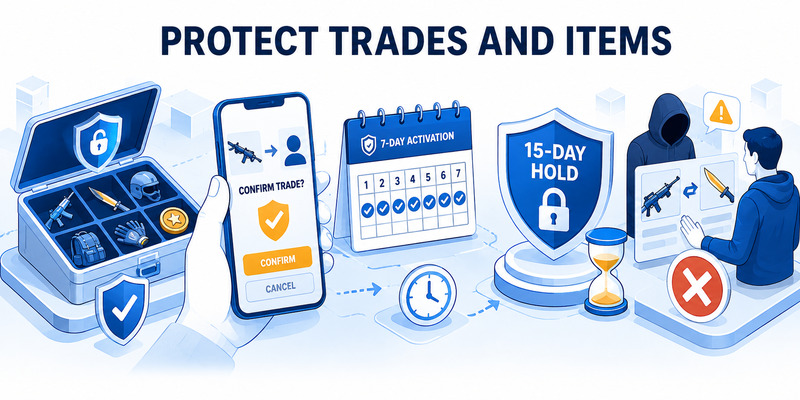
Steam may apply holds when an account does not have an eligible mobile authenticator or when the authenticator has only recently been enabled.
According to Steam Support:
- Trades or Market listings created before adding a mobile authenticator, or during its first seven days, may be held for up to 15 days.
- Eligible trades and listings created after the authenticator has been active for more than seven days can avoid these authenticator-related holds.
- Adding an authenticator does not shorten holds already in progress.
- Other account restrictions may still apply.
These rules help protect users if an attacker gains control of an account.
Does Enabling Steam Mobile Authenticator Remove Trade Holds Immediately?
No.
Enabling Steam Guard Mobile Authenticator does not instantly eliminate all trading restrictions.
The initial seven-day period still matters.
For example, if you activate Steam Mobile Authenticator today and immediately create a trade, that trade may still be held.
Avoid repeatedly removing and re-adding the authenticator because doing so can create additional restrictions.
What Happens If You Remove Steam Authenticator?
Removing Steam Guard Mobile Authenticator reduces the security of your account.
Steam Support states that removing the authenticator can trigger a 15-day restriction on trading and Community Market activity.
If you are changing phones, use Steam’s official authenticator transfer process rather than removing the authenticator unnecessarily.
How to Transfer, Recover, or Remove Steam Mobile Authenticator
Changing phones, losing a device, or forgetting recovery information can interrupt access to Steam Guard.
The safest approach is to prepare recovery methods before an emergency.
How to Transfer Steam Authenticator to a New Phone
If you still have access to your Steam account:
- Install the official Steam Mobile app on your new phone.
- Sign in to your Steam account.
- Open the Steam Guard section.
- Choose the available authenticator transfer option.
- Follow Steam’s verification instructions.
- Complete the transfer.
- Test authentication on the new phone.
- Confirm that the old device is no longer being used for authentication.
If your old phone is unavailable, Steam may offer a transfer process using your registered phone number or another recovery method.
Steam states that transferring an authenticator can result in a two-day trade and market restriction.
Avoid removing the authenticator first unless Steam’s recovery instructions require it.
What If You Lose Your Phone?
If you lose the phone containing your Steam Mobile Authenticator:
- Visit the official Steam Support website.
- Start the account recovery process.
- Select the option indicating that you no longer have access to your authenticator when appropriate.
- Follow Steam’s verification instructions.
- Use your recovery code or another available recovery method.
- Restore account access.
- Register a replacement device if necessary.
If you still control your registered phone number, SMS-based recovery may be available.
If you cannot access your phone number, email, or recovery code, Steam may require additional account ownership verification.
Never pay a third party claiming to remove Steam Guard restrictions or recover an authenticator instantly.
Where to Find Your Steam Recovery Code
If you still have access to the registered device, Steam Support explains that you can view recovery information from the Steam Guard settings.
Open Steam Mobile, navigate to Steam Guard, tap the settings gear, and look for Recovery Code.
Store the recovery code securely outside your phone.
You can also generate Steam Guard backup codes through the appropriate Steam account security settings.
Backup codes and the mobile authenticator recovery code serve different recovery purposes, so keep track of both when available.
How to Remove Steam Mobile Authenticator
If you need to disable the authenticator:
- Open the Steam Mobile app.
- Navigate to Steam Guard.
- Open the settings menu.
- Select Remove Authenticator.
- Review Steam’s warnings.
- Confirm removal only if necessary.
Removing the authenticator may affect trading eligibility and account security.
If your goal is simply to change phones, transferring the authenticator is generally preferable.
Steam Mobile Authenticator Not Working: Common Fixes
If Steam Mobile Authenticator is not working, the cause may involve account registration, incorrect device time, connectivity, or recovery settings.
Steam Guard Code Not Working
If your code is rejected:
- Confirm that you selected the correct Steam account.
- Enable automatic date and time on your phone.
- Wait for the next code.
- Enter it before it expires.
- Confirm that you’re using the legitimate Steam login page.
- Check whether the authenticator is still registered to your account.
If you recently transferred your authenticator, an old device may no longer generate valid codes.
Steam Mobile Authenticator Not Sending SMS
If you do not receive a verification text:
- Check your country code and phone number.
- Confirm that your phone can receive SMS.
- Review carrier restrictions.
- Wait before requesting another code if you have made repeated attempts.
- Use Steam’s available alternative verification options.
- Contact Steam Support if the problem continues.
Steam may temporarily limit repeated SMS requests.
Steam QR Code Login Not Working
If QR login fails:
- Update the Steam Mobile app.
- Check your phone’s internet connection.
- Confirm that the QR code is displayed on the official Steam login page.
- Refresh the QR code if it has expired.
- Review any approval prompt.
- Use another supported sign-in method if necessary.
Do not scan a QR code from an unfamiliar source simply because it resembles Steam’s login interface.
Steam Mobile Authenticator Missing After Download
If you installed Steam Mobile but cannot find the authenticator:
- Confirm that you installed the official Steam app.
- Sign in to the correct Steam account.
- Open the Steam Guard shield tab.
- Check whether the account already has an authenticator registered.
- Follow the Add Authenticator process if available.
The authenticator is a feature within Steam Mobile, not a separate app icon.
Steam Trade Hold Still Active
If your items are still on hold after enabling Steam Guard:
- Check when the mobile authenticator was activated.
- Confirm whether the trade was created during the first seven days.
- Check for other account restrictions.
- Avoid removing the authenticator unnecessarily.
- Review the restriction message displayed by Steam.
Steam Support cannot simply waive trading restrictions on request.
How to Protect Your Steam Account From Phishing
Even with Steam Mobile Authenticator enabled, phishing remains a major risk.
Follow these practices:
- Use a unique Steam password.
- Protect your email account with MFA.
- Never share Steam Guard codes.
- Never share authenticator recovery or removal codes.
- Check the website address before entering credentials.
- Reject unexpected login approvals.
- Avoid unofficial Steam login and trading websites.
- Keep Steam Mobile and your operating system updated.
- Review unfamiliar devices and account activity.
Steam Support will never ask you to reveal your password or Steam Guard authentication codes.
Frequently Asked Questions
What is Steam Mobile Authenticator?
Steam Mobile Authenticator is Steam Guard’s mobile two-factor authentication feature. It is built into the official Steam Mobile app and supports verification codes, QR login, and sign-in approvals.
How do I set up Steam Mobile Authenticator?
Install Steam Mobile, sign in, open Steam Guard, select Add Authenticator, complete the verification steps, save your recovery code, and test a new sign-in.
How do I enable mobile authenticator on Steam?
Open the Steam Guard tab in the official Steam Mobile app and follow the Add Authenticator enrollment process.
Where can I download Steam Mobile Authenticator?
Download the official Steam Mobile app through Valve’s official distribution channels, including Google Play and the Apple App Store.
Is Steam Authenticator a separate app?
No. Steam Guard Mobile Authenticator is included in the official Steam Mobile app.
Is Steam Mobile Authenticator free?
Yes. Steam Mobile and its built-in Steam Guard authentication functionality are free.
What is Steam Guard Authenticator?
Steam Guard Authenticator is the mobile authentication component of Steam Guard, Valve’s account protection system.
Do I need a phone number for Steam Mobile Authenticator?
Steam strongly recommends a phone number for recovery and transfers. Its setup documentation also describes an alternative path for users without access to a phone number.
Can I use Steam Mobile Authenticator without a phone?
The official Steam Guard Mobile Authenticator requires a supported mobile device.
Can I use Steam Authenticator on multiple accounts?
Yes. Steam Mobile supports authentication for multiple Steam accounts. Each account must be enrolled separately.
Can I use Steam Mobile Authenticator on two phones for one account?
Steam’s standard mobile authenticator registration is associated with a registered device. Use Steam’s official transfer process when changing phones rather than assuming both devices can remain active.
Where is my Steam Guard code?
Open Steam Mobile, select the Steam Guard tab, and tap Show Steam Guard code.
Why does my Steam Guard code change?
Steam Guard uses temporary authentication codes that refresh approximately every 30 seconds to reduce the usefulness of stolen or reused codes.
Does Steam Authenticator work offline?
Yes. Standard Steam Guard codes can be generated offline after setup, provided your phone’s time is accurate. Push approvals and QR login generally require connectivity.
Does Steam Mobile Authenticator remove trade holds?
It can prevent certain authenticator-related trade holds after the required waiting period. Adding it does not immediately remove existing holds or unrelated restrictions.
Why do I have a 15-day Steam trade hold?
Steam may apply a 15-day hold when your account lacks an eligible mobile authenticator, when the authenticator was recently added, or when certain security changes occur.
How do I move Steam Authenticator to a new phone?
Install Steam Mobile on the new phone and follow Steam Guard’s official Move Authenticator or recovery process. Verify that the new device works before discarding the old one.
What happens if I lose my Steam Authenticator?
Use your recovery code, registered phone number, or the official Steam Support account recovery process. Available options depend on your account’s recovery configuration.
Can Google Authenticator replace Steam Guard?
Google Authenticator is not an officially supported replacement for Steam Guard Mobile Authenticator. Steam’s native mobile security workflow includes proprietary sign-in and trade confirmation features.
Is Steam Mobile Authenticator safe?
The official Steam Guard Mobile Authenticator adds meaningful account protection when used correctly. Its effectiveness also depends on securing your phone, email, password, and recovery information.
Conclusion
Steam Mobile Authenticator is an essential security feature for players who want stronger account protection, convenient sign-ins, and safer Steam trading.
To get started, download the official Steam Mobile app, enable Steam Guard, complete the verification process, and save your recovery code.
Once configured, you can use QR login, push approvals, or temporary Steam Guard codes to access your account.
If you change phones or lose access to your authenticator, follow Steam’s official recovery and transfer procedures rather than relying on unofficial tools.
For more information about online account security, explore our two-factor authentication guides and consult Steam Support’s official Steam Guard documentation.
