
HvA Authenticator Setup for Microsoft 365 and Other HvA Services
Published November 18, 2026
For HvA authenticator setup on Microsoft 365, install Microsoft Authenticator on your phone and open the Microsoft MFA setup route from Hogeschool van Amsterdam’s official instructions. Use a private browser window, sign in with the HvA account, and add an authenticator method. In the mobile app, add a work or school account and scan the live QR. Confirm the test notification, including the matching number if Microsoft asks for it.
HvA also documents Tiqr for services such as SIS and Brightspace. Check which application sent you to verification before trying to fix the phone. If Microsoft Authenticator no longer works, use the appropriate HvA identity portal for your role or contact HvA ICT Services.
Identify the HvA Authenticator Your Service Uses
| Service or prompt | What HvA documents | What to verify |
|---|---|---|
| Microsoft 365, Teams, OneDrive, or HvA mail | Microsoft Authenticator for the HvA work or school account | Correct HvA email, registered phone, and current approval |
| SIS, Brightspace, or another Tiqr-backed service | Tiqr where the HvA service requires it | The service’s own registration and approved device |
| Microsoft login for a different school or employer | That organization’s Microsoft registration | The account selected in the browser |
| A separate service that offers TOTP | A code entry registered through that service | Whether the service actually accepts a standard code |
| The account opens but a resource is missing | Resource authorization or provisioning | The intended user, course, or work role |
Start From the Actual Course or Work Application
Open the service through HvA’s official portal or the route your institution provides. Check the product and the account email before opening an authenticator. HvA’s two-step overview lists Microsoft Authenticator for Microsoft 365 and certain related services. It separately lists Tiqr for services including SIS and Brightspace. The appropriate HvA authenticator depends on which service sent you to sign-in.
If you can open HvA mail but cannot open Brightspace, the same Microsoft approval may not resolve the second issue. Read the Brightspace prompt and follow HvA’s Tiqr instructions if that is what it asks for. If verification succeeds and a course is still missing, check enrollment or resource access separately.
Separate Personal Microsoft Accounts From the HvA Account
A browser can remember a personal Microsoft account, a previous school, or an employer. A phone can also hold multiple Microsoft Authenticator registrations. Select the HvA work or school account in the browser and the corresponding entry in the app. Check the email and organization rather than assuming every Microsoft prompt refers to the same account.
HvA’s setup guidance recommends an incognito or private browser window to reduce account mix-ups. Keep any existing working session open elsewhere while you enroll. Start the private window from the official HvA instructions. This lets you test the intended HvA authenticator flow without removing other saved accounts. Microsoft Authenticator supports different account types, but personal and organizational accounts may follow separate registration procedures. Understanding how Microsoft Authenticator works with personal and work or school accounts can help you select the correct identity before completing HvA verification.
Secure your accounts with fast, reliable two-factor authentication. Download now and protect your login in seconds.Download Authenticator App
Enroll Microsoft Authenticator From the Official HvA Route
Install the Microsoft App and Open the Setup Page
Install Microsoft Authenticator from the official Android or iOS store. HvA’s instructions say to permit camera access for the QR scan and notifications for the test approval. Follow any device restrictions your institution or employer applies. Check which phone you plan to keep before starting registration.
Open the Microsoft MFA setup page through HvA’s current instructions. Use your HvA email when asked to sign in to Microsoft. Locate the option to add security information, then choose the authenticator app. Keep the browser open while you switch to the phone. The QR belongs to that HvA authenticator setup session.
Add a Work or School Account and Scan the QR
In Microsoft Authenticator, use the add-account option and choose the work or school type. Select the app’s QR scanner and grant the required camera access. Scan the live image from the browser. If the browser and the scanner are on the same phone, use a trusted computer or follow a supported alternative in HvA’s guidance.
Check that the account appearing in the app is the HvA one. Keep the registration QR private. A generic camera or an unrelated rotating-code app may scan an image without completing the institutional registration. For this HvA authenticator setup, follow the specific Microsoft Authenticator flow described by the school.
Confirm the Test Notification and Try a Clean Sign-In
Return to the setup page and start the verification test. HvA’s student instructions describe matching the number displayed in the browser by entering it in the mobile prompt. Confirm only the request you initiated. Complete the setup and check that Microsoft reports the app was linked.
Open a separate official sign-in for a Microsoft 365 resource such as HvA mail. Verify the same work or school account and complete the expected prompt. A phone entry alone does not show that the HvA authenticator registration can finish sign-in. Confirm the intended service opens before you give up a working device.
Read more: Microsoft Authenticator Setup: How to Install, Add Accounts, and Secure Sign-In
Read a Microsoft Approval and a Tiqr Request Separately
Match the Microsoft Number to Your Current Login
When the browser shows a number, check that it belongs to the sign-in you started for the HvA account. Open the corresponding Microsoft Authenticator request, enter the number as directed, and approve it only if the context matches. A number matching prompt asks you to compare the browser and app. It does not ask for a rotating six-digit code from an unrelated entry.
If you receive a prompt you did not start, reject it where possible and open the account independently to review it. Report repeated unexpected requests through HvA’s official ICT route. Keep the time, service, and device details without sending any proof value or screenshot that contains an enrollment secret.
Use Tiqr When the HvA Service Names It
HvA’s two-step overview identifies Tiqr for several non-Microsoft services. Open the current institutional instructions for the resource. Verify whether Tiqr is already registered and which device receives the request. If you changed phones, follow the Tiqr-specific registration or recovery procedure. Resetting Microsoft Authenticator will not re-register the Tiqr device.
For another website that explicitly supports standard TOTP, is an option to evaluate. It belongs to the other site’s compatible enrollment. Use Microsoft Authenticator or Tiqr for the HvA authenticator prompt according to the institution’s documented requirements. If Microsoft Authenticator cannot register your HvA account, check the account category, QR code session, and organization requirements before starting again. Our guide to fixing Microsoft Authenticator unable to add the account errors explains common enrollment problems and troubleshooting steps.
Register Tiqr Through HvA When Your Application Requires It
Create the Tiqr Registration in the Official Portal
HvA’s Tiqr guide directs users to install the official Tiqr app and open the SURFconext registration portal from the HvA instructions. Use the option to add a Tiqr token. If the portal shows an existing token and you need to replace it, follow the published procedure for that situation. Preserve any other working HvA authenticator route while you handle the Tiqr change.
Scan the QR shown in the active portal with Tiqr and follow the local verification setup. HvA describes setting a PIN or using supported face or fingerprint verification where offered. Keep the PIN private. The Tiqr registration belongs to the service that uses it. It will not add the separate Microsoft work or school account to Microsoft Authenticator.
Finish Activation Through the Service Desk Route
HvA’s Tiqr instructions describe a confirmation email and an activation code. Follow the official confirmation step and keep the code as directed. HvA then directs users to an eligible service desk or service point to activate the app. Check the current locations and hours in HvA’s published guidance before visiting.
Complete activation early enough to test the actual service you need. If a scheduled exam or course uses a Tiqr-backed login, do a clean sign-in beforehand. Open the official portal and check that the intended course or resource appears. A Microsoft HvA authenticator confirmation is a separate result.
Check the Token After Replacing Your Phone
When changing phones, check HvA’s current instructions for replacing an existing Tiqr token. The official guide discusses removing the old token before adding a replacement in the documented situation. Confirm that you can reach the activation and service-point process first. Keep the account and registered device details available for support.
Once Tiqr is active on the new phone, test one official service that actually uses it. If you also changed the Microsoft registration, test HvA mail or another Microsoft 365 resource separately. Record which proof worked on each service without writing down the activation code or PIN.
Read more: Microsoft Authenticator: Complete Setup, Login, Backup & Troubleshooting Guide
Fix a Missing Push Without Resetting a Working Registration

| What happens | What to check | Next step |
|---|---|---|
| No prompt appears | Correct account, registered phone, notifications, and connection | Open Microsoft Authenticator and check the expected request |
| The prompt arrives only with the app open | Notification and device settings | Review settings and run another approved test |
| The browser shows a different school | Remembered account or browser profile | Open a private window and select the HvA account |
| The phone shows a QR but the app cannot scan | Correct scanner and camera access | Use the official setup flow from another trusted screen |
| Brightspace or SIS asks for Tiqr | The specific HvA application | Follow HvA’s Tiqr guidance |
| No original device or usable proof remains | The HvA reset path for your role | Verify through the authorized portal or ICT Services |
Check the Registered Device and Permissions
HvA’s student support says to review the phone’s notification settings if push messages are missing or only appear when the app is open. Confirm that the phone has a connection and that Microsoft Authenticator is allowed to display notifications. Open it and check for the correct request. If the old phone still receives it, the new one may not be registered.
Try an authorized Microsoft 365 sign-in again after checking the device settings. If the login asks for an alternate method, use the option that the institution permits. Avoid deleting the working HvA authenticator registration as the first troubleshooting step. Preserve a usable browser or phone while you identify what failed. If Microsoft Authenticator still cannot receive approval requests after checking notification permissions and connectivity, review common Microsoft Authenticator recovery and troubleshooting methods. Keep your existing registration active while determining whether the problem involves the device, account, or institutional settings.
Check the Browser’s Account Selection and Prompt Type
Sign out of an unintended identity in the test browser or start a fresh private window. Open the authorized HvA setup or application again. Confirm the correct email. If the request asks for an approval, use the work or school app registration. If it asks for another supported proof, follow the current instructions.
A person can be signed into one Microsoft account in a browser and another in a desktop app. Verify the account inside the application too. If the HvA authenticator test passes but Teams or mail still shows the wrong organization, correct the selected application identity before requesting a reset.
Read more: Microsoft Authenticator Reset: Safe Step-by-Step Guide for Beginners
Reset Microsoft 365 Verification Through the Correct HvA Portal
Use the Student Identity Route When It Applies
HvA’s student help describes using the student identity portal and the option for setting up two-step verification, then selecting the Microsoft 365 reset. Follow the official student instructions and verify the current labels. Use that route when notification checks and the available registered methods cannot restore access.
If the portal offers a temporary exemption for an eligible case, read the current scope and duration. HvA describes that route as temporary. Arrange to restore the HvA authenticator setup through the official process and verify a fresh login before the exception ends. Contact ICT Services if you cannot complete the authorized identity checks.
Use the General HvA Route if That Is What Your Role Requires
HvA’s general Microsoft Authenticator page describes using its identity portal with the HvA ID, selecting recovery for two-step verification and the Microsoft 365 reset, then entering the activation code sent to the registered private email. Follow the official version for your role. Keep the email proof inside that recovery flow.
HvA says a reset can take time to take effect. Follow the instructions for closing or reopening the browser and allow the stated processing period. Then return to the approved Microsoft MFA setup and enroll the new phone. Test an ordinary HvA Microsoft 365 sign-in and verify which device receives the prompt.
Contact ICT Services With the Stage That Failed
Report whether the issue is Microsoft Authenticator, Tiqr, a private-email confirmation, or a resource that is missing after login. Include whether the original phone works, which account was selected, and whether you can reach the recovery email. The authorized support team can use that context without receiving a code or password.
If you are preparing for an exam or submitting course work, check the relevant application before the deadline. Identify whether it uses the Microsoft or Tiqr path and make sure you know whom to contact. A working Microsoft login can be useful while a separate Tiqr or course issue is being resolved. Resetting Microsoft Authenticator does not always restore access to an organizational account automatically. Learn more about how to recover Microsoft Authenticator on a new phone and why work or school accounts may require additional verification or administrator-assisted re-registration.
Run Separate Checks Before Returning an Old Phone
Test the Browser, the Phone, and the Application in Order
With the original device still available, open a private browser for a clean test. Choose the HvA work or school account and start an official Microsoft 365 sign-in. Confirm the expected prompt arrives on the replacement. When the HvA authenticator request passes, check that the application opens under the correct identity. A browser login can succeed even when the desktop application still has another account selected.
If you also need Tiqr, open one of the relevant HvA services through its own official entry point. Follow the prompt and verify the correct registration. Avoid resetting both methods when only one is failing. Record the results separately so the next person can see whether Microsoft Authenticator, Tiqr, or the application role needs attention.
Check Your Recovery Route and Course Access
Verify that the authorized private recovery email remains available independently of the old phone. Confirm which student or general HvA identity route applies to you. If a reset becomes necessary, check the official instructions for the processing period and re-enroll through the approved Microsoft setup after it completes. Test the HvA authenticator result in a new session.
For a course, check whether the correct account and enrollment are visible. A missing Brightspace course can require an enrollment review even after a successful Tiqr challenge. Likewise, a Microsoft 365 login can pass while a particular shared resource still requires permission. Report the stage where the problem actually appears.
Read more: How to Set Up Microsoft Authenticator for Work or School Accounts
Explain the Issue to ICT Services Without Sharing Secrets
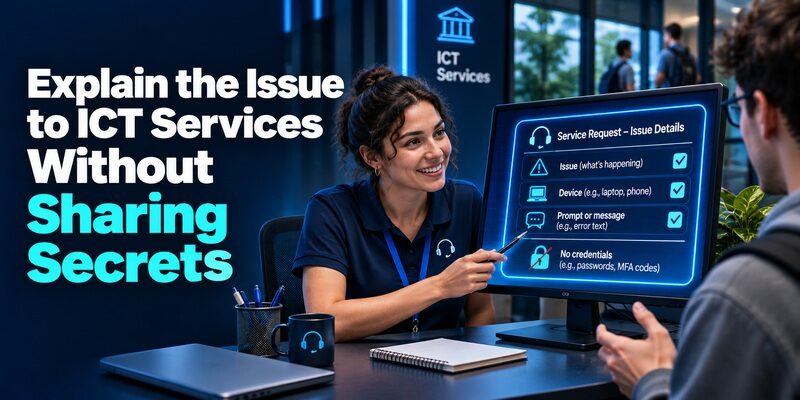
Start with the service, the account type, and the first unexpected screen. Explain whether the phone never received a prompt, received it only when the app opened, or accepted the HvA authenticator request but could not reach the intended application. If you changed phones, say which app was moved and whether the old device is still available.
Keep the QR, matching number, activation code, PIN, and password out of support messages. Use the authorized contact route in HvA’s guidance. When support asks you to retry, start the official sign-in yourself and check the actual account before confirming the request. Record the outcome and the resource that opened.
If an exam or class is imminent, tell support which service you need and when you need it. Ask the appropriate course or service owner about the separate resource if authentication passes. The HvA authenticator test and the course-access test can be verified independently.
If you use several devices on campus, note which one received the verified prompt and which account was selected in the browser. A borrowed computer or lab browser may show a different account selection screen. Use your own authorized credentials, avoid leaving a remembered session behind, and keep the HvA authenticator entry on your own approved mobile device. After a reset, confirm the service works from the computer you will use for class or work, while keeping the recovery route available.
Final Thoughts
Set up the HvA authenticator for Microsoft 365 using the official Microsoft Authenticator work or school enrollment and confirm the test request. Use Tiqr for the HvA services that require it. Check the service and account each time a verification prompt appears.
If the device is lost or the approval fails, use the official recovery route for your role and service. Verify the replacement phone in a clean sign-in, then confirm the intended course or work resource opens.
