
How to Disable Microsoft Authenticator: Personal & Office 365
Published August 15, 2026 · Updated October 20, 2026
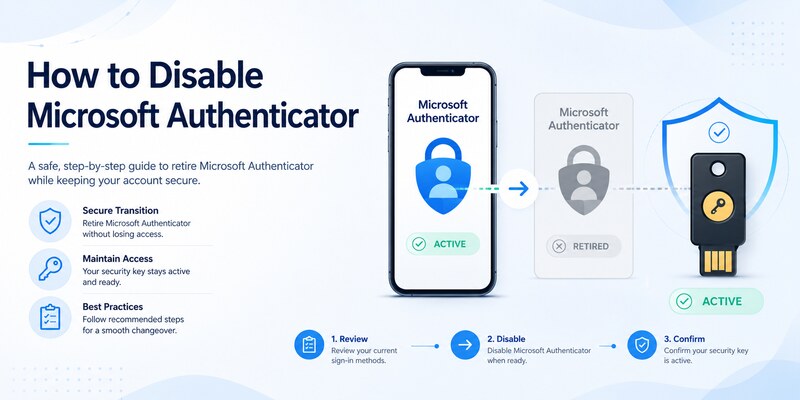
Want to stop using Microsoft Authenticator? The correct process depends on whether you have a personal Microsoft account, a Microsoft 365 work or school account, or a third-party account that uses the app for verification codes.
Quick Answer: To disable Microsoft Authenticator for a personal Microsoft account, sign in to Microsoft Account Security, open Manage how I sign in, and remove the Authenticator sign-in method if permitted. To turn off two-step verification entirely, find Additional security → Two-step verification → Turn off. For an Office 365 work or school account, visit Security info, add an approved replacement method, and remove the old Authenticator registration if your organization’s policy allows it.
Important: Removing Microsoft Authenticator from your phone does not automatically turn off two-factor authentication (2FA) or multifactor authentication (MFA) on your account. Set up and test another sign-in method before removing your existing one.
This guide explains how to disable Microsoft Authenticator, remove it from Microsoft 365, change authentication methods, and resolve problems when the Remove option is unavailable.
What Happens When You Disable Microsoft Authenticator?
Before making changes, understand what you are trying to disable.
Microsoft Authenticator can be used for verification codes, push approvals, passwordless sign-in, and organization-managed authentication.
Removing one of these methods does not necessarily remove all authentication requirements.
Removing the App vs Removing a Method vs Disabling MFA
| Action | What it changes | Does it disable MFA? |
|---|---|---|
| Uninstall Microsoft Authenticator | Removes the application from your phone | No |
| Remove an account inside Authenticator | Removes its local authentication information | No |
| Remove Authenticator from account security settings | Removes a registered verification method | Not necessarily |
| Turn off two-step verification for a personal Microsoft account | Changes the account’s two-step verification requirement | Yes, for that personal account setting |
| Remove an Office 365 Authenticator registration | Removes an approved method or device | No, if organizational MFA policy remains active |
| Change Microsoft Entra authentication policies | Changes permitted or required authentication methods | Depends on the policy |
The distinction is especially important for Microsoft 365.
An employee may be allowed to replace an authentication method without having permission to disable the organization’s MFA requirement.
Should You Disable Microsoft Authenticator?
Consider replacing the method instead of removing additional security entirely.
You may want to change Authenticator because:
- You bought a new phone.
- You lost access to the original device.
- You prefer a different authentication method.
- You are receiving notifications on an old phone.
- Your organization changed its authentication requirements.
- You no longer use a particular account.
If your goal is to switch phones, follow a proper migration process rather than disabling MFA unnecessarily.
For general setup and account-management information, see our Microsoft Authenticator guide.
Download Authenticator App
Secure your accounts with fast, reliable two-factor authentication. Download now and protect your login in seconds.
How to Disable Microsoft Authenticator for a Personal Account
Personal Microsoft accounts include accounts used for Outlook.com, Hotmail, OneDrive, Xbox, and other consumer Microsoft services.
These accounts have security settings separate from Microsoft 365 work and school accounts.
Step 1: Open Microsoft Account Security
- Visit Microsoft Account Security.
- Sign in to your personal Microsoft account.
- Select Manage how I sign in.
- Review the available verification and sign-in methods.
If Microsoft requests additional verification, complete it using a method you already control.
Step 2: Add an Alternative Sign-In Method
Before removing Authenticator, review your available alternatives.
Depending on your account, Microsoft may support:
- Passkeys.
- Security keys.
- Another registered authentication application.
- Other Microsoft-approved verification methods.
Choose an option supported by your account and complete enrollment.
Microsoft has been moving away from SMS for personal account authentication and recovery, so do not assume text messages will always be offered.
Step 3: Remove Microsoft Authenticator as a Sign-In Method
After confirming another method works:
- Return to Manage how I sign in.
- Locate the Authenticator registration you want to remove.
- Choose the available removal or management option.
- Confirm the change.
- Test your remaining sign-in method.
The exact interface depends on your account configuration.
If Microsoft requires the method for an active passwordless configuration, you may need to update that configuration first.
How to Turn Off Two-Step Verification for a Microsoft Account
If your intention is to disable two-step verification entirely:
- Visit Microsoft Account Security.
- Select Manage how I sign in.
- Find Additional security.
- Locate Two-step verification.
- Select Turn off.
- Follow the confirmation instructions.
Turning off two-step verification reduces the protection of your account.
Microsoft may still request security verification in some circumstances, and individual sign-in methods may remain registered.
If your goal is simply to stop using one phone, removing or replacing that device is generally preferable to turning off two-step verification.
How to Remove an Account From the Microsoft Authenticator App
If you no longer need a local account entry:
- Open Microsoft Authenticator.
- Select the account.
- Open the account’s settings using the gear icon.
- Tap Remove account.
- Confirm the removal.
This removes the account from that Authenticator installation.
It does not necessarily remove the server-side registration or disable MFA on the service.
For a dedicated explanation, read our Microsoft Authenticator remove account guide.
How to Disable Authenticator App for Office 365 Users
If you want to disable authenticator app Office 365 verification, the first question is whether your organization allows you to change the method.
Microsoft 365 work and school accounts are generally managed through Microsoft Entra ID.
An organization’s authentication policies may require MFA even when you remove an individual Authenticator registration.
Step 1: Open Your Microsoft 365 Security Info
- Visit Microsoft Security Info.
- Sign in with your work or school account.
- Review the authentication methods registered to your account.
- Find the Microsoft Authenticator entry you want to replace.
If you cannot open Security info because Authenticator is unavailable, use another registered sign-in method or contact your IT administrator.
Step 2: Add a Replacement Authentication Method
Select Add sign-in method.
Choose a method permitted by your organization.
Possible options include:
- Microsoft Authenticator on a replacement phone.
- A supported passkey.
- A FIDO2 security key.
- Another approved authentication method.
Not every organization permits SMS, voice calls, third-party authenticator apps, or every passkey type.
Follow your organization’s security requirements.
Step 3: Remove the Old Authenticator Registration
Once the replacement method is working:
- Return to Security info.
- Locate the old Microsoft Authenticator registration.
- Select Delete or the available removal control.
- Confirm the change.
- Sign in again using your replacement method.
If removal is blocked, your organization may require the existing method or restrict self-service changes.
Contact IT instead of repeatedly deleting and re-adding the account.
Can You Completely Turn Off MFA for Office 365?
A regular user generally cannot override organization-wide MFA requirements.
Even if an individual authentication method is removed, policies such as Security defaults, Conditional Access, or authentication method requirements may continue to enforce MFA.
The appropriate action is usually to replace the verification method rather than disable account protection.
How to Stop Office 365 Authenticator Prompts on an Old Phone
If approval requests still arrive on your previous phone:
- Confirm the new phone is registered and works.
- Open Security info.
- Remove the old device’s Authenticator registration.
- Review any additional device registrations required by your organization.
- Test a fresh sign-in.
Deleting the application from the old phone alone is not sufficient to unregister the device from Microsoft’s identity system.
For detailed migration instructions, see our Microsoft Authenticator change phone guide.
How Microsoft 365 Admins Manage Authenticator Requirements
Microsoft 365 administrators have additional controls for user authentication methods and organizational policies.
However, removing one user’s Authenticator registration is different from changing the MFA requirement for an entire organization.
How to Remove a User’s Microsoft Authenticator Method
An authorized administrator can use Microsoft Entra admin center:
- Sign in to Microsoft Entra admin center.
- Navigate to Entra ID → Users.
- Select the affected user.
- Open Authentication methods.
- Review the registered authentication methods.
- Select the specific Authenticator registration that needs to be removed, where supported.
- Confirm the change.
- Have the user register and test an approved replacement method.
The administrator must have the appropriate role and permissions.
For example, Authentication Administrator and Privileged Authentication Administrator roles have different scopes.
Avoid deleting unrelated methods when the issue concerns only one device.
When Should an Admin Require MFA Re-Registration?
Microsoft Entra provides a Require re-register MFA action for appropriate administrative scenarios.
This action can remove multiple existing authentication methods, including Authenticator registrations and other MFA methods, depending on the current implementation.
It should not be treated as the default way to remove a single device.
Use it when a broader authentication reset is necessary, such as when existing registrations cannot be trusted or the user needs a full MFA re-enrollment.
Plan a secure recovery path before applying the reset.
How to Change Organization-Wide Authentication Requirements
Organization-wide authentication requirements may be controlled through:
- Microsoft Entra authentication methods policies.
- Conditional Access policies.
- Security defaults.
- Authentication strengths.
- Other identity security configurations.
An administrator should determine which policy requires Microsoft Authenticator before changing it.
Removing a method from an authentication methods policy does not automatically mean all MFA requirements disappear.
A different policy may still require multifactor or phishing-resistant authentication.
For business-focused guidance, see our Microsoft Authenticator for business guide.
Should an Admin Disable MFA for All Users?
Generally, no.
Disabling MFA broadly can expose business email, cloud files, and administrative accounts to password-based attacks.
If users are having trouble with Microsoft Authenticator, consider approved alternatives such as passkeys, security keys, or another compliant authentication method.
For a lost device, resetting the affected user’s registration is usually more appropriate than weakening the organization’s security policy.
How to Replace Microsoft Authenticator Without Turning Off MFA
If your objective is to stop using Microsoft Authenticator while keeping your accounts protected, switching methods is often the safest approach.
Replace Microsoft Authenticator With Another App
For a third-party website using standard TOTP:
- Keep Microsoft Authenticator available.
- Sign in to the website.
- Open its 2FA settings.
- Select the option to change or replace the authenticator.
- Register the new app.
- Verify the generated code.
- Save updated recovery codes.
- Remove the old Authenticator entry only after testing.
For Microsoft work and school accounts, a different TOTP app may not support the push approval or authentication strength required by the organization.
Do not assume a third-party app is an acceptable substitute.
Replace Microsoft Authenticator With a Security Key or Passkey
Where supported, passkeys and FIDO2 security keys can provide phishing-resistant authentication.
To switch:
- Open the account’s official security settings.
- Add the supported passkey or security key.
- Complete the enrollment process.
- Test a fresh sign-in.
- Remove the old Authenticator registration only when permitted.
Some organizations may require more than one registered method.
Move Microsoft Authenticator to a New Phone
If you are replacing your phone, consider keeping Microsoft Authenticator rather than disabling it.
The safe sequence is:
- Prepare the old phone and available backups.
- Install Authenticator on the new phone.
- Restore eligible credentials if supported.
- Re-register Microsoft push approval or work accounts where required.
- Test all important accounts.
- Remove old device registrations.
- Erase the old phone only after successful migration.
Microsoft Authenticator backups do not restore every account type automatically.
For additional help, see our Microsoft Authenticator recovery guide.
How to Disable Microsoft Authenticator Notifications Without Removing MFA
If you only want fewer notifications, first identify what is generating them.
If the alerts are unexpected sign-in approvals, do not simply silence them. Someone may be attempting to access your account.
Instead:
- Deny requests you did not initiate.
- Review recent account activity.
- Update your password or security methods if needed.
- Contact your administrator for work or school accounts.
Turning off phone notifications may cause legitimate push-based authentication to fail.
If you prefer another authentication experience, register a supported replacement method.

Microsoft Authenticator Won’t Disable: Common Fixes
Sometimes the removal option is missing, disabled, or the account continues asking for Microsoft Authenticator after a change.
The Remove Option Is Missing or Greyed Out
Possible causes include:
- The account requires an authentication method.
- The organization restricts self-service removal.
- Authenticator is configured for passwordless sign-in.
- A security policy requires a particular authentication strength.
- You have not registered an approved replacement.
Check your account security settings and contact IT for managed accounts.
Office 365 Still Requires Microsoft Authenticator
This usually means an organizational authentication requirement remains active or the old registration has not been fully removed.
Ask your administrator to check the applicable Microsoft Entra policies and registered methods.
Do not assume that deleting the phone app will resolve the issue.
Microsoft Authenticator Still Sends Prompts to My Old Phone
The old device may still be registered.
Remove its authentication registration from your personal Microsoft account or your organization’s Security info page, then test the replacement device.
I Removed Authenticator and Now Cannot Sign In
Use another previously registered authentication method if available.
For a personal Microsoft account, follow Microsoft’s official recovery process.
For a work or school account, contact your IT help desk. An authorized administrator may be able to reset or re-register your authentication methods after verifying your identity.
Do not trust services claiming they can bypass Microsoft MFA.
Can I Re-Enable Microsoft Authenticator Later?
Yes, if the account or organization supports the method.
To re-enable it:
- Install the official Microsoft Authenticator app.
- Open the account provider’s security settings.
- Add Authenticator as a verification method.
- Scan the new QR code or follow the supported registration process.
- Complete verification.
- Test a fresh sign-in.
For setup instructions, read our Microsoft Authenticator QR code guide.
Frequently Asked Questions
How do I disable Microsoft Authenticator?
Open the official security settings of the account using Microsoft Authenticator, add a replacement verification method, and remove the Authenticator registration if allowed.
How do I disable Microsoft Authenticator for Office 365?
Visit Microsoft 365 Security info, register an approved alternative method, and remove the old Authenticator entry if organizational policy permits it.
Can I disable Microsoft Authenticator without disabling MFA?
Yes. You can often remove or replace the Authenticator method while keeping another approved MFA method active.
Can I turn off two-step verification for my personal Microsoft account?
Microsoft provides a Turn off option under Additional security and Two-step verification for eligible personal Microsoft accounts.
Can employees disable Office 365 MFA themselves?
Not when MFA is enforced by organizational policy. Employees may be able to change approved methods but cannot override administrator requirements.
Can a Microsoft 365 admin disable Authenticator for a user?
An authorized administrator can manage or remove user authentication registrations in Microsoft Entra. Whether the user must register another method depends on the organization’s policies.
Does deleting Microsoft Authenticator disable two-factor authentication?
No. Uninstalling the app does not automatically remove the service’s MFA requirement or registered device information.
How do I remove Microsoft Authenticator from my old phone?
Register and test the new device first, then remove the old authentication registration from your account security settings.
Why can’t I remove Microsoft Authenticator from Office 365?
Your organization may require the method, restrict changes, or enforce another policy that continues to require MFA.
Can I use Google Authenticator instead of Microsoft Authenticator for Office 365?
Only if your organization allows a compatible TOTP method. Google Authenticator does not replace Microsoft-specific push approvals or every Entra authentication requirement.
How do I stop Microsoft Authenticator approval requests?
Remove the old registration or switch to another supported authentication method. Deny unexpected requests and review your account security.
Will removing Microsoft Authenticator sign me out immediately?
Not necessarily. Existing sessions may continue, but administrators can revoke sessions separately. Future sign-ins may require another registered authentication method.
Can I remove Authenticator if I lost my phone?
You may need another registered method or administrator assistance before removing the lost device’s registration.
What happens if I remove my only authentication method?
You may lose access to your account or be required to register another method. Establish a working alternative before removal.
Is it safe to turn off Microsoft Authenticator?
Replacing it with another strong authentication method can be appropriate. Disabling all additional verification increases account risk.
Conclusion
Learning how to disable Microsoft Authenticator starts with identifying whether you want to remove the phone app, delete a registered authentication method, or turn off two-step verification.
For a personal Microsoft account, you can manage sign-in methods through Microsoft Account Security. For Office 365 work and school accounts, changes depend on Microsoft Entra policies and administrator permissions.
If you need to disable authenticator app Office 365 verification, the safest approach is usually to register an approved replacement method before removing the old Authenticator device.
Never delete your only working authentication method before confirming that you can still sign in.
For further guidance, explore our Microsoft Authenticator setup guide, Microsoft Authenticator remove account tutorial, and Microsoft Authenticator recovery guide.
