
Discord Two Factor Authentication: How to Enable It and Fix a Lost 2FA Code
Published September 9, 2026 · Updated October 5, 2026
Discord two factor authentication asks for a 6-digit code from an authenticator app on top of your password, so a stolen password alone can’t open your account. Here is how to turn it on, according to the Discord Help Center:
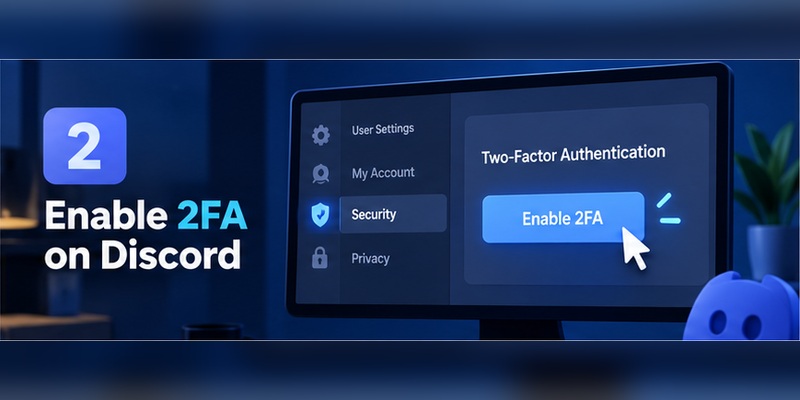
- Open Discord, click the cogwheel (User Settings), then go to My Account.
- Under Password and Authentication, click Enable Authenticator App.
- Scan the QR code with Google Authenticator, Authy or another authenticator app.
- Enter the 6-digit code and click Activate.
- Download your backup codes right away.
Discord two factor authentication lost? Choose Verify with something else → Use a backup code at the login screen. Discord Support cannot remove 2FA or issue new backup codes for you, so save the codes before you need them.
Does Discord have two factor authentication?
Yes. Discord has two factor authentication, which Discord calls Multi-Factor Authentication (MFA). The idea is the same: your password plus a second proof that you own the account. Discord two factor authentication protects far more than chats, because your account can hold server admin rights, paid subscriptions and private DMs. It lowers the risk but doesn’t make an account unhackable: phishing, malware and stolen sessions can still get around it.
Discord supports three methods, plus backup codes:
- Passkeys and security keys: unlocked with your fingerprint, face or screen lock. Discord recommends them because they resist phishing.
- Authenticator app: an app generates a new code every 30 seconds. It needs no signal and no text message.
- SMS: a code sent to your phone. Discord says it’s better than nothing but not recommended (SIM-swap attacks), and you can only turn it on after setting up an authenticator app.
Which 2-factor authentication Discord method is best?
A passkey is the strongest option. For most people, an authenticator app plus safely stored backup codes is the best simple setup, with SMS only as a fallback. One side effect: once you enable any Discord two-factor authentication method, Discord stops sending login verification emails.
Why does Discord need 2FA?
Discord accounts can contain far more than casual messages.
Your account may provide access to:
- Private conversations
- Community servers
- Moderation permissions
- Administrative roles
- Paid subscriptions
- Developer communities
- Business contacts
- Creator audiences
- Connected applications
- Personal information
For a server owner or administrator, a compromised account can also affect other people.
An attacker who gains access to a high-permission Discord account may attempt to:
- Remove moderators
- Change server settings
- Send phishing links
- Impersonate the account owner
- Target members
- Abuse bots or integrations
Discord two factor authentication creates another barrier between an exposed password and the account.
Does 2FA make a Discord account impossible to hack?
No.
2FA reduces risk; it does not eliminate every attack.
An attacker may still target:
- Active login sessions
- Malware-infected devices
- Phishing pages
- Stolen backup codes
- Compromised authentication apps
- Social engineering
- Browser tokens
That is why discord two factor authentication works best as part of a broader security setup rather than as the only protection you use.
Secure your accounts with fast, reliable two-factor authentication. Download now and protect your login in seconds.Download Authenticator App
How to Enable Discord Two Factor Authentication
The steps for how to enable two factor authentication on Discord are nearly identical on every device. You need your Discord login and a phone with an authenticator app.
On desktop or browser
- Click the cogwheel next to your username to open User Settings.
- Open My Account and find Password and Authentication.
- Click Enable Authenticator App.
- Open your authenticator app and scan the QR code shown by Discord.
- Type the 6-digit code into Login with your code and click Activate.
- Download your backup codes and store them away from your phone.
On the Discord mobile app
- Tap your avatar, then the cogwheel (top right).
- Tap Account, then Enable Authenticator App.
- Copy Discord’s secret key into your authenticator app, as the in-app instructions show.
- Enter the code your app generates to confirm.
- Save the backup codes Discord shows you.
Keep the QR code and secret key private. Anyone who has them can generate valid Discord codes.
Which authenticator app should you use for Discord?
Discord’s guide names Google Authenticator and Authy, and its blog also lists Microsoft Authenticator. Any app that supports the TOTP standard works. The real difference is recovery: Discord warns that not every authenticator syncs across devices or backs up to the cloud, so pick one that can restore your codes if your phone breaks. See our guide to a two-factor authentication app for how the options compare.
Don’t let one lost phone lock you out of Discord. Download Authenticator App by Begamob — free, no sign-up, with encrypted backup for your 2FA codes.
How do Discord backup codes work?
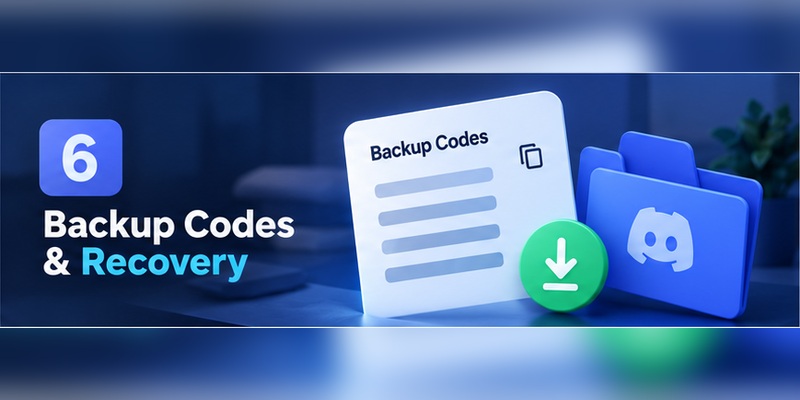
Backup codes are your safety net for Discord two factor authentication. Each is a one-time, 8-digit code that replaces your authenticator code at login.
- Find them: User Settings → My Account → View Backup Codes (Discord asks for your password), then download them.
- Use one: at the code prompt choose Verify with something else → Use a backup code, enter an unused code and click Confirm.
- Get new ones: if your authenticator still works, open View Backup Codes and choose Generate New Backup Codes.
- Store them well: in a password manager or a printed copy, never only on the phone that runs your authenticator.
If the “Use a backup code” option has disappeared, you have probably used all your codes.
Discord two factor authentication lost: how do you get back in?
If your Discord two factor authentication is lost because your phone is gone or the app was reset, try these in order:
- Backup code. Follow the steps above. This is the most reliable route.
- SMS code. Only if you added a phone number earlier: Verify with something else → Use a code sent to your phone.
- A device that’s still logged in. Check your desktop app, browser and tablet. Don’t log out of it — you can open View Backup Codes from there.
- Restore your authenticator. Apps such as Google Authenticator or Authy can restore codes from their own backup, if you turned it on.
Once you’re in, go to User Settings → My Account → Remove Authenticator App, then set Discord two factor authentication up again on your new phone.
Discord two-factor authentication lost and no backup codes?
This is the hard case. Discord states that if you can’t use a backup code, its Support team can’t remove 2FA or generate new codes. If you have no backup code, no SMS number, no logged-in device and no restorable authenticator, there is no official shortcut. Avoid anyone offering to “bypass” Discord two-factor authentication for a fee, since that is a common scam.
Why is my Discord 2FA code not working?
- Wrong phone time. Set date, time and time zone to automatic, then use the newest code.
- Expired code. Codes change every 30 seconds, so wait for the next one.
- Old or duplicate entry. Check you’re using the entry that matches your current Discord account.
- Deleted entry. Deleting a code in your authenticator does not turn off 2FA on Discord. Use a backup code instead.
How do I move or turn off Discord two-factor authentication?
Move it to a new phone
Do this before wiping the old phone. Use your app’s export or sync feature, then confirm the new phone generates a working Discord code. If the transfer fails and you’re still logged in, remove the authenticator and enroll again on the new phone. Keep your backup codes handy throughout.
Turn it off
Go to User Settings → My Account → Remove Authenticator App, then confirm with a code from your app or a backup code. Turning Discord two-factor authentication off makes your account easier to take over, so re-enable it when you can.
How can I make Discord two-factor authentication safer?
- Add a passkey or security key next to your authenticator. Discord allows up to 16 passkeys per account.
- Use a unique password that you haven’t used on any other site.
- Never share a code. Staff, “moderators” and Nitro giveaways never need your 6-digit code, backup code or QR code.
- Don’t scan QR codes from strangers, because they can approve a login on your account.
- Lock your phone with a PIN or biometrics, since it holds your codes.
- Server owners and admins: turn on 2FA first. One hijacked admin account can harm a whole community.
Want more step-by-step security guides? Explore Begamob for apps and tutorials that keep every account protected.
Discord Two Factor Authentication FAQ
How do I find my two-factor authentication code for Discord?
Open the authenticator app you linked (Google Authenticator, Authy, Microsoft Authenticator or similar), find the Discord entry and read the 6-digit code. It refreshes every 30 seconds. No app? Use an 8-digit backup code from View Backup Codes, or an SMS code if you enabled SMS.
Can you set up 2FA on Discord?
Yes. Go to User Settings → My Account → Enable Authenticator App, scan the QR code, enter the 6-digit code and save your backup codes. SMS can only be added after the authenticator is set up.
I lost my Discord account due to 2FA. How can I recover it?
Log in with an unused backup code (Verify with something else → Use a backup code), or request an SMS code if SMS was enabled, or use a device that’s still logged in. After you’re back in, choose Remove Authenticator App and enroll your new phone. Without any of these, Discord Support can’t remove 2FA for you.
How to get back into your Discord account without 2FA?
You can’t skip 2FA once it’s on. Your options are a backup code, an SMS code, a passkey or security key you added earlier, or an already logged-in device. Discord says its Support team can’t remove 2FA or issue new backup codes, so ignore third-party “bypass” offers.
What authenticator does Discord use?
Discord uses the TOTP standard, so Google Authenticator, Authy, Microsoft Authenticator and other TOTP apps all work. Read our Google Authenticator guide if you’re deciding between apps.
How often does a Discord authenticator code change?
Every 30 seconds. Discord also accepts the previous code, so you get roughly a one-minute window. For a comparison of TOTP apps, see Ente Auth vs Proton Authenticator.
Is SMS good enough for 2-factor authentication Discord accounts?
SMS is better than no 2FA, but Discord doesn’t recommend it because attackers can intercept texts or swap your SIM. Use an authenticator or passkey as your main method and keep SMS only as a backup.
Download Authenticator App
Secure your accounts with fast, reliable two-factor authentication. Download now and protect your login in seconds.
