
Authy App: Download, Setup & How to Use Authy 2FA
Published September 8, 2026 · Updated October 20, 2026
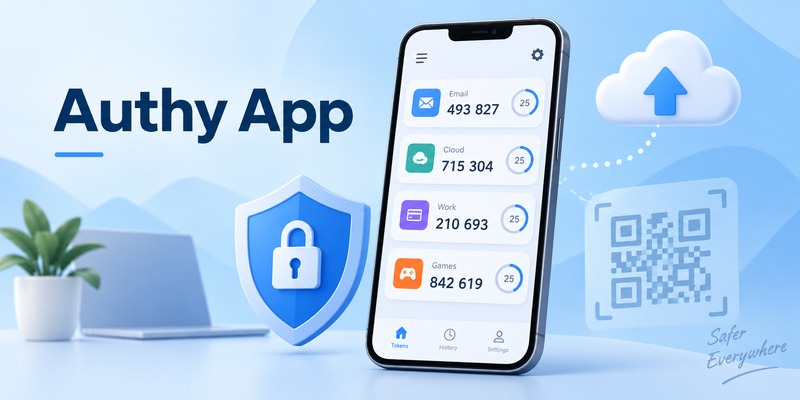
The Authy app is a two-factor authentication (2FA) application that generates temporary verification codes for compatible online accounts. Developed by Twilio, Authy helps protect accounts against unauthorized access when passwords are compromised.
Authy is best known for its encrypted token backups, support for multiple trusted mobile devices, and ability to generate standard time-based one-time passwords (TOTP) without an internet connection.
Quick Answer: To use the Authy app, download the official mobile application, register using your phone number, and enable authenticator-based 2FA in the security settings of the account you want to protect. Scan the setup QR code with Authy, enter the generated verification code to finish enrollment, and securely save the website’s recovery codes. Configure Authy backups and protect your backup password before changing devices.
Important update: Authy’s official desktop applications for Windows, macOS, and Linux were discontinued on March 19, 2024. Authy is now primarily a mobile authenticator for Android and Apple devices.
This guide explains how to download Authy, set up the Authy 2FA authenticator, manage backups, move to a new phone, recover missing codes, and compare Authy with other authentication apps.
What Is the Authy App?
Authy is a mobile authentication application used to generate one-time verification codes for websites that support compatible authenticator-based 2FA.
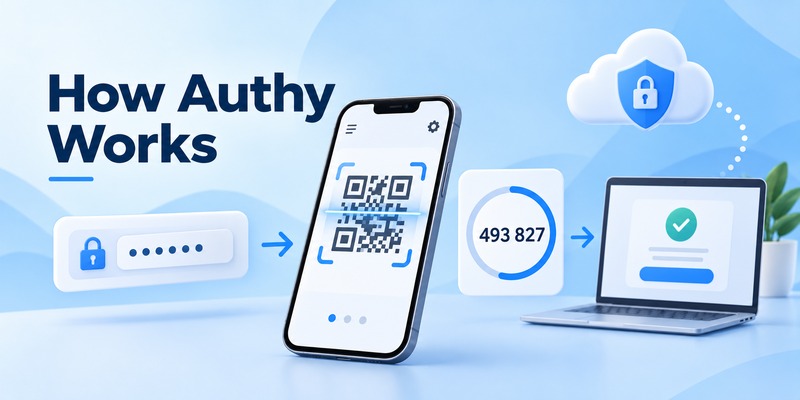
When you enable 2FA on a website, the service shares a secret with Authy through a setup QR code or manual key. Authy then uses that secret and the current time to generate temporary codes.
During sign-in, the website may require both your password and a code from Authy.
What Is Authy Used For?
You can use Authy to protect compatible accounts such as:
- Email and cloud services.
- Social media accounts.
- Developer platforms.
- Online marketplaces.
- Gaming accounts.
- Cryptocurrency-related services.
- Other websites supporting TOTP authentication.
Compatibility depends on the service. Some websites require proprietary approval methods instead of standard TOTP codes.
How Does the Authy 2FA Authenticator Work?
The Authy 2FA authenticator stores a separate authentication credential for each registered service.
Most standard TOTP codes contain six digits and refresh approximately every 30 seconds.
The website calculates the expected code independently and checks whether the code you enter is valid.
Authy does not replace your password. It adds another authentication step.
Is Authy Free?
The Authy mobile app is available for free to consumers for standard authenticator use.
Check the official download page for current platform availability.
Does Authy Work Offline?
Yes. Once an account has been registered, Authy can generate standard TOTP codes without mobile data or Wi-Fi.
Internet access is still needed for device registration, synchronization, backup restoration, and other account services.
Secure your accounts with fast, reliable two-factor authentication. Download now and protect your login in seconds.Download Authenticator App
How to Download and Set Up Authy
The safest way to download the Authy app is through its official website and linked mobile app stores.
Authy App Download for Android
- Open the official Authy download page.
- Choose the Android download option.
- Follow the link to Google Play.
- Install the official Authy application.
- Open the app.
- Follow the phone-number registration and verification process.
Avoid unofficial APK websites or modified application packages.
Authy App Download for iPhone and iPad
- Visit the official Authy download page.
- Choose the Apple mobile download option.
- Open the App Store listing.
- Install Authy.
- Launch the app.
- Register your phone number and complete device verification.
Protect your device with a strong passcode and biometric authentication when supported.
Can You Download Authy for Windows or Mac?
No supported official desktop version is currently available.
Authy’s Windows, macOS, and Linux desktop apps reached end of life on March 19, 2024.
Do not download an outdated desktop installer from a third-party website.
If you require a desktop authenticator, consider a currently supported alternative instead.
Step 1: Enable Two-Factor Authentication on a Website
Sign in to the account you want to protect.
Open its security settings and find an option such as:
- Two-factor authentication.
- Two-step verification.
- Authenticator app.
- Authentication app.
- TOTP.
Select the authenticator app option.
The website should display a setup QR code or a manual secret key.
Step 2: Scan the QR Code With Authy
Open Authy on your phone.
Choose the option to add an account or token.
Scan the QR code shown on the website.
If the service provides a manual setup key and Authy supports that enrollment method, enter the key instead.
Give the account a recognizable name if prompted.
Security warning: A setup QR code contains sensitive authentication information. Do not share screenshots of it or upload it to an unfamiliar QR-reading service.
Step 3: Verify the First Authy Code
After adding the account:
- Find the new token in Authy.
- Read the current verification code.
- Return to the website.
- Enter the code.
- Complete the enrollment process.
Wait for confirmation that 2FA has been enabled.
Step 4: Save Your Account Recovery Codes
Many websites provide recovery codes when you activate 2FA.
Save them in a secure location separate from your phone.
These codes may help you sign in if Authy becomes unavailable.
Do not confuse a website’s recovery codes with your Authy backup password. They serve different purposes.
How to Use Authy for Two-Factor Authentication
After setup, how to use Authy is straightforward.
You do not need to scan the setup QR code every time you log in.
How to Get an Authy Verification Code
When a website requests an authenticator code:
- Enter your username and password.
- Open Authy.
- Select the account you want to access.
- Read the current verification code.
- Enter the code on the legitimate website.
- Complete sign-in.
If the code is about to expire, wait for the next one.
How to Use Authy With Multiple Accounts
Authy can manage multiple compatible 2FA accounts.
Each account has its own token and generates separate verification codes.
Use clear account labels, particularly when you manage multiple usernames for the same service.
Authy also provides token search and organization features on supported mobile versions.
Is Authy Better Than SMS Codes?
Authy avoids some limitations of SMS authentication, including delayed text messages and certain phone-number takeover attacks.
Standard TOTP codes can also be generated without a mobile network connection.
However, Authy still uses a phone number for account registration, and TOTP codes can be stolen through phishing.
For stronger phishing resistance, use a supported passkey or FIDO2 security key when available.
Can You Share an Authy Code?
Never share a current Authy verification code with someone who contacts you unexpectedly.
Attackers may impersonate customer support and ask for a code after obtaining your password.
Only enter codes into the legitimate service where you initiated the sign-in.
Authy Backups, Multi-Device and New Phone Recovery
Encrypted backups and multi-device support are among Authy’s most important features.
They can help reduce the risk of losing access when a phone is replaced, damaged, or stolen.
However, they must be configured correctly.
How Does Authy Backup Work?
Authy supports encrypted backups of eligible authentication tokens.
When backups are enabled, Authy can synchronize encrypted token data to authorized devices.
The backup is protected by a password that you create.
You need that password to decrypt protected tokens on a newly registered device.
How to Enable Authy Backups
On a supported mobile version:
- Open Authy.
- Go to Settings.
- Find the Backups section.
- Enable backups if they are not already active.
- Create a strong, unique backup password.
- Confirm that your tokens have been backed up.
Menu labels may vary by app version.
Store your backup password securely in a trusted password manager or another protected location.
Authy Backup Password vs Protection PIN
These credentials are different.
| Credential | Purpose |
|---|---|
| Authy backup password | Encrypts and decrypts backed-up authentication tokens |
| Authy Protection PIN | Restricts access to the Authy app on a mobile device |
| Phone screen-lock PIN | Protects the operating system and device |
| Website recovery code | Helps recover a specific online account |
Your Authy Protection PIN does not decrypt your encrypted token backup.
Likewise, knowing your phone’s unlock code does not replace the backup password.
What Happens if You Forget Your Authy Backup Password?
Authy does not store your backup password in a recoverable form.
Twilio support cannot simply retrieve it for you.
If you still have an authorized device with accessible, decrypted tokens, check Authy’s current backup-password change or reset options before losing access to that device.
If you no longer have access to decrypted tokens and cannot unlock the backup, you may need to recover each underlying website account separately.
Do not erase an old phone while you are unsure whether your backup can be restored.
How to Use Authy on Multiple Devices
Authy supports multiple trusted mobile devices when the relevant enrollment setting permits it.
To add a backup device:
- Open Authy on your existing trusted device.
- Review the Devices or multi-device settings.
- Allow new-device registration if required.
- Install Authy on the second trusted mobile device.
- Complete the official registration process.
- Restore or decrypt the available tokens.
- Test important accounts.
- Restrict new-device enrollment again when appropriate.
Only register devices you control.
Should You Leave Authy Multi-Device Enabled?
For security, avoid allowing unnecessary new-device enrollment indefinitely.
A practical approach is to enable the setting only when adding a trusted device, verify the new device, and then disable further enrollment.
Existing registered devices may remain usable after new-device enrollment is restricted.
How to Move Authy to a New Phone
Before replacing your phone:
- Keep the old device active.
- Verify that your Authy backups are current.
- Confirm that you know the backup password.
- Save recovery codes for important services.
- Install Authy on the new phone.
- Complete the official device verification process.
- Restore your tokens.
- Enter the backup password when required.
- Test important sign-ins.
- Remove the old device only after the new phone works.
For broader migration advice, see our authenticator transfer guide.
What If You Lose Your Phone With Authy?
If your phone is lost:
If you have another trusted Authy device: Use it to access your tokens and review the registered-device list.
If backups were enabled: Follow Authy’s official new-device registration or recovery process, then decrypt the backup using your backup password.
If no usable backup exists: Use the recovery methods provided by each website you protected.
Authy account recovery and recovery of individual websites are not the same process.
How to Remove an Old Authy Device
Once your replacement device works:
- Open Authy on a trusted device.
- Go to Settings → Devices.
- Select the old or lost device.
- Choose the removal option.
- Confirm the change.
Review all registered devices periodically and remove those you no longer control.
Authy vs Google Authenticator and Other 2FA Apps
Authy and Google Authenticator both generate standard TOTP codes, but their recovery and account-management approaches differ.
Authy vs Google Authenticator
| Feature | Authy | Google Authenticator |
|---|---|---|
| Standard TOTP codes | Yes | Yes |
| Offline code generation | Yes | Yes |
| Mobile apps | Android and Apple devices | Android and iOS |
| Account registration | Uses a phone number | Google Account optional |
| Cloud synchronization | Encrypted Authy backup system | Optional Google Account sync |
| Multi-device support | Trusted-device model | Supported through sync or transfer |
| Official desktop application | Discontinued | No official native desktop app |
| Built-in token export | No official general export feature | Supports account transfer/export |
Authy may appeal to users who prefer its encrypted backup and trusted-device system.
Google Authenticator may be more convenient for people who want a simpler app and easier manual transfer between authenticators.
For a detailed comparison, read our Google Authenticator vs Authy guide.
Can You Export Authy Tokens to Another App?
Authy does not offer an official general-purpose token export feature.
If you want to switch to another authenticator, the supported approach is generally to visit each protected website and register a new authenticator credential.
A safe migration process is:
- Keep Authy installed and working.
- Sign in to the website using your existing 2FA method.
- Open its security settings.
- Find the option to change or replace the authenticator.
- Register the new application.
- Verify the new code.
- Save updated recovery codes.
- Remove the old Authy token only after confirming the replacement works.
Some services may require disabling and re-enabling authenticator-based 2FA.
Do not delete the original token first.
Authy vs Microsoft Authenticator
Microsoft Authenticator supports standard TOTP codes but also offers Microsoft-specific account and workplace authentication features.
Authy is primarily a general-purpose TOTP application.
It cannot be assumed to replace organization-managed Microsoft Authenticator push approvals.
For more information, read our Microsoft Authenticator guide.
Who Should Choose Authy?
Authy may be suitable if you:
- Primarily use mobile devices.
- Want encrypted backups.
- Prefer access from multiple trusted devices.
- Can securely maintain a backup password.
- Do not need built-in token export.
You may prefer another authenticator if you need official desktop support, want to avoid phone-number registration, or expect to migrate tokens frequently.
For more alternatives, see our best authenticator app comparison.
Authy App Not Working: Common Fixes
If the Authy app is not working, determine whether the issue involves a rejected verification code, missing token, device registration, or backup restoration.
Authy Code Is Invalid
If a website rejects your Authy code:
- Confirm that you selected the correct account.
- Enable automatic date and time on your phone.
- Wait for a fresh code.
- Enter it before expiration.
- Check whether the website’s 2FA registration has changed.
- Try a saved recovery method if needed.
Standard TOTP codes depend on accurate device time.
Authy Token Is Missing
If an account token disappears:
- Confirm that you are using the correct Authy account and device.
- Review backup and synchronization settings.
- Check another trusted device.
- Follow Authy’s official token-recovery guidance if applicable.
- Use the website’s recovery method if the token cannot be restored.
Avoid deleting or reinstalling Authy before checking your backup options.
Authy Is Not Syncing Between Devices
If tokens are not appearing on another phone:
- Check internet connectivity.
- Confirm that the device is properly registered.
- Verify that backups are enabled.
- Make sure you know the correct backup password.
- Check whether the relevant tokens are eligible for synchronization.
- Follow Twilio’s current Authy support instructions.
Do not assume a token has been restored until it is visible and produces a working code.
Authy New Device Registration Is Blocked
New-device enrollment may be restricted by your multi-device settings.
If you still have a trusted device, review those settings and follow the official process to authorize the replacement.
If all devices are lost, use Authy’s account recovery process.
Security waiting periods may apply.
Authy Backup Password Is Not Working
Check that you are entering the actual Authy backup password, not your phone PIN, Apple Account password, Google Account password, or Authy Protection PIN.
If you have an older trusted device with decrypted tokens, preserve access to it while reviewing supported recovery options.
Do not use untrusted tools that claim to decrypt Authy backups.
Authy Desktop App Is Not Working
This is expected for discontinued desktop versions.
Authy Desktop reached end of life on March 19, 2024.
Use the supported mobile app or consider another currently maintained authenticator if desktop access is essential.
Authy App Crashes or Will Not Open
Try:
- Restarting your phone.
- Updating Authy through the official app store.
- Updating the operating system.
- Checking available device storage.
- Reviewing official support information.
Only consider reinstalling after confirming that your tokens can be restored.
Authy Security Best Practices
To protect your authentication credentials:
- Use a strong phone screen lock.
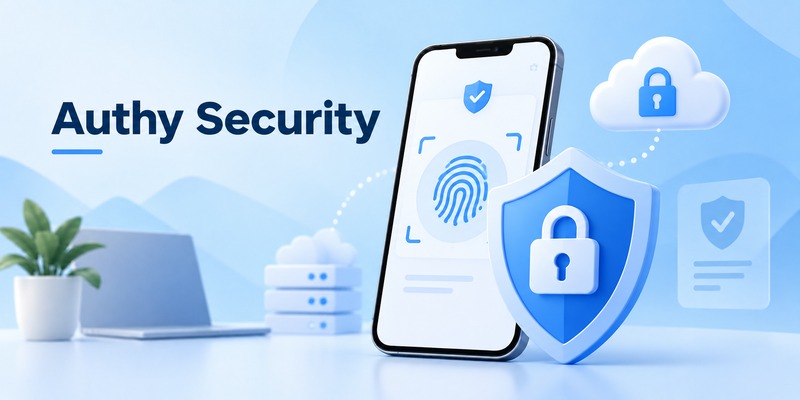
- Enable Authy Protection PIN or biometric security where supported.
- Keep Authy updated.
- Protect your backup password.
- Restrict unnecessary new-device enrollment.
- Remove lost or unused devices.
- Store website recovery codes separately.
- Never share live codes or setup QR codes.
- Use passkeys or security keys for phishing resistance where supported.
Frequently Asked Questions
What is the Authy app?
Authy is a mobile two-factor authentication application that generates temporary verification codes for compatible online accounts.
Is Authy free to use?
Yes. The consumer Authy mobile app is available for standard 2FA use without a subscription fee.
How do I download the Authy app?
Visit the official Authy download page and follow its links to the supported mobile app stores.
Is Authy available for Android and iPhone?
Yes. Authy supports Android and Apple mobile devices.
Can I use Authy on Windows or Mac?
No supported official desktop application is available. Authy Desktop reached end of life in March 2024.
How do I set up Authy 2FA?
Install Authy, complete phone-number registration, enable authenticator-based 2FA on a compatible website, scan the setup QR code, and verify the generated code.
Does Authy work without internet?
Yes. Existing standard TOTP codes can be generated offline. Registration, backups, and synchronization may require connectivity.
Can Authy manage multiple accounts?
Yes. You can register separate authentication tokens for multiple compatible websites.
What is an Authy backup password?
It is a password used to protect and decrypt encrypted Authy token backups.
Is the Authy backup password the same as the PIN?
No. The backup password protects encrypted backups, while the Protection PIN restricts access to the app on a device.
Can Authy recover a forgotten backup password?
Authy cannot retrieve the original backup password. Recovery options depend on whether you still have access to an authorized device with decrypted tokens.
Can I use Authy on multiple phones?
Yes, when the supported multi-device registration process is configured.
How do I transfer Authy to a new phone?
Register the new device through Authy’s official process, restore available tokens, enter the backup password when required, and verify important accounts before removing the old phone.
What if I lose my phone with Authy?
Use another trusted device, restore an available encrypted backup, or recover the individual protected accounts through their official recovery methods.
Can I export Authy tokens to Google Authenticator?
Authy does not provide an official general-purpose token export feature. You will usually need to reconfigure 2FA for each service using the new authenticator.
Why is my Authy code not working?
Common causes include incorrect device time, an expired code, selecting the wrong account, or an outdated authenticator registration.
Is Authy safer than SMS?
Authy avoids some SMS-related risks, but TOTP codes can still be phished. Passkeys and FIDO2 security keys provide stronger phishing resistance when supported.
Does deleting Authy disable 2FA?
No. Deleting the app does not automatically disable two-factor authentication on the websites connected to it.
Conclusion
The Authy app is a practical mobile authenticator for users who want temporary 2FA codes, encrypted backups, and controlled access from multiple trusted devices.
To use the Authy 2FA authenticator safely, install the official app, register your accounts, verify the first code, and save recovery information.
Before replacing a phone, confirm that your backup password works and that your tokens can be restored.
Remember that Authy’s desktop apps are discontinued and that switching to another authenticator may require reconfiguring each account.
For additional guidance, explore our two-factor authentication app guide, authenticator transfer tutorial, and Google Authenticator vs Authy comparison.
