
How to Remove microsoft authenticator remove account Safely
Published August 14, 2026 · Updated September 25, 2026

A safe microsoft authenticator remove account process separates the mobile app tile from the authentication method stored by the provider. Deleting a tile can erase local codes without unregistering the phone server-side, while removing only the provider method can leave a harmless stale tile in the app.
Before deleting anything, preserve another way to sign in and test it. Recovery codes, a security key, an alternate factor, a trusted session, another registered device, or administrator assistance can prevent lockout.
This guide covers local removal, server-side cleanup, managed identities, missing Remove options, accidental deletion, and secure phone retirement.
1.Quick Answer: How to Remove an Account from Microsoft Authenticator
To remove an account from Microsoft Authenticator:
- Open Microsoft Authenticator.
- Select the account you want to remove.
- Tap the Settings gear for that account.
- Tap Remove account.
- Confirm the removal if prompted.
Microsoft warns that after removing the account, that device can no longer be used to verify sign-ins for the removed account.
Removing the entry from Authenticator does not necessarily disable two-factor authentication on the website or Microsoft account itself.
Before removing anything, make sure you still have at least one working sign-in method such as:
- another Authenticator device,
- a security key,
- SMS or phone verification,
- backup codes,
- email verification,
- or another approved MFA method.
If this is your only authentication method, removing it first could make it difficult or impossible to sign in.
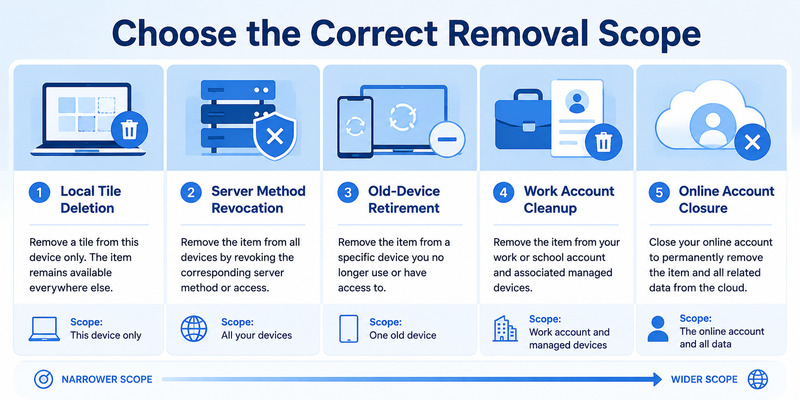
Deleting Authenticator itself is broader than removing one entry and can erase many local credentials. Clearing app storage has similar risk. Neither should be used as a shortcut for a single-account problem.
Write down the provider, full username, tenant, credential type, current phone, registered devices, and desired result. This short inventory makes microsoft authenticator remove account precise and reversible until testing is complete.
Add a rollback column to the inventory. Record which trusted session or fallback can restore access if removal produces an unexpected prompt. A planned microsoft authenticator remove account change should always have a tested path back before the first deletion.
🗺️ Browse How-To Guides: Microsoft Authenticator Code Not Working: How to Fix It
2. Before You Remove an Account: Check These 3 Things
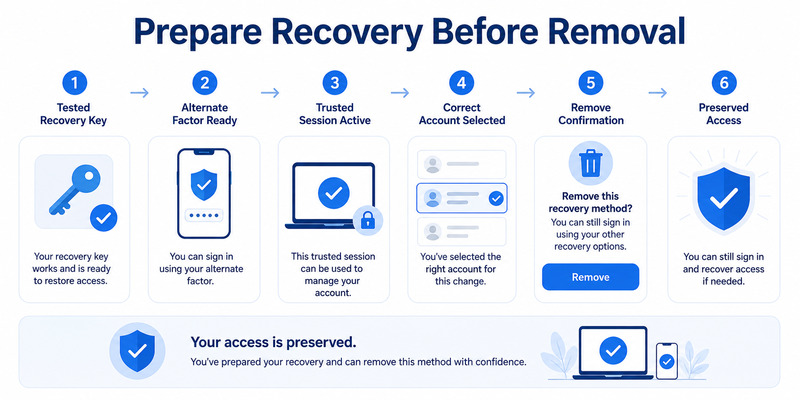
Removing an account takes only a few seconds, but the consequences can be much bigger.
Before tapping Remove account, check the following.
1. Do You Have Another Way to Sign In?
This is the most important check.
Make sure the account has another working authentication method before removing Authenticator.
For a Microsoft account, this might include:
- another Microsoft Authenticator registration,
- phone number,
- email address,
- passkey,
- security key.
For a work or school account, your organization may require Microsoft Authenticator specifically.
If Authenticator is your only MFA method, add and test another method first.
2. Are You Removing the Account or Disabling MFA?
These are different actions.
Removing the account from Microsoft Authenticator removes the account entry from the app on that phone.
It does not automatically mean:
- MFA is turned off,
- the account is deleted,
- the password is changed,
- the security method is removed from the online account.
If your goal is to completely stop using Microsoft Authenticator as a sign-in method, you may also need to remove it from the account’s online security settings.
3. Is This an Old Device or Your Current Device?
If you are cleaning up an old phone, make sure your new phone is already configured and working.
Do not remove the old Authenticator entry until:
- the new device can generate codes,
- push approvals work,
- account recovery methods are available.
If you are moving phones, read the dedicated Microsoft Authenticator transfer or recovery guide before deleting anything.
Download Authenticator App
Secure your accounts with fast, reliable two-factor authentication. Download now and protect your login in seconds.
🗺️ Browse How-To Guides: Why Is My Microsoft Authenticator Not Working? Fixes
3.How to Remove One Account from Microsoft Authenticator
Microsoft currently provides a simple account-level removal process.
Step 1: Open Microsoft Authenticator
Open the Microsoft Authenticator app on your phone.
You will see a list of accounts that have been added to the app.
These may include:
- Microsoft personal accounts,
- work accounts,
- school accounts,
- third-party accounts using TOTP codes.
Step 2: Select the Account You Want to Remove
Tap the specific account you want to delete from the app.
Be careful if you have multiple accounts with similar email addresses or organization names.
For example:
- personal Microsoft account,
- work Microsoft account,
- previous employer account.
Make sure you select the correct one.
Step 3: Open Account Settings
Tap the Settings gear for that account.
Microsoft’s current instructions use this account-level settings menu for removal.
Step 4: Tap Remove Account
Choose:
Remove account
Microsoft will remove that account entry from Authenticator.
Step 5: Confirm If Prompted
If the app asks you to confirm, review the account one last time and proceed.
After the account is removed, that phone can no longer use that Authenticator entry to verify sign-ins for the account.
4.What Happens After You Remove an Account?

This is the most important part of the process.
The Account Entry Disappears from the App
The account will no longer appear in Microsoft Authenticator on that device.
You will lose access to:
- verification codes generated by that entry,
- push approvals for that registration,
- local Authenticator access for the account.
Your Online Account Is Not Automatically Deleted
Removing the Authenticator entry does not delete the Microsoft, work, school, or third-party account itself.
Your:
- email,
- password,
- files,
- subscriptions,
- Microsoft 365 data,
- online account
remain separate.
MFA May Still Be Enabled
This is where users often get locked out.
The online service may still expect Authenticator verification even though you removed the Authenticator entry.
For example:
- Microsoft account still requires MFA.
- You remove Authenticator from your phone.
- You try to sign in later.
- Microsoft asks for Authenticator approval.
- That Authenticator registration is no longer available on the phone.
If no backup sign-in method exists, account recovery may become necessary.
Removing an Account vs Removing Authenticator as a Sign-In Method
These should be treated as two separate actions.
Option 1: Remove the Account from the App
This is a local action.
Path:
Microsoft Authenticator → Account → Settings → Remove account
Result:
The entry disappears from that device.
Option 2: Remove Microsoft Authenticator from Account Security Settings
This changes the authentication method associated with the online account.
For Microsoft personal accounts, this is managed through Microsoft’s security settings.
Microsoft recommends adding a new verification method before removing an existing one.
This is the correct route if your goal is:
- stop using Authenticator permanently,
- replace Authenticator with another MFA method,
- remove an old security registration,
- clean up outdated sign-in methods.
Do not confuse these two operations.
How to Safely Remove Microsoft Authenticator from an Old Phone
If you have moved to a new phone, use this order.
Step 1: Set Up Microsoft Authenticator on the New Phone
Make sure the account appears on the new device.
Step 2: Test Authentication
Sign in to the account and confirm that:
- push notifications arrive,
- codes work,
- account approval succeeds.
Step 3: Check Backup Sign-In Methods
Make sure you still have access to at least one additional method.
Step 4: Remove the Account from the Old Phone
Only after the new device works should you remove the old Authenticator entry.
Step 5: Review Online Security Methods
Check your Microsoft account or organization security settings.
Remove the old device registration if it is still listed.
This is safer than simply deleting the app from the old phone.
🗺️ Browse How-To Guides: Microsoft Authenticator App Not Showing Code: How to Fix It
5. How to Remove an Old Work or School Account
Old work accounts are one of the most common reasons people want to remove Microsoft Authenticator entries.
For example, you may see:
even though you no longer work there.
Step 1: Open the Old Work Account
Tap the account inside Microsoft Authenticator.
Step 2: Open Settings
Tap the settings gear.
Step 3: Choose Remove Account
Remove the old entry.
Step 4: Check Whether the Organization Still Manages the Device
Some work or school environments use:
- Microsoft Entra ID,
- Conditional Access,
- device registration,
- company portals.
Removing an Authenticator account does not necessarily unregister the device from the organization.
If the phone still appears as a registered work device, additional cleanup may be required through the work account portal or IT administrator.
How to Remove All Accounts from Microsoft Authenticator
Do not use this method if you only need to remove one account.
Microsoft currently documents full app-data removal methods for signing out completely.
Android
Microsoft’s current process is:
- Open device Settings.
- Go to Apps.
- Select Authenticator.
- Open Storage or Storage & cache.
- Tap Clear data.
- Confirm.
This removes all Authenticator accounts stored in the app.
iPhone
Microsoft currently documents an iOS reset workflow through device storage settings.
Do not perform a full reset unless your intention is to remove every Authenticator account.
There is no simple undo after deleting all app data.
6. What Happens If You Remove the Wrong Account?
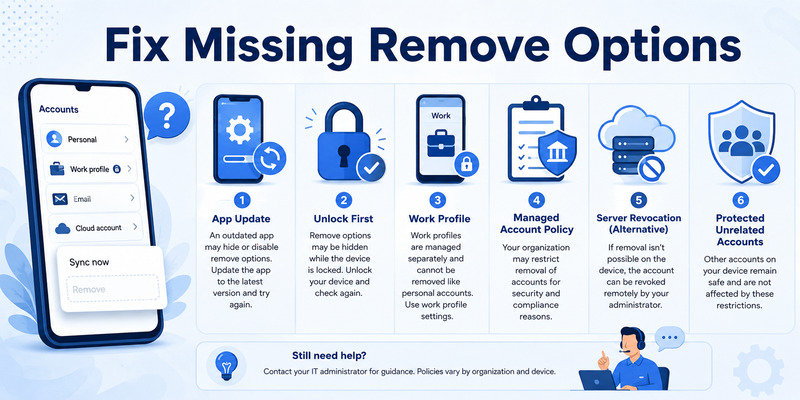
If you accidentally remove an account, the Authenticator entry itself is gone from that device.
What happens next depends on whether you still have another way to access the online account.
If You Can Still Sign In
This is the easiest scenario.
- Sign in to the account.
- Open security or MFA settings.
- Add Microsoft Authenticator again.
- Scan the new QR code.
- Verify the setup.
If You Have Another Verification Method
Use:
- email,
- SMS,
- another authenticator,
- security key,
- backup code.
Then re-register Microsoft Authenticator.
If Authenticator Was Your Only Method
You may need account recovery.
For a personal Microsoft account, use Microsoft’s account recovery tools.
For work or school accounts, contact the organization’s IT administrator.
This is why you should always check recovery options before removing Authenticator.
Will Removing an Account Disable 2FA?
Usually, no.
Removing an account from Microsoft Authenticator does not automatically disable two-factor authentication on the service.
Think of it this way:
Online account: “I require a second factor.”
Authenticator app: “I store the credential used to provide that factor.”
Removing the credential from the app does not necessarily change the rule on the online account.
If you actually want to disable Microsoft Authenticator or replace it with another method, change the security settings on the account itself.
Should You Remove Microsoft Authenticator Before Deleting the App?
If you still rely on Authenticator for important accounts, do not simply uninstall the app.
Before deleting it:
- Back up supported Authenticator data.
- Confirm recovery options.
- Move Authenticator to the new phone if necessary.
- Test your accounts.
- Remove obsolete registrations.
- Only then uninstall the app.
Deleting the app without preparing recovery options can make future sign-in much more difficult.
🗺️ Browse How-To Guides: Microsoft Authenticator: Complete Setup, Login, Backup & Troubleshooting Guide
Remove Account vs Disable Authenticator vs Delete App
These actions have different outcomes.
| Action | What it does |
|---|---|
| Remove account from Authenticator | Removes one entry from the app |
| Remove all accounts | Clears Authenticator account data |
| Disable Authenticator as sign-in method | Changes online security configuration |
| Delete/uninstall Authenticator | Removes the app from the phone |
| Delete Microsoft account | Closes the Microsoft account itself |
Do not use these actions interchangeably.
Common Problems After Removing an Account
Microsoft Still Asks for Authenticator
This usually means Microsoft Authenticator is still registered as a security method online.
Use another available sign-in method and update the account’s security settings.
I Removed My Work Account but Still Get Organization Prompts
The device may still be registered with your organization.
Check:
- work or school account settings,
- company portal,
- registered devices,
- organization security page.
Your IT administrator may need to remove the device.
I Removed Authenticator and Cannot Sign In
Use another configured verification method.
If none exists, start the appropriate recovery process.
The Old Phone Still Appears in My Account
Removing the Authenticator entry and removing the device registration are not always the same thing.
Review the device and security-method lists in your Microsoft account.
🧭 Explore Guides: How to Use Microsoft Authenticator: Complete Guide
When Should You Remove an Account from Microsoft Authenticator?
Removing an account makes sense when:
- you no longer use the account,
- you left an old employer,
- you accidentally added the same account twice,
- your new phone is already configured,
- the account has been deactivated,
- you are cleaning up unused entries.
Do not remove the account yet if:
- Authenticator is your only sign-in method,
- your new phone has not been tested,
- you do not have recovery options,
- you still need access to the old work account.
Microsoft Authenticator Removal Checklist
Before removing:
- Verify the correct account.
- Check another sign-in method exists.
- Back up Authenticator if needed.
- Test the replacement phone.
- Confirm work or school recovery options.
Then:
- Open Authenticator.
- Select the account.
- Open Settings.
- Tap Remove account.
- Confirm removal.
After removing:
- Test account sign-in.
- Review online security methods.
- Remove stale device registrations if necessary.
- Re-add Authenticator if you deleted the wrong entry.
Frequently Asked Questions
Does removing an account from Microsoft Authenticator delete the Microsoft account?
No.
It removes the Authenticator entry from the device, not the Microsoft account itself.
Can I undo removing an account?
There is no simple undo button.
You may need to add the account to Authenticator again.
Will I still be able to sign in?
Yes, if you have another valid sign-in method.
If Authenticator was your only verification method, you may need account recovery.
Does removing Microsoft Authenticator turn off MFA?
Not necessarily.
MFA settings are controlled by the online account or organization.
Can I remove an old work account?
Yes.
But if the device is still registered with your organization, additional cleanup may be required.
Should I remove the old account before moving to a new phone?
No.
Set up and test Authenticator on the new phone first.
Can I remove all Microsoft Authenticator accounts at once?
Yes, but this clears Authenticator account data and should only be used when you genuinely want to reset the entire app.
Final Takeaway
To remove an account from Microsoft Authenticator, open the account, tap its Settings gear, and choose Remove account.
The process itself is simple.
The important part is what happens afterward.
Removing the entry means that device can no longer verify sign-ins for that account, while the online account may still require Authenticator or another second factor.
Before removing anything:
- add another sign-in method,
- confirm recovery access,
- test your new phone if you are migrating,
- and review the account’s online security settings afterward.
If you only want to manage, rename, add, or organize Authenticator accounts rather than delete one, continue to the site’s Microsoft Authenticator account management guide.
If you already removed the account and cannot sign in, use the dedicated Microsoft Authenticator recovery guide instead.
Download Authenticator App
Secure your accounts with fast, reliable two-factor authentication. Download now and protect your login in seconds.
