
QR Code for Microsoft Authenticator: Where to Find It and How to Get It
Published August 13, 2026 · Updated October 5, 2026
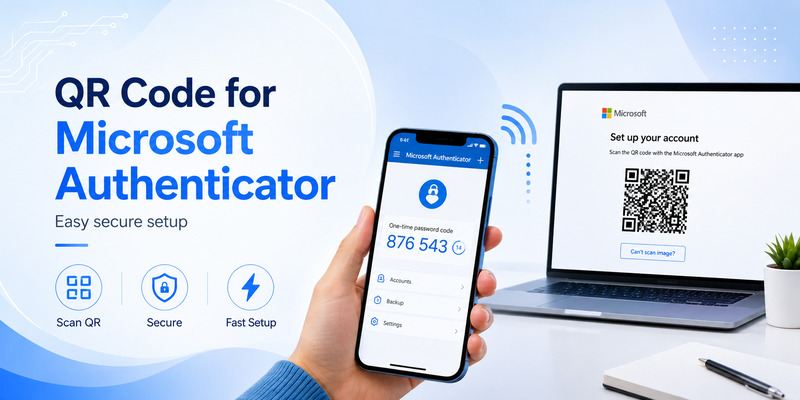
If you are trying to connect Microsoft Authenticator to an account, one of the first things you are likely to encounter is a qr code for microsoft authenticator. The code normally appears on the security page of the account or service you are configuring and transfers the information Authenticator needs to create the correct authentication credential.
The important detail is that there is not one universal qr code for microsoft authenticator that works with every account. A personal Microsoft account generates its own setup information. A work or school account displays a QR code through its Security info enrollment process. Google and other third-party services generate their own QR codes, which Microsoft Authenticator can scan as an Other account. Microsoft currently supports personal Microsoft accounts, work or school accounts, and compatible non-Microsoft accounts in Authenticator.
Another common source of confusion is that Microsoft also displays QR codes for downloading Authenticator from an app store, while passkey workflows can display a QR code for cross-device sign-in. Those codes serve different purposes from the qr code for microsoft authenticator used when enrolling an account.
This guide explains exactly where the setup QR code comes from, how to scan it, what to do if it does not appear, and how to avoid the most common setup mistakes.
1. What Is a QR Code for Microsoft Authenticator?
Quick answer: The QR code for Microsoft Authenticator is not inside the app. It appears in your browser, on the security page of the account you want to protect, after you choose to add an authenticator app. To get QR code for Microsoft Authenticator, sign in on a computer, start adding Authenticator as a sign-in method, then scan the code with your phone.
| Your account | Where the QR code appears | In the app, choose |
|---|---|---|
| Personal Microsoft account | account.microsoft.com/security → Manage how I sign in → Add a new way to sign in or verify → Use an app | Personal account |
| Work or school account | mysignins.microsoft.com/security-info → Add sign-in method → Microsoft Authenticator | Work or school account |
| Gmail or another website | The site’s own 2FA / two-step verification settings → Authenticator app | Other account |
Don’t have an authenticator app for your other accounts yet? Download Authenticator App by Begamob — free, no sign-up, with biometric lock and encrypted backup.
Download Authenticator App
Secure your accounts with fast, reliable two-factor authentication. Download now and protect your login in seconds.
Where Is the QR Code for Microsoft Authenticator?
The QR code for Microsoft Authenticator is shown on a web page, not stored in the phone app. Every account creates its own code during setup, so there is no single QR code for Microsoft Authenticator that you can download, request or have emailed. Microsoft does not send these codes by email for security reasons.
If you are asking where to find QR code for Microsoft Authenticator, the answer is always the same: start the “add authenticator” process on a computer, and the QR code for Microsoft Authenticator appears on the scanning step. Your phone only scans it. The code is tied to the account you are signed in to in the browser.
How to find QR code for Microsoft Authenticator: setup code vs. download code
Microsoft also shows QR codes that only open the App Store or Google Play. If scanning takes you to a store page, you scanned an install code, not the QR code for Microsoft Authenticator setup. The real setup code appears only after you choose to add Authenticator as a verification method. (Passkey sign-in can show a QR code too, but that is a separate cross-device feature.)
2. How to Get a QR Code for Microsoft Authenticator on a Personal Account?
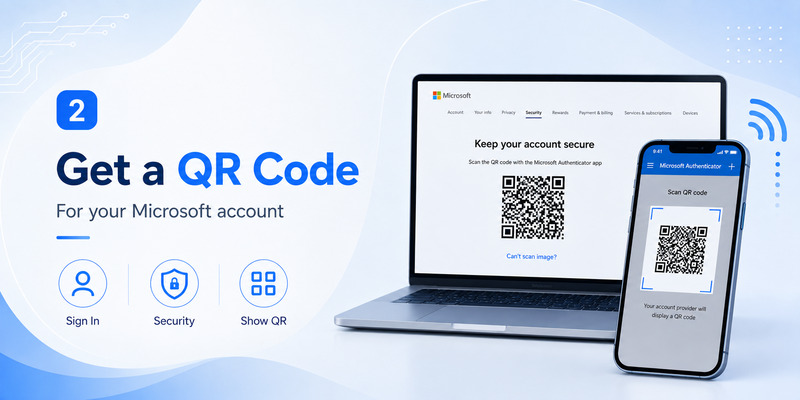
For a personal Microsoft account (Outlook, Hotmail, OneDrive, Xbox), the QR code for Microsoft Authenticator comes from your Microsoft account security settings:
- On a computer, go to account.microsoft.com/security and sign in.
- Select Manage how I sign in.
- Select Add a new way to sign in or verify, then Use an app.
- If Authenticator is already installed, select Set up a different Authenticator app, then Next. The QR code appears. If it is not installed, select Get it now first.
- On your phone, open Microsoft Authenticator, tap +, choose Personal account, then Scan a QR code.
Can’t scan? Select I can’t scan the bar code on the computer, then Enter code manually in the app. Once the QR code for Microsoft Authenticator is scanned and the account appears in the app, you don’t need the setup image again.
🧭 Explore Guides: Is Microsoft Authenticator Free to Use? Everything You Need to Know
3. Where to Get QR Code for Microsoft Authenticator on a Work or School Account?
For a Microsoft 365, company or university account, the QR code for Microsoft Authenticator is on the Security info page, or in the “Keep your account secure” wizard if your organization forces registration at sign-in:
- On a computer, go to mysignins.microsoft.com/security-info and sign in with your work or school account.
- Select Add sign-in method, then Microsoft Authenticator.
- Install the app if needed, then keep selecting Next until you reach Scan the QR code.
- On your phone, open Authenticator, choose Add account → Work or school account, then scan the code.
- Approve the test notification Microsoft sends to finish registration.
Your administrator controls which methods are allowed. If Microsoft Authenticator isn’t listed, no hidden QR code for Microsoft Authenticator will fix it — ask your IT team to enable the method. If you can’t scan, look for the Can’t scan the QR image option to get a code and URL for manual entry.
Download Authenticator App by Begamob — secure 2FA codes with biometric lock
💡 Discover Helpful Guides: Microsoft Authenticator Passwordless Sign-In: Complete Guide
4. How to Get Microsoft Authenticator QR Code for New Phone?
A new phone means you register your accounts again, because each account’s QR code for Microsoft Authenticator is created per setup. If you wonder how to get a QR code for Microsoft Authenticator again on a new device, the steps are the same as the first time. The safest order, while your old phone still works:
- Install Microsoft Authenticator on the new phone.
- On a computer, open your account security page (personal: account.microsoft.com/security; work or school: mysignins.microsoft.com/security-info).
- Add a new sign-in method → Authenticator, and scan the new QR code for Microsoft Authenticator with the new phone.
- Approve the test notification.
- Remove the old phone from the security page.
Can’t reach the Microsoft Authenticator QR code for new phone because the old phone is gone? This is the loop many users report: the security page asks for Authenticator, but Authenticator isn’t set up on the new phone. For a work or school account, contact your IT administrator to reset your MFA so you can get a new QR code for Microsoft Authenticator and re-register. For a personal account, choose another verification option on the sign-in screen (an email or phone number you added earlier). If none is available, use Microsoft’s account recovery form. New to the app? Our Microsoft Authenticator setup guide covers the install side.
5. How to Generate QR Code for Microsoft Authenticator for Gmail and Other Accounts?
You can’t generate QR code for Microsoft Authenticator yourself, and a random online QR generator won’t work. The QR code for Microsoft Authenticator must come from the service you are protecting, because it contains that service’s secret key.
Microsoft Authenticator can store non-Microsoft accounts, including Google. For Gmail, open your Google Account security settings, set up an authenticator app under two-step verification, and let Google display the code. Then open Authenticator, choose Add account → Other account, and scan it. The same applies to most websites: look under Security, Two-Factor Authentication or MFA, choose Authenticator app, and that site shows the QR code. When you wonder where to get QR code for Microsoft Authenticator for a non-Microsoft account, the answer is that site’s own 2FA page — never the Microsoft account page. That is the real answer to how to generate QR code for Microsoft Authenticator: let the service generate it, and let the app scan it.
💡 Discover Helpful Guides: Microsoft Account App: Setup, Security & Sign-In Guide
How to Scan the QR Code for Microsoft Authenticator and Fix Common Errors?
Show the QR code for Microsoft Authenticator on a second screen (laptop, monitor or tablet), open the scanner inside Authenticator, and keep the whole square in the frame. Pick the right account type first (Personal, Work or school, or Other), and allow camera access. You don’t need to take a photo. After scanning, check that the account appears, and finish the confirmation step in the browser.
If you are still trying to work out how to find QR code for Microsoft Authenticator after a failed scan, match your symptom here:
| Problem | Fix |
|---|---|
| Scan opens the App Store or Google Play | You scanned a download code. Go back to the security page and continue until the scan step. |
| “Already used”, invalid or expired code | Start a fresh enrollment from the security page. Don’t reuse an old screenshot of the QR code for Microsoft Authenticator. |
| Camera blocked or damaged | Use manual entry: I can’t scan the bar code (personal) or Can’t scan the QR image (work or school). |
| Scan works but account isn’t active | Return to the browser and approve the test notification. |
| No Authenticator option on a work account | Your admin hasn’t enabled it. Contact IT. |
FAQ
Quick answers to what people ask most, such as how do I get a QR code for Microsoft Authenticator when I have no computer.
Can I get the QR code for Microsoft Authenticator by email?
No. Microsoft does not email setup codes. So where is the QR code for Microsoft Authenticator? Only on the security page you open yourself: sign in and start adding Authenticator.
How do I get a QR code for Microsoft Authenticator if I only have my phone?
Wondering where to find QR code for Microsoft Authenticator when you only have the phone? It is still on the security page, and it is easier to display it on a computer or tablet. If you only have the phone, use the manual-entry option instead of scanning.
How to get QR code for Microsoft Authenticator without a camera?
Choose the “can’t scan” link on the setup page and type the code and URL into the app by hand instead of scanning the QR code for Microsoft Authenticator. Use only the details the real account page shows.
Do I need a QR code every time I sign in?
No. The QR code for Microsoft Authenticator is scanned once, or again when you re-register. Later sign-ins use notifications, number matching or one-time codes. Curious about cost? See is Microsoft Authenticator free.
Is it safe to share or screenshot the QR code?
No. Treat the QR code for Microsoft Authenticator like a password: anyone who has it can add your account to their own device. Don’t post it, and delete screenshots after setup.
Ready to protect more of your accounts? Now you know how to get QR code for Microsoft Authenticator on any account type, and every QR code for Microsoft Authenticator you set up is one more account locked down. Begamob builds simple, secure mobile apps to make that easy — explore Begamob and find the right tool for you.
Download Authenticator App
Secure your accounts with fast, reliable two-factor authentication. Download now and protect your login in seconds.
