
What Is Authenticator App on Android? Setup, Uses, and Recovery
Published November 20, 2026
By the Authenticator App Team
Last updated: November 2026
An authenticator app on Android generates temporary verification codes for accounts you have paired with it. If you searched “what is authenticator app on Android” after seeing a sign-in prompt, first check whether the service expects a rotating app code or another method. For a new enrollment, open that service’s security settings, scan its QR in an installed authenticator, and confirm a fresh code on the service.
Google Authenticator, Microsoft Authenticator, 2FAS Auth, and Authenticator App are examples you may encounter. Their backup and sign-in features differ. Choose an app the service supports and a recovery method you can use without your current phone. A work account may require a particular app or credential.
What Is Authenticator App on Android and When Do You Need One?
A Website Is Asking You to Set Up a Method
When a service offers an authenticator app option, choose it in the account’s security settings. The service may display a QR or manual key. You add that enrollment to an Android app, then use a fresh value to confirm the pairing. Repeat the process separately for each account you want the app to protect.
A new installation starts without the entries for your existing services. A compatible app can generate a value only after an account has been paired or successfully restored. The app’s own setup page is a place to add the credential. The website or service supplies the material and verifies that the resulting code works.
A Website Is Asking for a Code You Already Set Up
If you are signing in and the screen asks for a current authenticator code, open the app that already holds the entry. Search its list by service name or account label. Use a fresh value from the exact account. Check the email or username if several entries share the same service name.
If your phone has a brand-new app with an empty list, use an authorized restore method or the website’s account recovery process. Installing another app will not give it access to the old pairing. If a working browser session remains, keep it available while you check the current account settings.
Distinguish Android Verification Codes, Push, and Passkeys
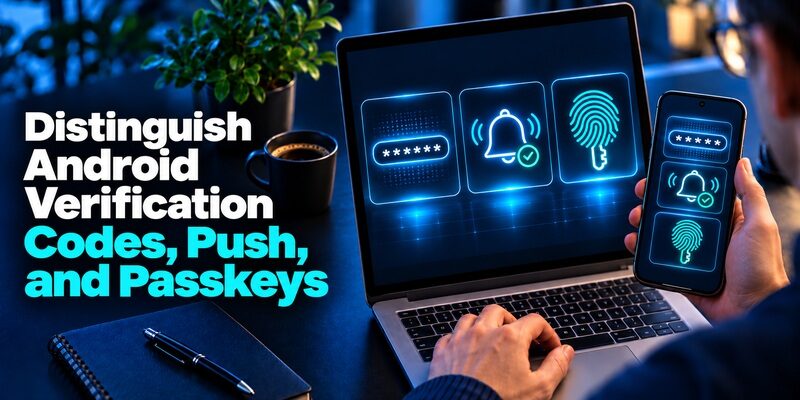
| The prompt asks for | What provides it | What the phone needs |
|---|---|---|
| Current authenticator value | A paired app that generates rotating codes | The enrollment and an accurate clock |
| A text or email value | The service sending a code | Access to the named phone number or inbox |
| Approve a sign-in | An app registered for that provider’s push service | The registered account and working delivery |
| A passkey | Android or another compatible credential manager | An enrolled passkey and a way to unlock it |
| Backup code | A fallback issued by the online account | Access to a secure copy of an unused value |
Recognize a Rotating Code Prompt
Most general-purpose authenticator apps generate time-based one-time passwords, commonly called TOTP. The code changes over time based on the enrollment secret and the device clock. The online service independently checks the submitted value. A generic Android code app can hold multiple entries without managing those accounts’ passwords or verification policies.
Google Account Help confirms that Google Authenticator can produce codes without mobile data or internet access. This offline behavior applies to producing the value after enrollment. The website still needs a connection to verify it, and any backup or sync feature may need a network connection.
Read the Sign-In Message Before Opening an App
A phone notification asking for approval can belong to a provider’s registered push service. It can require a connection or an action such as comparing a number. If the service says to check SMS or email, follow that delivery route. A six-digit value on your phone is useful only if it belongs to the method and account the prompt names.
A passkey is a cryptographic credential and can use the phone’s screen lock or biometrics. It is stored and unlocked through the system or supported credential manager. A code app can coexist with a passkey but does not supply that credential unless it explicitly supports it and the service has enrolled it.
Compare the Security Properties of Each Method
CISA’s Implementing Phishing-Resistant MFA fact sheet distinguishes app-generated codes and push methods from correctly configured FIDO or WebAuthn sign-ins. A temporary code can be disclosed on a fraudulent sign-in page. Use it only on the official service for a request you started.
If the service gives you a choice, check the requirements of the account and the devices you use. A rotating code can be practical when the site supports it and you want to avoid relying on text delivery. A passkey or security key may provide phishing resistance where the service and device support it.
Install an Android Authenticator From a Verified Listing
Confirm the Publisher and the App Your Service Expects
Find the app through Google Play or your organization’s approved installation route. Check the publisher and the product name together. Similar names are common. If your organization mandates Microsoft Authenticator or another registered app for push, follow the documented process for that account.
Some sites describe Google Authenticator in their instructions while accepting compatible TOTP apps. Others require a specific provider app or security feature. Look at the live setup screen and verify the chosen app with that service. The label “authenticator” alone does not establish which kinds of proof it can provide.
Review Permissions and App Protection
A camera permission can be relevant when you scan a setup QR. If the app supports manual entry, you can use it when a camera cannot scan the screen. Review optional features such as cloud backup, notifications, and device protection in the app and Android settings. Which permissions make sense depends on what you plan to use.
Lock the phone with a method you can maintain. If the app offers an extra lock, verify it after closing and reopening the app. Check whether the app has a clear backup and recovery procedure. A phone unlock feature keeps local access behind a device check, while the service still verifies each code on its own.
Before you add an important account, check how the app labels new entries and whether you can find one by name. A standard phone account list may show the publisher while the authenticator labels a credential by issuer. If you use two accounts from one provider, include a recognizable account identifier that does not disclose the secret.
Pair Your First Account From the Website’s Security Settings

Locate the QR in the Account You Want to Protect
Sign in to the service using a device you control. Open its security settings and look for an authenticator or verification app option. Confirm the displayed email or username, then start the pairing. If a second screen is available, display the QR there and use your Android phone to scan it.
Use the scanner inside the app’s add-account flow. A standard phone camera may recognize a QR but send you to the wrong action. Read the label on the website so you can distinguish an enrollment QR from a device-linking QR or a login confirmation. Avoid scanning a code supplied by another person for your account.
Enter a Setup Key When the Camera Cannot Scan
If the service offers a manual key, copy or type it into the authenticator’s new-entry screen. Select the time-based option if that is what the service documents. Label the entry for the exact account and clear the clipboard after pairing. Keep the secret out of ordinary messages and photos.
When the app shows a value, return to the service and enter the current code. If the countdown is near its end, wait for the next value. Make sure the site confirms that enrollment is enabled. The presence of digits in the app only proves that the app has some enrollment data.
Verify a Fresh Login and Save the Service’s Fallback
Keep the initial session available. In another trusted browser profile, sign in to the same account and check whether the service asks for a code. Submit a fresh value, confirm the right account opened, and check which recovery options are available.
If the service issues backup codes, store them outside the phone and account they protect. Record which set belongs to which account without exposing the values in public notes. If the same phone protects your email and another account, ensure you can reach the recovery record without signing in to either on that phone.
Compare Google Authenticator, Microsoft Authenticator, 2FAS, and Authenticator App
| App | Where it fits | What to check before switching |
|---|---|---|
| Google Authenticator | General codes with optional Google Account sync | Whether you signed in for sync or use local entries |
| Microsoft Authenticator | Microsoft-managed sign-in and compatible third-party codes | Whether an entry is a work credential or a restorable code |
| 2FAS Auth | Code generation with local entries and optional backup | Whether you enabled Android backup or saved an export |
| Authenticator App | A dedicated Android app for compatible rotating-code accounts | Which restore and transfer options your installed version offers |
Choose Google Authenticator for a Google-Centered Setup
Google Account Help describes Google Authenticator’s Google Account sync and an option to use the app without signing in. If you use sync, check which Google account holds the entries. If you choose local use, review the app’s documented transfer steps and keep independent service recovery options.
An Android phone can contain several Google accounts. Confirm the intended profile in the authenticator before you replace the phone. Check the live verification in each important service rather than assuming the sync setting is correct because some entries appeared.
Choose Microsoft Authenticator When the Organization Uses It
Microsoft Support documents eligible one-time code backup and same-device-type restore limits. It also explains that work or school credentials can require registration again on a replacement device even when the account name is shown. A row restored in the app is separate from a working approval.
Use your organization-approved enrollment if it controls the account. If you also add standard third-party codes, check what the app actually backs up for those entries. Microsoft has announced a change to Android backup in January 2027, so follow the provider’s current instructions when you configure it.
Consider 2FAS or Authenticator App for Standalone Codes
2FAS Help describes local code generation and optional Google Drive backup on Android, along with a backup file option. If you select it, check the recovery setting before a phone reset. Use a protected copy of an export if that is your chosen method and verify it can be restored.
The Begamob Global listing for Authenticator App on Google Play describes time-based codes generated on the phone. is a straightforward option when the account supports rotating codes and you want a dedicated code list. Check the Android listing and your installed version for the applicable backup settings and verify a code in the service before migrating other accounts.
Prepare for Phone Replacement and Restore One Account First
Check What the Backup Actually Holds
A service backup code is issued by that service and can usually be used through an official recovery screen. An app backup restores enrollment data where supported. The two are independent. Keep a plan for both the service and the app, especially for your primary email and password manager.
Verify the cloud account or secure location that holds the app backup. Ask whether the replacement uses the same operating system or a supported import method. Keep the old phone available for a test. A full Android device restore may reinstall the app without making every entry usable.
Move One Low-Impact Entry Before Switching the Rest
Start with an account whose recovery option you can reach. Follow your app’s official transfer instructions, then use the replacement device to verify a fresh sign-in. Confirm the account name and whether the old method remains active. Proceed to more important accounts after that test works.
If the original phone is gone and the entry was never backed up, use the online service’s approved recovery process. Reenroll it with a new QR when you regain access and remove the retired method through the service. A fresh setup establishes a new pairing and should be confirmed separately.
Keep Work Profiles and Personal Entries Separate
Check Which Android Profile Holds the App
A managed Android phone can have separate personal and work profiles. Open the version of the app that your organization instructed you to use and check its account identity. A work app may be managed under a different policy from a personal app with the same name. Ask your IT team before moving an enrollment between the profiles.
If you are leaving a job or replacing a managed phone, use the organization’s official registration process. Removing a work profile can remove its app data. Keep personal accounts in a location you control and verify where any work-related entries belong. Record the support route for each before retiring the device.
Distinguish a Work Push Registration From a Personal Code Backup
An app can contain both a work or school entry that receives approvals and personal entries that generate time-based values. Microsoft Support says a restored work or school entry can require registration again. Open the specific sign-in prompt and verify the expected action rather than assuming the entire phone transferred successfully.
If a personal entry appears in the same app, test its code with the service that issued it. If a corporate login still asks you to register, contact the verified support desk. Report whether the old device is still available and which Android profile contains the app. Keep screenshots free of live verification values.
Plan for Offline Codes Without Losing Recovery Access

Test the Code With the Browser Online
A useful test uses the phone to display the value and a trusted computer to submit it. If the phone is offline, the verifier on the computer still needs its own connection. Check the phone clock before testing. If the countdown is nearly finished, wait for the next code before submitting.
If the account offers push instead, the app needs to receive the request. Check which method you selected before deciding why a test failed. A new SIM or Wi-Fi change affects delivery differently from a rotating value. Record the sign-in method and whether the service offered a fallback when the device was offline.
Keep the Recovery Record Outside the App
A practical account inventory lists the website, the username, the authenticator entry, and how you would recover if that phone were lost. Store any backup codes in protected storage. Include the recovery route for the password manager or cloud account itself, since it can be a prerequisite for getting the authenticator backup.
Review the inventory after you add a device or close an old email account. For example, if a new phone restores most of your codes but your primary email requires a separate login, test email recovery before erasing the old phone. Start with the accounts that control other resets.
Fix a Missing Entry, a Rejected Code, or a Push Problem
Check the Code, Account, and Clock in That Order
Choose the correct entry and wait for a new value. Check automatic date and time in Android settings. Google Account Help notes that current Google Authenticator versions use the operating-system time. A wrong clock can affect several codes on the same phone, while a stale pairing can affect one account.
If another service’s code works but one fails, compare the username and the date of the last enrollment. The app may have restored an earlier entry. Keep a working session and use the service’s setup or recovery options to repair the affected pairing. Retest before deleting the old entry.
Check Connectivity for Push or Delivered Verification
If an approval never appears, open the provider app and confirm the registered account and notification settings. Check network access and whether the sign-in offers an approved alternative. A rotating value can appear offline, but the phone still needs to receive a remote approval prompt when that method is required.
If an SMS or email value is delayed, confirm the destination shown by the service. Use the current official request and allow the delivery window to finish. When you report a problem, state whether it is a missing push, an absent message, or a code that appears and is rejected.
Common Questions About Android Authenticator Apps
Where Is the Authenticator App on My Android Phone?
Look in the app drawer for the product you installed or search for the issuer in your app list. The online service may also identify the approved app. Opening an app icon shows only what is installed. Verify that the entry for the actual account is present and still works.
Can I Use One App for Several Accounts?
Yes, compatible apps can hold several separate entries. Pair each service through its own security settings and label the entries so you can distinguish them. If one service uses a provider-specific push app, keep its approved method and verify the others independently.
Can I Get an App Code Without Mobile Service?
Yes, an enrolled time-based code can appear offline on the phone. The verifier still needs to receive and check it. Backup sync, push approval, and SMS or email delivery have their own requirements. Check the method displayed on the official sign-in screen.
What If I Never Set Up an Authenticator for This Account?
Check the service’s active sign-in methods or ask the account owner or approved support team. If you are locked out, follow the official recovery route. A fresh authenticator installation cannot create matching codes for a pairing you did not enroll or restore.
Will a Factory Reset Remove the Codes?
It can remove local app data. Before resetting, follow the authenticator’s documented transfer or backup process and store the service’s recovery information separately. Confirm a fresh login from the replacement device. A backup that shows an account name can still require reenrollment.
Rockstar Authenticator App Setup and New-Device Recovery
Final Thoughts
If you came here asking “what is authenticator app on Android,” start with the verification prompt from your account. Use a compatible app when the service offers a rotating code, confirm the pairing, and store an independent recovery method. Before replacing the phone, test access on the device you intend to keep.
Download Authenticator App
Secure your accounts with fast, reliable two-factor authentication. Download now and protect your login in seconds.
