
Passwordless Multi Factor Authentication With Passkeys and Security Keys
Published November 17, 2026
By the Authenticator App Team
Last updated: November 2026
Passwordless multi factor authentication verifies two distinct factors without sending a reusable password to the service. A common example is a registered passkey or security key that proves possession and requires local user verification by PIN or biometrics. The verifier checks the cryptographic response and the authentication properties the method provides.
The important detail is the actual verification policy. A passwordless sign-in can use one factor or more than one. Check whether your provider requires user verification, how it stores the credential, and which recovery paths it accepts. For a work rollout, test the authentication result and the failure path before requiring the method for a broader group.
Identify When Passwordless Multi Factor Authentication Is Actually Multifactor
Find the Possession Evidence
A passkey or security key proves possession by using a private key associated with the account. The provider verifies a response using its corresponding public key. This avoids sending a reusable password. A successful passwordless multi factor authentication policy also needs evidence of another factor, commonly a local PIN or biometric check that authorizes use of that credential. Read the provider’s description of what it requires and verifies.
Find the User Verification Requirement
NIST’s Digital Identity Guidelines describe multifactor cryptographic authenticators and their activation factors. A local PIN is a knowledge factor, while a biometric can verify a characteristic of the user under the approved design. The service should enforce the relevant user verification property. A touch that only indicates a human is present is a different signal. In policy design, ask what the authenticator and verifier actually report rather than relying on the screen label.
Check Which Result the Application Accepts
A relying application may receive identity and authentication information from a separate identity provider. Decide how the application can recognize the required authentication strength. The fact that a user entered without a password does not tell the application which method they used. For passwordless multi factor authentication, verify the provider’s assertion or policy result in the appropriate flow before granting protected access.
Start with two controlled examples. One credential requires a PIN before it signs a request. Another only asks the user to touch a key. If your passwordless multi factor authentication policy requires local user verification, compare the result reported by your identity provider in each case. The presence of a physical gesture should not be the only evidence used to decide whether the second factor was verified.
Follow a Passkey Sign-In From Request to Result
Start at the Legitimate Service
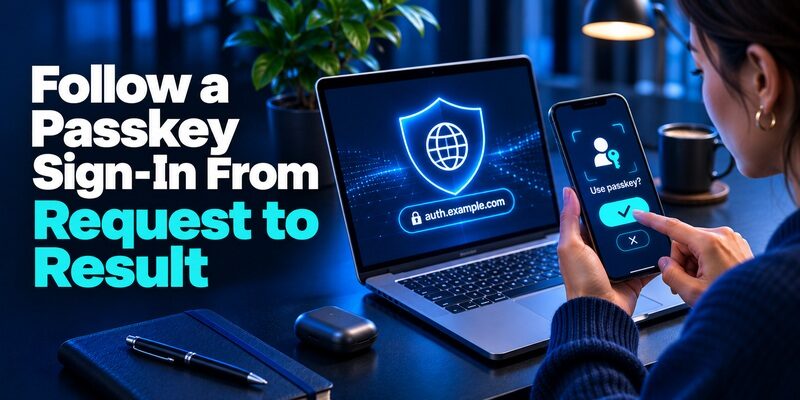
Open the provider from a trusted app or known address. The service requests an eligible credential. The browser or operating system presents the available account and device options. When you select the right account, the authenticator can ask for local confirmation. Compare the identity and intended service before responding. If the system prompt shows multiple accounts, select the one with the required work or personal policy.
Unlock the Credential Locally
In an appropriate passkey flow, the local PIN or biometric activates the private key operation. The verifier receives the signed response and relevant authentication data. The phone’s fingerprint or local PIN does not become a reusable password on the remote service. Passwordless multi factor authentication still depends on how the device and verifier require user verification. Confirm that an unattended or unlocked device cannot meet a stronger requirement merely by being present.
Check the Session That Opens
The service verifies the response and decides whether to create a session. If you have more than one profile, check which identity the session opened. If the sign-in succeeds but a protected feature remains blocked, check whether its policy requires fresher or stronger proof. Successful authentication and authorization to perform an operation are separate checks.
The relying service should check that the response belongs to its current sign-in request. A genuine response from one provider or session should not be accepted for another. Follow the identity provider’s documentation for validating the response, account and context. If your application delegates the protocol, verify the policy evidence the provider returns before authorizing sensitive operations.
Compare Passwordless Methods by Their Proof
Compare the evidence each method provides before adopting passwordless multi factor authentication.
| Method | What can make it multifactor | What to check |
|---|---|---|
| Platform passkey | A device-held credential plus required local user verification | Provider policy, supported devices and recovery |
| Hardware security key | Registered key plus supported and required PIN or biometric | Model, connector, spare and user verification settings |
| Managed phone sign-in | Registered device plus the provider’s supported local proof | Enrollment, policy and resistance to phishing |
| Email sign-in link | Often proof of access to an inbox | Additional assurance and policy eligibility |
| Password and TOTP | Knowledge plus the registered code authenticator | This remains a password-based flow |
Separate Passwordless From Phishing Resistance
Passwordless multi factor authentication describes the absence of a reusable password and the use of multiple factors. Phishing resistance is a separate verification property. A properly configured WebAuthn credential can bind authentication to the legitimate service. A manually typed one-time code can be relayed by a fraudulent page. NIST’s guidance distinguishes these properties. Check both when you choose a policy for privileged accounts.
Compare Local and Roaming Credentials
A platform credential can use the device or ecosystem a person already has. A roaming security key can work across supported computers and browsers. Test the devices and connection types your staff use. If a passkey can sync, check where it is backed up and how the user accesses that account. If a key is device-bound, plan for a spare or a provider-approved replacement.
A reusable password can be entered into a lookalike page. A manually typed code can also be relayed during its valid window. A correctly implemented, origin-bound credential makes that form of relay harder by constraining where it will respond. When comparing passwordless multi factor authentication methods, check whether the service enforces those properties and whether its recovery rules preserve the required assurance.
Decide Which Accounts Need the Stronger Method

Start With Privileged and High-Impact Access
Choose the accounts or actions where stronger proof matters most. Examples include administrators who can grant access, operators who can change a payout destination, and owners of sensitive repositories. Passwordless multi factor authentication can reduce the need for a password in these workflows. Verify that the method also meets the phishing resistance or device rules the policy requires. Record what access the user gets after successful verification.
Keep Ordinary and Protected Actions Separate
A person may use an approved method to start a routine session and face a stronger check before a sensitive operation. Define the assurance and freshness requirements for each. Verify that the protected endpoint checks them even if the user entered through another client. Do not assume the first sign-in covers every action. Test the same operation from the browser, mobile client, or API paths that are in scope.
For a rollout, choose one ordinary account, one account with protected permissions, and a representative user who signs in from several devices. Note which services and actions need each method. Verify that the intended policy covers the actual application. If all early tests use one laptop and one role, you may miss an important fallback that is used only by employees in a different location.
Check a Microsoft Entra Deployment by Method and Policy
Confirm What the Organization Allows
Microsoft Learn documents Microsoft Entra passkeys on supported Windows devices and distinguishes this workflow from Windows Hello for Business. The organization still decides which methods are available and how they are registered. For passwordless multi factor authentication, review the tenant’s approved choices and device requirements before you enroll. Test with a user whose policy represents the intended population rather than an administrator with different access rules.
Verify the Exact Challenge and Policy Result
Open the work service from the official portal and choose the enrolled method. Complete the provider’s device confirmation. Check the sign-in result under the relevant account and policy. If the device can open the service but a protected action is denied, verify the action’s authentication context and permissions. Do not silently switch the test to a method the organization has not approved.
On Microsoft Entra, validate which supported method is registered and which authentication strength the policy accepted. The labels shown to a user can look similar across different credential types. Verify the method in the documented sign-in result. If the test needs passwordless multi factor authentication for a particular application, check the exact application and user assignment in the tenant rather than relying on a generic portal sign-in.
Enroll One Credential and Test the Spare

Register Through the Account’s Own Security Settings
Use the provider’s approved enrollment. Verify the identity and choose a supported passkey or key. Complete local confirmation when prompted and confirm the service lists the registration. Keep the original session available. A passwordless multi factor authentication method is ready when the official provider accepts it in the intended sign-in flow, not merely when the device shows a stored credential.
Test From the Device You Will Actually Use
Open a fresh session using the expected browser and network. Verify the account, choose the credential, and complete the local verification. If the user regularly switches between phone and laptop, test each supported route. Check whether the credential syncs or stays with a specific device. Do a separate test for any privileged action whose policy differs from ordinary sign-in.
Register an Approved Backup Before Retiring the Old Method
If a spare key or separate approved credential is allowed, add it and verify a real sign-in. Keep it somewhere separate from the primary device. If the organization controls registration, ask which help desk process can verify the account owner and enroll a replacement. Keep one workable route available while you retire the original proof.
To test enrollment, leave the first session open and use a separate browser to confirm the new device. Try the same user action from the environment the person normally uses. If the platform offers a choice between a synced passkey and a hardware key, verify which one passed. Then test the approved spare from a different device before storing it separately.
Authenticator Website Options and How to Protect Your Setup Key
Design Recovery Around the Credential Type
| Failure | First route to try | What to verify after |
|---|---|---|
| Platform device lost | An available approved credential or the provider’s recovery | Correct account and the missing device’s registration state |
| Hardware key lost | Registered spare or organization support | New key works and old key is revoked where required |
| Cloud account inaccessible | Provider-approved independent method | Recovery does not depend on the same missing session |
| Work device replaced | Organization-approved enrollment on the replacement | The actual service accepts the intended method |
Review Sync and Device Binding Separately
A synced credential can be available through its ecosystem under documented conditions. A device-bound key may require a different registered device or an approved reset. In passwordless multi factor authentication, decide how to restore authorized access without making the weakest recovery channel the practical primary method. Verify how the provider handles recovery when both the phone and its cloud account are inaccessible.
Use the Provider’s Revocation Controls After Loss
If the credential is missing or exposed, review the account through a trusted session or authorized support. Remove the affected registration when the provider allows it and verify the replacement. Review active sessions separately where applicable. A hardware key no longer in the user’s possession may still be enrolled. A device that was signed in can also have access independent of whether its credential can start a new session.
A lost device and a locked cloud account are different recovery exercises. In the first, the user may still reach a spare on another device. In the second, a synced credential may be inaccessible even though the original phone is still present. Test both paths before relying on passwordless multi factor authentication as the only way into the account. Document the official owner of each recovery operation.
Decide Which Fallbacks Remain Acceptable
Keep Routine Recovery and Stronger Proof Separate
An account may offer an alternate for recovering access that does not qualify for a privileged action. Write down which methods are acceptable in each place. Passwordless multi factor authentication loses much of its benefit if an attacker can simply choose a weaker recovery method and gain the same access. Test protected actions after using a fallback to see what the application actually permits.
Use Standard Codes Only Where the Policy Allows Them
If a site supports compatible TOTP for ordinary use, Begamob’s is an option to review for that code enrollment. The app calculates a value from a registered secret and time. Do not count a manually entered code as a phishing-resistant replacement for a WebAuthn credential. Use the method and recovery route that the provider and organization approve for the actual action.
When an account offers a recovery code, review what the provider lets the user do after using it. Ordinary access and sensitive administrator actions can have different requirements. If a backup value signs the user in, try the protected action with an authorized test account. Confirm that it still needs the policy’s stronger proof when that is what you intended.
Test Failures Before Requiring the Method
Try an Ineligible and an Unavailable Credential
Use an authorized test account to simulate a lost key, a device without the credential, and a credential registered to another account. Confirm the provider rejects each invalid path or offers the approved alternate. Check what the application logs when passwordless multi factor authentication cannot complete. Keep private keys, PINs, biometric information and live values out of support notes.
Check Whether Another Path Bypasses the Rule
Test the same protected action after signing in through each supported client. Verify that an old session, a different login route, or an alternate factor cannot meet a stronger requirement by accident. Record the observed policy and result. For an administrative operation, verify that the user still needs the appropriate role even after the required credential succeeds.
Include a credential with the correct label and the wrong registration in your authorized test. The service should distinguish the actual registered key from the name shown in the operating system. If passwordless multi factor authentication fails, write down whether the device showed the credential, local confirmation completed, or the policy denied the result. That makes it possible to fix the correct stage.
MFA Authenticator App Comparison for Personal and Work Accounts
Explain the New Sign-In to Users
Describe What the User Sees and Does
Tell the user where to start, which account to select and what local confirmation appears. Explain how to check the service and account in the system prompt. A short guide can explain that a PIN unlocks the device-held credential and stays local in the supported flow. This helps a user understand passwordless multi factor authentication without mistaking the PIN field for a password on the service website.
Give Support the Exact Failure Information
Ask for the device, browser, account type and stage of the failure. Ask whether the provider listed the credential and whether the local verification succeeded. Keep PINs, secrets and enrollment screenshots out of the request. A missing credential differs from a policy denial after successful authentication. Record which support owner handles each stage before you expand the rollout.
Some users will first see a device prompt while already signed into a service. Explain which action triggered it and what should happen after approval. Ask users to report unexpected requests through the authorized channel rather than trying to cancel them by entering a PIN on an unrelated page. Provide the right support route for remote workers and people on managed devices.
Questions About Passwordless Multi Factor Authentication
Is Every Passwordless Login Multifactor?
No. Verify which factor types the method and provider actually check. A passwordless credential can meet MFA when the possession proof and a distinct required verification both satisfy the policy.
Does a Local PIN Become My Account Password?
In a supported credential flow, it activates the private key locally. The service checks the credential’s response. Use only the legitimate system prompt and check your provider’s documentation for the actual implementation.
Can I Use One Key for Multiple Accounts?
A compatible key can register separate credentials for different accounts and services. Verify the supported device and capacity for the chosen key. Test recovery for each important account before relying on the same hardware.
Can I Keep TOTP as a Backup?
Check the service and organization policy. A manually entered code can be an approved alternate for some actions. It does not supply the same phishing resistance as an eligible cryptographic method.
What Happens If a Managed Phone Breaks?
Use an already approved alternate or contact the organization’s authorized support team. Confirm which device registration was affected, enroll the replacement through the official path, and test the actual service.
Before replacing a working sign-in method, test passwordless multi factor authentication after the primary device is unavailable. Complete the official recovery, register a replacement, and verify whether the missing credential can still be used. A successful pilot should show that users can recover without a weak fallback automatically satisfying stronger access requirements.
Final Thoughts
Use passwordless multi factor authentication when you can verify the required possession and user verification together. Choose a credential that works on the devices you actually use. Document how the provider checks it and what the fallback is allowed to do.
Test a normal sign-in, a protected action and a lost-device scenario before removing the working method. Confirm the replacement and review old registrations when the device changes.
Download Authenticator App
Secure your accounts with fast, reliable two-factor authentication. Download now and protect your login in seconds.
