
How to Get a 2FA Code and What to Do if It Fails
Published November 12, 2026

By the Authenticator App Team
Last updated: November 2026
Get your 2FA code from the verification method shown on the account’s sign-in screen. Open the enrolled authenticator app for a rotating code, check your registered number for a text, or use a saved recovery code if the service offers that option. If the screen asks for an approval or a security key, follow that prompt instead.
Start on the service’s official sign-in page so you know which account and method the code belongs to. If a code is missing or rejected, work through the checks below before resetting anything. Keep any signed-in session open until you confirm a second way to access the account.
Find the Code the Sign-In Page Expects
The label beside the boxes tells you where to look. The same service can offer different methods depending on what you registered and the device you use. If the login says it sent a message, wait for that message. If it asks for an authenticator code, open the registered app even if your text inbox is empty.
| The sign-in page asks for | Where to look | What to enter or do |
|---|---|---|
| Authenticator app code | The app already enrolled for the account | Use the current code beside the matching account label |
| Text or email code | The number or inbox named on the page | Use the code tied to the current sign-in request |
| Recovery or backup code | Your secure copy of previously issued codes | Choose the recovery option and use an eligible unused code |
| Approval or security key | A trusted device or registered hardware key | Complete the indicated action on the registered factor |
Read the Method and the Account Name
When you see a 2FA code prompt, compare the service, email address, and workspace or tenant if one is shown. The account you signed into on your phone may differ from the one the browser is asking about. If the method shown is unavailable, look for an alternate sign-in option on the page before requesting more codes. A different method can change both the prompt and the kind of proof accepted.
Keep the Original Sign-In Tab Open
Some services tie a delivered code to a particular request. If you switch browsers, restart sign-in, or tap resend, the earlier message may no longer belong to the active challenge. Keep the prompt you intend to complete open while you look for the code. Use the newest message connected to that request and verify that you initiated it yourself.
If you’ve reached a page through a link in a message, open the service again from its official app or a known address. A 2FA code only proves something to the service that requested it. On an imitation page the same value can help someone else sign in, even if the boxes and countdown look familiar.
Read a Rotating Code From an App

A configured authenticator can generate a 2FA code without an incoming message. Open the app and locate the correct account entry. The digits usually change on a timer, so note when the 2FA code refreshes. RFC 6238 gives TOTP a default 30-second time step. Some services may use different settings, so use the app’s own countdown as your guide.
Match Similar Entries Before Copying
An app can hold several accounts for the same service. If two entries share a logo, read the full email address or the label you assigned at enrollment. A work and personal account may display numbers at the same time, but each account has its own registration. Enter the 2FA code from the exact entry the website names. If you recently re-enrolled, a newly labeled entry may be easier to identify than an older duplicate.
Wait if the Countdown Is About to End
When the countdown is almost finished, wait a few seconds for the next value. That gives you time to type and submit without the app switching to a newer value mid-entry. Google Account Help notes that Google Authenticator can generate codes without internet or mobile service. The device loading the website still has to connect to the service. If the phone is offline and several codes start failing, check the device’s date and time when you can.
Some apps let you copy the 2FA code with a tap. Check the entry before copying, and check the active browser tab before pasting. If the copied value is stale by the time you submit it, return to the app for a fresh one. Enter the digits by hand if copying is unavailable.
Get a Delivered Code From Text or Email

If the service says it sent a 2FA code, read the masked destination first. A few visible digits or characters can tell you whether it went to a work inbox, an older number, or the account you actually have in front of you. Keep the prompt open while you check that destination.
Confirm the Destination Is Still Yours
Check signal or delivery for the registered number and look in the right inbox, including spam or filtered folders where relevant. If the last digits match a number you no longer control, choose the provider’s alternate method. Repeatedly asking the service to text the same old number won’t give you access to it. Change the registered number only through account settings or the provider’s official recovery process.
Tie the Message to Your Own Request
A delivered 2FA code belongs to a sign-in request or other action you initiated. If a newer request followed an older one, check the timing and use the value that corresponds to the active page. If you never started a request, leave the message alone and review the account directly. The FTC’s consumer guidance warns that impersonators may ask you to read a verification code to them. Use the code on the genuine service page, and never dictate it to an unsolicited caller.
If a message arrives well after you closed the original page, leave it unused. Open a fresh request only when you are ready to finish sign-in. Most people need one active request at a time. That makes it easier to know which 2FA code the site expects and whether an unexpected notification belongs to you.
2FA Live Verification Codes: How They Work and Safer Options
Fix a Code That Keeps Getting Rejected
A rejected 2FA code can mean the selected factor is wrong, the code expired, or the account’s enrollment changed. Start with the causes you can check without making an account change. Keep a trusted existing session available until you know what you’ll use if the prompt remains blocked.
| Symptom | Likely place to check | What to try next |
|---|---|---|
| App code changes as you submit | Time window | Wait for the next code and submit it promptly |
| One app entry fails while others work | Account label or a replaced setup | Match the full identity and look for an old duplicate |
| Several authenticator entries fail | Device date and time | Enable automatic time and try a fresh value |
| Text arrives but the page rejects it | Request order or wrong tab | Return to the current prompt and use the matching message |
| The page asks for another factor | Selected sign-in method | Choose the exact method you can access |
Check Time and Enrollment Separately
A 2FA code from the correct authenticator can fail if the device’s clock is out of sync. Turn on automatic date and time, then retry with a fresh value. If only one account fails, consider whether that account’s secret changed during a reset. A TOTP app can still display digits from an old seed. The service accepts only the enrollment it currently recognizes.
Stop Before a Reset If Another Method Still Works
If the page lets you try another way, use an enrolled backup first. That protects your chance of getting in while you diagnose the original problem. If the provider mentions a temporary lock or a timed-out challenge, follow the page’s instructions. Opening another code generator will not change that state. Ask your administrator or the account provider for help if all routes are blocked.
If you start to confuse the different routes, read the prompt without typing anything. A screen for six app digits may have a separate button for a backup code. Try that button when the app is gone. Keeping the two flows separate can prevent a valid recovery code from being submitted to the wrong form.
Use a Backup Code or Another Device
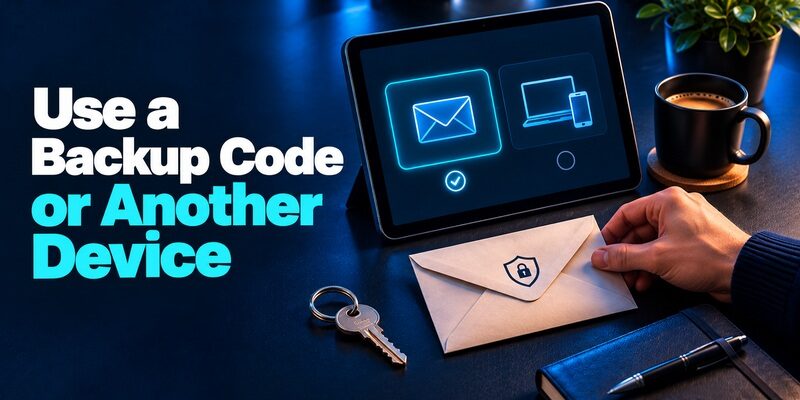
A backup code is usually created in advance and stored for an occasion when your regular method is unavailable. It belongs in the service’s recovery or alternate verification prompt. A backup code can look different from the rotating 2FA code you usually enter, so select the relevant option before typing it.
Find the Provider’s Alternate Option
From a genuine sign-in page, look for an option such as trying a different verification method. A service may allow a trusted device, registered security key, backup code, or another method you enrolled earlier. Google Account Help documents single-use backup codes for eligible Google Accounts. If you use one, check whether you have others available and whether the provider needs you to generate a new set.
Keep Your Signed-In Device Available
An older phone or laptop already signed in to the account can be valuable while you recover. Use the official security settings to check registered methods, and keep the session open until you test the replacement. For a work or school account, contact the administrator through a known route if alternate factors are disabled. Send the error and the service name, without including a code, setup QR image, or recovery key in the request.
Keep track of which recovery codes were issued most recently. A provider can invalidate an old set when you create a new one. If you store a printout, replace the stale copy after the update and check whether you can reach the new copy without the device you’re trying to replace.
Tell a Setup Key From a 2FA Code
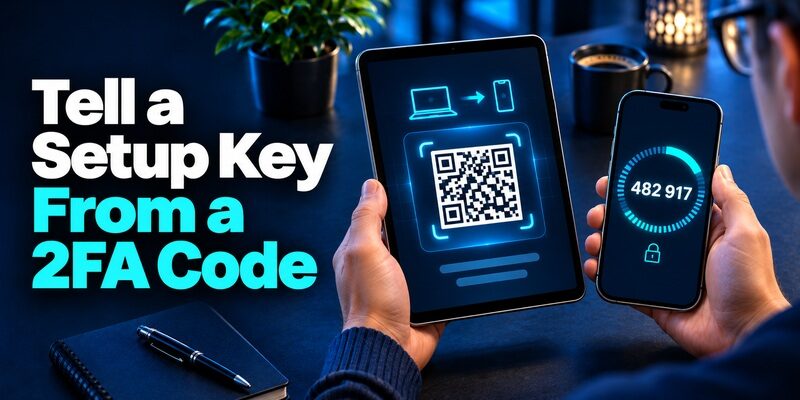
The setup key or QR code enrolls an authenticator. A 2FA code is the temporary value you enter after enrollment. A time-based generator and the service use the same setup secret, as RFC 6238 describes. If somebody sees the secret, they may be able to generate future codes. Keep the enrollment data private even when a code shown next to it has expired.
What a 2FA Code Generator Can Calculate
A compatible TOTP calculator needs a valid key and the current time. It cannot retrieve your lost setup secret, intercept a missing text, or recover an account for you. If you only need today’s code, open the authenticator you already enrolled. If you saved a setup key earlier, use it in a trusted authenticator only when the account still recognizes that registration. Verify the result against the service’s genuine sign-in screen.
Where the QR Code Belongs
If the account offers QR enrollment, open the authenticator’s built-in scanner and point it at the QR image shown in the genuine service’s security settings. A manual setup key can serve the same purpose where supported. Avoid posting a screenshot in a forum or support chat. If you already exposed the key, open the account through a trusted session, replace the enrollment, and test a fresh 2FA code before retiring your old app entry.
Some people call a physical code generator a 2FA token. A token of that kind may display a rotating value, whereas a FIDO security key may ask for a touch and send proof directly. Let the service’s wording guide you. Do not try to find a number on a key that the service expects you to tap.
Set Up a Better Way to Get Future Codes
When a service offers standard TOTP, an app can give you a rotating value without depending on text delivery. That can help when you travel or when messages to your number arrive late. Open the account’s security settings while you are still signed in and see which methods it supports. Choose a method you can restore if you lose access to the device.
Enroll an App and Confirm It Works
Begamob’s product page says can add compatible accounts by scanning a QR code or entering a setup key and then generate codes offline. It’s one way to keep compatible accounts in one place if SMS delivery is a recurring problem. Once the app displays a code, submit it in the provider’s enrollment screen and try a second sign-in from a trusted browser before ending your current session.
Give Recovery Its Own Place
Store backup codes or register an independent alternative if your service offers it. If you keep all your recovery information on the same phone as the app, losing the phone can remove both routes. Check how you would regain access from another trusted device. When the service supports a phishing-resistant FIDO key or passkey, consider it for sensitive accounts. NIST’s Digital Identity Guidelines explain why manually entered one-time codes do not provide phishing resistance.
Respond to a Code You Did Not Request
An unexpected message might follow a typo, a stale sign-in attempt, or somebody trying to enter your account. The message alone cannot tell you which one happened. Leave the 2FA code unused and check account activity from the service’s known website or app. Avoid clicking a link inside the unexpected message to reach your security settings.
If Somebody Asks You to Share It
End the call or chat and contact the organization through a known number or app. A person claiming to cancel a fraud alert can instead be trying to complete their own sign-in. The FTC advises consumers to keep verification codes private. If you think you entered a code on a fake page, change the password through the real service when appropriate, review active sessions, and follow the provider’s guidance for securing the account.
If You Keep Receiving Requests
Deny push requests you didn’t start and check whether there are unfamiliar devices or recent account changes. If the provider offers a security activity page, use it to determine what happened. Report repeated events through your organization’s security channel for a managed account. You can describe the timing, app name, and exact prompt without including the code. If you have no access to a trusted session, use the account provider’s recovery process.
If the provider confirms a suspicious sign-in, read its account security instructions before removing any registered factor. Start from a trusted device when available. A single 2FA code can expire quickly while a session opened with it may last longer. Review which devices are currently signed in as part of securing the account.
Final Thoughts
The right 2FA code comes from the method the current sign-in prompt asks for. Read the label, confirm the account, and use a fresh value from that source. A rotating authenticator value, an SMS code, and a backup code each have a distinct job. Choosing the wrong type can look like a broken account even if every method still works.
If the first attempt fails, check the clock, the active request, and the account entry before making changes. If you no longer have the registered method, switch to a backup or use the service’s official recovery route. Keep the setup key private because it can produce future codes. Avoid giving anyone a code to prove your identity over a call or message.
Once you regain access, test the regular method and check what you would do if your device went missing again. A short sign-in test on an important account can verify both the enrollment and the backup route. That leaves you with a specific method to try the next time the screen asks for a code you can’t immediately find.
If you help someone else sign in, explain where their 2FA code should go and have them type it themselves. The code should stay with the person who initiated the request.
Download Authenticator App
Secure your accounts with fast, reliable two-factor authentication. Download now and protect your login in seconds.
