
PayPal Authenticator App Setup and Phone Change Guide
Published November 16, 2026
By the Authenticator App Team
Last updated: November 2026
Set up a PayPal authenticator app from PayPal’s website under Settings, Security, and 2-step verification. Choose the authenticator app option when it is offered and follow the on-screen enrollment and confirmation. Keep your current session open until you know the new method works. If you are already locked out, start with PayPal’s account recovery rather than trying to register an app from outside the account.
A PayPal authenticator app generates codes for a compatible setup. A QR used to log in with the PayPal mobile app serves a different purpose. The method named on the prompt tells you which app to open and which action to take.
Set Up the PayPal Authenticator App From the Website
PayPal’s US Help Center documents the authenticator flow through its website. Start in a browser where you can open your own account. Check the identity in the session first, especially if you manage more than one account or share a computer with somebody who has a separate PayPal login.
Find Two-Step Verification in Security Settings
- Open PayPal through a verified address and sign in.
- Select the settings icon and open Security.
- Locate 2-step verification and select Set Up when shown.
- Choose the authenticator app option and follow the confirmation on screen.
The PayPal authenticator app workflow depends on the choices available in the account and on the official instructions for your market. If the page shows Update or an existing method instead of Set Up, review what is active before changing it. If you cannot find the option, use the help for your country and account type.
Complete the Enrollment Before Closing the Page
When PayPal presents an enrollment QR or setup key, use it only in the compatible app you intend to keep. Enter the current code into PayPal when it asks for confirmation. Check that the settings page acknowledges the change. Leave the original session available for a fresh sign-in test. A PayPal authenticator app can display a code as soon as it gets the setup data, while PayPal still needs to accept it.
If you opened settings from a browser that already remembers you, keep it available until you have checked the alternate route. A verification change is easier to diagnose while you can still open the account’s settings. If the page offers a second method you no longer control, update that information through PayPal before relying on a phone change or reset.
Tell PayPal’s Different Sign-In Prompts Apart
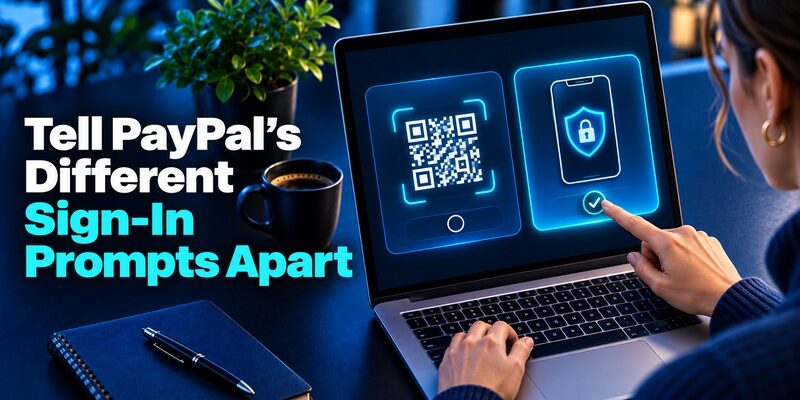
PayPal can show more than one type of identity check. Its help describes authenticator setup, passkeys, QR-based sign-in through the PayPal mobile app when available, and additional security checks. Read the prompt before reaching for a code. The PayPal authenticator app route applies when PayPal expects a code from a registered third-party authenticator.
| What PayPal asks for | What to open | What completes the step |
|---|---|---|
| Authenticator app code | The app you registered with PayPal | Enter the current code from the matching entry |
| Verification sent to a destination | The method and destination shown on screen | Use the value for your active request |
| Eligible QR sign-in with the PayPal app | The official PayPal app and its instructions | Complete PayPal’s own mobile sign-in flow |
| Passkey | A device or provider that holds your PayPal passkey | Follow the device’s local verification prompt |
Enrollment QR and Sign-In QR Serve Different Jobs
The QR shown during authenticator enrollment may contain the key that allows a code app to generate future values. A QR offered by PayPal as a desktop sign-in option instead starts PayPal’s documented mobile login flow. A PayPal authenticator app needs the enrollment data from the security settings. Do not use an unrelated login QR as if it were an enrollment key.
An Additional Check Can Appear After Other Steps
PayPal’s security help says it may ask to confirm identity for new or unusual activity. If the next screen asks for another available method, read that screen. A current code will only work where PayPal requests that type of proof. Do not try a succession of unrelated codes just because you reached the account through a method that normally works.
PayPal’s QR login guide says this option is for eligible Personal accounts and describes using the PayPal app with a compatible biometric setup. If a merchant or business account shows a different login, follow the methods it actually offers. A PayPal authenticator app enrollment remains a separate step in account settings. Check which page displayed the QR before deciding what to scan it with.
Choose an App Compatible With PayPal’s Setup

PayPal’s US help names Google Authenticator and Microsoft Authenticator as examples. Pick a trusted tool whose enrollment and recovery you can manage. The important requirement is compatibility with the setup shown by PayPal. The app generates codes while PayPal controls which enrollment it will accept.
Use the App You Can Recover
If you already maintain a dedicated code app, read its transfer and backup instructions before adding an important account. For a standard compatible TOTP setup, Begamob’s documents QR and manual enrollment and offline code generation. That can work for services that provide compatible setup data. Check what PayPal offers rather than assuming every PayPal security prompt can use it.
Keep the Account Label Clear
Label the PayPal authenticator app entry so you can distinguish it from a work account or an older PayPal entry. Avoid including anything you would not want displayed on the phone. A recognizable account address or short label can help when an app holds several payment or shopping services. Once PayPal accepts the new setup, test the exact entry from a fresh browser session.
A compatible app can generate the current code without waiting for an SMS once it is enrolled. The browser still needs to submit that code to PayPal. When you install an app on a second phone, check whether restoring its data requires access to another account. Make sure that separate account does not depend on the missing phone for its own login.
Verify the Code Before Changing Your Main Sign-In
Keep the existing session open and use another trusted browser context to try a fresh login. A remembered browser may not show the same prompt. Check whether PayPal asks for a code, a passkey, or another verification route. A successful test should show that the PayPal authenticator app entry you enrolled can complete the challenge you intend to use.
Use a Fresh Code From the Correct Entry
If the timer is nearly over, wait for the next value and submit it promptly. Compare the email address or account label to the challenge. The wrong PayPal authenticator app entry can show plausible digits and still fail. If you recently replaced the factor, the older entry may keep generating values even if it no longer belongs to the active registration.
Check What You Can Use if the Phone Is Missing
Confirm what alternate sign-in or recovery choices your account shows. PayPal’s passkey help describes a device-dependent login option where eligible. An available passkey is a separate route and can still be subject to other security checks. Do not assume that PayPal has issued backup codes unless you actually see that feature. Keep the official recovery contact accessible without the phone.
For a meaningful test, put the old phone down and use only the new method. If the browser opens PayPal without asking for a code, record which sign-in route it used and try again from a fresh context if the service permits it. A test performed in a remembered session may confirm only that the existing session is still valid.
Move the PayPal Authenticator App to a New Phone
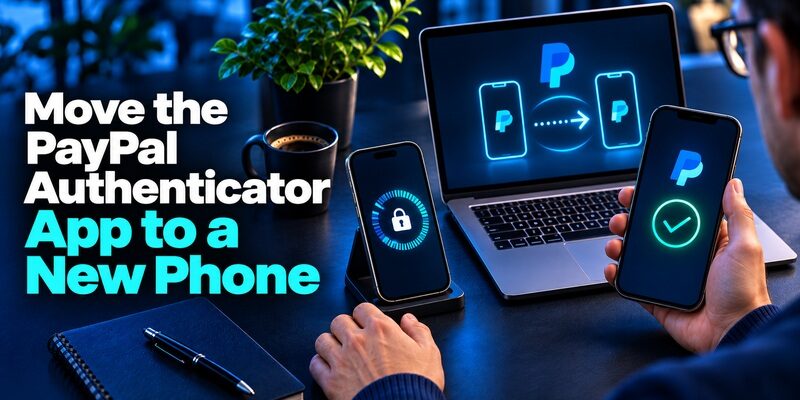
Start while the old phone and an existing PayPal session still work. Check whether the authenticator offers a supported transfer or restore process. If you plan to re-enroll instead, follow the PayPal security settings for changing the method. Avoid turning off a working factor simply to experiment, since the choices offered after a change can vary.
| Your situation | First step | What to confirm |
|---|---|---|
| Both phones work | Use supported app transfer or PayPal re-enrollment | A fresh PayPal login accepts the replacement |
| New phone has the restored app | Check that the right PayPal entry was restored | The code works against the current account |
| You changed your number | Update PayPal through the official account flow if you still have access | Registered recovery destinations are current |
| Old phone is lost | Use a supported alternate method or official recovery | You regain access and test a new factor |
If You Can Still Open the Original App
Use the app’s documented transfer method if it supports one. Keep both devices available during the test. Check the PayPal authenticator app entry by signing in from a fresh session. If the new phone shows the label but the code fails, verify what actually transferred and whether the service’s enrollment changed. Keep the old method available while you investigate.
If You Still Have Access to PayPal
Open the official security settings and see which changes are offered. A phone number and an app enrollment are separate controls. Keeping the same number does not by itself move a code app. After you confirm the replacement, review the old device and any recovery destinations you no longer control. Remove outdated entries only through an appropriate supported flow.
Before changing phone numbers, verify which one PayPal has on record and whether the new number can receive messages. If the PayPal authenticator app remains on the same device, check it separately from the number change. If both the number and device change together, line up an official recovery route before discarding the old phone or SIM.
Fix a PayPal Authenticator Code That Keeps Failing
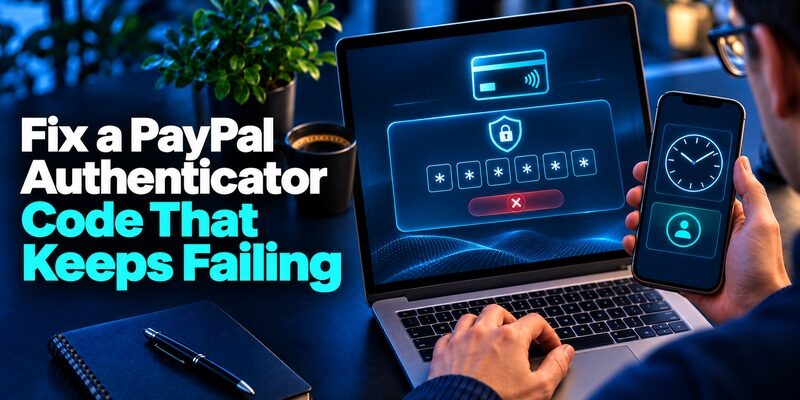
A rejected code does not always mean that you need a new PayPal authenticator app. First check the active prompt, account, and timer. The service may be asking for a delivered value instead of an app code. Another possibility is that the authenticator is still showing values for an older registration.
Check Time and Account Identity
Enable automatic date and time on the code-generating device where appropriate. Wait for a fresh value and verify the account before you try it. If codes work for other services but not PayPal, focus on the PayPal enrollment and the exact challenge you see. If several time-based entries fail together, a clock setting is a more useful place to start.
Start a Fresh Challenge if the Page Expired
Return to PayPal directly if the previous browser page timed out or you opened it through a suspicious link. If the account offers a different verification method you already registered, use it instead of making repeated guesses. Once inside, check whether the PayPal authenticator app is still listed as expected. Make one change at a time and test the result.
If PayPal offers a change or recovery prompt that does not match the reason you signed in, open the site through a trusted address and read it again. Compare the displayed account, method, and action. A generic security check may ask for an option other than the authenticator. Keeping those categories separate helps you explain a failed attempt to support.
Recover Access After Losing the Old Phone or Number
If you have no working PayPal authenticator app, use the methods PayPal offers on the official sign-in page. PayPal’s help for changed mobile numbers points users toward updating their registered information while they can access the account or using account recovery if they cannot. You may see different choices depending on the account and security check.
Use the Official Recovery Route
Open PayPal directly and follow the available alternate method or help for logging in. Use its official Contact Us route if the page gives you no workable option. Describe whether you lost the phone, changed the number, or cannot restore the app entry. Leave passwords, setup secrets, and live codes out of the message. Do not pay an outside service to remove verification.
Re-Enroll Only After You Are Back In
Once you regain access, review the security settings and registered details. Set up a new PayPal authenticator app only if the official flow offers it and you can keep a recovery path. Test the new entry before removing any method you still need. If you believe the old phone or setup key was exposed, use PayPal’s supported security steps to replace affected registrations and review recent activity.
When you recover an account with another available factor, verify the registered phone and email as well. A successful login does not automatically update recovery destinations. Keep any trusted session open until the new PayPal authenticator app entry and the account information both match what you intend to use.
Handle an Unexpected PayPal Verification Request
If you get a request you did not start, leave the code unused and check your account directly. A fraud warning can be genuine, mistaken, or part of an impersonation attempt. The arrival of a code alone does not show that someone successfully accessed the account. Open PayPal through an address or app you already trust.
Do Not Share the Code With a Caller
An impersonator can claim to be canceling a payment or securing the account. The FTC warns that a live verification code can let the person asking for it finish a sign-in. A PayPal authenticator app value belongs in the verified PayPal challenge you started. If you entered a code on a fake page, follow PayPal’s official security and contact instructions from a trusted device.
Check Your Sessions and Registered Methods
Review security information and recent account activity through PayPal. If you believe you exposed the setup QR or key, changing only the password may leave the old authenticator registration in place. Use the provider’s supported process to check or change it. Keep any existing trusted session until you have confirmed a replacement and know which recovery route works.
If somebody tells you to move a payment or read a number in order to stop a verification alert, end the interaction and check PayPal through a route you control. Keep records of what happened without preserving the actual values. Use the official support process if an unfamiliar transaction or account change appears.
Final Thoughts
Set up the PayPal authenticator app in the website’s security settings and confirm the first code on the official page. Test a fresh sign-in before closing the session. Keep the enrollment QR and key private, and use the method the actual prompt requests.
When moving phones, preserve a working factor and verify the new entry before retiring the old device. If you are already locked out, use PayPal’s official recovery process. Update an old phone number through the provider’s supported account settings and check which alternate method you can reach.
The most practical check is to sign in once with the method you expect to use next time. A displayed number confirms only that an app can calculate from its stored input. A completed PayPal challenge tells you the provider accepted that registration. Keep the recovery route accessible separately.
If you use PayPal on several devices, note which one holds the authenticator entry and which official support route you can reach if it is unavailable. Keep setup information private and verify the method after a phone or number change.
If you use a company-managed device, follow its approved software installation process. Confirm PayPal access on a device you can continue using before relying on a new app or moving the old enrollment.
Download Authenticator App
Secure your accounts with fast, reliable two-factor authentication. Download now and protect your login in seconds.
