
How to Generate a Strong Password You Can Actually Keep Secure
Published October 6, 2026
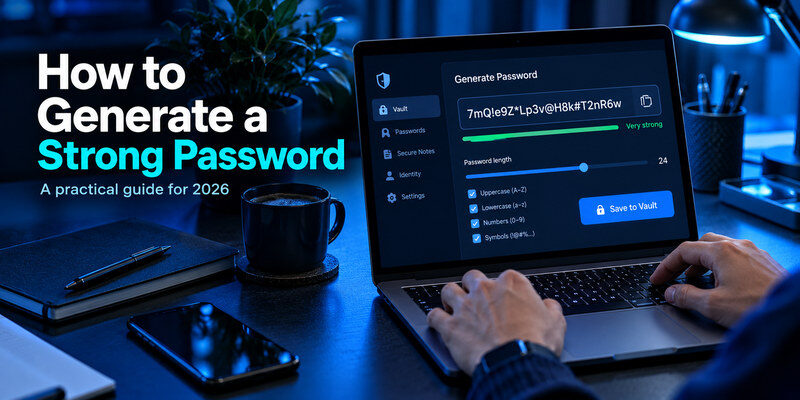
If you are wondering how to generate a strong password, the simplest answer is to use a trusted password manager to create a long, random, and unique password for every account.
A strong password should not rely on personal information, predictable patterns, or reused phrases. In most cases, the best approach is to let a password generator create the password, save it securely, and use AutoFill when you need to sign in.
For accounts that support passkeys, you can also consider using a passkey instead of a traditional password. But for websites and apps that still require passwords, the following steps will help you create and manage them more securely.
1. Generate a Strong Password With a Password Manager
For most users, a password manager is the easiest way to generate secure passwords without having to memorize dozens of complex strings.
Choose the Correct Account First
Before generating a password, open the website or app directly using its official address.
Start the signup or password-change process and let your password manager suggest a new password.
Before saving it, check that the password manager is saving the credential under:
- The correct website
- The correct username or email
- The correct account
This becomes especially important if you have multiple accounts for the same service.
Choose Length Over Complicated Patterns
One of the most important parts of learning how to generate a strong password is understanding that length matters more than decorative complexity.
For a randomly generated password, use a long string whenever the website allows it. A password of around 20 characters or more is a practical option for many accounts.
A generator may include:
- Uppercase letters
- Lowercase letters
- Numbers
- Symbols
If a website rejects certain symbols or limits password length, adjust only the required setting and generate a fresh password.
Do not manually shorten an existing generated password.
Save and Test the Password
After changing or creating the password:
- Submit the password.
- Save or update it in your password manager.
- Sign out.
- Sign back in using AutoFill.
This confirms that the password was saved correctly and that the website actually accepted it.
| Setting | Recommended action | Why it matters |
|---|---|---|
| Length | Use a long random password | More combinations make guessing harder |
| Symbols | Keep enabled when supported | Avoid predictable manual patterns |
| Storage | Check domain and username | Prevent saving credentials to the wrong account |
| Reuse | Generate a new password every time | One breach should not expose other accounts |
2. Create a Memorable Master Password
The password protecting your password manager is different from the random passwords stored inside it.
You usually need to remember and type this password yourself.
Because of that, a long passphrase may be easier to manage than a random string filled with symbols.
Use Several Unrelated Words
A strong passphrase can consist of several randomly selected, unrelated words.
For example, a structure such as:
cobalt-river-lantern-velvet-orbit
illustrates the format, but you should never copy an example password directly.
Avoid using:
- Famous quotations
- Song lyrics
- Pet names
- Birthdays
- Addresses
- Family names
- Personal facts available online
If a service requires numbers or symbols, add them without reducing the overall length.
Avoid Predictable Variations
Do not create passwords such as:
- Summer2026!
- Winter2026!
- Facebook2026!
- Gmail2026!
These are easy patterns to recognize.
A strong password should not simply be an old password with a different year, service name, or symbol added.
 Discover Helpful Guides: How to Choose a Password Manager: A Practical Checklist for 2026
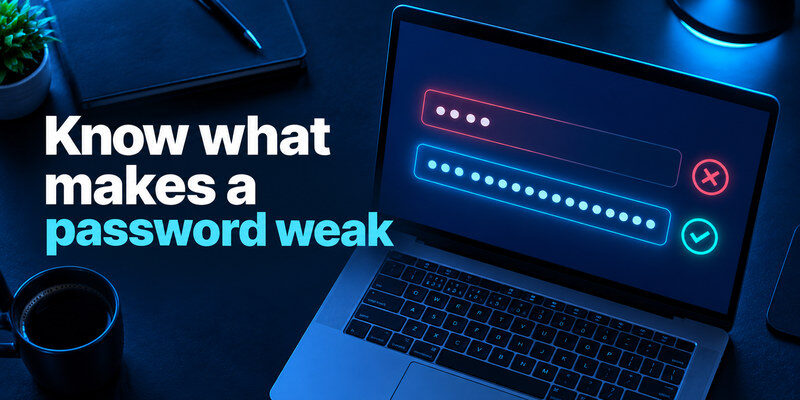
3. What Makes a Password Weak?
Understanding weak passwords is just as important as knowing how to generate a strong password.
Password Reuse
Password reuse is one of the biggest account-security risks.
Even a long password becomes dangerous if you use the same one on multiple websites.
If one service experiences a credential breach, attackers may try the same email and password combination on other platforms.
For this reason, every account should have a unique password.
Predictable Password Patterns
Passwords built from recognizable patterns are also risky.
Examples include:
- Summer2026!
- Password123!
- JohnNetflix2026
- CompanyName01
- Qwerty123!
Changing letters into obvious symbols does not necessarily make a password significantly safer.
For example:
Password → P@ssw0rd
is still based on a predictable word.
Personal Information
Avoid creating passwords from information that someone could find through social media or public records.
Examples include:
- Your birthday
- Child’s name
- Partner’s name
- Pet’s name
- Phone number
- City
- Favorite sports team
A password generator removes this problem because the result does not depend on your personal information.
 Find the Right Guide: How to Use a Password Manager: Your First Week with a Vault
4. How Long Should a Strong Password Be?
There is no single password length that works for every website.
However, longer randomly generated passwords generally provide more possible combinations for an attacker to guess.
When a password manager generates the password, use the longest practical length accepted by the website.
For example, you may use:
- 16+ characters when required by a restrictive website
- 20+ characters as a practical default
- Longer passwords when the service accepts them
Do not shorten a strong password just to make it easier to remember if you are already storing it in a password manager.
The password manager should do the remembering for you.
5. Handle Websites With Strange Password Rules
Some websites impose unusual restrictions.
For example, a website may:
- Reject specific symbols
- Limit the maximum password length
- Require one uppercase letter
- Require a number
- Block password pasting
In these situations, let your password generator meet the website’s requirements and create a new password.
Do not create one “compatible password” and reuse it everywhere.
When AutoFill or Paste Does Not Work
If AutoFill fails:
- Open your password manager manually.
- Copy the password.
- Paste it into the correct password field.
If the website blocks paste, carefully enter the generated password while checking for:
- Accidental spaces
- Missing symbols
- Incorrect capitalization
Afterward, test the login.
After Resetting a Password
If you reset your password on another device, your password manager may still contain the old password.
Update the saved credential immediately and test a clean login.
If one account uses several URLs or subdomains, confirm whether they really share the same login before attaching them to a single password-manager entry.
 Read More Guides: How to Import Passwords into a Password Manager Without Losing Access
6. How to Generate a Strong Password on iPhone
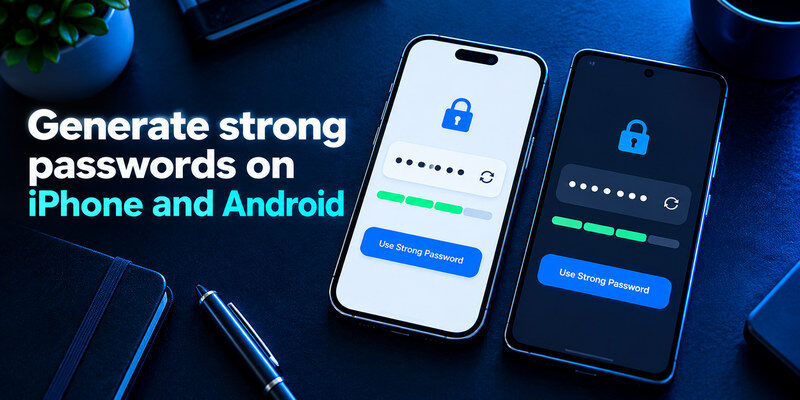
iPhone users can generate strong passwords directly through Apple’s password features or through a third-party password manager.
When creating an account or changing a password:
- Open the signup or password-change form.
- Tap the suggested strong password.
- Submit the form.
- Confirm the password was saved.
- Sign out.
- Test AutoFill.
If you use more than one password manager, make sure you know which provider saved the credential.
This prevents duplicate or outdated password entries.
7. How to Generate a Strong Password on Android
Android users can also use Google Password Manager or another password manager.
A typical workflow is:
- Set your preferred AutoFill provider.
- Open a signup or password-change form.
- Generate a suggested password.
- Save it under the correct domain.
- Test the login.
If Android does not show a password suggestion automatically, open the password manager directly and use its password generator.
App behavior may differ depending on the Android version and the login form.
8. Change Reused Passwords in the Right Order
If you already use the same password across multiple accounts, do not panic and change everything randomly.
Start with the accounts that control access to other accounts.
A useful priority order is:
- Primary email
- Apple or Google account
- Banking and financial accounts
- Cloud storage
- Social media
- Shopping accounts
- Phone carrier account
- Domain registrar
- Other important services
Generate a unique password for each account and verify that you can sign in before moving to the next one.
Do Not Forget Recovery Methods
While updating important passwords, review:
- Recovery email
- Recovery phone number
- Backup codes
- Trusted devices
- Active sessions
Remove any recovery option you no longer control.
A strong password alone cannot protect an account if an old email address or compromised recovery method can still reset it.
📘 Find the Right Guide: How to Generate a Strong Password You Can Actually Keep Secure
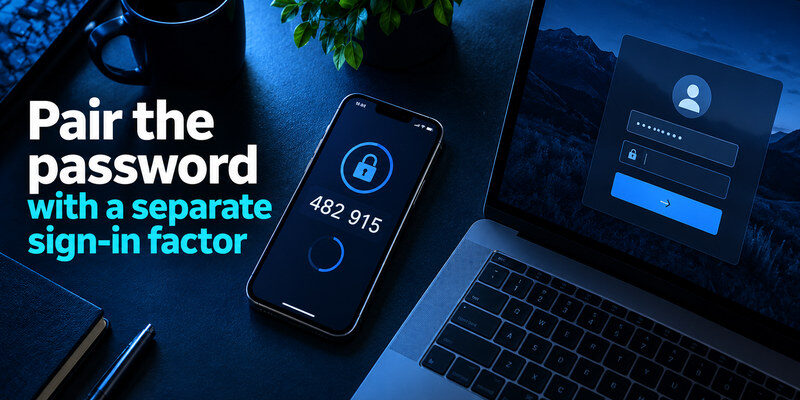
9. Use Two-Factor Authentication With Strong Passwords
A strong password should ideally be one part of your account-security setup.
Where available, enable:
- Passkeys
- Security keys
- Authenticator apps
- Two-factor authentication
- Multi-factor authentication
An authenticator app can generate temporary verification codes that provide an additional barrier after your password.
This means that stealing the password alone may not be enough to access the account.
Password Manager vs Authenticator App
These tools perform different jobs.
A password manager:
- Generates passwords
- Stores passwords
- Auto-fills login credentials
An authenticator app:
- Generates temporary authentication codes
- Helps provide a second verification factor
- Does not replace password storage
Using both tools can provide stronger protection than relying on a password alone.
10. Protect Your Password Manager
Your password manager itself is an important account.
Protect it with:
- A strong master passphrase
- Two-factor authentication
- Recovery options
- Secure backup methods
Make sure you understand the recovery process before relying entirely on the vault.
If your provider gives you a recovery key, store it somewhere secure and separate from the account.
11. Common Mistakes to Avoid
When learning how to generate a strong password, avoid these common mistakes:
Using One Password Everywhere
Even a strong password should never be reused across multiple services.
Creating a Personal Pattern
Do not use:
Netflix-2026!
Amazon-2026!
Facebook-2026!
Attackers who discover one password may quickly understand the pattern.
Saving Passwords in Chats or Notes
Avoid storing passwords in:
- Messaging apps
- Email drafts
- Screenshots
- Photo galleries
- Unprotected notes
Use a dedicated password manager instead.
Changing Strong Passwords Too Often
You do not necessarily need to replace every secure password every month.
Focus on changing passwords when they are:
- Reused
- Exposed
- Compromised
- Shared
- Weak
Follow your workplace security policy when applicable.
Frequently Asked Questions
What is the best way to generate a strong password?
The easiest approach is to use a trusted password manager. Let the generator create a long, random, unique password and save it to the correct account.
Is 12 characters enough for a strong password?
It depends on how the password was generated. A longer random password is generally preferable when the website supports it. Avoid relying on a specific number of characters as a guarantee of security.
Are passphrases secure?
They can be useful when you need a password that you can remember, such as a password-manager master password. Use several unrelated randomly chosen words rather than a personal sentence or quotation.
Should every account have a different password?
Yes. Every important account should have a unique password. Reusing passwords allows a breach on one website to potentially affect other accounts.
Should I use symbols in my password?
If the website supports them, you can leave symbols enabled in your password generator. However, length and randomness are more important than manually adding predictable symbols.
Can I use the same password generator for every account?
Yes. You can use the same trusted password generator as long as you generate a completely new password for every account.
Should I change my password every 30 days?
Not necessarily. Frequent forced password changes can lead users to create predictable variations. Change passwords when they are compromised, reused, shared, weak, or exposed.
Is a password manager safe?
A reputable password manager can help you create and store unique passwords securely. Protect the password manager itself with a strong master password and additional authentication where available.
Final Thoughts

Learning how to generate a strong password does not require memorizing complicated formulas.
The safest practical approach is simple:
Generate a long, random password for every account, store it in a trusted password manager, and never reuse it.
For passwords you must remember yourself, such as a master password, use a long passphrase made from unrelated words.
Then strengthen important accounts with two-factor authentication, passkeys, or security keys where available.
A strong password cannot stop every type of attack, but when combined with unique credentials, secure recovery options, and an additional authentication factor, it significantly reduces the risk that one stolen password will compromise multiple accounts.
Download Authenticator App
Secure your accounts with fast, reliable two-factor authentication. Download now and protect your login in seconds.
