
How to Import Passwords into a Password Manager Without Losing Access
Published October 6, 2026
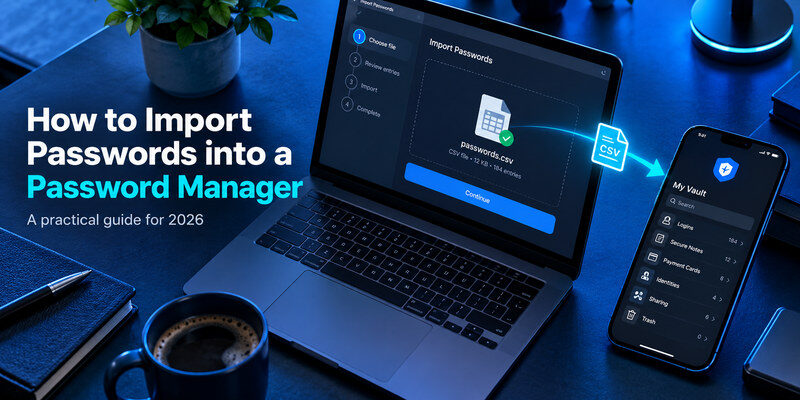
To import passwords into a password manager, export the old vault on a trusted device, import the supported file into the new vault, and verify important logins before deleting the old copy. A successful import message proves only that records were parsed; it does not prove every URL, username, note, passkey, or shared item moved correctly. Plan the migration as a short overlap between two systems. Keep the source manager available, protect any plaintext CSV, and use a real sign-in on the destination as your acceptance test.
1. Inventory the source before exporting

Count your active logins and identify the records that cannot be casually reset: primary email, banking, work access, domain registration, and the manager account itself. Look for duplicate entries with the same title, old email addresses, and several URLs for one service. A CSV with 500 rows may contain far fewer than 500 current accounts. A few minutes of inventory helps you recognize whether the import lost a category or simply carried over existing clutter.
Record what a standard CSV may omit
An export commonly includes website, username, and password. It may handle secure notes, custom fields, attachments, passkeys, TOTP seeds, shared vault permissions, and password history differently. Read both providers’ current import and export documentation for those categories. Google Chrome Help, for example, documents a CSV route for Google Password Manager; that does not mean every data type in another vault maps to Google’s importer. Build a short exception list for items you will recreate or verify by hand.
Decide which vault is the source of truth
If you have passwords in a browser, an old dedicated app, and your phone, choose the most complete, recently updated collection. Exporting three sources into one destination without a plan can create duplicates that look identical but contain different passwords. Note which device last changed the primary email credential. If uncertain, use the website’s live password-change or sign-in flow to decide which record is current before making the migration larger.
2. Choose the right export route
Sign into the old manager from its official app or extension. Find its export function in the current account or vault settings and choose the format that the new manager’s documentation explicitly supports. Some products can transfer directly between services or import an encrypted proprietary backup; others use a CSV. Avoid third-party conversion websites for live credentials. If a product offers both encrypted and plaintext exports, do not assume the destination can read the encrypted one without a documented route.
| Source format | Typical contents | Handling rule |
| Plain CSV | Login fields in readable rows | Import promptly, then remove local and synced copies |
| Encrypted proprietary file | Product-specific protected data | Confirm destination compatibility before relying on it |
| Direct importer | Authorized transfer through vendor workflow | Verify actual records and permissions after import |
| Local database | Encrypted vault file | Preserve unlock material and a separate backup |
Use a trusted device and a temporary location
A CSV can expose every included password to someone who can read the file. Do the export on your own updated computer, not a public workstation. Save it to a temporary local folder you can find and clean. Check whether that folder automatically syncs to a cloud drive; if so, choose another permitted location or plan to remove the synced copy too. Do not send the export to yourself by email or paste rows into a chat to fix formatting.
Confirm the file before leaving the source
Check the file extension and approximate row count without publishing its contents. If the export failed, the destination may import a blank or partial file and still show a generic completion notice. Preserve the old vault in its current state until the replacement is proven. If a browser has separate profiles, confirm you exported the intended profile; a work profile with a handful of entries can easily be mistaken for the personal collection.
3. Import into the destination vault
Set up the new manager account and its recovery route first. Open its official import tool, select the named source product or supported CSV format, and choose the file. The importer may ask how to map columns such as url, username, and password. Google Account Help documents those headings for Google Password Manager CSV import; other products can accept different schemas. Do not invent columns or strip special characters until you have checked the destination’s official template.
Use the correct account and collection
A family or business product may offer both personal and shared vaults. Import personal credentials into a private location first; otherwise, a bulk import could disclose them to every member of a shared collection. Verify the account email shown in the destination before uploading anything. If the app supports multiple regions or organizations, choose the one you will continue using. A technically successful import into the wrong vault can be harder to clean up than a failed import.
Read the result rather than the success banner
Compare imported count with your inventory. If the importer skipped rows, review its error report without uploading that report to an unrelated service. A malformed CSV can contain line breaks or separators inside a note; opening and resaving it in a spreadsheet may alter quoting or leading characters. If you need to correct a small file, work on a copy, protect it as live credentials, and re-import a handful of test rows before retrying everything.
4. Verify high-value accounts one by one
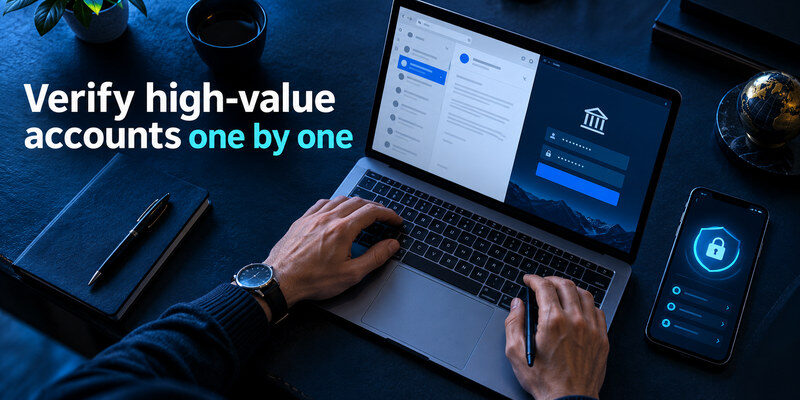
Start with primary email and the services that can reset other accounts. Open each website through a trusted bookmark, sign out, and select the newly imported credential from the destination manager. Confirm that the correct username and current password work. Then test the same entry on a second device if cross-device access is a reason you migrated. A record displayed in a vault is not proof of a functioning login.
Inspect URL matching
An entry may contain a registration domain while everyday login occurs on another subdomain. If AutoFill does not offer it, open the entry and compare the stored URL with the site you trust. Update the URL only after confirming the site’s real login address. Do not manually fill a password into a lookalike page merely to make the test pass. For services with two accounts, check both labels and usernames; a generic title can hide a mismatch.
Compare more than passwords
Spot-check notes, custom fields, attachments, and shared items if you use them. A missing backup code or account number matters more than a neatly imported title. Passkeys may need a separate platform-specific migration or fresh enrollment; do not assume they are represented by a CSV password row. Standard TOTP seeds also require separate attention when they lived inside the old vault. Keep the issuer’s recovery codes and old device available while re-enrolling factors.
5. Handle duplicates without deleting the current login
An importer may add records beside entries already saved in the new manager. Sort by website and username, then identify which one passed a fresh sign-in. A timestamp may reflect the import date rather than the password’s true age. Do not trust “newer” solely because it was imported later. Archive a confirmed obsolete record first if the product allows it; wait before permanently deleting it.
A careful merge sequence
For each duplicate set, note the URL and username, test the likely current record, transfer any useful notes or tags, then remove the obsolete entry. If one record has a passkey and another has a password, they may represent two accepted methods rather than a simple duplicate. For a shared account, coordinate with the other members before moving it between private and shared collections. The goal is one reliable everyday suggestion, not merely a smaller record count.
Resolve a failed sign-in at the website
If neither copy works, stop editing vault records and use the protected service’s official recovery path. A password may have changed since the export, or the account may require an additional factor. Reset it through the site’s own security settings, save the new unique value in the destination, and test again. Repeatedly importing the same stale file cannot repair an externally changed password.
6. Protect the migration gap

Keep the old manager installed until the important accounts and recovery workflow work on the new one. During that overlap, decide which vault receives new password changes. If both save prompts remain active, two copies can diverge quickly. Turn off the old provider’s AutoFill or save suggestions only after confirming the destination reliably fills on your browser and phone. Keep an encrypted backup or official export of the old vault according to its documentation until your acceptance checks are complete.
Separate vault migration from factor migration
Moving a website password does not move its authenticator enrollment. If the old manager generated TOTP codes, list those accounts explicitly. For each site, check whether the destination supports a protected transfer or whether you must disable and re-enable the factor with the issuer. A copied TOTP secret can continue working in both apps until the issuer rotates it; deleting an entry does not revoke the underlying secret. If you suspect exposure during migration, re-enroll the factor at the site.
Use an authenticator as a separate layer
For compatible services, [Authenticator App]() can hold standard verification codes apart from the new password vault. Scan only the issuer’s legitimate setup QR or enter its manual key, complete the issuer’s confirmation, and keep backup codes outside both daily apps when appropriate. This is a separate decision from the CSV password import. It does not restore an account-specific work approval or an inaccessible old factor automatically.
7. Remove the plaintext export completely
After verifying the new vault, delete the CSV from its temporary folder and empty the relevant trash or recycle bin. Check whether the file was copied into Downloads, an email attachment, a synced desktop, a cloud drive, or a spreadsheet editor’s recent-file cache. Do not promise perfect forensic erasure from a modern storage device; focus on removing routine access and preventing uncontrolled synced copies. Keep only a deliberately protected backup in a format you know how to restore.
Review where the file traveled
If you opened it in a spreadsheet app, that app may have created a recent-file entry or autosaved a copy. If you moved it into a cloud folder, inspect the cloud trash and version history. If you used a file transfer tool, ask where its temporary copy lives. The simplest route is to minimize movement in the first place: export, import, verify, delete, all on one trusted device. A screenshot of one password row is also a credential copy and should be treated the same way.
Retire the old manager deliberately
Once the new manager passes login and recovery tests, remove old browser extensions and change the default mobile AutoFill provider. Review the old subscription’s cancellation and account deletion steps separately; uninstalling an app may not close an account or remove stored data. If a family vault is involved, coordinate with members before changing ownership or deleting shared items. Keep a dated list of accounts you could not migrate so none are forgotten.
8. Troubleshoot common import outcomes
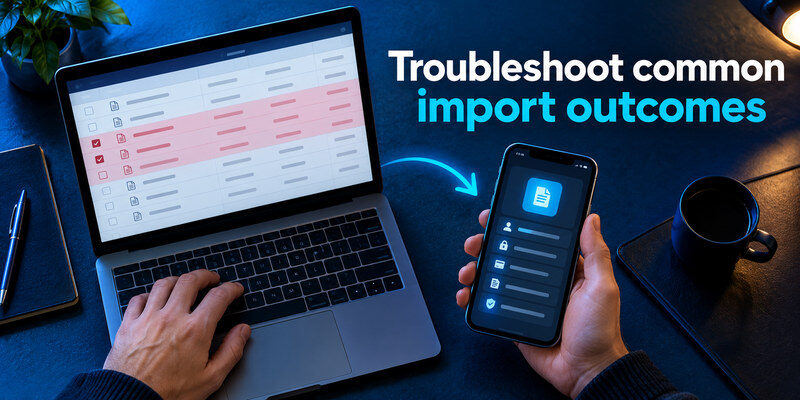
Do not treat every missing suggestion as an import failure. The record may be in the wrong vault, attached to another account email, or assigned a different URL. Conversely, a high import count does not prove that passwords are current. Work from symptom to cause, and use the provider’s current documentation for format-specific steps rather than guessing at columns.
| Symptom | Likely check | Next action |
| Zero imported items | Wrong file or account | Confirm source and supported format |
| Fewer items than expected | Skipped rows or separate vault | Read import report and inspect collections |
| Duplicate suggestions | Both managers still filling | Verify current record, then disable old prompts |
| Website rejects a filled password | Stale credential or wrong username | Use site’s official reset and update the destination |
| TOTP absent | Codes were not part of password export | Use documented factor migration or issuer re-enrollment |
When to pause
If an import changed access for a high-value service or a CSV went to an unintended recipient, stop routine cleanup and secure the affected account through its official flow. Rotate exposed passwords and review sessions where appropriate. Do not delete the old vault in a panic; it may contain the only working credential or recovery note. A controlled rollback is one reason to keep the source available until the new setup has been verified.
9. Frequently Asked Questions
Can I import passwords from a browser?
Often yes, using the browser or destination manager’s documented export/import path. Check the active browser profile and supported format. Google Password Manager, for example, documents CSV import through its official help pages. Verify real logins afterward rather than relying on row count.
Do passkeys move in a CSV?
Do not assume so. Passkeys are not ordinary password strings, and transfer support depends on the source, destination, and platform. Consult both providers’ current instructions and test the account on the new device before removing the old method.
Should I delete the old vault immediately?
No. Keep it available until priority accounts work in the new manager, a second device is tested, and recovery is understood. Then retire old extensions and stored copies in a planned order. Avoid leaving two active save prompts indefinitely.
Is an exported CSV encrypted?
Usually a plain CSV is readable text unless the exporting product explicitly says otherwise. Treat it as a collection of live passwords, keep it local for the shortest practical time, and remove routine copies after import. Use a protected backup for long-term retention.
10. Final Thoughts

How to import passwords into a password manager is a sequence of export, import, sample verification, and cleanup. The decisive step is a fresh sign-in for the accounts that matter most. Keep the source until those checks and the new vault’s recovery rehearsal succeed. Move authenticator codes as a separate project, and protect any temporary plaintext file from the moment it is created.
Sources reviewed: Google Chrome Help, import/export passwords and passkeys; Google Account Help, CSV format; NIST SP 800-63B; Bitwarden Help, import data; KeePassXC documentation.
Download Authenticator App
Secure your accounts with fast, reliable two-factor authentication. Download now and protect your login in seconds.
