
How to Use a Password Manager: Your First Week with a Vault
Published October 6, 2026
To use a password manager, set up its account and recovery method, save one existing login, then use the manager to fill and change that password on every device you use. Start with a low-risk account while you learn the interface. A vault is useful when it becomes the normal route for creating, finding, and filling unique credentials; installing an app alone changes very little.
This walkthrough covers the everyday sequence, the places new users get stuck, and a manageable order for replacing reused passwords without locking themselves out.
1. Prepare the vault before saving logins
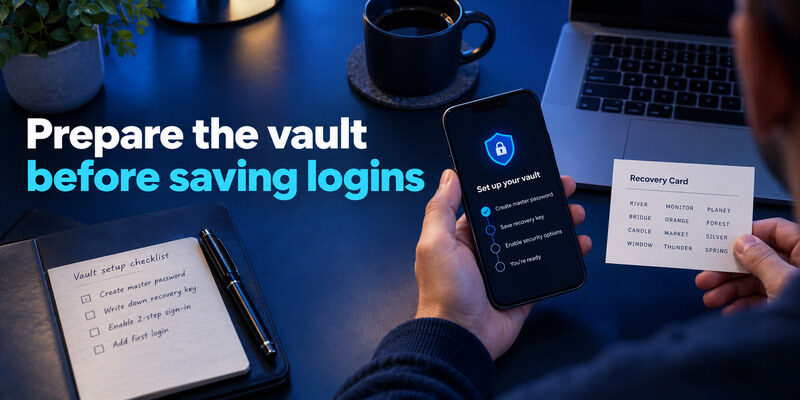
Install the manager from its publisher or the official platform store and identify the account that will hold your vault. Apple Passwords uses your Apple Account and iCloud Keychain configuration; Google Password Manager depends on the Google Account in Chrome or Android; an independent service usually asks you to create a separate account. Record which route you chose. The first recovery question is often not “where is my password?” but “which account did I use to sign into the manager?”
Protect the front door
Choose a strong, unique master password where the product requires one, then enable its supported second factor. Save any recovery key or emergency kit outside the new vault. If the manager signs in with an Apple or Google Account, protect that account and its recovery contact as carefully as the vault itself. Do not put the only copy of a recovery code in a note stored behind the very login it restores. Read the product’s current recovery instructions; reset and decryption are not interchangeable.
Set a sensible lock interval
Many products offer biometric unlock or a PIN after the initial sign-in. Convenience is useful on a trusted personal device, but screen lock and local account security matter. Test that a device restart or a signed-out session still asks for the credential you expect. On a shared computer, do not leave the vault unlocked merely to avoid one extra step. A good first-week routine is to lock it when leaving the desk and to confirm you can unlock it without depending on a phone that may be unavailable.
2. Save one account and prove that it works
Open a legitimate website from your own bookmark, sign in, and let the manager offer to save the login. Check the displayed website address, username, and label. If the offer does not appear, create an entry manually from the vault, using the exact website domain. One service may have several accounts, so names such as “family email” and “work email” are more useful than two indistinguishable entries called “Email.” Never test by pasting a sensitive password into a random signup page.
Verify the saved record with a fresh sign-in
Sign out of the website and return through a new browser session. Choose the saved account from the manager and confirm that the username and password fill into the expected domain. If no suggestion appears, open the vault and inspect the record’s URL before assuming the data was lost. A manager might have saved a subdomain used only during enrollment, while the normal login lives elsewhere. Fix the entry and retry. This small test tells you how to use a password manager more clearly than importing hundreds of records immediately.
Separate the account label from the secret
The displayed title is for human recognition; the URL, username, and password determine where the record belongs. Use clear labels and folders or tags if the product offers them. Avoid putting a full password in the title or notes. Some vaults can hold recovery notes, but consider whether a note belongs in the same place as the password it could unlock. Clean labeling pays off when a website asks which of several accounts you want to use.
3. Turn on AutoFill on each device
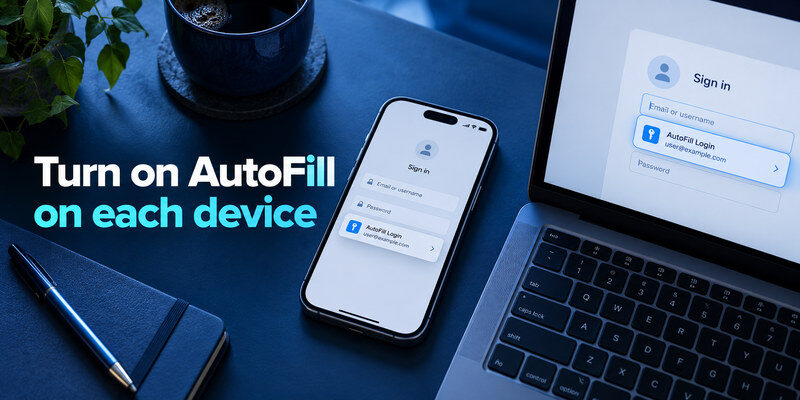
Desktop browsers typically need a supported extension, while iPhone and Android rely on system password AutoFill settings as well as the manager app. Follow the current publisher instructions for your OS version. Only enable an extension from the publisher’s verified store listing. On a phone, set the intended provider as the AutoFill service and try a real app login. Menu labels can move with OS updates; the functional check is that a matching account appears at the right login field.
| Place | First action | Proof it is ready |
| Desktop browser | Install and sign in to official extension | Correct account suggested on its website |
| iPhone | Enable the chosen passwords provider in AutoFill | Suggestion appears above an app or web login |
| Android | Select the chosen password service | An app login offers the matching record |
| Second device | Sign in and unlock authorized vault | Recently saved entry appears and fills |
Resolve competing suggestions
If the browser’s built-in storage and a new extension both offer credentials, decide which manager is authoritative. Turn off the old provider’s save or fill prompts according to its official settings once the new vault has passed a real login test. Do not immediately delete the original records. Two identical suggestions can cause a person to update the wrong copy and believe the new password failed. Review one account at a time and retain an export or old vault until migration is proven.
Do not fill the wrong domain
AutoFill is a convenience, not proof that a page is legitimate. Check the website address before accepting a suggestion, especially after arriving from an email or message. If the manager refuses to fill a lookalike domain, treat that mismatch as useful friction. Manually copying a password into a fake page bypasses this signal. A real website’s changed domain may need a verified URL added to the record, but confirm it through a trusted route first.
4. Generate a unique password at the next signup
When creating a new account, let the manager propose a random password. Adjust length or character restrictions only as the site requires, then save the record with the website URL and username. The National Institute of Standards and Technology’s digital identity guidance describes password managers as a way to maintain distinct passwords across services. The benefit comes from unique credentials, not a special pattern you memorize and alter for each site.
Confirm the website and vault agree
A common mistake occurs when the site accepts a generated password but the manager does not save it. Before closing the signup page, verify that the new entry exists. Sign out and perform a fresh login with the saved credential. If the website rejects it, inspect the record and the site password-reset route rather than repeatedly guessing. Avoid emailing yourself the generated value “just in case”; that creates another uncontrolled copy.
Handle sites with awkward rules
Some websites restrict characters or length. Use the generator’s current settings for that one site, not a weaker global default for every account. If a site demands a memorable answer to a security question, do not reuse a fact visible on social media; store a unique response in a secure field if the product supports it. Avoid inventing a predictable shared suffix. A password manager is most useful precisely because you no longer need to remember each site’s arbitrary rule.
5. Change reused passwords in a sensible order

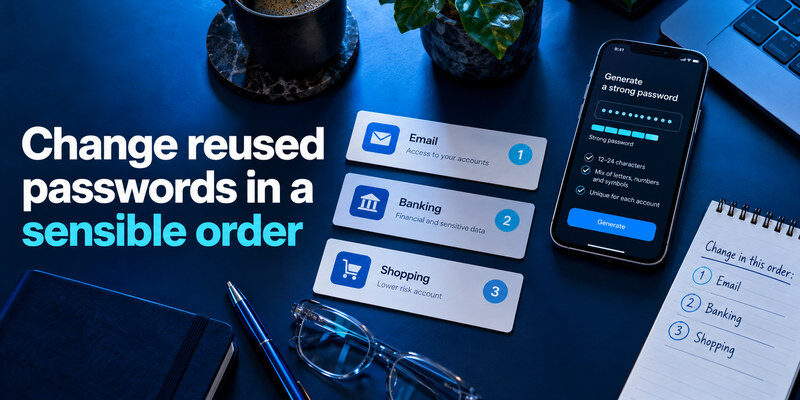
You do not need to fix an entire vault in one evening. Start with the email account that receives password resets, then the password manager account, banking or payment services, and other important logins. Open each site’s own account settings, generate a replacement, save it, and complete a fresh sign-in. Keep track of whether the website has multiple profiles or regional domains. A manager’s reuse or breach alert can help prioritize, but verify that the flagged record is active.
One successful change means two confirmations
The site must accept the new password, and the vault must retain the same value. After a change, sign out on a device where a session is still open, then sign back in with the manager. If it fills the old value, update the entry while you still have access through the site’s recovery methods. Do not bulk-delete duplicates by name before confirming which record matches the active account. This is where many beginner guides skip the practical risk of getting locked out.
Rotate only what needs rotation
Changing every strong unique password on a schedule can create more work without addressing the important cases: reuse, a suspected compromise, or a provider request. Follow the protected service’s current security advice. For a reused credential, change each affected account to a different generated value. If an attacker may have had the old password, review sessions and recovery settings as well, because a replacement password alone may not end already-authorized access.
6. Find, edit, and clean up saved entries
Search by the service name or domain. When you edit an account, make sure the record you changed is the one used by the website’s current login. Many managers keep multiple items for the same domain: personal and work accounts, an old username, or a legacy sign-in URL. Rename or archive obsolete records only after a fresh login shows which one is active. Use folders or collections to separate personal, family, and work items when policy allows.
Use password health reports as a queue
Weak, reused, and exposed-password checks can be helpful, but the labels are a starting point. A warning for an abandoned test site should not displace an active primary email account. Sort by impact and by whether you can still access the site’s password-change page. Record any service whose recovery email has changed or whose second factor still points to an old phone. A password manager can reveal the issue; it cannot settle ownership of the external account for you.
Know where your vault is available
Test access on a second authorized device and during a brief loss of internet if offline use matters to you. A synced manager may show a local copy of previously downloaded items, while new entries and edits wait for connectivity. Avoid assuming the browser extension can always unlock when signed out of its account. The exact behavior is product-specific. Save an official export or recovery material according to the provider’s instructions, not a plain spreadsheet kept indefinitely.
7. Share a credential without sending it in chat
For a family or team login, use a supported shared vault, group, or item-sharing feature. 1Password Families uses shared vaults, Bitwarden organizations use collections, and Apple Passwords documents shared groups for eligible devices. Each person should normally retain their own vault account. Test access to one low-risk item before moving email, banking, or administrative credentials. If the other person needs only a temporary copy, check whether the product’s link-sharing feature is suitable and whether edits will update after the copy was sent.
Choose the smallest useful permission
Give someone the one account they need, and confirm whether they can view, edit, copy, or further share it. If they leave a household or project, remove access and rotate passwords they may have seen. Removing them from a collection does not erase knowledge of a copied secret. Avoid placing every private record in a default shared folder just because sharing is easy; decide which items are genuinely collective.
Prepare for an emergency separately
An emergency contact might need access if you cannot use the vault, but that is a different arrangement from daily sharing. Read what the manager allows an organizer or trusted contact to recover. Store the relevant account details and recovery instructions in an independent protected place. Test that the person can reach the shared service without your unlocked phone, and revisit the arrangement when a family member changes devices.
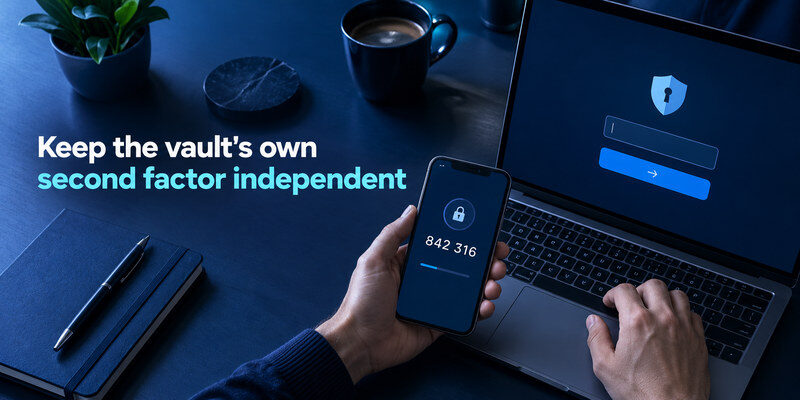
8. Keep the vault’s own second factor independent
Where the manager supports two-factor authentication, enroll it and save the issuer’s recovery codes outside the vault. A dedicated authenticator can hold a standard TOTP code for compatible accounts; [Authenticator App]() is one such option when the issuer offers a normal QR or manual key. This is complementary to the password manager, which stores and fills passwords. It will not approve a proprietary workplace push simply because both products mention two-factor authentication.
Finish enrollment and test it
When a service displays a setup QR, scan it in the chosen authenticator, enter a current code on the website, and complete the provider’s final confirmation. A code visible on the phone does not prove the website activated it. Save backup codes before signing out, then attempt a fresh login through a trusted address. Keep the manager’s password, its second factor, and its recovery route from depending entirely on one lost device.
Know when a passkey changes the flow
Some services offer passkeys alongside passwords and TOTP. If you create a passkey, check which device or manager holds it and how you will sign in on a new device. Do not assume adding a passkey deletes old passwords or factors; review the website’s actual security settings. This matters when learning how to use a password manager because the vault may store both a password and a passkey for the same account, but the website decides what each sign-in accepts.
9. A seven-day adoption plan
On day one, protect the vault and save one low-risk account. On day two, test browser and phone AutoFill. During the next few days, move primary email and other important logins one at a time, generating unique replacements for reused passwords. Before the end of the week, rehearse an authorized new-device sign-in and review a protected export or recovery method. The pace is deliberately modest: every successful fresh login matters more than the number of rows imported.
| Day | Task | Stop condition |
| 1 | Vault account and recovery | Independent recovery details saved |
| 2 | Desktop and mobile fill | One account works on both |
| 3–5 | Priority password changes | Each new value passes a fresh login |
| 6 | Sharing or second factor | The issuer confirms enrollment |
| 7 | New-device rehearsal | You can reach the vault without old shortcuts |
If a step fails, pause the migration
If AutoFill offers the wrong account, the imported record is missing, or a password change did not save, keep the old manager and resolve that one issue. Do not proceed to ten more accounts and multiply uncertainty. Use the protected service’s official recovery instructions for a failed login. A well-managed small vault is better than a large unverified import. This routine is the practical answer to how to use a password manager as an everyday habit.
10. Final Thoughts
How to use a password manager becomes simple after you can repeat four actions: save, fill, generate, and recover. Begin with one site, confirm the password on desktop and phone, then migrate critical logins in stages. Protect the manager account independently and keep its recovery information outside the vault. An authenticator such as Authenticator App can add a separate factor for compatible services while the manager handles the passwords.
Sources reviewed: NIST SP 800-63B (2025 revision); Apple Support, Passwords app and shared groups; Google Password Manager; 1Password Families Support; Bitwarden Help, organizations and AutoFill.
Download Authenticator App
Secure your accounts with fast, reliable two-factor authentication. Download now and protect your login in seconds.
