
2FA Authenticator Instagram: Setup, Recovery & Code Issues
Published August 24, 2026 · Updated September 25, 2026
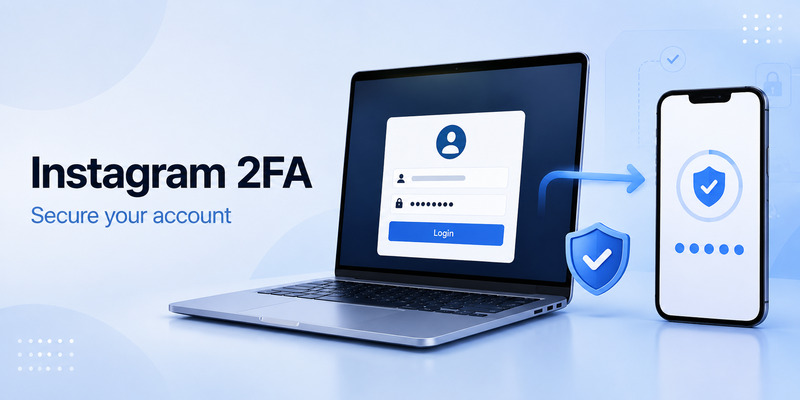
A 2FA authenticator for Instagram adds an extra layer of security by requiring a temporary verification code in addition to your password when you log in. Setting it up correctly can help protect your account from unauthorized access, but losing your authenticator device or encountering an invalid code can make login difficult. This guide covers how to set up Instagram 2FA with an authenticator app, use backup codes, handle common login errors, and recover access when your usual verification method is unavailable.
1. Quick Answer
To use a 2FA authenticator for Instagram, open Instagram and go to Accounts Center → Password and security → Two-factor authentication, select your Instagram account, and choose Authentication app.
Instagram will provide a QR code or setup key. Add it to your authenticator app, then enter the generated six-digit code back into Instagram to complete setup.
If your Instagram authenticator code is not working, first make sure you are using the correct Instagram entry, wait for a fresh code, and verify that your phone’s date and time are set automatically.
If you have lost access to your authenticator app, try an Instagram backup code, another verification method already connected to your account, or Instagram’s official account recovery process.
Important: Save your Instagram backup codes before you need them. They can become your fastest way back into the account if your phone is lost or your authenticator app becomes unavailable.
Download Authenticator App
Secure your accounts with fast, reliable two-factor authentication. Download now and protect your login in seconds.
2. How to Set Up a 2FA Authenticator on Instagram

Setting up 2fa authenticator instagram only takes a few minutes, but there is one important rule: do not delete or reset anything until Instagram confirms that the authentication app has been successfully connected.
The exact wording of menus may vary slightly depending on your Instagram app version.
Step 1: Open Instagram Security Settings
Open Instagram and:
- Go to your profile.
- Tap the menu icon.
- Open Accounts Center.
- Select Password and security.
- Tap Two-factor authentication.
- Choose the Instagram account you want to protect.
If you manage several Instagram profiles, double-check that you selected the correct account before continuing.
Step 2: Choose Authentication App
Instagram may offer several verification methods depending on your account.
Select Authentication app.
Instagram will then prepare a secret that your authenticator app uses to generate temporary login codes.
You may see:
- A QR code
- A setup key
- An option to open a compatible authenticator app directly
Either the QR code or setup key can be used to connect your account.
Step 3: Add Instagram to Your Authenticator App
Open your preferred authenticator app.
Choose an option such as:
Add Account → Scan QR Code
or:
Add Account → Enter Setup Key
Scan the Instagram 2FA QR code displayed by Instagram.
Your authenticator should create an entry for Instagram and begin displaying a six-digit verification code.
If you have multiple Instagram accounts, give each entry a recognizable name such as:
- Instagram – Personal
- Instagram – Business
- Instagram – Brand Account
This prevents one of the most common code errors: entering a valid code for the wrong Instagram account.
Step 4: Enter the Six-Digit Code
Return to Instagram.
Enter the current six-digit code shown in your authenticator app.
Authenticator codes normally expire quickly, so use a code that still has enough time remaining.
If the timer is almost finished, wait for the next code rather than rushing to enter the old one.
Once Instagram accepts the verification code, app-based two-factor authentication is enabled.
Step 5: Save Your Instagram Backup Codes
Do not skip this step.
After enabling 2FA, review Instagram’s recovery options and save your Instagram backup codes.
Backup codes are designed for situations such as:
- Your phone is lost.
- Your phone is broken.
- Your authenticator app is deleted.
- Your authenticator data is not transferred to a new phone.
- Your authenticator suddenly stops generating usable codes.
Store the codes somewhere that does not depend on the same phone running your authenticator.
For example, you can keep them in a protected password manager, encrypted storage, or a secure offline location.
Do not publish, message, or casually screenshot your recovery codes. Anyone who obtains a valid recovery credential may be able to use it to help access your account.
 Discover Helpful Guides: 2FA Authenticator App: Complete Guide to Setup, Use, Download, and Secure Your Accounts
3. How to Get an Authenticator Code for Instagram
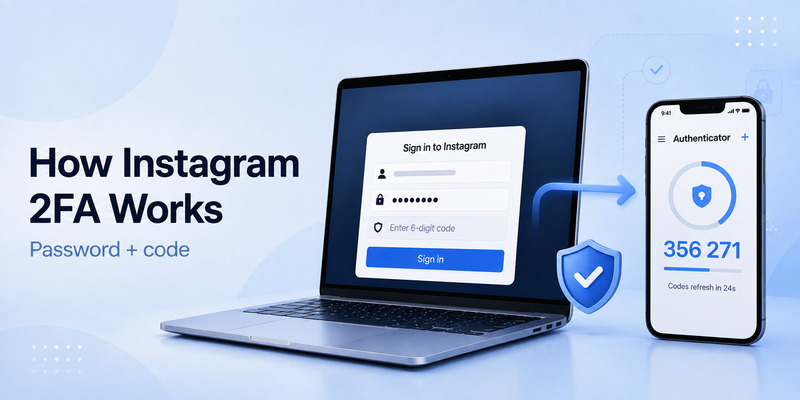
Once Instagram 2FA has been configured, you do not normally request a new authenticator code from Instagram.
Instead, the code is generated inside your authenticator app.
When Instagram asks for a verification code:
- Open your authenticator app.
- Find your Instagram account.
- Look for the current six-digit code.
- Enter the code into Instagram before it expires.
A new code is generated automatically after a short period.
You do not need to receive an SMS or email for the authenticator code to appear.
Where Is My Instagram Authentication Code?
Your Instagram authentication code is normally inside the authenticator application you connected during setup.
For example, if you connected Instagram to an authenticator app, opening that app should show an entry similar to:
Instagram — 123456
The numbers will continuously change.
If Instagram does not appear in your authenticator app, one of three situations may have occurred:
- Instagram was never successfully added.
- You are using a different authenticator app than the one used during setup.
- The authenticator entry was deleted or lost during a device change.
In that situation, repeatedly reopening the authenticator will not restore the missing secret. You will need an existing backup, another Instagram verification method, a backup code, or Instagram’s recovery flow.
Discover Helpful Guides: 2FA Authenticator App: Complete Guide to Setup, Use, Download, and Secure Your Accounts
4. How to Use the Instagram 2FA Code When Logging In
After entering your Instagram username and password, Instagram may display a screen requesting a security or authentication code.
Open the authenticator app linked to Instagram.
Find the Instagram entry and enter the current code.
If you have several accounts saved in the authenticator app, pay attention to the account name.
For example:
Instagram Personal
and:
Instagram Shop
will generate different codes even though both may show six digits.
Entering the code for the wrong account will produce an invalid-code error.
Should You Wait for a New Code?
If only a few seconds remain on the current authentication code, wait until a new code appears.
Then immediately enter the new code into Instagram.
This avoids submitting a code that expires while Instagram is validating it.
 Explore More Useful Guides: Discord 2FA Code: Setup, Backup Codes, Errors, and Account Recovery Guide
5. Instagram Authenticator Code Not Working: What to Check
An Instagram authenticator code not working does not automatically mean your account has been compromised.
In many cases, the problem comes from the wrong account entry, an expired code, incorrect device time, or an old authenticator configuration.
Try these fixes in order.
1. Make Sure You Are Using the Correct Instagram Entry
This is especially important if you manage several Instagram accounts.
Open your authenticator app and check the account name associated with the code.
A code generated for Instagram Account A will not work for Instagram Account B.
If the authenticator labels are unclear, identify the correct entry before deleting anything.
2. Wait for a Fresh Code
Authenticator codes expire.
If the code is close to the end of its countdown, let it refresh and enter the new code immediately.
Do not continue submitting a code that has already expired.
3. Set Date and Time to Automatic
Authenticator codes depend on time synchronization.
If the time on your phone is significantly incorrect, the code generated on your device may not match the code Instagram expects.
On your phone, enable:
Automatic Date & Time
and, where available:
Automatic Time Zone
Then reopen your authenticator app and try the latest code.
4. Check Whether Instagram 2FA Was Reset
If you previously disabled Instagram two-factor authentication and then enabled it again, Instagram may have created a new authentication secret.
That means an older Instagram entry in your authenticator app may continue producing six-digit codes — but those codes are no longer valid.
This situation can be confusing because the authenticator itself appears to work normally.
If you successfully set up 2FA again, use only the new authenticator entry.
5. Check Whether You Changed Phones
Moving an authenticator to a new phone does not always transfer every account automatically.
If your old phone still works, check whether the valid Instagram entry is still stored there.
Do not erase the old device until you have confirmed that Instagram authentication works from the new phone.
6. Do Not Keep Guessing Codes
Authenticator codes are not passwords that can be guessed.
If several fresh codes fail, stop repeatedly submitting them and investigate the setup instead.
The most useful next steps are usually:
- Verify the correct authenticator entry.
- Check automatic time.
- Try a backup code.
- Try another enabled verification method.
- Begin Instagram recovery if necessary.
6. Instagram Says “Incorrect Code” or “Invalid Code”
An Instagram incorrect authentication code usually points to one of these conditions:
| Problem | What to Do |
|---|---|
| Code expired | Wait for the next code |
| Wrong Instagram account | Select the correct authenticator entry |
| Device time incorrect | Enable automatic date and time |
| Old 2FA configuration | Use the newest authenticator setup |
| Changed phone | Restore or transfer the correct authenticator data |
| Authenticator entry deleted | Use backup/recovery options |
| No access to authenticator | Try backup code or Instagram recovery |
Before resetting anything, check the first three items.
Deleting an authenticator entry too early can make recovery more difficult.
Discover Helpful Guides: 2FA Authenticator Chrome: How to Set Up Secure Two-Factor Authentication in Your Browser
7. Lost Your Phone? How to Recover Instagram 2FA
One of the biggest problems users encounter with 2fa authenticator instagram happens after losing, breaking, replacing, or resetting a phone.
What you should do depends on what recovery access you still have.
Option 1: Use an Instagram Backup Code
If you previously saved your backup codes, this is usually the simplest route.
On the Instagram verification screen, look for an option such as:
Try another way
or another recovery option presented by Instagram.
Choose the option that allows you to use a backup code and enter one of your saved codes.
After signing in:
- Open Instagram security settings.
- Review Two-factor authentication.
- Remove the unavailable authenticator configuration if necessary.
- Connect your new authenticator.
- Save a fresh set of backup codes.
Treat used backup codes as no longer available.
Option 2: Restore Your Authenticator Backup
Some authenticator apps provide backup, synchronization, export, or device-transfer functionality.
If you enabled that feature before losing your old phone, restore the authenticator according to the provider’s instructions.
Then check whether the Instagram entry appears.
Generate a fresh code and test it with Instagram.
The important detail is that installing the same authenticator application does not necessarily restore your accounts.
The app needs access to the original authentication secret or a supported backup containing it.
Option 3: Use Another Instagram Verification Method
If you previously configured another verification method, Instagram may allow you to use it instead.
Look for options such as:
Try another way
or the other recovery choices shown on your login screen.
Available choices depend on the security methods already connected to your account.
Once you regain access, immediately review and update your 2FA configuration.
Option 4: Use Instagram Account Recovery
If you have:
- No authenticator
- No backup codes
- No old phone
- No usable secondary verification method
you will need to use Instagram’s official account recovery process.
Follow the prompts shown by Instagram and provide accurate information about the account.
Do not pay third parties claiming they can generate an Instagram authenticator code or bypass 2FA.
An authenticator code cannot legitimately be calculated without access to the authentication secret associated with your account.
Explore More Useful Guides: How to Use 2FA Authenticator: A Complete Step-by-Step Guide for Better Account Security
8. Frequently Asked Questions
How do I get an authenticator code for Instagram?
To answer how to get authenticator code for instagram, open Instagram’s two-factor authentication settings, select an authenticator app, scan the QR code with a trusted app, and enter the first generated code to confirm setup. After that, the app creates new codes automatically.
Can I use Google Authenticator for Instagram?
Yes. Google Authenticator can generate standard time-based codes for Instagram when you scan Instagram’s setup QR code. Other compatible authenticator apps can also work. The important point is to protect your app and save Instagram backup codes.
Why is my Instagram code not working?
A rejected code may be expired, entered incorrectly, linked to another Instagram account, or affected by incorrect phone time. Wait for a new code, confirm automatic date and time settings, and use a backup code or alternative method if available.
What should I do if I lost my phone?
Try a saved backup code, another approved authentication method, or your authenticator app’s secure backup and transfer feature. If none works, use Instagram’s official recovery process and protect your account again after you regain access.
Does Instagram use a six-digit code?
Usually, yes. A discord 6 digit code is not relevant here, but Instagram authenticator codes are also commonly six digits. Always use the code displayed for your Instagram entry, not a code generated for another account.
Can I disable two-factor authentication?
You can usually manage or disable it in Instagram’s security settings, but disabling it reduces account protection. Instead of turning it off because of a device change, set up the new app and confirm that recovery codes are available first.
Final Thoughts
2fa authenticator instagram is one of the most effective ways to protect your account from password theft, phishing attempts, and unauthorized logins. It adds only a few seconds to the sign-in process but can prevent a much larger problem later.
Set up a trusted authenticator app, scan the QR code securely, verify the first code, and save your backup codes before leaving the settings screen. Keep your Instagram password unique, secure your recovery email, and review your authentication methods whenever you change phones or team members.
The best 2fa authenticator instagram strategy is not the most complicated one. It is the one you can use confidently, recover safely, and maintain over time.
Download Authenticator App
Secure your accounts with fast, reliable two-factor authentication. Download now and protect your login in seconds.
