
Authenticator App for MindMeister – Enable Two-Factor Authentication
mindmeister.com ↗Mind maps often contain ideas that are not ready for public viewing: product launches, business strategies, customer research, study notes, or personal plans. If you use MindMeister to organize these materials, account protection deserves attention.
MindMeister two-factor authentication helps protect your work by requiring an additional verification code when signing in.
Unlike services that require a proprietary verification app, MindMeister supports standard authenticator applications.
Before You Enable 2FA
You will need your MindMeister account password and a smartphone with a compatible authenticator installed.
If you have not used time-based authentication before, review how to use 2fa authenticator to understand QR codes and rotating verification numbers.
A compatible authenticator app 2fa can be used when it supports MindMeister’s standard authentication setup.
Configure 2FA in Your MindMeister Account
Follow the account settings rather than looking for authentication options inside an individual mind map.
-
Sign in to MindMeister.
-
Click your user avatar.
-
Open Account.
-
Select Password & Email.
-
Find Enable Two-Factor Authentication.
-
Choose Get Started and confirm your password.
-
Scan the QR code with your authenticator or manually enter the setup key.
-
Enter the generated security code to finish activation.
Once verification succeeds, MindMeister two-factor authentication becomes active for your account.
The code changes over time, so use the currently displayed value instead of an older screenshot.
The Rescue Code Is Important
MindMeister provides a 16-digit rescue code after activation.
This is not an ordinary login password. It is an emergency recovery credential intended for situations where you cannot access your phone.
Save it somewhere secure and separate from the device that contains your authenticator.
Never paste this code into a support conversation or share it with a collaborator.
A lost phone should not automatically mean losing access to every mind map you created.
Managing Team Access Without Sharing Logins
MindMeister supports collaboration, but that does not mean team members should share one account.
Invite collaborators through the platform’s sharing features instead of distributing your personal credentials.
Individual accounts make permissions easier to manage and reduce the impact of an exposed password.
For more information about secure sign-in habits, see our authenticator login resource.
Why Verification Codes Sometimes Fail
If MindMeister rejects a generated code, check that your smartphone’s date and time settings are correct.
Also ensure you selected the correct account entry. An authenticator may contain codes for several services.
If necessary, consult google authenticator support for additional background about verification issues.
MindMeister two-factor authentication is a straightforward improvement for people who store valuable ideas, confidential project notes, or shared planning materials online.
Two-factor authentication methods supported by MindMeister – Enable Two-Factor Authentication
- Authenticator app (TOTP)
MindMeister – Enable Two-Factor Authentication supports time-based one-time passwords (TOTP), so you can generate MindMeister – Enable Two-Factor Authentication verification codes directly in Authenticator ℠ App instead of waiting for an SMS.
MindMeister – Enable Two-Factor Authentication 2FA details
- Official setup guide
- MindMeister – Enable Two-Factor Authentication’s official 2FA documentation ↗
- Category
- Other, Task Management
- Also covers
- meisterlabs.com, meistertask.com, mindmeister.com, meisternote.com
Sign In with Authenticator ℠ App & Enable 2FA for MindMeister – Enable Two-Factor Authentication
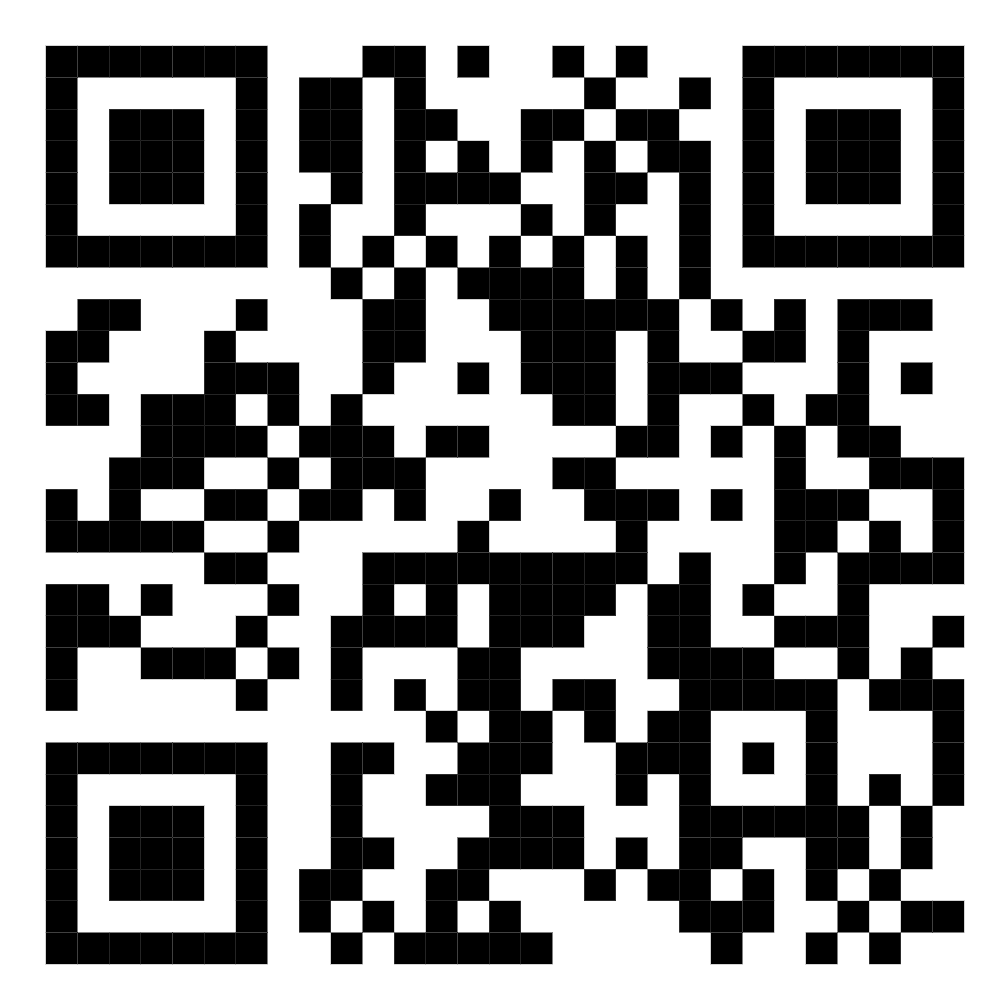
Simply download and open the Authenticator ℠ App, find your MindMeister – Enable Two-Factor Authentication account, and enter the current verification code when prompted. After enabling 2FA, you'll need both your password and a temporary authentication code when signing in. Click on the button below Download on the App Store or scan the QR Code.

Get the Authenticator ℠ App
Scan the QR codes from MindMeister – Enable Two-Factor Authentication and generate secure one-time codes.

Related services



More Other services that support 2FA
MindMeister – Enable Two-Factor Authentication 2FA — Frequently asked questions
- Does MindMeister – Enable Two-Factor Authentication support an authenticator app?
- Yes. MindMeister – Enable Two-Factor Authentication supports time-based one-time passwords (TOTP), so you can add your MindMeister – Enable Two-Factor Authentication account to Authenticator ℠ App and generate verification codes on your device — no SMS required.
- What two-factor authentication methods does MindMeister – Enable Two-Factor Authentication support?
- MindMeister – Enable Two-Factor Authentication supports Authenticator app (TOTP) for two-factor authentication.
- Is MindMeister – Enable Two-Factor Authentication 2FA free with Authenticator ℠ App?
- Yes. Authenticator ℠ App is free to download and use for generating MindMeister – Enable Two-Factor Authentication verification codes, with no sign-up required.
Disclaimer
This content is for educational purposes only.
Begamob is not affiliated with or endorsed by MindMeister – Enable Two-Factor Authentication. All trademarks and product names are the property of their respective owners and are used solely for identification purposes.