
Authenticator App for Divvy MFA Setup
getdivvy.com ↗Divvy is now part of the BILL Spend & Expense experience, where expense controls and company cards deserve careful login protection. A Divvy MFA setup guide needs to distinguish between SMS verification and app-generated codes because users may encounter either method depending on their enrollment path.
What your login prompt means
BILL’s help documentation confirms that Spend & Expense uses multi-factor authentication, including SMS/text and an authenticator-app option. A code arriving by text is not the same as the changing code displayed by a TOTP app. Read the screen carefully before choosing a method. Each user should enroll their own factor rather than sharing a finance team’s device.
For mobile SMS enrollment, BILL describes entering the desired phone number at the MFA registration prompt, receiving a six-digit text code, and submitting that code to finish registration. Follow the current on-screen instructions for a separate authenticator method. An otp authenticator app is useful only if the chosen registration flow supports it.
A finance-admin rollout plan
Begin with account administrators and employees who can change card controls or approve spending. Ask each user to confirm their profile phone and email information before a policy change. A phased Divvy MFA setup avoids a sudden queue of locked-out employees on a busy expense-reporting day.
Record who owns recovery procedures, but never store active one-time codes, QR enrollment secrets, or backup factors in a shared spreadsheet. If an employee changes phones, arrange factor recovery through official BILL channels. Do not remove verification merely to make an onboarding process faster.
Troubleshoot without weakening access
When an SMS code fails to arrive, check the number format, mobile service, and any request limit shown on screen. If the app-generated code is rejected, synchronize the phone clock and enter the most recent value. The article sms vs authenticator app explains why those two paths have different failure modes.
For a general walkthrough, how to use 2fa authenticator covers QR enrollment. Team members reviewing devices can consult best authenticator app for apple and consider a compatible 2fa authenticator app for work accounts where approved.
Run a small employee test
A useful operational test is to ask one employee to complete the new login process on their usual device, then verify that a manager can still perform an approved expense action. Repeat with someone whose phone number has recently changed. Divvy MFA setup is more sustainable when staff know exactly which team handles verification resets, how identity is confirmed, and what to do when a device is lost during business travel.
After enrollment is complete
Test a normal login, verify that access controls still match job roles, and report unexpected approval prompts. Managers should periodically inspect inactive users and remove cards or account permissions when employees leave. The overview will 2fa stop hackers explains why social engineering can still defeat an inattentive user. Successful Divvy MFA setup protects budget workflows while preserving a reliable recovery path for legitimate employees.
Sign In with Authenticator ℠ App & Enable 2FA for Divvy MFA Setup
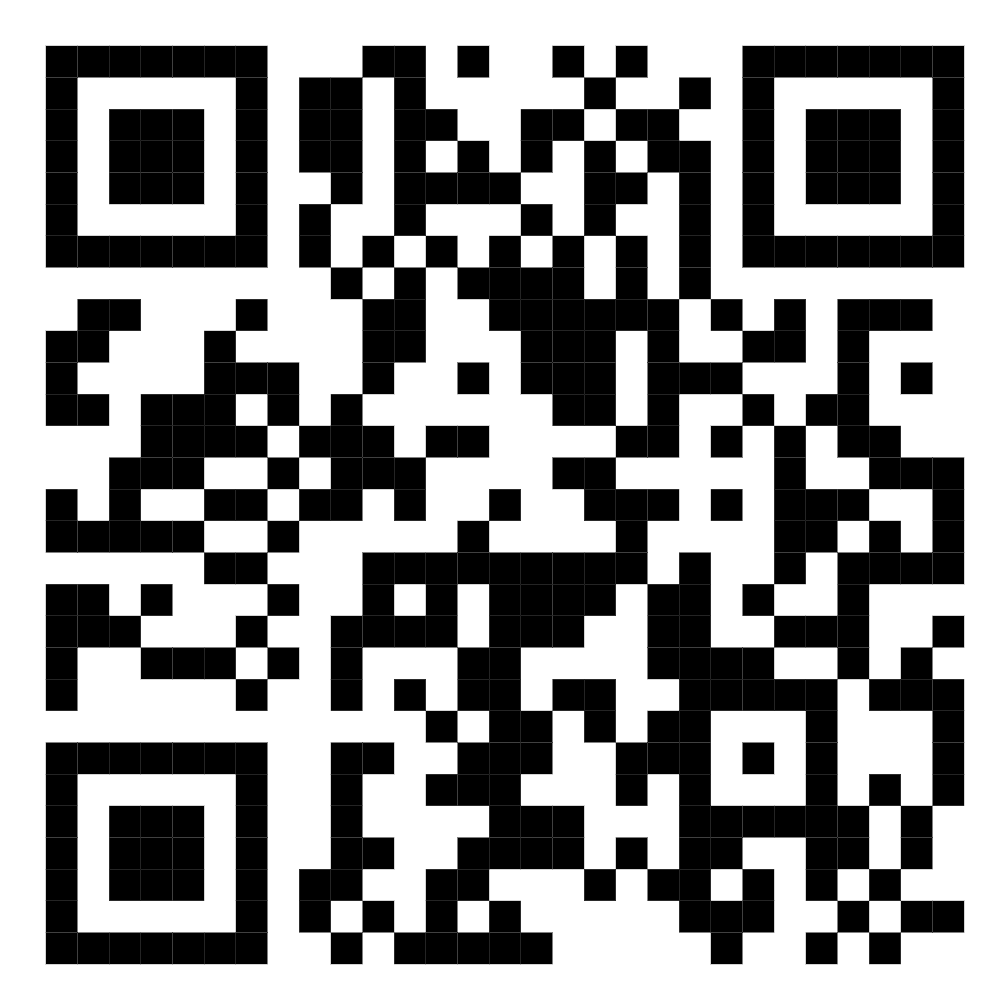
Simply download and open the Authenticator ℠ App, find your Divvy MFA Setup account, and enter the current verification code when prompted. After enabling 2FA, you'll need both your password and a temporary authentication code when signing in. Click on the button below Download on the App Store or scan the QR Code.

Get the Authenticator ℠ App
Scan the QR codes from Divvy MFA Setup and generate secure one-time codes.

Divvy MFA Setup 2FA — Frequently asked questions
- Does Divvy MFA Setup support an authenticator app?
- Divvy MFA Setup does not list authenticator-app (TOTP) support in our directory. You can still use Authenticator ℠ App for the many accounts that do support TOTP.
- Is Divvy MFA Setup 2FA free with Authenticator ℠ App?
- Yes. Authenticator ℠ App is free to download and use for generating Divvy MFA Setup verification codes, with no sign-up required.
Disclaimer
This content is for educational purposes only.
Begamob is not affiliated with or endorsed by Divvy MFA Setup. All trademarks and product names are the property of their respective owners and are used solely for identification purposes.